
Introduction
The iRobot Roomba Plus 505 Combo Robot Vacuum & Mop with AutoWash Dock is designed to provide advanced floor cleaning. This device combines powerful vacuuming with deep-scrub mopping, featuring DualClean Mop Pads with PerfectEdge technology and a comprehensive AutoWash Dock for automated maintenance. It utilizes LiDAR navigation and PrecisionVision AI for efficient and intelligent cleaning of various floor types.
What's in the Box
Your iRobot Roomba Plus 505 Combo package includes the following components:
- iRobot Roomba Plus 505 Combo Robot
- AutoWash Dock (Self-Emptying, Mop Washing, Heated Drying)
- Power Cord
- DualClean Mop Pads (pre-installed)
- Multi-surface rubber brush (pre-installed)
- Edge-Sweeping brush (pre-installed)
- User Manual and Quick Start Guide

Image: Front view of the iRobot Roomba Plus 505 Combo Robot Vacuum and Mop with its AutoWash Dock.
Video: Overview and assembly of the Roomba Plus 505 Combo, demonstrating how to set up the robot and its dock.
Setup
- Unpack: Carefully remove all components from the packaging. Remove any protective films or shipping materials from the robot and the AutoWash Dock.
- Place the AutoWash Dock: Position the dock on a hard, level surface against a wall, ensuring there is adequate space around it (at least 1.5 feet on either side and 4 feet in front). Plug the power cord into a wall outlet.
- Fill Water Tanks: The AutoWash Dock has separate tanks for clean and dirty water. Fill the clean water tank with water.
- Install Mop Pads: Ensure the DualClean Mop Pads are securely attached to the robot.
- Charge the Robot: Place the Roomba robot onto the AutoWash Dock. It will automatically align and begin charging. Allow for a full charge before the first use.
- Download the iRobot Home App: For full functionality, download the iRobot Home App on your smartphone or tablet. Follow the in-app instructions to connect your robot to your home Wi-Fi network and complete the initial setup, including mapping your home.
Video: Hands-on assembly of the iRobot Roomba 505, showing how to prepare the robot for use.
Operating Instructions
Once set up, operating your Roomba Plus 505 Combo is intuitive:
- Start/Pause Cleaning: Press the CLEAN button on the robot or use the iRobot Home App to start or pause a cleaning cycle.
- Scheduling: Use the iRobot Home App to set up recurring cleaning schedules for specific rooms or zones.
- Cleaning Modes: Select from various cleaning modes via the app: vacuum, mop, combo clean (vacuum and mop simultaneously), or vacuum first then mop.
- Voice Control: Pair your robot with Alexa, Siri, or Google Assistant-enabled devices to start routines or command specific cleaning tasks.
- Smart Mapping: The robot uses ClearView Pro LiDAR to expertly map your home, ensuring thorough coverage and efficient navigation.
- Obstacle Avoidance: PrecisionVision AI technology allows the robot to recognize and navigate around common obstacles like cords, socks, and pet waste.

Image: The Roomba 505 using ClearView Pro LiDAR to map a room, showing its navigation path.
Video: Tips on how to optimize your Roomba 505 for best cleaning results.
Cleaning Modes
The Roomba Plus 505 Combo offers versatile cleaning options:
- Vacuum: Ideal for carpets and dry debris on hard floors. Features 70x more suction compared to Roomba 600 series robots.
- Mop: For hard floors, utilizing DualClean Mop Pads with PerfectEdge for extended coverage and SmartScrub for deeper cleaning.
- Combo Clean: Simultaneously vacuums and mops hard floors. Mop pads auto-lift when sensing carpet to prevent wetting.
- Vacuum then Mop: Completes a full vacuuming cycle before initiating a mopping cycle.
- SmartScrub: Provides 2x deeper scrubbing for tough messes like coffee and grime.

Image: Close-up of the Roomba 505's DualClean Mop Pads extending for enhanced edge coverage.

Image: The Roomba 505 using SmartScrub mode to clean a floor with visible dirt, showing its scrubbing action.
Smart Features
- ClearView Pro LiDAR: Maps your home quickly and accurately, day or night, for maximized coverage and efficient cleaning paths.
- PrecisionVision AI Technology: Identifies and avoids obstacles such as cords, socks, and pet waste. It also recognizes wet and dry messes, repeating cleaning passes for thorough results.
- Advanced Dirt Detect Technology: Focuses cleaning efforts on dirtier areas of your home, ensuring no spot is missed.
- Roomba Home App: Provides precise control over cleaning zones, suction levels, and scheduling. It also offers data-driven insights to optimize cleaning routines.
- Voice Assistant Integration: Compatible with Alexa, Siri, and Google Assistant for hands-free control and scheduling.

Image: The Roomba 505 navigating around a dog and furniture, illustrating its PrecisionVision AI obstacle avoidance.
Maintenance
The AutoWash Dock significantly reduces manual maintenance:
- Self-Emptying: The robot automatically empties its dustbin into a sealed bag in the dock, holding up to 75 days of debris.
- Mop Pad Washing: During and after cleaning, the dock washes the mop pads to prevent dirt from being dragged around.
- Heated Drying: After cleaning, the mop pads are heat-dried to prevent odors and ensure they are ready for the next use.
- Self-Cleaning Cycle: The dock performs its own self-cleaning cycle to prevent debris buildup.
- Regular Cleaning: Periodically check and clean the robot's brushes, wheels, and sensors. Empty and rinse the dirty water tank in the dock regularly to prevent odors and mold.
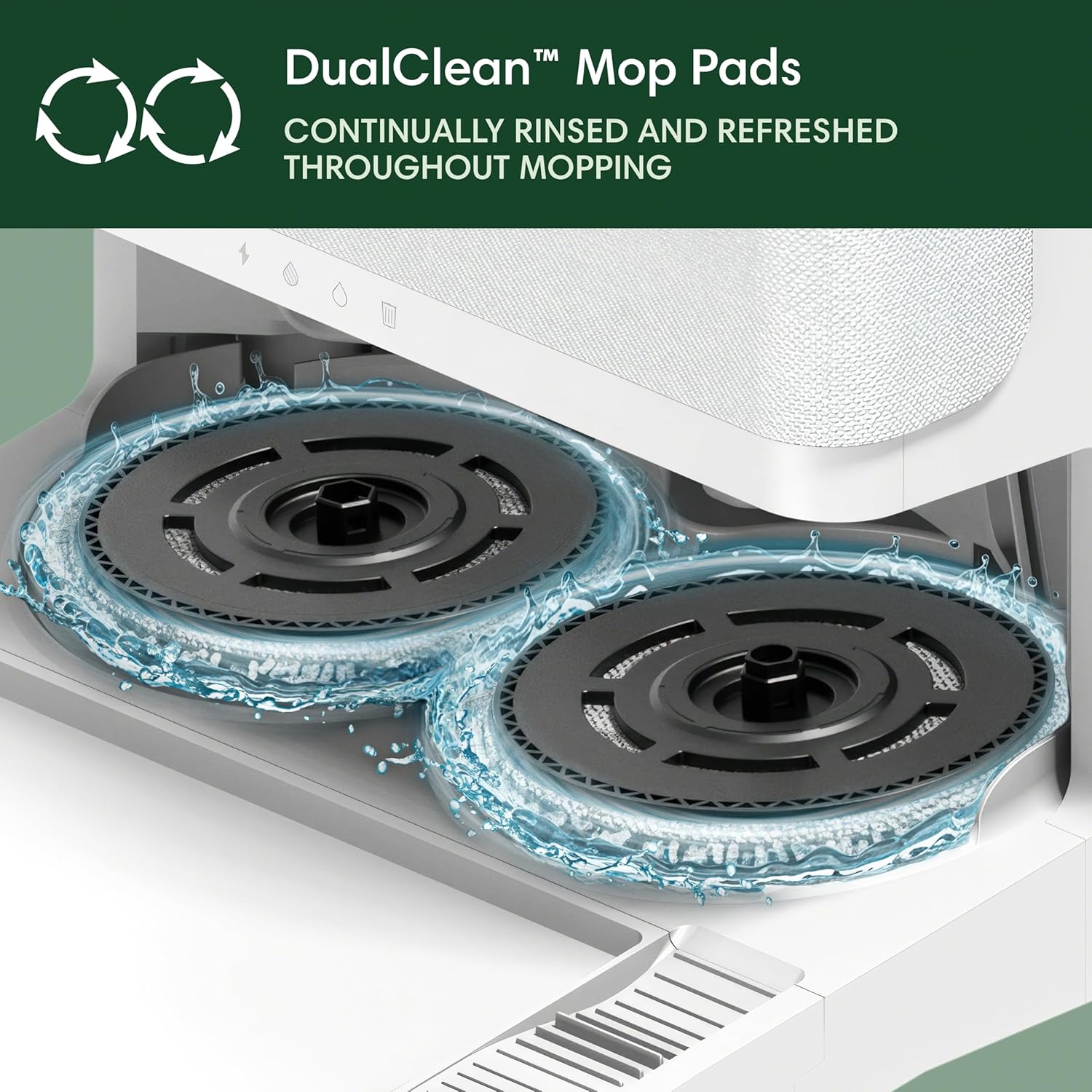
Image: Diagram illustrating the functions of the AutoWash Dock, including self-emptying, mop washing, and heated drying.
Troubleshooting
If you encounter issues with your Roomba Plus 505 Combo, consider the following:
- Robot Not Charging: Ensure the robot is properly docked and the power cord is securely plugged into the wall outlet. Check for debris on charging contacts.
- Poor Cleaning Performance: Clean brushes, filters, and mop pads. Ensure water tanks are filled correctly. Check the app for any error messages or cleaning history.
- Navigation Issues: Clear any new obstacles in the robot's path. Ensure LiDAR sensor is clean and unobstructed. Re-map your home if necessary via the iRobot Home App.
- Excessive Noise: Check for debris caught in brushes or wheels. If the noise is from the AutoWash Dock during self-emptying or drying, this is normal operation.
- Bad Odors: Regularly empty and rinse the dirty water tank. Ensure mop pads are clean and heat-dried after each use.
For persistent issues, consult the iRobot Home App for specific error codes and solutions, or contact iRobot customer support.
Specifications
| Feature | Detail |
|---|---|
| Brand | iRobot |
| Model Name | 505 Combo |
| Model Number | N185220 |
| Surface Recommendation | Carpet & Hard Floor |
| Special Features | Anti-Fall, Auto Mop Washing, Dirt Detection Sensor, Eco Mode, Edge Cleaning, Intelligent Mop Lifting, LiDAR Navigation, Logical Navigation, Obstacle Avoidance, Pet Hair Pick Up, Precision Laser Mapping & Navigation, Room-By-Room Navigation, Scheduling, Self-Emptying, Self-Refilling, Self-Sealing Dust Bag, Smart Mapping, Wet/Dry |
| Color | White |
| Controller Type | App Control |
| Battery Life | 120 minutes |
| Power Source | Battery Powered (Lithium Ion) |
| Item Dimensions (L x W x H) | 14.1"L x 13.8"W x 4.2"H |
| Included Components | Docking Station |
Warranty and Support
Your iRobot Roomba Plus 505 Combo is covered by a manufacturer's warranty. Please refer to the warranty information provided in your product packaging or visit the official iRobot website for details on warranty terms, registration, and customer support options.
For technical assistance, troubleshooting, or to order replacement parts, please contact iRobot customer support through their official website or the iRobot Home App.


