
1. Product Overview
The Vasco V4 Language Translator Device is designed to facilitate instant two-way communication across language barriers. It supports a wide range of languages for voice, image, and text translation, featuring a 5-inch screen and robust speakers for clear communication. The device includes free lifetime internet connectivity in nearly 200 countries, eliminating the need for Wi-Fi or subscriptions for translation functions.
The Vasco V4 is built for durability, offering resistance to dust, shocks, and water splashes, making it suitable for various environments. It comes with a protective case for enhanced safeguarding during travel and daily use.

Image 1.1: The Vasco V4 Language Translator Device, protective case, charging cable, and power adapter.
2. Setup Guide
2.1 Unboxing and Initial Inspection
Upon receiving your Vasco V4, carefully unbox all components. The package should contain:
- Vasco V4 Language Translator Device
- V4 Protective Case
- USB Type-C Charging Cable
- Power Adapter
Inspect the device and accessories for any visible damage. If any components are missing or damaged, contact customer support immediately.
2.2 Charging the Device
Before first use, fully charge your Vasco V4. Connect the USB Type-C cable to the device's charging port and the other end to the power adapter. Plug the adapter into a wall outlet. The device's screen will indicate charging status. A full charge typically takes a few hours.
2.3 Powering On/Off
To power on the device, press and hold the power button (usually located on the side) until the Vasco logo appears on the screen. To power off, press and hold the power button, then select the 'Power Off' option on the screen.
2.4 Initial Setup and Connectivity
The Vasco V4 is designed for immediate use without complex setup. It comes with pre-activated lifetime internet connectivity for translations, meaning no Wi-Fi configuration or SIM card installation is required for its primary function. Simply power on the device, and it will automatically connect to the available network for translation services.

Image 2.1: The Vasco V4 device highlighting its free lifetime internet connectivity feature.

Image 2.2: Global coverage map illustrating the extensive network for Vasco Translator V4's lifetime connectivity.
3. Operating Instructions
3.1 Voice Translation
The Vasco V4 supports voice translation for 76 languages. To use this feature:
- Select the desired source and target languages on the device screen.
- Press and hold the microphone button corresponding to your language.
- Speak clearly into the device's microphone.
- Release the button. The device will process your speech and provide the translation audibly through its speakers and visually on the screen.
3.2 Image-Text Translation
This feature allows translation of text from images, supporting 108 languages. To use:
- Navigate to the image translation function on the device.
- Point the device's camera at the text you wish to translate (e.g., a menu, sign, or document).
- Capture the image. The device will analyze the text and display the translation on the screen.
3.3 Text Translation
For direct text input and translation, 90 languages are supported. Use the on-screen keyboard to type text, and the device will provide the translation.
3.4 Screen and Audio
The Vasco V4 features a 5-inch screen for clear display of translations and a robust speaker system for audible output, ensuring effective communication in various environments.
4. Maintenance
4.1 Cleaning the Device
To clean your Vasco V4, use a soft, dry, lint-free cloth. For stubborn smudges, slightly dampen the cloth with water. Avoid using harsh chemicals, abrasive cleaners, or aerosol sprays, as these can damage the device's screen and finish. Ensure no moisture enters any openings.
4.2 Protective Case Care
The included protective case helps safeguard your device from dust, shocks, and splashes. Keep the case clean by wiping it with a damp cloth. Ensure the device is properly seated within the case for maximum protection.
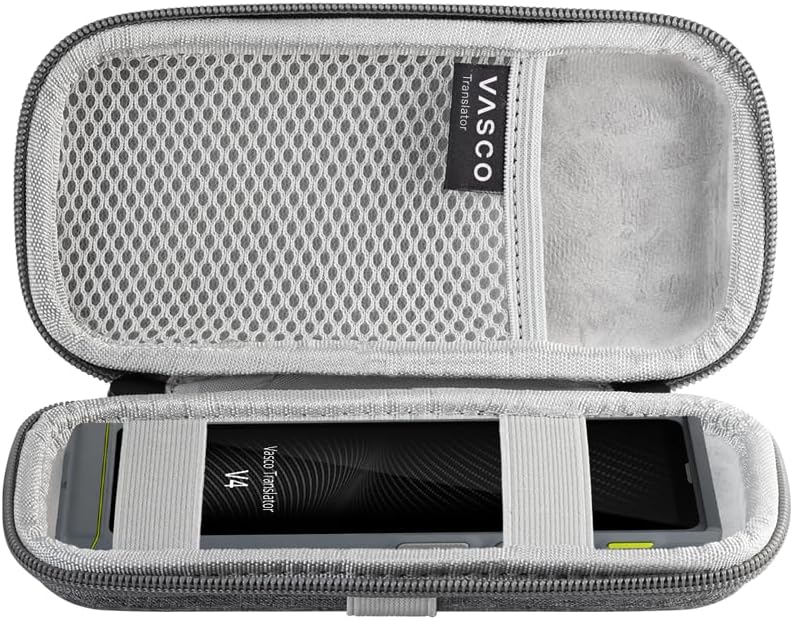
Image 4.1: The Vasco V4 device securely placed inside its protective travel case.
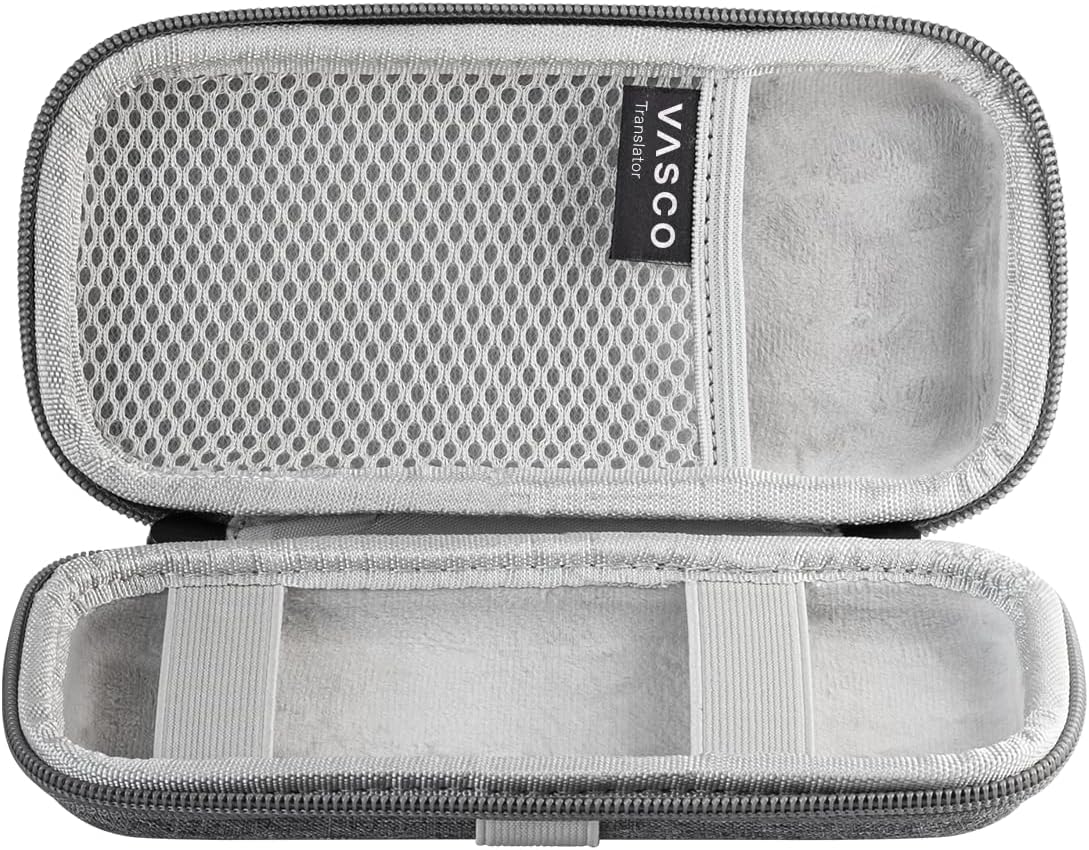
Image 4.2: The open protective case for the Vasco V4, revealing its interior compartments designed for secure storage.
5. Troubleshooting
5.1 Device Not Responding
If the device is unresponsive, try a soft reset by pressing and holding the power button for approximately 10-15 seconds until the device restarts. Ensure the device is charged.
5.2 Translation Lags or Errors
While the Vasco V4 offers lifetime connectivity, translation quality and speed can be affected by network signal strength. If you experience lags or misinterpretations:
- Ensure you are in an area with good cellular network coverage.
- Speak clearly and at a moderate pace.
- Verify that the correct source and target languages are selected.
- Restart the device to refresh its network connection.
5.3 Charging Issues
If the device is not charging:
- Check that the USB Type-C cable is securely connected to both the device and the power adapter.
- Ensure the power adapter is firmly plugged into a working wall outlet.
- Try using a different USB Type-C cable or power adapter if available, to rule out faulty accessories.
6. Technical Specifications

Image 6.1: Detailed diagram of Vasco V4 dimensions and technical specifications.
| Feature | Specification |
|---|---|
| Display | 5 inches, 576x1440 resolution |
| Processor | Quad-core Mediatek Helio A22 (MT6761) 64 bit |
| RAM | 2 GB |
| ROM | 32 GB |
| Modem | 4G |
| WiFi | 2.4 GHz |
| Battery | 2400 mAh |
| Size | 149 x 55 x 10 mm |
| Weight | 0.3 lb (134 g) |
| Earphone Input | USB Type-C |
| USB Input | USB Type-C |
7. Warranty and Support
7.1 Customer Support
For technical assistance, warranty inquiries, or any questions regarding your Vasco V4 Language Translator Device, please contact Vasco Electronics LLC customer support. Refer to the official Vasco Electronics website for the most current contact information.
7.2 Additional Resources
A complete user manual with more detailed information can be downloaded from the "Product Guides and Documents" section on the official product page or the Vasco Electronics support website.


