
1. Introduction and Overview
The Ingenico Desk/3500 is a robust and versatile credit card terminal designed to facilitate fast, secure, and efficient payment processing for businesses. This device supports a wide range of payment options, including EMV Chip & PIN, magnetic stripe, and contactless (NFC) payments, making it suitable for various retail environments. Its user-friendly interface and advanced security features ensure a reliable and enhanced payment experience for both merchants and customers.
This manual provides essential information on setting up, operating, maintaining, and troubleshooting your Desk/3500 terminal to ensure optimal performance and longevity.
2. Key Features
- Highest Security: PCI-PTS 5.x Certified, ensuring secure transaction processing with the latest cryptographic schemes.
- Telium TETRA OS: Powered by Ingenico's secure and user-friendly operating system, embedding robust security mechanisms.
- Comprehensive Payment Options: Supports EMV Chip & PIN, magnetic stripe, and contactless (NFC) payments, including NFC couponing and wallet use cases.
- User-Friendly Interface: Features intuitive card readers and an easy-to-navigate application menu for an enhanced payment experience.
- Maximized Network Availability: Optimized communication costs and network availability through Ethernet and modem connectivity.
- Convenient NFC Payment: Designed with a conveniently located card-reader zone for seamless and faster contactless transactions.
- Large Color Touchscreen Display: Provides clear visibility and ease of interaction for both merchants and customers.
3. Setup Guide
Follow these steps to set up your Ingenico Desk/3500 terminal:
- Unpack the Device: Carefully remove the Desk/3500 terminal and all accessories from its packaging.
- Connect Power: Plug the power adapter into the terminal's power port and then into a standard electrical outlet.
- Network Connection:
- Ethernet: Connect an Ethernet cable from the terminal's Ethernet port to your network router or switch.
- Modem (Dial-up): Connect a telephone line to the terminal's modem port and to a telephone wall jack.
- Load Paper Roll (if applicable): Open the printer cover, insert a thermal paper roll with the paper feeding from the bottom, and close the cover.
- Initial Boot-up: The terminal will power on automatically or may require pressing the power button. Follow any on-screen prompts for initial configuration.
- Encryption Specification: It is crucial to ensure the correct encryption type is specified and configured for your terminal as per your payment processor's requirements. Consult your payment processor for details.
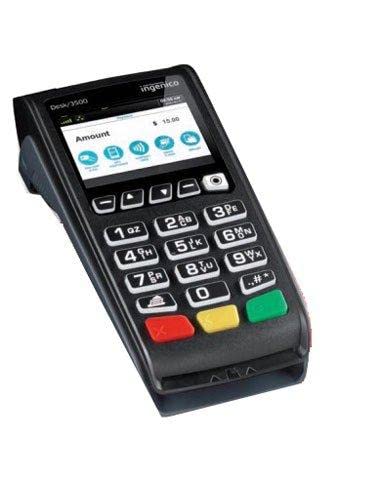
Figure 1: Ingenico Desk/3500 Credit Card Terminal. This image displays the front view of the Ingenico Desk/3500 terminal, highlighting its color display, numeric keypad, and function buttons. The screen shows an an "Amount" field with "$15.00" and icons for various payment methods, indicating its readiness for transactions.
4. Operating Instructions
The Desk/3500 is designed for intuitive operation. Here are basic steps for processing a transaction:
- Start a Transaction: From the idle screen, select the appropriate application (e.g., "Sale").
- Enter Amount: Input the transaction amount using the numeric keypad and press the green "Enter" key.
- Customer Payment: Instruct the customer to present their card:
- Chip Card: Insert the card into the EMV slot at the bottom of the terminal.
- Magnetic Stripe Card: Swipe the card through the magnetic stripe reader on the side.
- Contactless (NFC): Tap the card or mobile device near the contactless symbol on the display.
- PIN Entry (if required): If prompted, the customer will enter their PIN on the keypad.
- Transaction Completion: The terminal will process the transaction. Once approved, a confirmation message will appear.
- Receipt Printing: The terminal will automatically print a merchant copy of the receipt. You may be prompted to print a customer copy.
5. Maintenance
Proper maintenance ensures the longevity and optimal performance of your Desk/3500 terminal.
- Cleaning: Use a soft, dry, lint-free cloth to clean the exterior of the terminal. For stubborn marks, slightly dampen the cloth with water. Do not use abrasive cleaners, solvents, or aerosol sprays.
- Screen Care: Clean the touchscreen with a soft, dry cloth. Avoid pressing too hard or using sharp objects.
- Card Reader Maintenance: Periodically inspect card reader slots for debris. Do not attempt to clean internal components yourself.
- Software Updates: Ensure your terminal's software is kept up-to-date. Your payment processor or service provider typically manages these updates remotely.
- Environmental Conditions: Operate the terminal within recommended temperature and humidity ranges. Avoid exposure to direct sunlight, excessive dust, or moisture.
6. Troubleshooting
This section addresses common issues you might encounter with your Desk/3500 terminal.
| Problem | Possible Cause | Solution |
|---|---|---|
| Terminal not powering on | Power cable disconnected; Power outlet issue | Check power cable connection; Try a different power outlet; Ensure power adapter is functioning. |
| Transaction declined | Insufficient funds; Incorrect card data; Network issue | Advise customer to contact their bank; Re-enter card details carefully; Check network connection. |
| No network connection | Ethernet cable loose/disconnected; Router/modem issue | Verify Ethernet cable is securely connected; Restart your network router/modem. |
| Printer not printing | No paper; Paper jammed; Incorrect paper orientation | Check and replace paper roll; Clear any paper jams; Ensure paper is loaded correctly. |
If you encounter issues not listed here or if the suggested solutions do not resolve the problem, please contact your payment processor or technical support.
7. Specifications
| Attribute | Detail |
|---|---|
| Brand | Ingenico |
| Model Number | 3500 |
| Manufacturer | Ingenico |
| Item Weight | 6 pounds |
| Package Dimensions | 10 x 6 x 4 inches |
| ASIN | B0BZTGXVRT |
| Date First Available | February 8, 2018 |
| Security Certification | PCI-PTS 5.x Certified |
| Operating System | Telium TETRA OS |
| Connectivity | Ethernet, Dial/Modem |
8. Safety Information
Please observe the following safety precautions to prevent damage to the device or injury to yourself or others:
- Do not expose the terminal to extreme temperatures, direct sunlight, or high humidity.
- Avoid dropping or subjecting the terminal to severe impact.
- Do not attempt to open, disassemble, or modify the terminal. This will void the warranty and could cause damage or injury.
- Use only the power adapter supplied with the device.
- Keep the terminal away from liquids and sources of strong electromagnetic fields.
- Ensure proper ventilation around the device during operation.
9. Support and Warranty
For technical support, service, or warranty inquiries regarding your Ingenico Desk/3500 terminal, please contact your payment processor or the vendor from whom you purchased the device. They can provide specific assistance related to your service agreement and any applicable warranty terms.
As this is a refurbished unit, warranty terms may vary. Please refer to the specific warranty information provided at the time of purchase or contact your supplier for details.


