
1. Introduction
This manual provides detailed instructions for the installation, operation, and maintenance of your DIHOOM BC13 3MP WiFi Outdoor Security Camera. This camera is designed to provide reliable surveillance with features such as 3-megapixel resolution, full-color night vision, AI-powered human and face detection, two-way audio, and IP65 weather resistance. Please read this manual thoroughly before using the product to ensure proper setup and functionality.
2. Package Contents
Verify that all items listed below are included in your package:
- 1 x DIHOOM BC13 3MP WiFi Outdoor Security Camera (with 10400 mAh battery)
- 1 x User Manual
- 1 x Mounting Bracket with Screw Set
- 1 x USB Type-C Charging Cable
- 1 x Warranty Card
3. Product Overview
Familiarize yourself with the camera's components.

The DIHOOM BC13 camera features a cylindrical design with dual antennas for enhanced Wi-Fi connectivity. It is designed for outdoor installation.
- Camera Lens: Captures video footage.
- Spotlights: Provide illumination for color night vision and act as a deterrent.
- Infrared LEDs: Enable black and white night vision.
- Microphone: Captures audio for two-way communication and recording.
- Speaker: Outputs audio for two-way communication and alarms.
- Dual 5dBi Antennas: Enhance Wi-Fi signal reception for stable connectivity.
- Mounting Base: For secure installation on walls or ceilings.
- USB Type-C Port: For charging the internal battery.
- Micro SD Card Slot: For local video storage (supports up to 128GB).
- Reset Button: Used to reset the camera to factory settings.
4. Setup
4.1 App Download and Account Registration
- Download the "Eseecloud" app from your smartphone's app store (iOS App Store or Google Play Store).
- Open the app and follow the on-screen instructions to register a new account.
- Log in to your newly created account.
4.2 Initial Camera Pairing (Wi-Fi Connection)
- Ensure the camera is fully charged using the provided USB Type-C cable.
- Power on the camera.
- In the Eseecloud app, tap the "+" icon to add a new device.
- Select the appropriate camera type (e.g., "Wireless Camera" or scan the QR code on the camera).
- Follow the app's instructions to connect the camera to your 2.4GHz Wi-Fi network. Ensure your Wi-Fi password is correct.
- Once connected, you can name your camera and begin live viewing.
4.3 Mounting Instructions

Featuring a 120-degree wide-angle lens, the camera provides broad coverage. The dual 5dBi antennas ensure a stable and extended Wi-Fi connection.
- Choose a suitable outdoor location for mounting, ensuring good Wi-Fi signal strength and a clear view of the area you wish to monitor.
- Use the mounting bracket as a template to mark the drill holes on the wall or ceiling.
- Drill holes and insert the provided wall anchors.
- Secure the mounting bracket to the wall using the screws.
- Attach the camera to the mounting bracket and adjust its angle for optimal coverage.
- Ensure the camera is positioned to avoid direct sunlight or strong light sources that could affect image quality.
5. Operating Instructions
5.1 Live View
Open the Eseecloud app on your smartphone. Tap on the camera's name to access the live video feed. You can switch between Standard Definition (SD) and High Definition (HD) for optimal viewing based on your network conditions.
5.2 Two-Way Audio

The integrated microphone and speaker enable two-way audio communication, allowing you to speak with visitors or deter intruders directly through the Eseecloud app.
While in live view, tap the microphone icon in the app to activate two-way audio. Speak into your phone to communicate with anyone near the camera. Tap the icon again to end the conversation.
5.3 Motion Detection & AI Features

The camera's AI features can distinguish between general motion, human figures, and faces, sending specific alerts to your smartphone via the Eseecloud app. This helps reduce false alarms.
The camera is equipped with advanced AI algorithms that can differentiate between general motion, human shapes, and faces. This significantly reduces false alarms caused by pets, insects, or swaying branches. When motion, a person, or a face is detected, the camera will automatically record a video clip and send a push notification to your smartphone via the Eseecloud app. You can customize detection sensitivity and alert types within the app settings.
5.4 Night Vision Modes
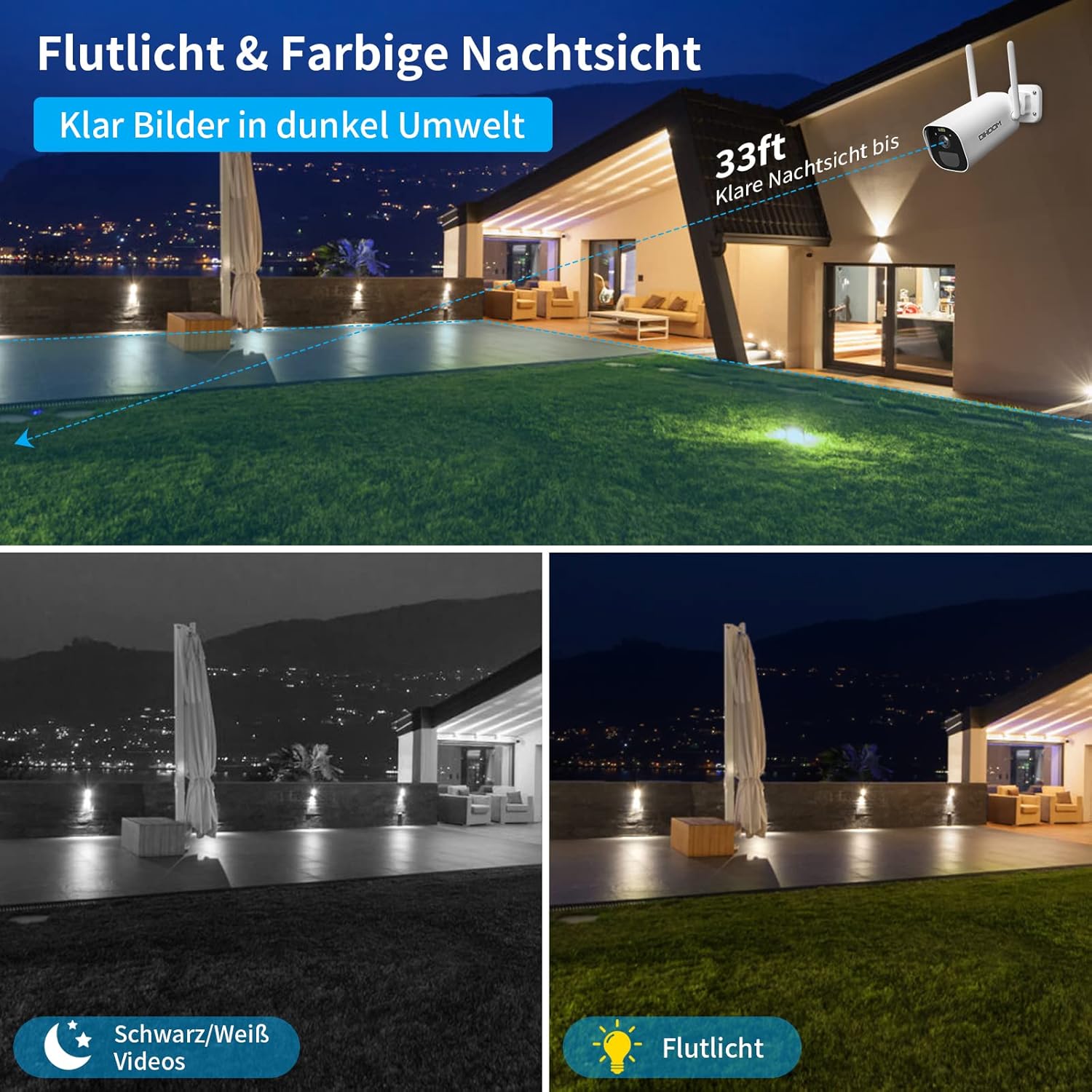
This image illustrates the camera's night vision capabilities, showing both standard black and white infrared mode and the enhanced full-color night vision activated by the integrated spotlight.
The camera offers two night vision modes:
- Infrared (IR) Night Vision: Provides clear black and white video footage in complete darkness, with a range of up to 25 meters.
- Full-Color Night Vision: When motion is detected, the integrated spotlights activate, providing full-color video even in low-light conditions. This mode can also act as a visual deterrent.
You can configure the night vision mode preferences within the Eseecloud app.
5.5 Recording & Storage
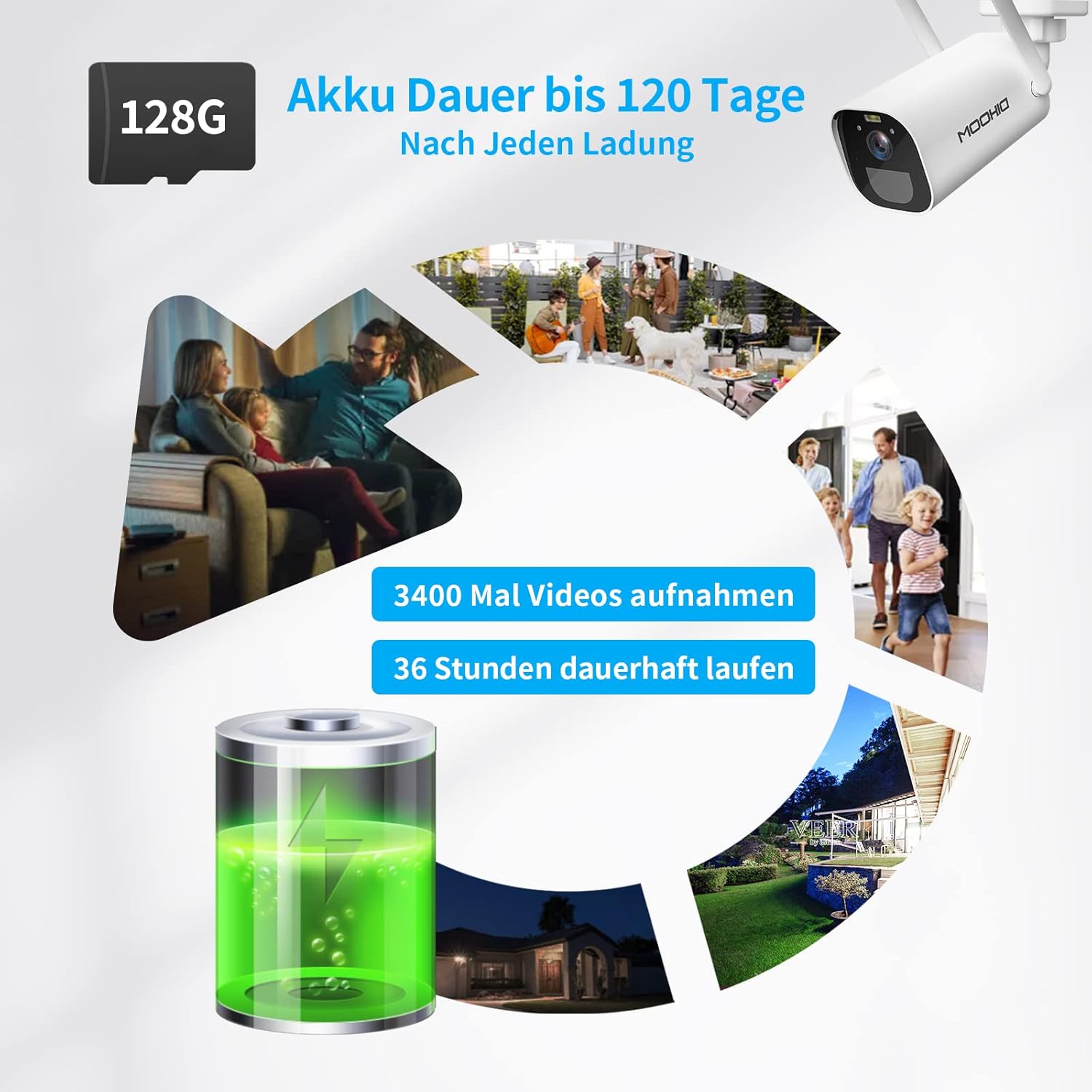
The camera is equipped with a 10400 mAh rechargeable battery, providing extended operation. It supports local storage via a Micro SD card up to 128GB for recording events.
The camera supports two storage options for recorded video clips:
- Micro SD Card: Insert a Micro SD card (up to 128GB, not included) into the designated slot on the camera. The camera will automatically record motion-triggered events to the card.
- Cloud Storage: The camera supports AWS Cloud storage services. Refer to the Eseecloud app for subscription details and activation.
Recorded videos can be reviewed and downloaded directly from the Eseecloud app.
5.6 Battery Management
The DIHOOM BC13 camera is powered by a 10400 mAh rechargeable lithium-ion battery. A full charge can provide up to 120 days of standby time or approximately 3400 motion-triggered recordings. For continuous operation, especially in areas with frequent activity, consider connecting a compatible solar panel (sold separately). Note that solar panel efficiency may be reduced in winter conditions.
To charge the camera, connect the provided USB Type-C cable to the camera's charging port and a standard 5V/2A USB power adapter (not included).
6. Maintenance
- Cleaning: Gently wipe the camera lens and body with a soft, dry cloth to remove dust and dirt. Avoid using harsh chemicals or abrasive materials.
- Battery Care: For optimal battery life, avoid fully discharging the battery frequently. Charge the camera regularly, especially if it's not connected to a solar panel.
- Firmware Updates: Periodically check the Eseecloud app for available firmware updates to ensure your camera has the latest features and security enhancements.
7. Troubleshooting
- Camera not connecting to Wi-Fi:
- Ensure your Wi-Fi network is 2.4GHz. The camera does not support 5GHz Wi-Fi.
- Verify the Wi-Fi password is correct.
- Place the camera closer to your Wi-Fi router during initial setup.
- Reset the camera using the reset button and try pairing again.
- Frequent false alarms:
- Adjust the motion detection sensitivity in the Eseecloud app.
- Ensure AI human/face detection is enabled to filter out non-human movements.
- Avoid pointing the camera at areas with constant movement (e.g., busy roads, swaying trees).
- Poor night vision quality:
- Ensure the camera lens is clean and free from obstructions.
- Check if the IR LEDs or spotlights are blocked.
- Verify that the night vision mode is set correctly in the app.
- Battery not charging:
- Ensure the USB Type-C cable is securely connected to both the camera and the power adapter.
- Try a different USB power adapter (5V/2A recommended).
- Check if the charging port is clean and free of debris.
- No audio or poor audio quality:
- Ensure the microphone and speaker are not blocked.
- Check the audio settings in the Eseecloud app.
- Verify your smartphone's volume is turned up.
8. Specifications
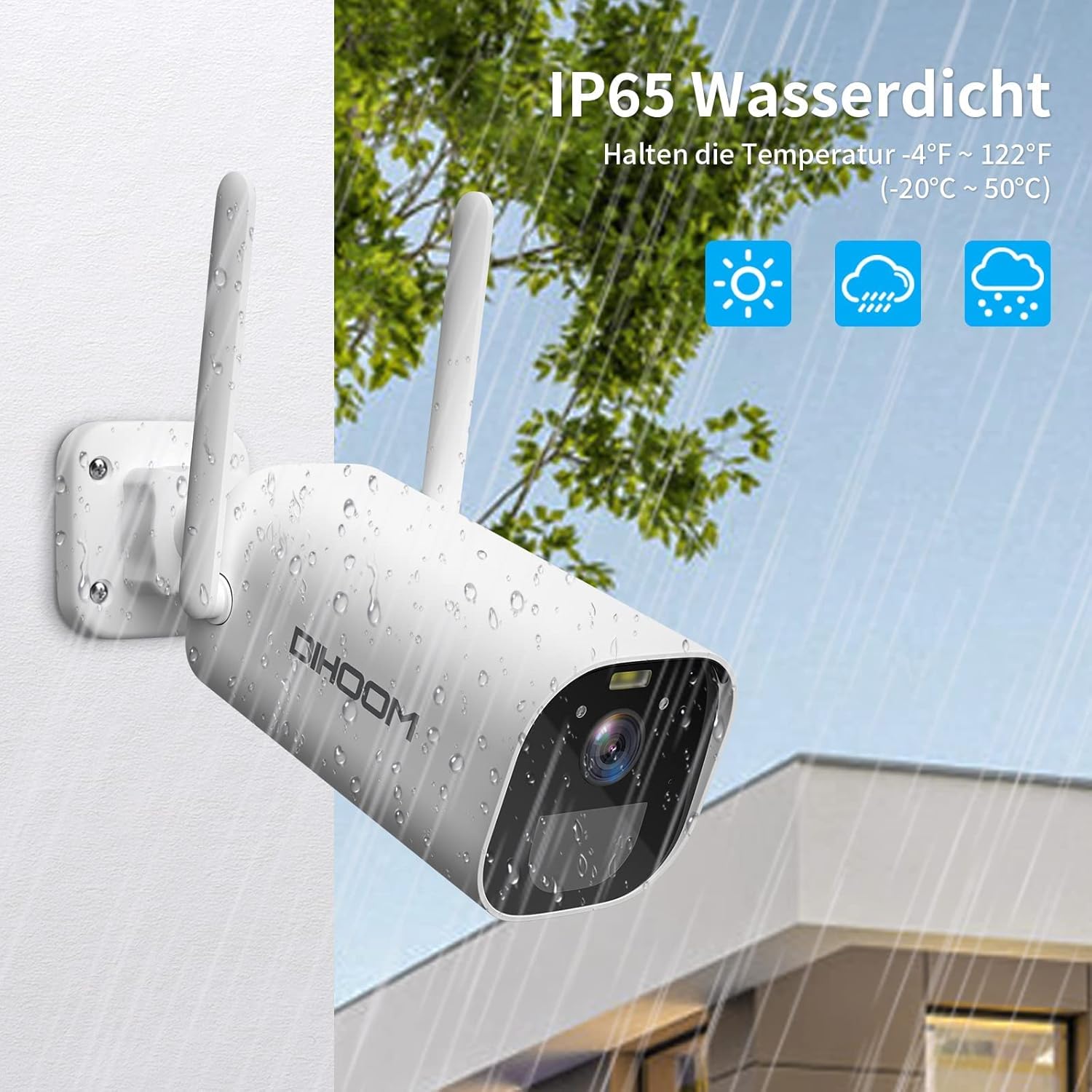
The camera boasts an IP65 weather-resistant rating, ensuring reliable operation in various outdoor conditions, including rain and extreme temperatures ranging from -10°C to 50°C.
| Feature | Specification |
|---|---|
| Model Number | BC13 |
| Video Resolution | 3 MP (2304 x 1296) |
| Frame Rate | 1080P/30FPS, 1296P/25fps |
| Viewing Angle | 120 Degrees |
| Wireless Connectivity | Wi-Fi (2.4GHz only) |
| Antennas | Dual 5dBi |
| Night Vision | Infrared (B&W) & Full-Color (with spotlight) |
| Motion Detection | PIR, AI Human/Face Detection |
| Audio | Two-Way Audio (Built-in Mic & Speaker) |
| Storage Options | Micro SD Card (up to 128GB), AWS Cloud Storage |
| Battery Capacity | 10400 mAh Lithium-ion |
| Power Input | USB Type-C (5V/2A recommended) |
| Weather Resistance | IP65 |
| Operating Temperature | -10°C to 50°C (14°F to 122°F) |
| Material | ABS Plastic |
| Dimensions (L x W x H) | 19 x 7 x 7 cm |
| Weight | 820 grams |
9. Warranty and Support
9.1 Warranty Information
Your DIHOOM BC13 camera comes with a limited warranty. Please refer to the included warranty card in your package for specific terms, conditions, and duration of the warranty coverage.
9.2 Technical Support
For technical assistance, troubleshooting, or any questions regarding your DIHOOM BC13 camera, please refer to the support section within the Eseecloud app. You may also find contact information for customer support on the warranty card or the official DIHOOM website.


