
Phomemo M260
Phomemo M260+ Thermal Label Printer User Manual
Model: M260+
1. Introduction
This manual provides detailed instructions for the safe and efficient operation of your Phomemo M260+ Thermal Label Printer. Please read this manual thoroughly before using the device to ensure proper functionality and to prevent damage.
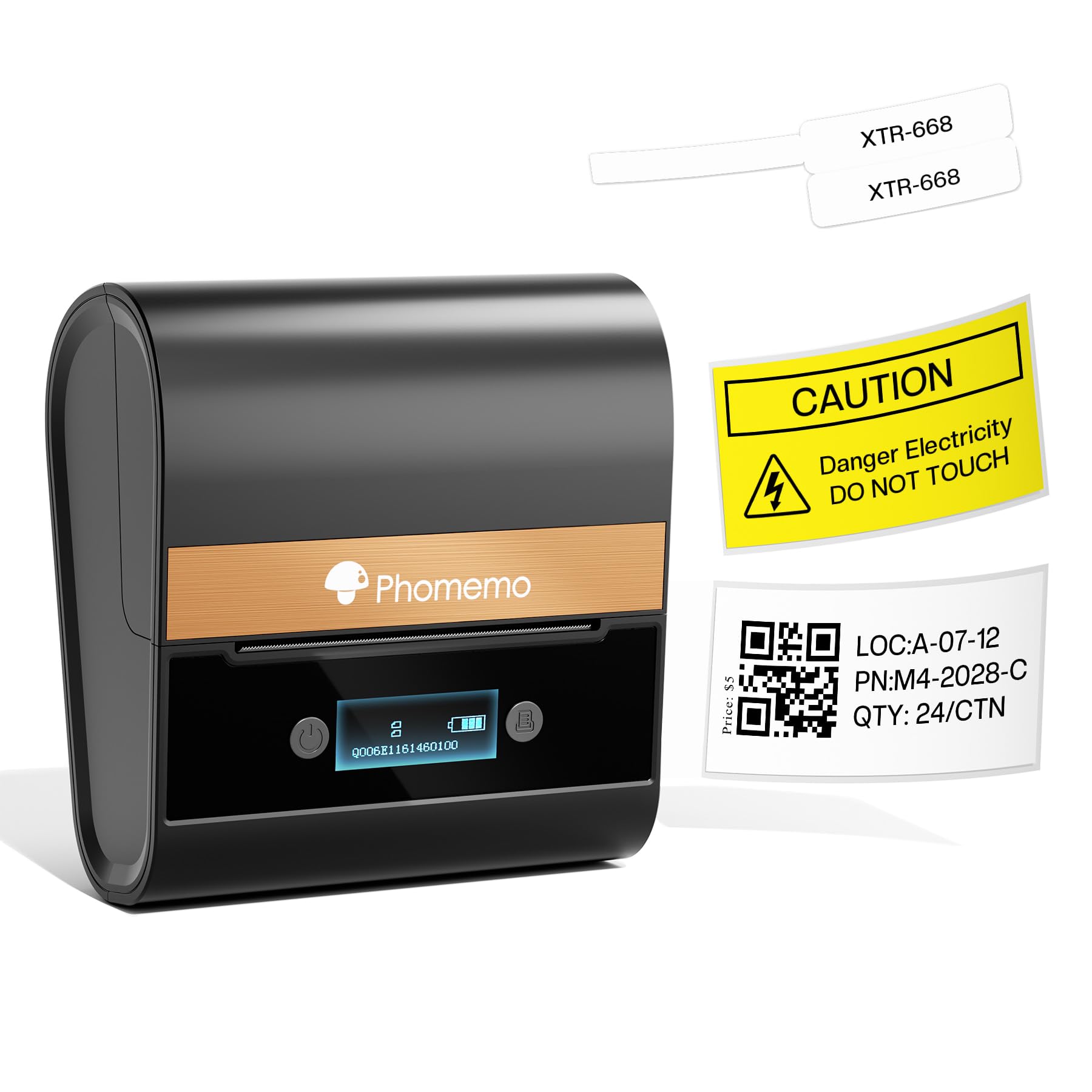
Image 1: Phomemo M260+ Thermal Label Printer.
2. Package Contents
Verify that all items are present in the package:
- Phomemo M260+ Portable Label Maker
- 1 roll of 1.57"x1.18" white consumables (label paper)
- USB Cable x 1
- Quick Start Guide / Manual x 1

Image 2: Contents of the Phomemo M260+ package, including the printer, a roll of labels, a USB cable, and the manual.
3. Setup
3.1. Loading Labels
- Open the printer cover by gently pressing the release button or sliding the latch.
- Insert the label roll into the compartment, ensuring the labels feed out from the top and are aligned with the print head.
- Close the printer cover securely.
- Ensure the label roll is properly seated and the first label is positioned correctly for printing.
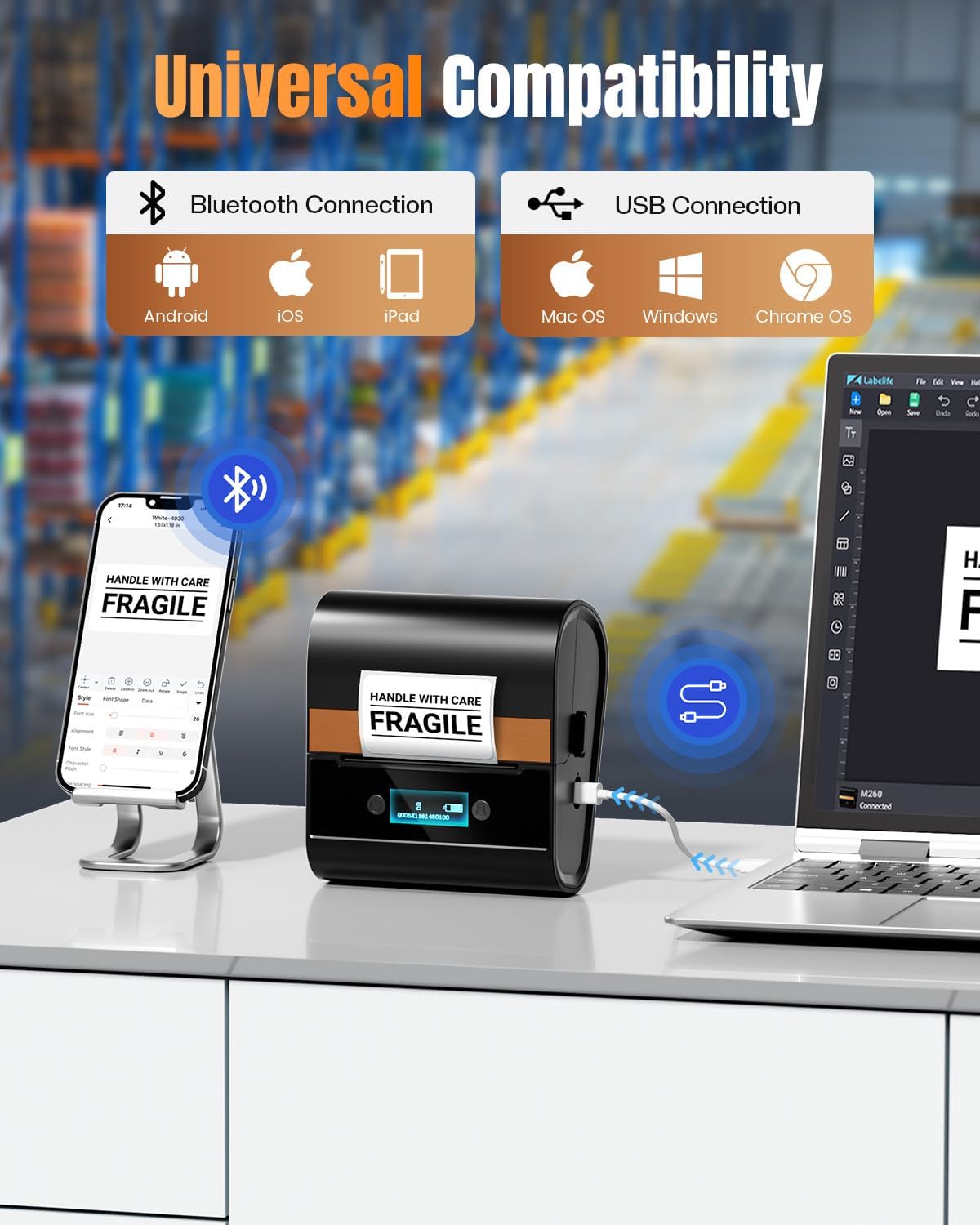
Image 3: Demonstrates the correct method for loading a label roll into the Phomemo M260+ printer.
Video 1: This video demonstrates the process of loading labels into the Phomemo M260+ printer and creating cable labels.
3.2. Powering On
Press and hold the power button located on the printer until the indicator light illuminates.
3.3. Software and App Installation
The Phomemo M260+ printer can be operated via a mobile application (Print Master) or PC software (Labelife).
- For Mobile Devices: Download the "Print Master" app from your device's app store (iOS/Android).
- For PC: Download the "Labelife" software and necessary drivers from the official Phomemo website.

Image 4: Overview of the Print Master app interface, showing various design and printing options.
Video 2: Instructions on how to download and install the PC driver for the M260 label maker.
Video 3: Guide on downloading and installing the Labelife PC software for the M260 label printer.
3.4. Connecting to Your Device
The M260+ supports both Bluetooth and USB connections.
- Bluetooth Connection (Mobile):
- Ensure Bluetooth is enabled on your mobile device.
- Open the Print Master app and search for available devices.
- Select "M260" from the list to pair.
- USB Connection (PC):
- Connect the printer to your PC using the provided USB cable.
- Ensure the PC drivers are installed as per Section 3.3.
- Open the Labelife software; the printer should be recognized automatically.

Image 5: Illustrates the Bluetooth connection process between the Phomemo M260+ printer and a mobile device.

Image 6: Shows the USB connection of the Phomemo M260+ printer to a computer.
4. Operation
4.1. Creating Labels
Use the Print Master app or Labelife software to design your labels. Both platforms offer a variety of templates, fonts, icons, and tools for text, barcodes, and QR codes.
- Select a template or start with a blank label.
- Customize text, add images, barcodes, or QR codes.
- Adjust label size and orientation as needed.
4.2. Printing Labels
After designing your label, select the print option within the app or software. Confirm print settings such as the number of copies and print quality, then initiate printing.
4.3. Label Applications
The Phomemo M260+ is suitable for various indoor labeling needs, including:
- Cable and wire identification
- Asset tagging
- Small address labels
- Price tags
- Warning notes
- General organization labels

Image 7: Examples of different label types that can be printed with the Phomemo M260+, including barcodes and text labels.

Image 8: Illustrates various practical applications of labels created with the M260+ printer, such as safety warnings, marking, asset tracking, and cable identification.
5. Maintenance
5.1. Cleaning the Print Head
To maintain print quality, regularly clean the print head. Use a soft, lint-free cloth lightly dampened with isopropyl alcohol. Gently wipe the print head surface. Ensure the printer is powered off and disconnected from any power source before cleaning.
5.2. Storing Labels
Store thermal labels in a cool, dry place away from direct sunlight, excessive heat, or chemical exposure to preserve their legibility and adhesive properties.
6. Troubleshooting
Refer to the following common issues and solutions:
- Q: How is the print quality and durability of the labels printed by the M260 label printer?
- A: The Phomemo thermal printer is equipped with a 203 DPI printhead, which ensures crisp, smudge-free text and scannable barcodes. Regarding durability, thermal labels are designed for INDOOR applications and typically remain legible for 6 to 12 months under normal conditions (away from direct sunlight, excessive heat, or chemical exposure).
- Q: What label widths is this printer compatible with? Do I have to use proprietary label rolls?
- A: This printer supports a versatile label width range from 1 inch (25.4 mm) up to 3.03 inches (77 mm). It prints in black and white. It is fully compatible with a variety of colored direct thermal rolls and different shape labels from Phomemo.
- Q: Does this printer require special software or an app to use? Are there ready-to-use templates available for different labels like cable flags and round stickers?
- A: Yes, to unlock the full potential of this printer, you will need to use the APP - Print Master (available on iOS App Store/Google Play) OR Labelife (PC software). The platform has a rich library of professional templates. Easily find and customize specific templates for cable flag labels, round asset dots, and more.
- Q: What connectivity options does it offer (USB, Bluetooth)? How well does it work with Windows, Mac, or mobile apps? Is the driver setup complicated?
- A: Connect via Bluetooth. Install the driver and software using our simple installer (Windows/Mac USB cable is needed) from Labelife.net, OR download the "Print Master" app for mobile/tablets. Setup takes just minutes.
7. Specifications
| Feature | Detail |
|---|---|
| Brand | Phomemo |
| Model Name | M260 label maker |
| Connectivity Technology | Bluetooth |
| Printing Technology | Thermal |
| Printer Output | Monochrome (Black and white printout only) |
| Max Print Speed Monochrome | 15 pages per minute |
| Item Weight | 419 Grams |
| Product Dimensions | 5.1"D x 4.72"W x 2.63"H |
| Print Media | Labels |
| Maximum Media Size | 75mm |
| Paper Size Range | 20-75mm |
| Controller Type | Android, iOS |
8. Warranty and Support
The Phomemo M260+ Thermal Label Printer comes with a 1-year warranty from the date of purchase. For technical assistance, troubleshooting, or warranty claims, please contact Phomemo customer support through their official website or the contact information provided in your Quick Start Guide.
Related documentsM260


Ask a question about this manual
Ask about setup, troubleshooting, compatibility, parts, safety, or missing instructions. Manuals+ will review the question and use this page’s manual context to help answer it.