
Introduction
The UGREEN 99-Key Slim Wireless Keyboard offers a versatile and comfortable typing experience. It features dual-mode connectivity (Bluetooth 5.4 and 2.4GHz wireless), allowing seamless switching between up to three devices. Designed with a full QWERTY layout including a dedicated number pad, this keyboard is ideal for productivity tasks, casual use, and extended typing sessions across various operating systems.
Key features include a long-lasting rechargeable battery, quiet scissor-mechanism keys, and an ergonomic tilt stand for improved wrist comfort.
Setup
1. Charging the Keyboard
Before first use, fully charge the keyboard using the provided USB-C cable. Connect the USB-C end to the keyboard's charging port and the other end to a USB power source. A full charge takes approximately 2 hours and provides up to 2 months of use (based on 2 hours of daily use).

Image: The keyboard connected via USB-C for charging, highlighting its 90-day standby time and 500mAh battery capacity.
2. Connecting to Devices
The keyboard supports connection to up to three devices: one via 2.4GHz wireless and two via Bluetooth 5.4.
- 2.4GHz Wireless Connection: Insert the 2.4GHz USB receiver into an available USB port on your computer. Press Fn + 1 on the keyboard to switch to 2.4GHz mode. The keyboard will automatically connect.
- Bluetooth 5.4 Connection (Device 1): Press Fn + 2 to select Bluetooth Device 1 mode. The indicator light will flash. On your device (computer, tablet, or phone), enable Bluetooth and search for "UGREEN Keyboard" (or similar). Select it to pair.
- Bluetooth 5.4 Connection (Device 2): Press Fn + 3 to select Bluetooth Device 2 mode. Repeat the pairing process as for Bluetooth Device 1.
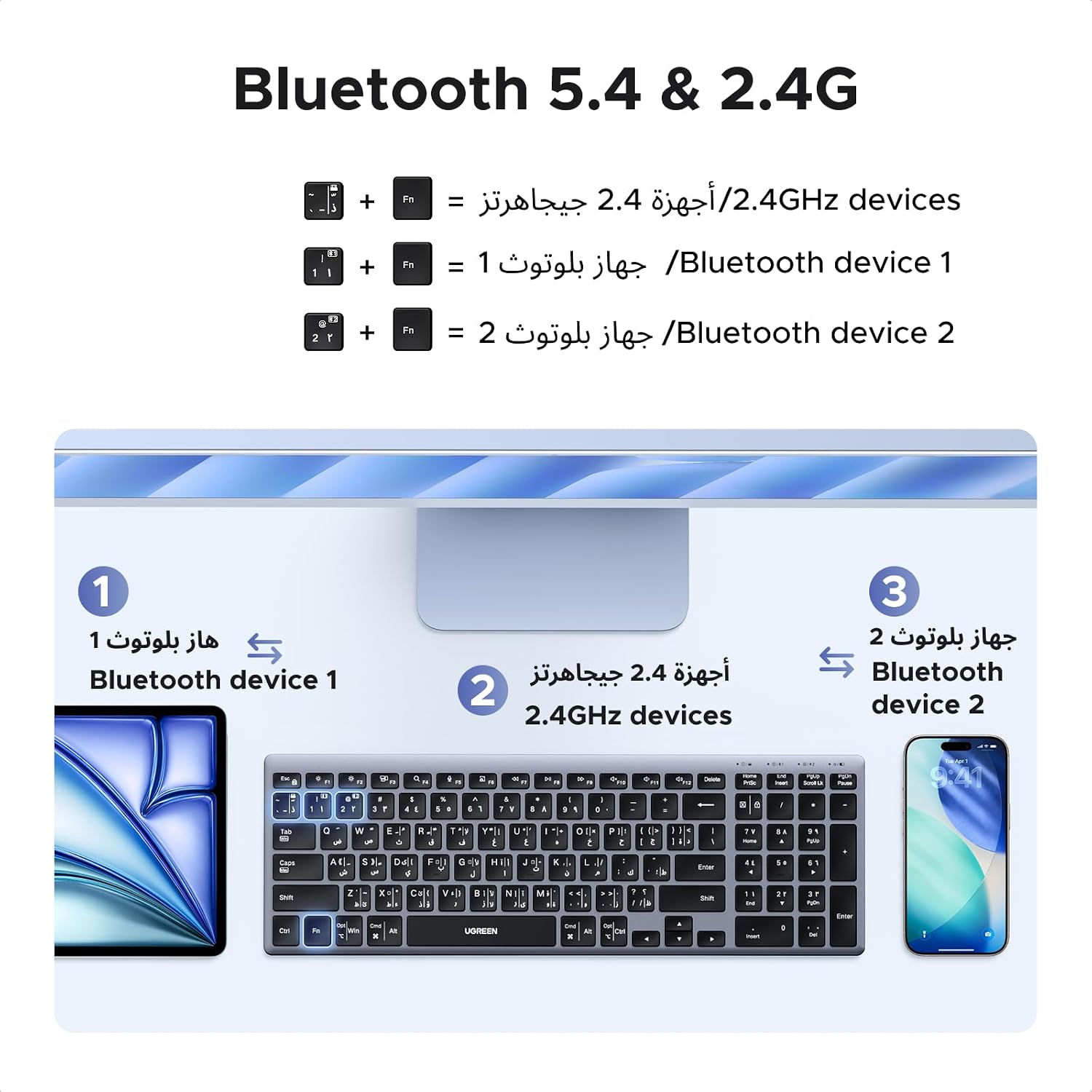
Image: Diagram illustrating how to connect the keyboard to a 2.4GHz device and two Bluetooth devices using Fn + 1, Fn + 2, and Fn + 3 keys.
Operating Instructions
1. Switching Between Devices
To switch between connected devices, simply press the corresponding function key:
- Fn + 1: Switch to 2.4GHz wireless device.
- Fn + 2: Switch to Bluetooth Device 1.
- Fn + 3: Switch to Bluetooth Device 2.
2. Multimedia Function Keys
The top row of keys (F1-F12) provides quick access to multimedia and system functions. Press the Fn key simultaneously with the desired F-key to activate its secondary function.
| Key Combination | Function |
|---|---|
| Fn + F1 | Brightness Down |
| Fn + F2 | Brightness Up |
| Fn + F3 | Mission Control / Task View |
| Fn + F4 | Launchpad / Search |
| Fn + F5 | Previous Track |
| Fn + F6 | Play/Pause |
| Fn + F7 | Next Track |
| Fn + F8 | Mute |
| Fn + F9 | Volume Down |
| Fn + F10 | Volume Up |
| Fn + F11 | Lock Screen |
| Fn + F12 | Calculator |

Image: A detailed view of the keyboard's F-keys, indicating their multimedia functions when used with the Fn key.
3. Ergonomic Design
The keyboard features an adjustable tilt stand, allowing you to set it at a 7-degree or 10-degree angle. This ergonomic design promotes natural wrist alignment, reducing strain during prolonged typing sessions.

Image: The keyboard displaying its English and Arabic layout, alongside an illustration of the ergonomic 7° or 10° tilt angle for comfortable operation.
Maintenance
- Cleaning: Use a soft, dry cloth to clean the keyboard surface. For stubborn dirt, slightly dampen the cloth with water or a mild cleaning solution. Avoid excessive moisture.
- Storage: Store the keyboard in a cool, dry place away from direct sunlight and extreme temperatures.
- Battery Care: To prolong battery life, avoid fully discharging the keyboard frequently. Charge it when the low battery indicator appears.
Troubleshooting
1. Keyboard Not Connecting
- Check Battery: Ensure the keyboard is sufficiently charged.
- Correct Mode: Verify you are in the correct connection mode (Fn + 1 for 2.4GHz, Fn + 2/3 for Bluetooth).
- Re-pair Bluetooth: If using Bluetooth, remove the keyboard from your device's Bluetooth list and attempt to pair again.
- 2.4GHz Receiver: For 2.4GHz, ensure the USB receiver is securely plugged into a working USB port. Try a different USB port.
- Interference: Move the keyboard closer to your device and away from other wireless devices that might cause interference.
2. Keys Not Responding
- Restart: Turn the keyboard off and on again.
- Clean Keys: Check for any debris under the keys that might be preventing proper actuation.
3. Input Lag or Disconnections
- Distance: Ensure the keyboard is within the effective range of your device (typically up to 10 meters).
- Interference: Reduce potential interference from other 2.4GHz or Bluetooth devices.
- Device Drivers: Ensure your computer's Bluetooth or USB drivers are up to date.
Specifications
| Feature | Detail |
|---|---|
| Brand | UGREEN |
| Model Number | 75163AB |
| Color | Black-Grey (English + Arabic) |
| Connectivity Technology | Bluetooth 5.4, 2.4GHz Wireless |
| Special Features | Rechargeable, Comfortable, Wide Compatibility |
| Hand Orientation | Ambidextrous |
| Recommended Uses | Productivity tasks, Casual use, Office environments, On-the-go use, Long typing sessions |
| Compatible Devices | Personal Computer, Tablet, Phone |
| Operating Systems | Windows 7, Windows 8.1, Windows 10, Windows 11, Mac OS 10.15+, iOS 13.4+, iPad OS 14.0+, Android 5.0+, Linux, Chrome OS |
| Material | Plastic (Engineering-grade ABS) |
| Included Components | 2.4GHz Receiver, Charging Cable |
| Power Source | Battery Powered |
| Unit Count | 1 Count |
| Country of Origin | China |
| Manufacturer | UGREEN GROUP LIMITED |
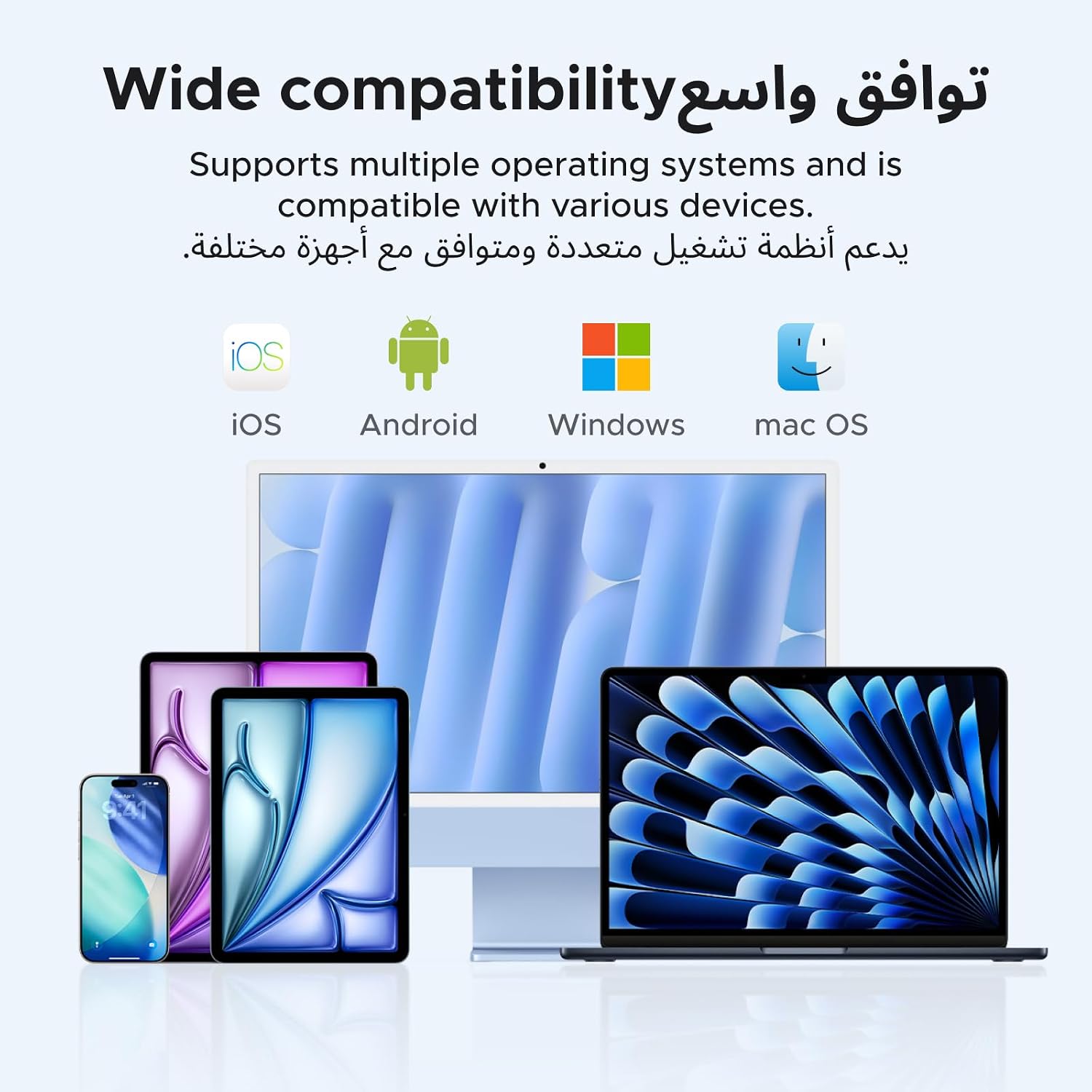
Image: The keyboard demonstrating wide compatibility with various operating systems including iOS, Android, Windows, and macOS.

Image: The keyboard's compact size and slim design, with dimensions of 365mm length, 123mm width, and 20.7mm height.
Warranty and Support
For warranty information, please refer to the documentation provided with your purchase or contact your retailer. For technical support or further assistance, please visit the official UGREEN website or contact UGREEN customer service directly.
Manufacturer: UGREEN GROUP LIMITED


