
1. Introduction
This manual provides essential information for setting up, operating, maintaining, and troubleshooting your Apple Watch Series 11 GPS + Cellular 42mm. Please read it thoroughly to ensure proper use and to maximize your device's capabilities.
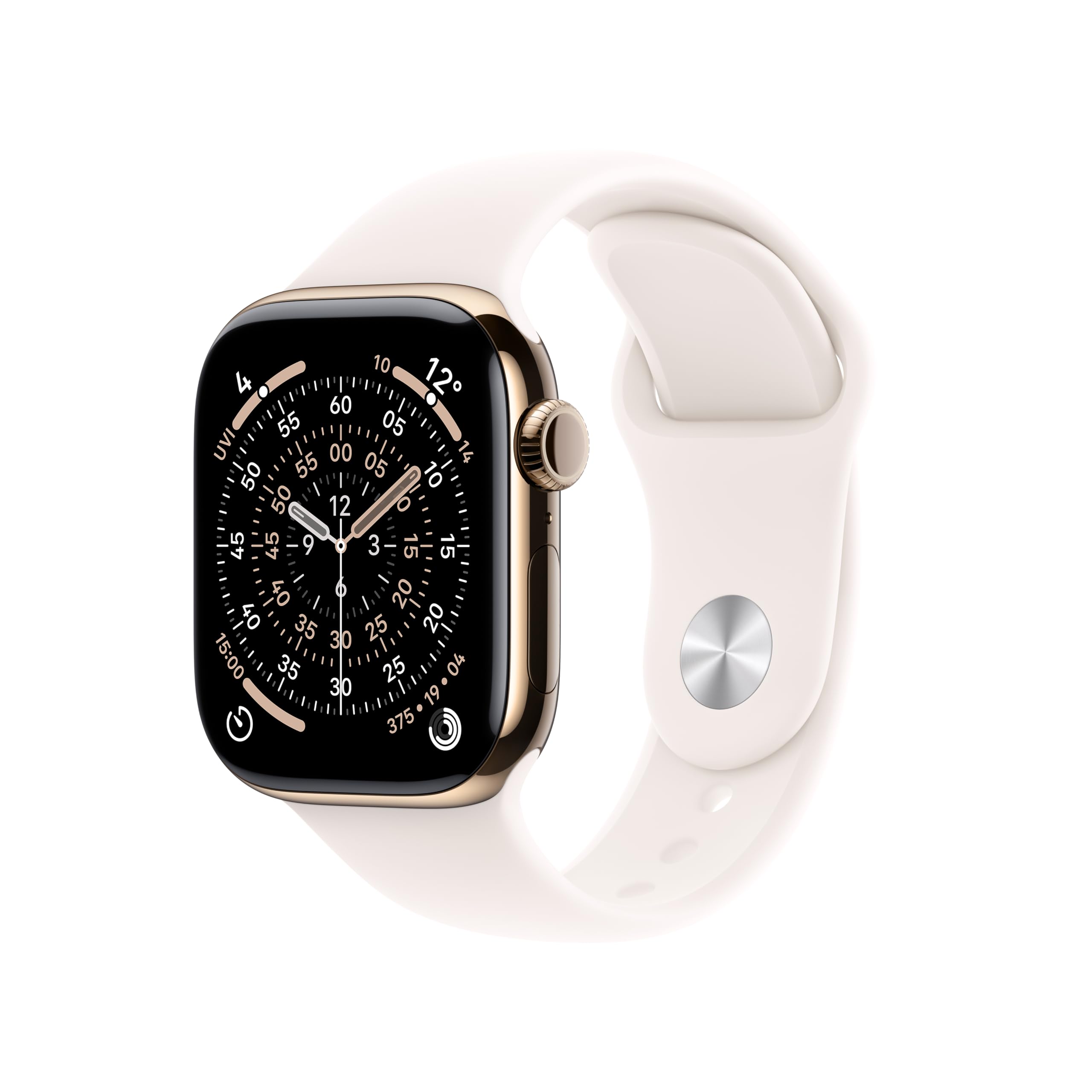
The Apple Watch Series 11, featuring a Gold Titanium Case and Light Blush Sport Band.
Key Features:
- Sleep Score: Provides insights into sleep quality for improved rest.
- Advanced Health Monitoring: ECG, high/low heart rate notifications, irregular rhythm detection, Vitals app for overnight metrics, and blood oxygen readings.
- Durable and Lightweight Design: Comfortable for continuous wear, including during exercise and sleep.
- Comprehensive Fitness Tracking: Advanced metrics for workouts, Pacer, Heart Rate Zones, training load, and Workout Buddy powered by Apple Intelligence.
- Extended Battery Life: Up to 24 hours of normal use, with fast charging providing up to 8 hours of use in 15 minutes.
2. Setup
2.1 What's in the Box
Before beginning, ensure all components are present:
- Apple Watch Series 11 Case
- Sport Band (S/M size, fits 130–180mm wrists)
- 1m Magnetic Charging Cable

The Apple Watch Series 11 package includes the watch case, a sport band, and a USB-C magnetic fast charging cable.
2.2 Attaching the Band
- Hold the watch with the display facing down.
- Slide the band into the slots on the watch case until you feel and hear a click.
- Gently pull the band to ensure it is securely attached.
2.3 Initial Charging and Power On
- Connect the magnetic charging cable to a USB-C power adapter (sold separately) and plug it into a power outlet.
- Place the back of your Apple Watch on the magnetic charger. The watch will automatically power on.
- Allow the watch to charge sufficiently before proceeding with setup.
2.4 Pairing with iPhone
- Ensure your iPhone is updated to the latest iOS version and has Bluetooth and Wi-Fi enabled.
- Bring your Apple Watch close to your iPhone. A pairing screen will appear on your iPhone.
- Tap 'Continue' on your iPhone and follow the on-screen instructions to pair your watch. You may be prompted to use the iPhone camera to scan an animation on the watch display.
- Choose to set up as a new Apple Watch or restore from a backup.
- Complete the setup process, including setting a passcode, activating cellular service (if applicable), and installing apps.
3. Operating Instructions
3.1 Basic Navigation
- Digital Crown: Rotate to scroll, zoom, or adjust values. Press once to go to the watch face or app list. Double-press to switch between recently used apps. Press and hold for Siri.
- Side Button: Press once to open the Dock (recently used apps). Double-press for Apple Pay. Press and hold for emergency services or to power off.
- Touch Screen: Tap to select, swipe to navigate, force touch for additional options (if available).
3.2 Health Monitoring
Your Apple Watch Series 11 offers comprehensive health tracking features:
- Heart Rate: Monitor your heart rate throughout the day. Receive notifications for unusually high or low heart rates, and irregular rhythms.
- ECG App: Take an electrocardiogram (ECG) to record your heart's electrical activity.
- Blood Oxygen App: Measure your blood oxygen levels on demand.
- Vitals App: View overnight health metrics, including heart rate, blood oxygen, and respiratory rate.
- Sleep Tracking: Track your sleep patterns and receive a sleep score to understand your sleep quality.

The Vitals app provides richer health insights, including high heart rate notifications.
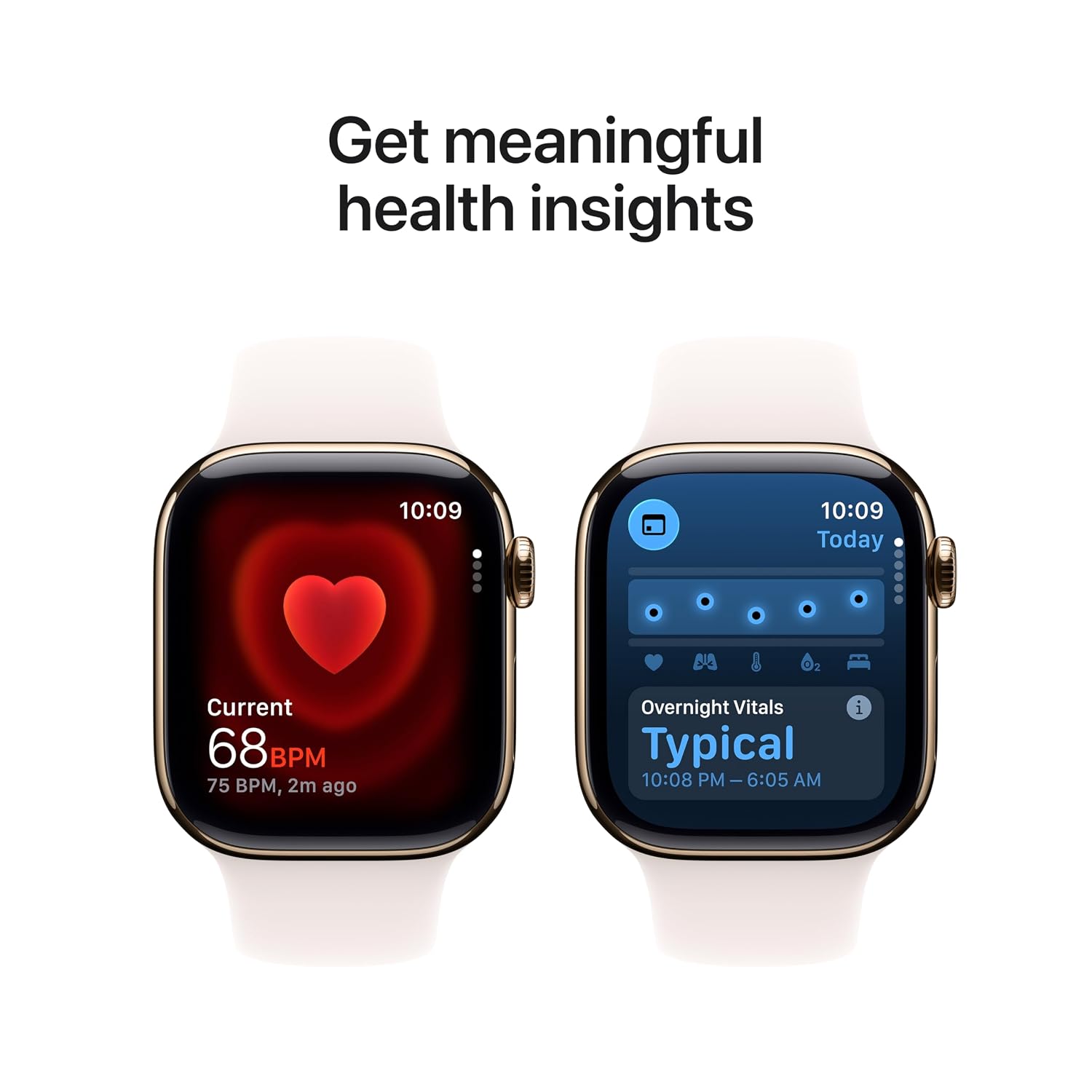
Get meaningful health insights with real-time heart rate and overnight vitals tracking.
3.3 Fitness Tracking
The Apple Watch is a powerful fitness partner:
- Activity Rings: Track your daily movement, exercise, and stand goals.
- Workout App: Select from a variety of workout types to track metrics like duration, distance, calories burned, and heart rate.
- Advanced Metrics: Utilize features like Pacer, Heart Rate Zones, and training load for optimized workouts.
- Workout Buddy: Leverage Apple Intelligence from your nearby iPhone for enhanced workout support.

Track your daily activity with activity rings and monitor your workouts, such as an outdoor run.
3.4 Cellular Connectivity
With GPS + Cellular models, you can make calls, send messages, and stream music without your iPhone nearby, provided you have an active cellular plan for your watch.

Experience a 5G leap in connectivity, allowing you to stay connected on the go.
3.5 Charging
To charge your Apple Watch, place it on the magnetic charging cable. The watch will display a charging indicator. For fast charging, ensure you use a compatible USB-C power adapter.
4. Maintenance
4.1 Cleaning Your Apple Watch
- Turn off your Apple Watch and disconnect it from the charger.
- Wipe the watch with a soft, lint-free cloth. If necessary, lightly dampen the cloth with fresh water.
- Do not use cleaning products, abrasive materials, or compressed air.
- Dry the watch thoroughly with a soft, lint-free cloth.
4.2 Band Care
- Clean the Sport Band with a soft, damp cloth.
- Avoid prolonged exposure to direct sunlight or high temperatures.
- Ensure the band is dry before reattaching it to your wrist.
4.3 Software Updates
Keep your Apple Watch software updated to the latest version of WatchOS for optimal performance, new features, and security enhancements. Updates can be initiated through the Watch app on your paired iPhone.
4.4 Water Resistance
The Apple Watch Series 11 is water resistant, but not waterproof. It can be used for shallow-water activities like swimming in a pool or ocean. It should not be used for scuba diving, waterskiing, or other activities involving high-velocity water or submersion below shallow depths. Water resistance may decrease over time.
5. Troubleshooting
If you encounter issues with your Apple Watch, try the following steps:
- Watch Not Responding: Force restart by holding both the Digital Crown and the Side Button for at least 10 seconds until you see the Apple logo.
- Pairing Issues: Ensure your iPhone's Bluetooth is on and both devices are charged. Try restarting both your iPhone and Apple Watch.
- Battery Drain: Check for apps running in the background. Reduce screen brightness or disable unnecessary notifications. Ensure WatchOS is updated.
- App Issues: Try restarting the app. If the problem persists, delete the app from your watch and reinstall it via the Watch app on your iPhone.
- Resetting Your Watch: If problems persist, you may need to erase all content and settings. Go to Settings > General > Reset > Erase All Content and Settings on your watch. This will unpair it from your iPhone.
For more detailed troubleshooting or persistent issues, refer to Apple's official support resources.
6. Specifications
| Feature | Detail |
|---|---|
| Model Number | MF8W4HN/A |
| Generic Name | Apple Watch Series 11 |
| Operating System | WatchOS |
| Memory Storage Capacity | 64 GB |
| Connectivity Technology | Bluetooth, Cellular |
| Special Features | Activity Tracker, Alarm Clock, Always On Display, Fall Detection, GPS |
| Battery Capacity | 0.1 Milliamp Hours (Up to 24 hours normal use) |
| Item Weight | 34.6 g |
| Manufacturer | Apple |
| Country of Origin | China |
7. Warranty and Support
7.1 Product Warranty
Your Apple Watch Series 11 is covered by Apple's standard limited warranty. This warranty typically covers manufacturing defects for a specified period from the date of purchase. For detailed terms and conditions, please refer to the warranty information included with your product or visit Apple's official website.
7.2 AppleCare Service
Additional protection plans, such as AppleCare Service, may be available for purchase. These plans can extend your coverage and provide additional technical support and hardware service options. Please check with Apple or an authorized reseller for availability and details.
7.3 Customer Support
For technical assistance, service, or further information, please contact Apple Support through their official website or visit an authorized Apple service provider. Ensure you have your product's serial number ready when seeking support.
Apple Support Website: support.apple.com


