
1. Introduction
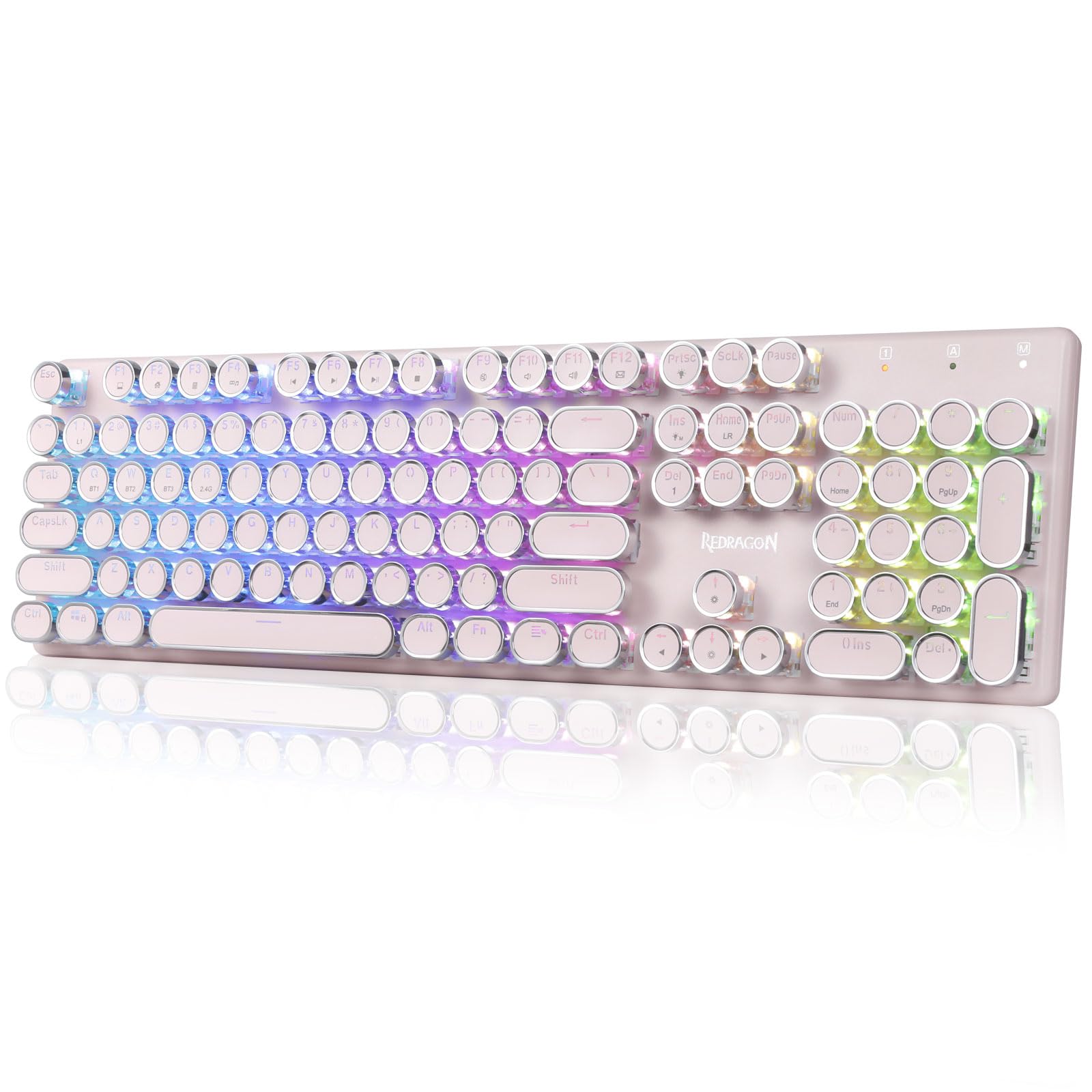
The Redragon K710 is a versatile mechanical gaming keyboard designed for a superior typing and gaming experience. It features a retro typewriter style with round keycaps and offers multiple connectivity options, vibrant RGB backlighting, and durable construction. This manual provides detailed instructions for setup, operation, maintenance, and troubleshooting.

2. Setup
2.1 Package Contents
Before you begin, ensure all items are present in the package:
- Redragon K710 Wireless Mechanical Gaming Keyboard
- USB-C Cable
- 2.4Ghz Wireless Dongle
- Keycap Puller (if included)
- User Manual
2.2 Initial Charging
For optimal performance, fully charge the keyboard before first use. Connect the provided USB-C cable to the keyboard's port and to a USB power source (e.g., computer, wall adapter). The LED indicator will show charging status.
2.3 Connectivity Modes
The Redragon K710 supports three connection modes: 2.4Ghz Wireless, Bluetooth 3.0/5.0, and USB-C Wired.


2.3.1 2.4Ghz Wireless Mode
- Locate the 2.4Ghz wireless dongle, usually stored in a compartment on the back of the keyboard.
- Plug the dongle into an available USB port on your computer.
- Switch the mode selector on the back of the keyboard to "2.4G".
- Press and hold FN + R on the keyboard to enter 2.4G pairing mode. The indicator light will flash.
- The keyboard should connect automatically.
2.3.2 Bluetooth Mode
- Switch the mode selector on the back of the keyboard to "BT".
- Press and hold FN + Q, FN + W, or FN + E for 3 seconds to select a Bluetooth channel (BT1, BT2, or BT3). The indicator light for the selected channel will flash rapidly, indicating pairing mode.
- On your device (PC, laptop, tablet, phone), open Bluetooth settings and search for new devices.
- Select "Redragon K710" from the list of available devices to pair.
- Once connected, the indicator light will stop flashing.
2.3.3 USB-C Wired Mode
- Connect the provided USB-C cable to the keyboard and to a USB port on your computer.
- The keyboard will automatically switch to wired mode and begin charging.
3. Operating Instructions
3.1 RGB Backlighting Control
The K710 keyboard features 16.8 million RGB backlighting with various modes and customization options.

- FN + INS: Switch between 16 different RGB lighting modes and effects.
- FN + ↑ / ↓: Adjust backlight brightness (5 levels).
- FN + DEL: Cycle through 7 solid colors (Red, Green, Blue, Yellow, Purple, Cyan, White).
- FN + PrtSc: Toggle backlight on/off.
3.2 Custom Backlighting
You can customize individual key backlighting:
- Press FN + 1 to enter game mode.
- Press FN + Home to enter custom recording state.
- Press desired keys continuously to set their color.
- Press FN + Home again to save the custom lighting.
3.3 Multimedia Shortcuts
Access various functions using FN key combinations:

- FN + F1: My Computer
- FN + F2: Homepage
- FN + F3: Calculator
- FN + F4: Player
- FN + F5: Previous Track
- FN + F6: Next Track
- FN + F7: Play/Pause
- FN + F8: Stop
- FN + F9: Mute
- FN + F10: Volume -
- FN + F11: Volume +
- FN + F12: Mail
- FN + WIN: Lock/Unlock Windows Key
- FN + ESC (Hold 5s): Restore factory settings
3.4 Battery Management
The keyboard is equipped with a durable 4000mAh battery.

- Battery Life: Up to 70 hours with RGB lights on, and over 300 hours with lights off.
- Charging: A fast charge can provide enough power for a full day's use.
- Check Battery Level: Press FN + Enter to check the current battery level via the LED indicators.

3.5 Auto Power Saving
To conserve battery, the keyboard's backlight will automatically turn off after 3 minutes of inactivity in wireless mode. Press any key to wake up the keyboard.
3.6 Software Support
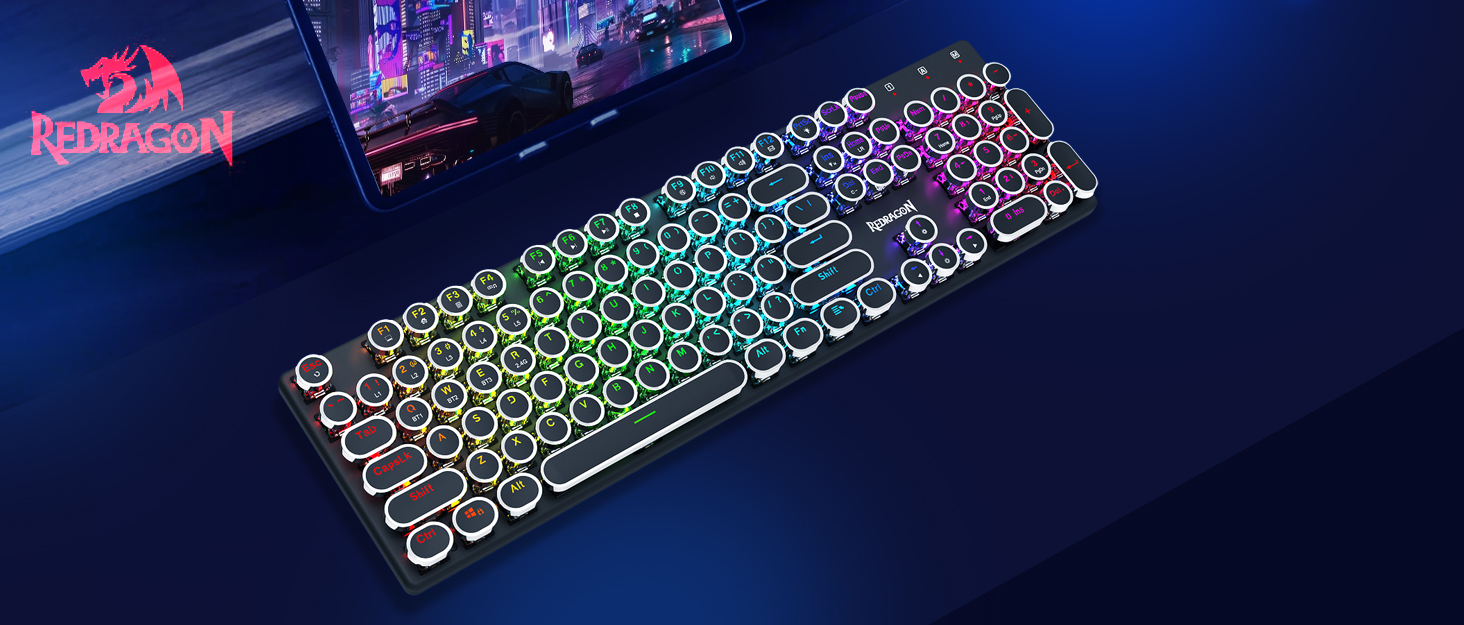
The Redragon K710 is compatible with dedicated software for advanced customization, including macro recording, key remapping, and detailed lighting effects.

To download the driver software, visit the official Redragon website: redragonzone.com/software.html. Navigate to "KEYBOARDS", search for model "K710", and download the appropriate software.
4. Maintenance
4.1 Cleaning
- Disconnect the keyboard from all power sources before cleaning.
- Use a soft, dry cloth to wipe the surface of the keyboard.
- For dust and debris between keycaps, use compressed air.
- The included keycap puller can be used to carefully remove keycaps for deeper cleaning of the switches.
4.2 Storage
Store the keyboard in a cool, dry place away from direct sunlight and extreme temperatures. Avoid placing heavy objects on the keyboard.
5. Troubleshooting
- Keyboard not responding: Ensure the keyboard is charged. Check the connection mode (wired, 2.4G, Bluetooth) and ensure it matches your device. Try reconnecting the USB cable or re-pairing the wireless connection.
- Keys not registering or double-typing: Clean under the keycaps. If using wireless, ensure the dongle is securely plugged in or Bluetooth connection is stable. Try updating the keyboard firmware via the Redragon software.
- RGB lights not working: Check if the backlight is turned off (FN + PrtSc). Adjust brightness (FN + ↑/↓). If issues persist, perform a factory reset (FN + ESC for 5 seconds).
- Bluetooth connectivity issues: Ensure your device's Bluetooth is enabled. Remove the keyboard from your device's paired list and re-pair it. Try a different Bluetooth channel (FN + Q/W/E).
- Software download link not working: Ensure you are visiting the official Redragon website (redragonzone.com/software.html) and searching for the correct model (K710).
6. Specifications
| Feature | Detail |
|---|---|
| Brand | Redragon |
| Model Number | K710P-RGB |
| Connectivity | 2.4Ghz Wireless, Bluetooth 3.0/5.0, USB-C Wired |
| Keyboard Type | Mechanical |
| Switch Type | Blue Switch (Clicky, Tactile) |
| Keycaps | Round, Electroplated, Double Shot |
| Backlighting | RGB (16.8 Million Colors, 16+ Modes) |
| Anti-Ghosting | 104-Key Anti-Ghosting |
| Battery Capacity | 4000 mAh |
| Material | Metal (Panel), Plastic |
| Item Weight | 950 Grams |
| Compatible Devices | Gaming Console, Laptop, PC, Tablet |


7. Warranty and Support
For warranty information, technical support, or further assistance, please visit the official Redragon website or contact their customer service. The latest drivers and software can be found at redragonzone.com/software.html.


