1. Introduction
This manual provides detailed instructions for the safe and efficient use of your boAt Rockerz Plus 550 Bluetooth Headphones. Please read this manual thoroughly before using the product and retain it for future reference.
2. What's in the Box
- boAt Rockerz Plus 550 Headphones
- Charging Cable
- AUX Cable
- User Manual

Image: boAt Rockerz Plus 550 Bluetooth Headphones, showcasing the Blue Psyche color variant and customizable earcups.
3. Product Overview and Controls
Familiarize yourself with the various parts and controls of your headphones.

Image: Detailed view of the headphone's control buttons and ports, including the charging port and AUX input.
Key Controls:
- Power Button: Press and hold to power on/off.
- Volume Up/Next Track: Short press for volume up, long press for next track.
- Volume Down/Previous Track: Short press for volume down, long press for previous track.
- Multi-function Button (MFB): Play/pause, answer/end calls, activate voice assistant.
- AUX Port: For wired connection.
- Charging Port: For charging the headphones.
4. Setup
4.1 Charging the Headphones
- Connect the charging cable to the charging port on the headphones.
- Connect the other end of the cable to a USB power adapter (not included) or a computer's USB port.
- The LED indicator will show charging status. It will turn off or change color when fully charged.
A full charge provides up to 100 hours of playback time.

Image: The boAt Rockerz Plus 550 headphones highlighting their extended battery life of up to 100 hours.
4.2 Bluetooth Pairing
- Ensure the headphones are fully charged.
- Press and hold the Power button until the LED indicator flashes blue and red, indicating pairing mode.
- On your device (smartphone, tablet, laptop), enable Bluetooth and search for available devices.
- Select "boAt Rockerz Plus 550" from the list of devices.
- Once connected, the LED indicator will flash blue slowly.
4.3 Dual Pairing
The headphones support dual pairing, allowing connection to two devices simultaneously.
- Pair the headphones with the first device as described in section 4.2.
- Disable Bluetooth on the first device. The headphones will re-enter pairing mode.
- Pair the headphones with the second device.
- Enable Bluetooth on the first device. The headphones will automatically connect to both devices.
You can now seamlessly switch between audio sources from both connected devices.
Image: Visual representation of the dual pairing functionality, showing a phone and a tablet simultaneously connected to the headphones.
4.4 AUX Connection
For a wired connection, use the provided AUX cable.
- Connect one end of the AUX cable to the headphone's AUX port.
- Connect the other end to your audio device's 3.5mm audio jack.
- The headphones will automatically switch to AUX mode.
5. Operating Instructions
5.1 Music Playback
- Play/Pause: Press the MFB once.
- Next Track: Long press the Volume Up button.
- Previous Track: Long press the Volume Down button.
- Volume Up: Short press the Volume Up button.
- Volume Down: Short press the Volume Down button.
5.2 Call Management
- Answer/End Call: Press the MFB once.
- Reject Call: Press and hold the MFB for 2 seconds.
5.3 Voice Assistant
Activate your device's voice assistant (Siri, Google Assistant) directly from the headphones.
- Activate Voice Assistant: Double-press the MFB.
5.4 Customizable Earcups
The boAt Rockerz Plus 550 features customizable earcups, allowing you to change their appearance.
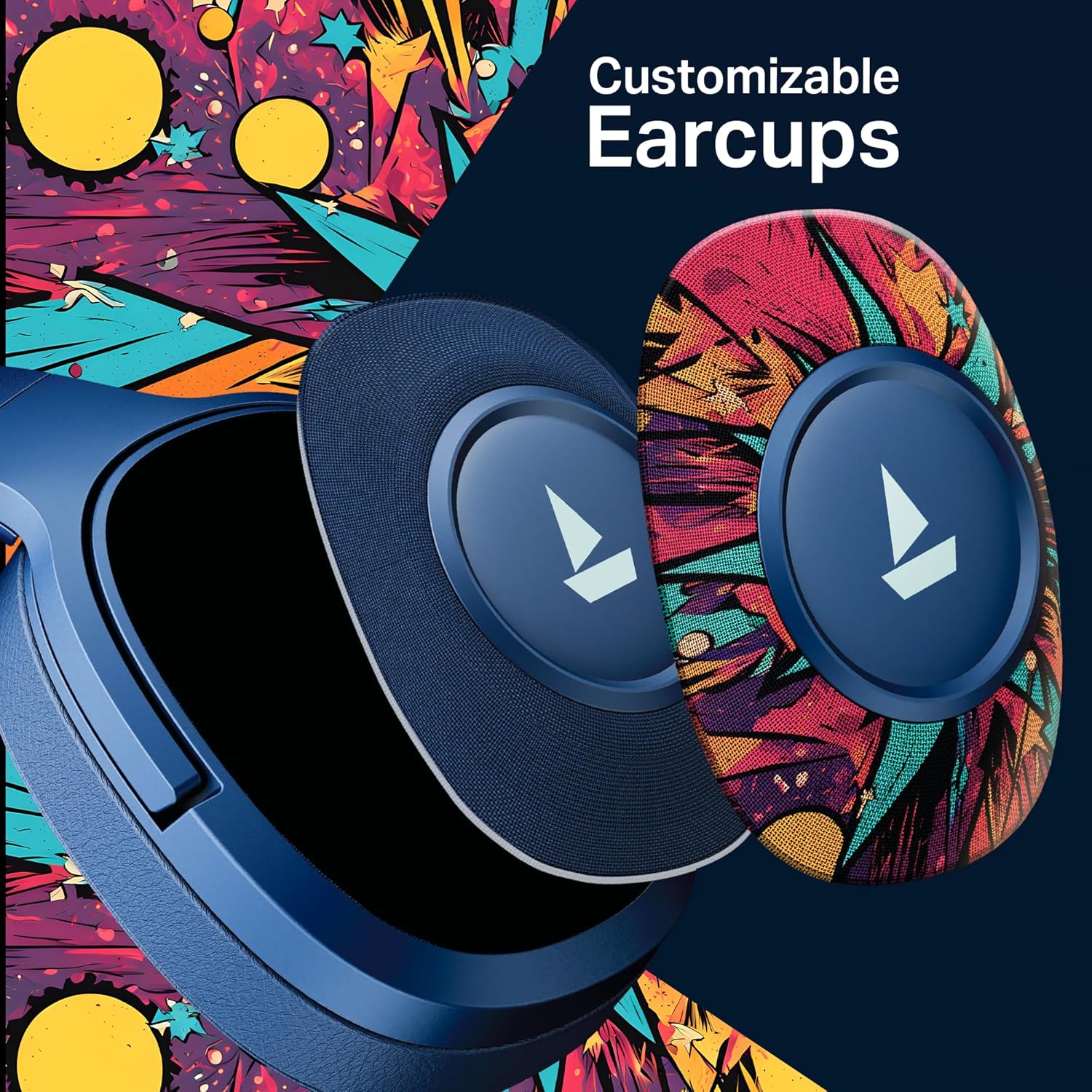
Image: A detailed view demonstrating how the customizable earcups can be removed and replaced on the headphones.
5.5 boAt Hearables App Support
Enhance your experience by downloading the boAt Hearables App. The app provides additional features and user guides.

Image: A smartphone showing the boAt Hearables App interface, including a QR code for easy access. Scan the QR code or visit https://l.ead.me/bdAX6k to download the app.
6. Maintenance
- Cleaning: Wipe the headphones with a soft, dry cloth. Do not use abrasive cleaners or solvents.
- Storage: Store the headphones in a cool, dry place away from direct sunlight and extreme temperatures.
- Battery Care: To prolong battery life, charge the headphones regularly, even if not in frequent use. Avoid fully discharging the battery for extended periods.
7. Troubleshooting
| Problem | Possible Cause | Solution |
|---|---|---|
| Headphones do not power on. | Low battery. | Charge the headphones fully. |
| Cannot pair with device. | Bluetooth not enabled, headphones not in pairing mode, or device too far. | Ensure Bluetooth is on, headphones are in pairing mode (flashing red/blue), and within range (10 meters). Try restarting both devices. |
| No sound or low volume. | Volume too low on headphones or device, incorrect audio output selected, or loose AUX cable. | Adjust volume on both devices. Check audio output settings. Ensure AUX cable is securely connected. |
| Intermittent connection. | Interference, device too far, or low battery. | Move closer to the device, avoid obstacles, and ensure headphones are charged. Avoid environments with strong Wi-Fi or other Bluetooth signals. |
8. Specifications
| Feature | Detail |
|---|---|
| Model Name | Rockerz 550 |
| Connectivity Technology | Bluetooth v5.4, 3.5 mm Jack |
| Audio Driver Type | Dynamic Driver |
| Driver Size | 50mm |
| Battery Life | Up to 100 Hours |
| Earpiece Shape | Over Ear |
| Noise Control | Passive Sound Isolation |
| Control Method | Push Button |
| Item Weight | 250 Grams |
| Product Dimensions | 17 x 9 x 20 cm |
| Battery Type | Lithium Ion (Rechargeable) |
| Manufacturer | Imagine Marketing Ltd |
| Country of Origin | China |

Image: An internal view highlighting the 50mm audio drivers, responsible for the boAt Signature Sound.
9. Warranty and Support
Your boAt Rockerz Plus 550 headphones come with a standard manufacturer's warranty. Please refer to the warranty card included in your package for specific terms and conditions.
For technical support, service, or warranty claims, please contact boAt customer service:
- Manufacturer: Imagine Marketing Ltd
- Email: info@imaginemarketingindia.com
- Online Support: Visit the official boAt website for FAQs and support resources.


