
Introduction
Thank you for choosing the Blackview Airbuds 8 Wireless Earbuds. These earbuds are designed to provide a high-quality audio experience with advanced features such as Bluetooth 5.3 connectivity, Hybrid Active Noise Cancellation, and IPX7 waterproofing. This manual will guide you through the setup, operation, and maintenance of your new earbuds.
Package Contents
Please check the package for the following items:
- 2 x Wireless Earbuds
- 1 x Charging Case
- 3 x Earbud Cover sets (S/M/L)
- 1 x Type-C Charging Cable
- 1 x Instruction Manual (this document)
Setup
1. Initial Charging
Before first use, fully charge the earbuds and the charging case. Connect the provided Type-C charging cable to the charging port on the case and a power source. The LED display on the charging case will indicate the battery level.
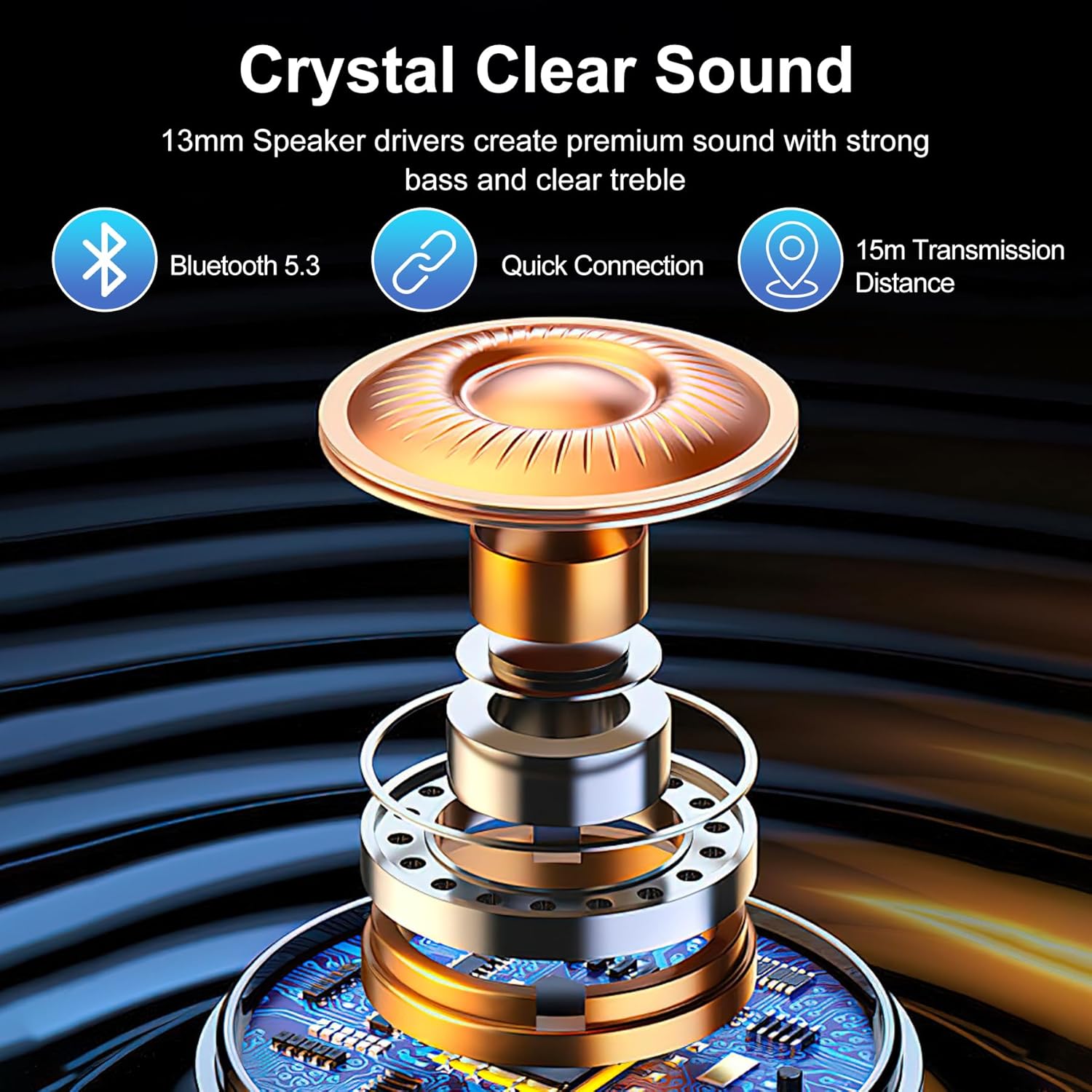
Image: Blackview Airbuds 8 charging case with earbuds, displaying battery level.
2. Pairing with Your Device (One-Step Pairing)
- Ensure your device's Bluetooth is turned on.
- Open the lid of the charging case. The earbuds will automatically enter pairing mode.
- On your device, search for Bluetooth devices and select "Airbuds 8" from the list.
- Once connected, the earbuds are ready for use.

Image: Visual guide for one-step Bluetooth pairing of Airbuds 8.
3. Fitting the Earbuds
The Airbuds 8 come with three sizes of silicone ear tips (S/M/L). Choose the size that provides a secure and comfortable fit for optimal sound quality and noise cancellation.

Image: Earbud tips in various sizes for ergonomic fit.
Operating Instructions
Smart Touch Controls
The Blackview Airbuds 8 feature intuitive touch controls on each earbud. Refer to the diagram below for common functions:
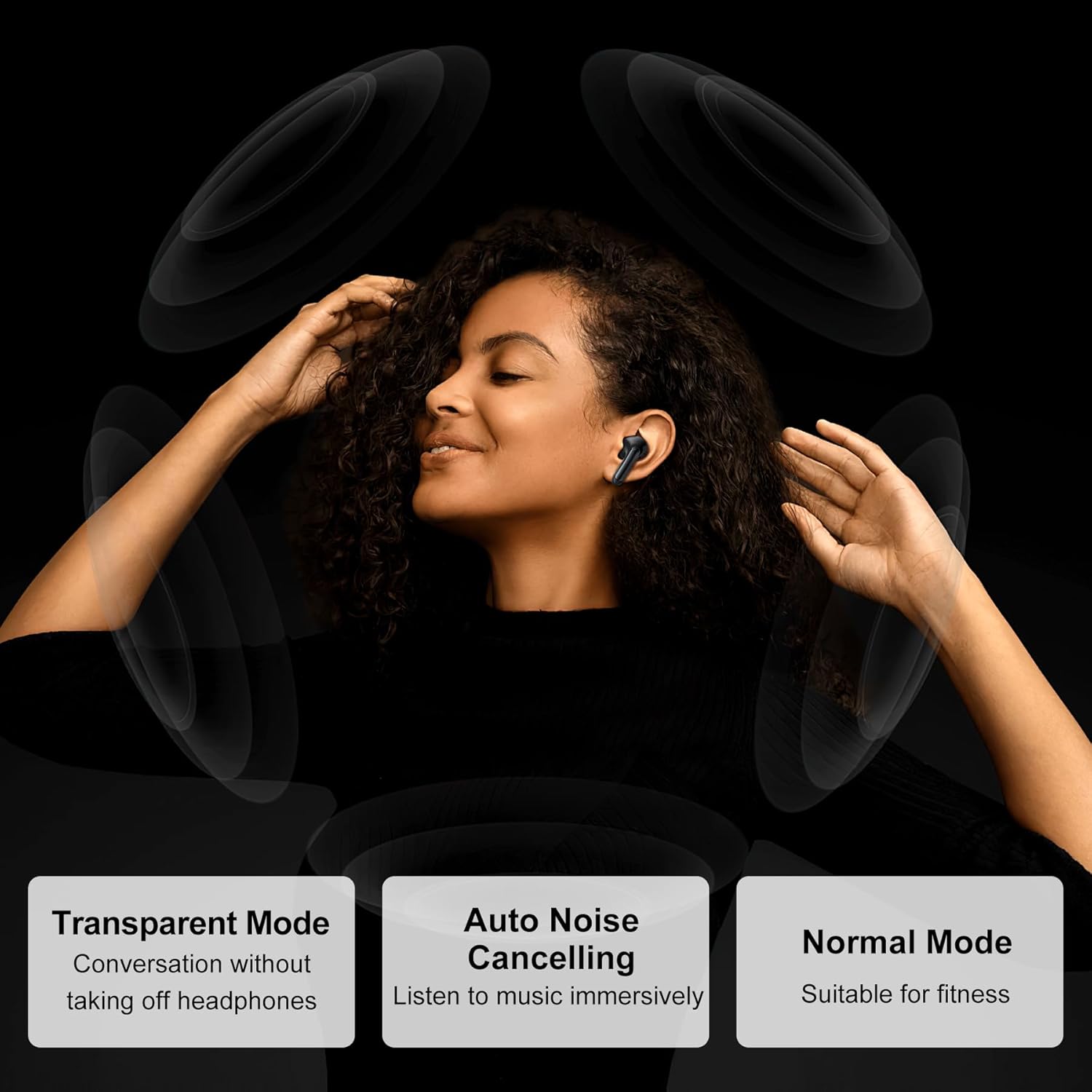
Image: Touch control guide for Blackview Airbuds 8.
- Play/Pause: Single tap on either earbud.
- Answer Call: Single tap on either earbud.
- Reject Call: Press and hold on either earbud.
- Next Song: Double tap on the right earbud.
- Previous Song: Double tap on the left earbud.
- Volume Up: Triple tap on the right earbud.
- Volume Down: Triple tap on the left earbud.
- Voice Assistant: Press and hold on either earbud (when not on a call).
- Switch Noise Control Mode: Press and hold the touch area for 2 seconds.
Noise Control Modes
The Airbuds 8 offer multiple noise control modes to adapt to your environment:
- Active Noise Cancelling (ANC): Reduces ambient noise for an immersive listening experience.
- Transparent Mode: Allows you to hear your surroundings without removing the earbuds.
- Normal Mode: Standard audio experience without active noise cancellation or transparency.

Image: Explanation of different noise control modes.
Maintenance
Cleaning
Regularly clean your earbuds and charging case with a soft, dry, lint-free cloth. Do not use abrasive cleaners or solvents. Remove ear tips and clean them separately with water if necessary, ensuring they are completely dry before reattaching.
Water Resistance (IPX7)
The Airbuds 8 are IPX7 waterproof, meaning they can withstand immersion in water up to 1 meter for 30 minutes. This makes them suitable for workouts and use in rainy conditions. However, the charging case is not waterproof. Do not charge the earbuds if they or the charging port are wet.

Image: Blackview Airbuds 8 demonstrating IPX7 water resistance.
Battery and Charging
The earbuds provide up to 8 hours of playtime on a single charge, with the charging case extending total playtime to 56 hours. A quick 10-minute charge can provide 3 additional hours of listening time.

Image: Battery life and charging details for Airbuds 8.
Troubleshooting
| Problem | Solution |
|---|---|
| Earbuds not pairing |
|
| No sound from one earbud |
|
| Charging issue |
|
| Poor sound quality |
|
Specifications
| Feature | Detail |
|---|---|
| Model Name | Airbuds 8 |
| Connectivity Technology | Wireless (Bluetooth) |
| Bluetooth Version | 5.3 |
| Bluetooth Range | Up to 15 meters (49 feet) |
| Audio Driver Type | 13mm Dynamic Driver |
| Noise Control | Active Noise Cancellation (ANC), 4 ENC Mics |
| Battery Life (Earbuds) | Up to 8 hours per charge |
| Total Playtime (with Case) | Up to 56 hours |
| Fast Charge | 10 minutes for 3 hours playtime |
| Water Resistance Level | IPX7 (earbuds only) |
| Control Method | Touch |
| Material | Plastic |
| Item Weight | 5.6 ounces |
Warranty and Support
For warranty information and customer support, please refer to the documentation included with your purchase or visit the official Blackview store online.
Official Blackview Store: Blackview Store on Amazon


