
1. Introduction
This manual provides comprehensive instructions for the installation, operation, and maintenance of your Techage CG6E Solar Security Camera. Designed for outdoor use, this wireless camera system offers 2K high-definition video, AI motion detection, color night vision, two-way audio communication, and is built with an IP66 waterproof rating for reliable performance in various weather conditions. The integrated solar panel ensures continuous power, reducing the need for frequent battery recharges.
2. Package Contents
Verify that all items are present in your package:
- Techage Solar Security Camera (2 units)
- Solar Panel (2 units)
- Mounting Brackets and Screws
- USB Charging Cable
- User Manual (this document)

Image: Two Techage CG6E solar security cameras and two solar panels, illustrating the complete product package.
3. Product Overview
The Techage CG6E camera system is engineered for robust outdoor surveillance. Key features include:
- 2K Ultra HD Resolution: Captures clear video footage with 1.5 times the clarity of standard 1080P cameras.
- Solar-Powered Efficiency: Equipped with an external solar panel for continuous battery charging, ensuring uninterrupted operation.
- AI Motion Detection: Advanced algorithms identify human movement, reducing false alerts and sending instant notifications.
- Color Night Vision: Dual LED spotlights enable full-color video recording even in low-light conditions.
- Two-Way Audio: Built-in microphone and speaker allow for real-time communication through the camera.
- IP66 Weatherproof: Designed to withstand rain, snow, and extreme temperatures for year-round outdoor use.
- Flexible Storage: Supports local storage via a Micro SD card (up to 128GB, not included) and cloud storage options.

Image: An overview of the Techage CG6E camera highlighting its main features: long-lasting battery, free 3-day cloud storage, AI motion detection, and full-color night vision.
4. Setup
4.1 App Installation
The Techage CG6E camera operates with the Vicohome app. Download the app from your device's app store:
- For iOS devices, search for "Vicohome" in the Apple App Store.
- For Android devices, search for "Vicohome" in the Google Play Store.
Follow the on-screen instructions to create an account and log in.

Image: A smartphone displaying the Vicohome app interface, indicating where to download the application.
4.2 Camera Pairing
- Ensure your smartphone is connected to a 2.4GHz Wi-Fi network. The camera does not support 5GHz Wi-Fi.
- Open the Vicohome app and tap the "Add Device" or "+" icon.
- Power on the camera. The camera will enter pairing mode, indicated by a specific LED light pattern or voice prompt.
- Follow the app's instructions to scan the QR code on the camera or manually select the device.
- Enter your Wi-Fi network password when prompted.
- Once connected, the camera will confirm successful pairing, and you can name your device within the app.
4.3 Physical Installation
The camera and solar panel are designed for wall mounting.
- Choose a Location: Select an outdoor location that provides the desired viewing angle and receives ample direct sunlight for the solar panel. Ensure the camera is within range of your 2.4GHz Wi-Fi network.
- Mount the Camera: Use the provided mounting bracket and screws to securely attach the camera to a wall or other stable surface. Adjust the camera angle for optimal coverage.
- Mount the Solar Panel: Position the solar panel in a location that maximizes sun exposure throughout the day. Connect the solar panel cable to the camera's charging port.
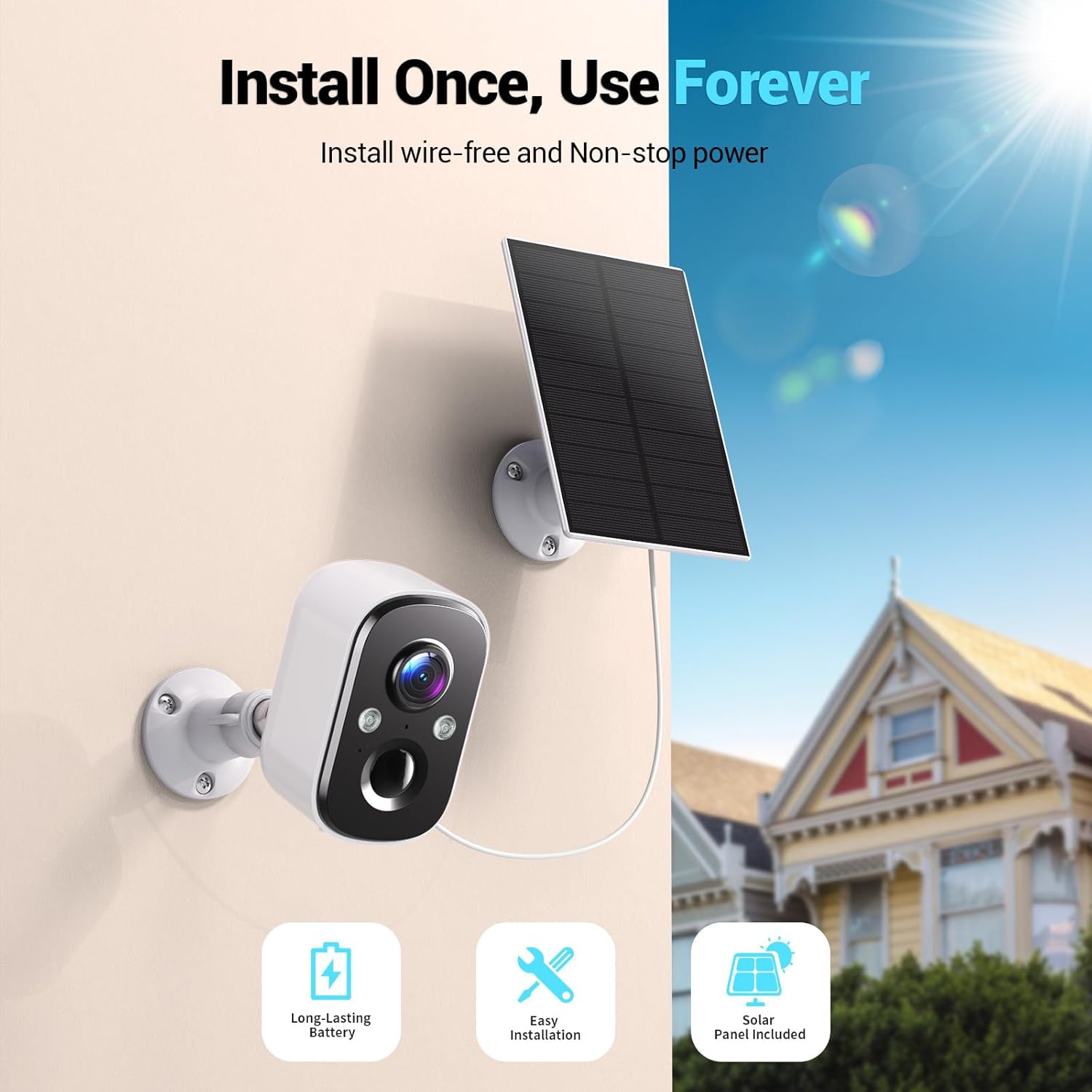
Image: A Techage CG6E camera and its solar panel are shown mounted on an outdoor wall, illustrating a typical installation scenario.
5. Operating Instructions
5.1 Live View
Access real-time video feed from your camera through the Vicohome app. Simply select the desired camera from your device list to view its live stream.
5.2 Motion Detection Settings
The camera features advanced AI motion detection. You can customize settings within the Vicohome app:
- Sensitivity: Adjust the detection sensitivity to minimize false alerts.
- Activity Zones: Define specific areas within the camera's view where motion detection should be active, ignoring other areas.
- AI Recognition: The camera can differentiate between people, vehicles, packages, and pets, providing more relevant alerts.
- Alerts: Configure push notifications to your smartphone when motion is detected.

Image: A visual representation of the camera detecting motion near a doorway, triggering a spotlight, siren, and sending a notification to the Vicohome app.
5.3 Two-Way Audio
Utilize the two-way audio feature to communicate with individuals near the camera. Tap the microphone icon in the live view interface of the Vicohome app to speak, and the camera's speaker will broadcast your voice. You can also hear audio from the camera's location.

Image: A person inside a house communicating via the camera with another person outside, demonstrating the two-way audio function.
5.4 Night Vision Modes
The camera offers two night vision modes:
- Color Night Vision: When the built-in spotlights are activated (either manually or by motion detection), the camera captures full-color video in dark environments.
- Infrared Night Vision: With spotlights off, the camera uses infrared LEDs to provide clear black-and-white video in darkness.

Image: A comparison showing the difference between color night vision (spotlight on) and infrared night vision (spotlight off) in a dark setting.
5.5 Storage Options
Your camera supports two storage methods:
- Micro SD Card: Insert a Micro SD card (up to 128GB, not included) into the designated slot on the camera for local recording.
- Cloud Storage: The Vicohome app offers a free 3-day rolling event recording cloud storage. Optional premium cloud plans are available for extended storage and advanced features.
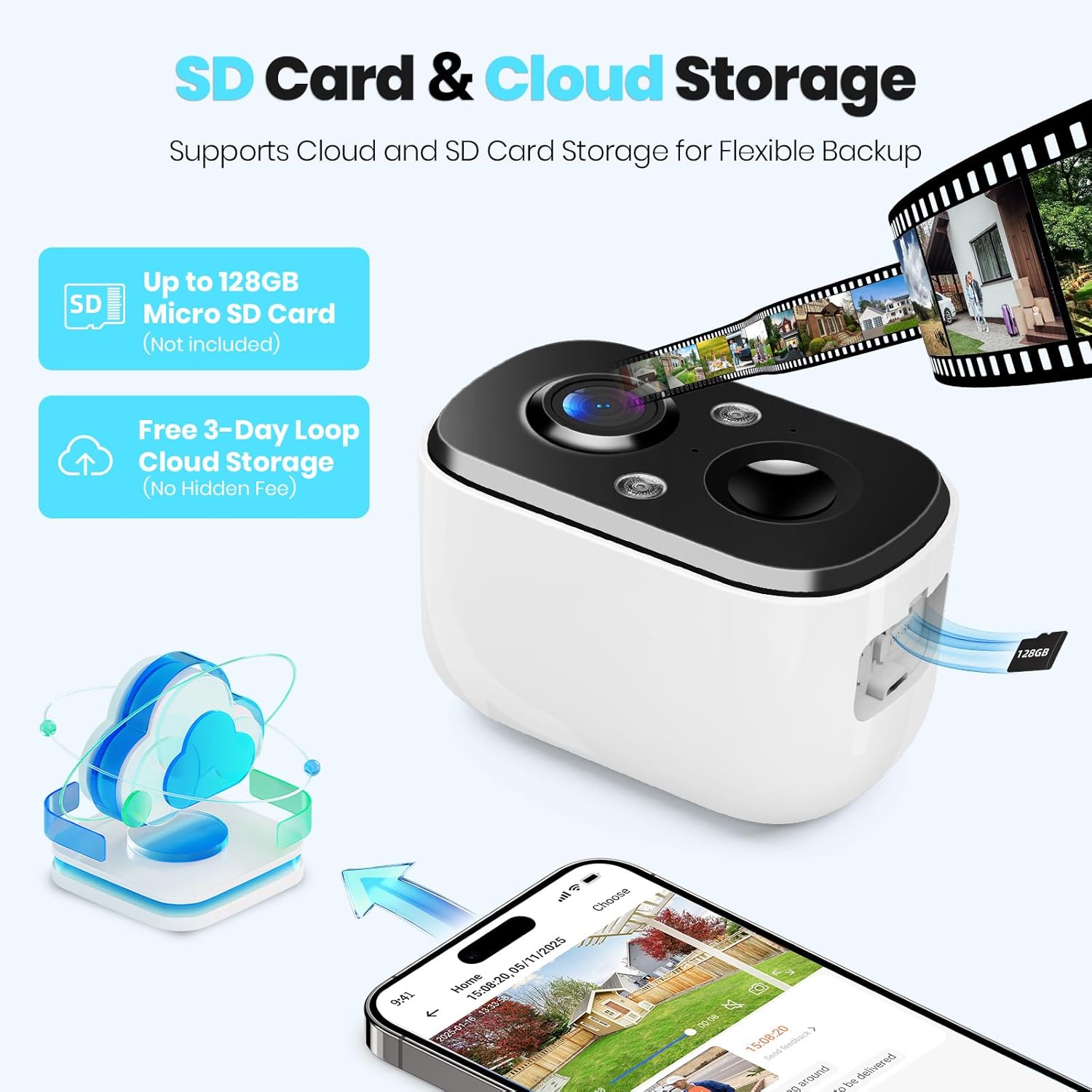
Image: A close-up of the camera highlighting the Micro SD card slot and illustrating cloud storage functionality.
5.6 Sharing Access
You can share camera access with family members or trusted individuals through the Vicohome app. This allows multiple users to view live feeds and receive alerts.
6. Maintenance
6.1 Battery Charging and Solar Panel Placement
The solar panel is designed to keep the camera battery charged. Ensure the solar panel is positioned to receive maximum direct sunlight daily. If the camera's battery level drops significantly due to prolonged cloudy weather or insufficient sunlight, you may need to temporarily charge the camera using the provided USB cable.
6.2 Cleaning
Periodically clean the camera lens and the surface of the solar panel with a soft, damp cloth to ensure optimal performance. Avoid using harsh chemicals or abrasive materials.
6.3 Firmware Updates
The Vicohome app will notify you of available firmware updates. It is recommended to keep your camera's firmware updated to ensure the latest features, security enhancements, and bug fixes.
7. Troubleshooting
- Camera not connecting to Wi-Fi: Ensure your Wi-Fi network is 2.4GHz. Check Wi-Fi signal strength at the camera's location. Restart your router and the camera.
- Frequent false alerts: Adjust motion detection sensitivity and configure activity zones within the Vicohome app to focus on relevant areas.
- Poor night vision: Ensure the camera lens is clean. Check if the spotlights are enabled for color night vision.
- Battery not charging: Verify the solar panel is connected correctly and receives sufficient direct sunlight. Clean the solar panel surface.
- No cloud recording: Confirm your cloud storage subscription status. The free plan offers 3-day rolling event recording.
For further assistance, refer to the in-app help section or contact customer support.
8. Specifications
| Feature | Specification |
|---|---|
| Model Name | CG6E |
| Indoor/Outdoor Usage | Outdoor |
| Power Source | Solar Powered |
| Connectivity Technology | Wireless (Wi-Fi 2.4GHz only) |
| Video Capture Resolution | 2K (1440p) |
| Night Vision Range | 33 Feet |
| Water Resistance Level | IP66 Waterproof |
| Two-Way Audio | Yes |
| Storage Options | Micro SD Card (up to 128GB), Cloud Storage |
| Compatible Devices | Smartphone (via Vicohome app) |
| Product Dimensions | 6 x 3.49 x 7.5 inches |
| Item Weight | 2.09 pounds |
9. Warranty and Support
Techage provides free technical support for its products. For warranty information or to contact support, please refer to the contact details provided within the Vicohome app or visit the official Techage website.

Image: A customer support representative, symbolizing the availability of technical assistance.


