1. Introduction
This manual provides detailed instructions for the installation, operation, and maintenance of your Hiseeu 4K/8MP Wireless Security Camera System. This system is designed to provide comprehensive surveillance for your home or business, featuring high-resolution video, advanced connectivity, and robust storage solutions.
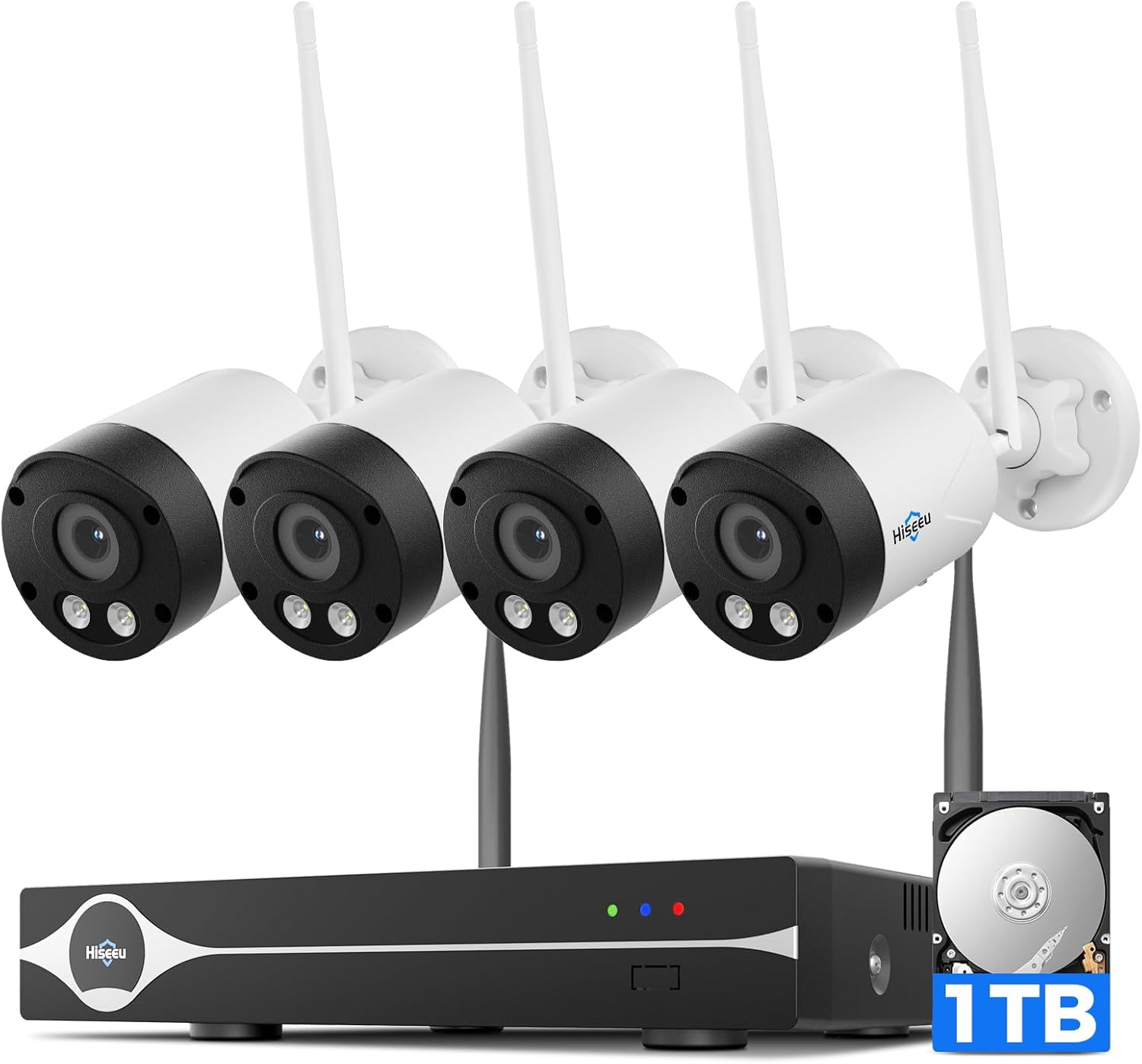
Image 1.1: Overview of the Hiseeu 4K/8MP Wireless Security Camera System, including the NVR and four cameras.
2. Package Contents
Please verify that all items listed below are included in your package:
- 4x Hiseeu 8MP Security Cameras
- 1x Hiseeu 16-Channel Network Video Recorder (NVR)
- 1x User Manual (this document)
- 1x 1TB Hard Disk Drive (Pre-installed in NVR)
- 1x USB Mouse
- Power Adapters for NVR and Cameras
- Mounting Screws and Wall Plugs
3. Setup Guide
3.1 NVR Initial Setup
- Connect Power: Connect the NVR to a power outlet using the provided power adapter.
- Connect Monitor: Connect the NVR to a monitor or TV via the HDMI port.
- Connect Mouse: Plug the USB mouse into a USB port on the NVR.
- Network Connection: For remote access, connect the NVR to your router using an Ethernet cable.
3.2 Camera Installation
The cameras are designed for outdoor use and are weatherproof. Choose mounting locations that provide optimal viewing angles and are within range of the NVR's Wi-Fi signal.
- Mounting: Use the provided screws and wall plugs to securely mount each camera in your desired location.
- Power Connection: Connect each camera to a power outlet using its dedicated power adapter. The cameras require a constant power source.
3.3 Network Connection and Pairing
The cameras automatically pair with the NVR upon power-up. The system utilizes dual-band 2.4GHz/5GHz Wi-Fi Pro technology for stable connections.

Image 3.1: Wireless connection diagram illustrating how cameras connect to the NVR.
3.4 Mobile App Setup (EseeCloud)
To access your security system remotely, download the EseeCloud app on your smartphone or tablet.
- Download App: Search for "EseeCloud" in your device's app store.
- Register Account: Follow the in-app instructions to create a new account.
- Add Device: Scan the QR code displayed on your NVR's monitor or manually enter the device ID to add your system to the app.

Image 3.2: Remote access diagram illustrating how to view your system on mobile devices and laptops.
4. Operating Instructions
4.1 Live View
Once the system is set up, you can view live footage from all connected cameras on your monitor or through the EseeCloud app. Use the mouse connected to the NVR to navigate the on-screen interface.
4.2 Recording and Playback
The NVR comes with a pre-installed 1TB HDD, allowing for continuous recording without monthly fees. Footage is stored locally for privacy and easy access.
- Continuous Recording: The system is configured for continuous recording by default.
- Playback: Access recorded footage via the NVR interface or the EseeCloud app. Use the timeline to select specific dates and times for playback.
- Backup: Videos can be easily backed up from the NVR to an external USB drive.

Image 4.1: The system allows for simple video backup to external storage.
4.3 Motion Detection and Alerts
The system features smart motion detection to alert you to unusual activity. You can customize detection zones to minimize false alarms.
- Event Notifications: When motion is detected, the camera triggers recording, and an alert is sent to your EseeCloud app.
- Activity Zones: Configure specific areas within the camera's view to monitor, ignoring irrelevant areas.

Image 4.2: Example of an event notification received on a smartphone.

Image 4.3: Customize monitoring areas to receive relevant alerts.
4.4 Two-Way Audio
Each camera is equipped with a built-in microphone and speaker, enabling two-way communication.
- Communicate: Use the EseeCloud app to speak through the camera and hear audio from the camera's location.
- Applications: Useful for greeting visitors or deterring unwanted individuals.

Image 4.4: Two-way audio feature allows real-time communication.
4.5 Night Vision
The cameras provide clear visibility even in low-light conditions.
- Full-Color Night Vision: Advanced lighting programs enable full-color video capture at night.
- Infrared Night Vision: When light is insufficient for color, the cameras automatically switch to infrared mode for clear black and white footage up to 65 feet.

Image 4.5: Demonstrates the clarity of color night vision compared to traditional infrared.
4.6 Expanding the System
The 16-channel NVR allows for expansion beyond the initial four cameras.
- Add Cameras: You can add up to 12 additional Hiseeu IP cameras to the system.
- Compatibility: Compatible with various Hiseeu wireless security camera models, including PTZ and optical zoom options.

Image 4.6: The NVR supports up to 16 channels for a customizable surveillance setup.
5. Maintenance
- Camera Cleaning: Periodically clean the camera lenses with a soft, damp cloth to ensure clear image quality. Avoid abrasive cleaners.
- Firmware Updates: Check the Hiseeu website or EseeCloud app for available firmware updates to ensure optimal performance and security.
- NVR Placement: Ensure the NVR is placed in a well-ventilated area, away from direct sunlight and excessive heat or moisture.
- Data Backup: Regularly back up important recordings to an external storage device.
6. Troubleshooting
- No Video Signal:
- Ensure cameras and NVR are powered on.
- Check Wi-Fi connection between cameras and NVR. Relocate cameras closer to the NVR if signal is weak.
- Verify NVR is connected to the monitor correctly.
- Remote Access Issues:
- Ensure NVR is connected to your home router via Ethernet.
- Check your internet connection.
- Verify the EseeCloud app is updated to the latest version.
- Motion Detection Not Working:
- Check motion detection settings in the NVR or app.
- Ensure activity zones are configured correctly.
- Adjust sensitivity settings if necessary.
- No Recording:
- Verify the 1TB HDD is properly installed and recognized by the NVR.
- Check recording schedules and settings.
7. Specifications
| Feature | Specification |
|---|---|
| Brand | Hiseeu |
| Model Number | CAWK-4HBY08-AT |
| Connectivity Technology | Wireless (5G/2.4G Dual-Band WiFi Pro) |
| Video Capture Resolution | 4K (8MP) |
| Number of Channels | 16 (Expandable) |
| Memory Storage Capacity | 1 TB HDD (Pre-installed) |
| Special Features | App Control, Human Detection, Night Vision (Color), Smart Playback, Two-Way Audio |
| Power Source | Corded Electric |
| Recommended Use | Outdoor |
| Compatible Devices | Laptops, Personal Computers, Smartphones, TV, Tablets |
| Low Light Technology | Night Color |
| Night Vision Range | 65 Feet |
| Frame Rate | 30 FPS |
| Recording Mode | Motion Detection, Continuous |
| Hardware Interface | HDMI |
| Lens Type | Wide Angle |
| Product Dimensions | 1 x 2 x 2.5 inches (Camera) |
| Item Weight | 8.47 pounds (Total System) |
8. Warranty and Support
Hiseeu is committed to providing reliable products and customer satisfaction.
- Lifetime Support: Hiseeu offers lifetime technical support for its products.
- Contact: For assistance, please refer to the contact information provided in your product packaging or visit the official Hiseeu website for email, phone, or online chat support.

Image 8.1: Hiseeu provides dedicated customer support.


