1. Product Overview
This manual provides instructions for the Naifay 10.1-inch Android Car Radio Stereo, specifically Model B, designed for Toyota Camry vehicles manufactured between 2012 and 2014. Model B is compatible with vehicles equipped with a large screen navigation system or a JBL sound system. This unit features an Android 11 operating system, a 4-Core processor, 2GB RAM, 32GB ROM, and a 10.1-inch 2.5D IPS touch screen. Key functionalities include wireless Apple CarPlay, wireless Android Auto, wired/wireless MirrorLink, offline/online GPS navigation, Wi-Fi connectivity, Bluetooth 5.1, FM radio, AHD backup camera support, Steering Wheel Control (SWC), split-screen mode, and EQ adjustment.

Image 1.1: Naifay 10.1-inch Android Car Radio Stereo with included accessories (microphone, backup camera).
2. Package Contents
Please verify that all items listed below are included in your package:
- Naifay 10.1-inch Android Car Radio Stereo Unit
- Power Cable
- RCA Cable
- GPS Antenna
- USB Cable (x2)
- External Microphone
- Backup Camera
- Can Bus Decoder (if applicable for your vehicle model)
- User Manual
- Mounting Frame for Toyota Camry 2012-2014
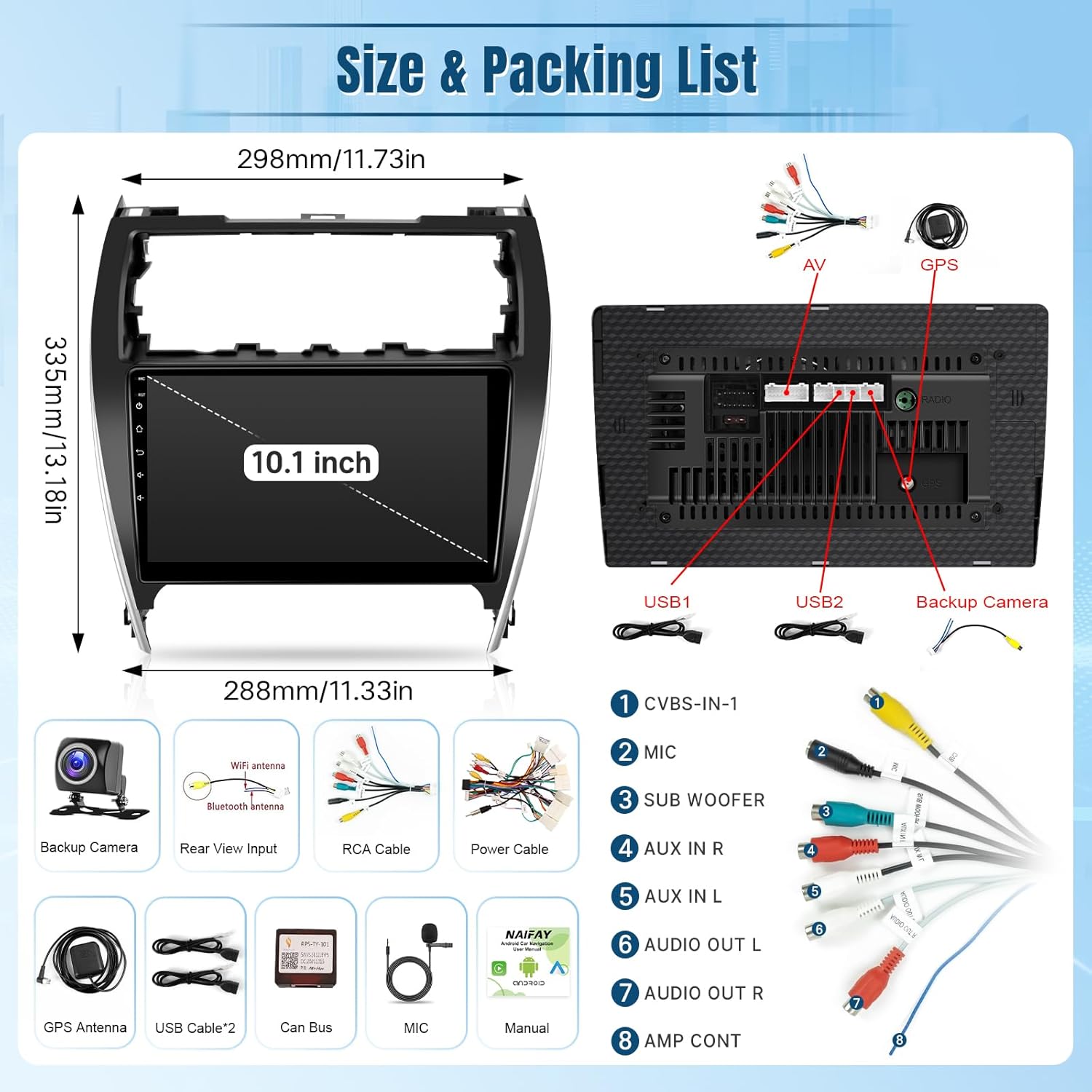
Image 2.1: Visual representation of the Naifay car stereo unit dimensions and included accessories.
3. Installation
Installation of the Naifay car radio stereo is designed to be plug-and-play for compatible Toyota Camry models (2012-2014). No additional accessories are typically required. It is recommended to consult professional installation services if you are unfamiliar with car audio system installation.
3.1 Pre-Installation Check
- Vehicle Compatibility: Ensure your Toyota Camry is from the 2012-2014 model years. This Model B unit is specifically for vehicles with a large screen navigation system or a JBL sound system. If your vehicle does not have these, you may require Model A.
- Power Disconnection: Before beginning any installation, disconnect the vehicle's negative battery terminal to prevent electrical shorts.
- Review Wiring Diagram: Familiarize yourself with the wiring harness connections.
3.2 Installation Steps (General)
- Carefully remove the original car radio and dashboard trim.
- Connect the provided wiring harness to the vehicle's existing harness. Ensure all connections are secure.
- Connect the GPS antenna, Wi-Fi antenna, USB cables, and external microphone to the new head unit.
- If installing the backup camera, route the camera cable to the rear of the vehicle and connect it to the designated input on the head unit.
- Mount the Naifay car radio stereo into the dashboard opening using the provided mounting frame.
- Reconnect the vehicle's negative battery terminal.
- Power on the unit and perform initial setup and testing.

Image 3.1: Example of the Naifay car radio stereo installed in a Toyota Camry dashboard.

Image 3.2: Detailed wiring harness diagram for the Naifay car radio stereo.
4. Initial Setup
After successful installation and powering on the unit, follow these steps for initial setup:
- Language and Time: Navigate to Settings to select your preferred language and set the correct date and time.
- Wi-Fi Connection: Go to Settings > Network & Internet > Wi-Fi. Connect to an available Wi-Fi network or your phone's hotspot to enable online features and app downloads.
- GPS Calibration: Ensure the GPS antenna is properly connected. The system should automatically detect your location.
- Steering Wheel Control (SWC) Learning: Access the SWC settings in the unit's menu. Follow the on-screen instructions to program your vehicle's steering wheel buttons to control the stereo functions (e.g., volume, track skip, answer call).
- Sound Settings: Adjust the equalizer (EQ) settings to your preference.
5. Operating Instructions
5.1 Wireless CarPlay & Android Auto
The unit supports wireless Apple CarPlay and wireless Android Auto. This allows you to project your smartphone's interface onto the car stereo's large screen for navigation, music, calls, and other compatible apps.
- Ensure your phone's Bluetooth and Wi-Fi are enabled.
- On the car stereo, open the CarPlay or Android Auto application.
- Pair your phone with the car stereo via Bluetooth.
- Once paired, the system will prompt you to enable CarPlay or Android Auto via Wi-Fi. Confirm the connection.
- Your phone's compatible apps will now be accessible on the stereo display.

Image 5.1: Overview of wireless CarPlay, Android Auto, and MirrorLink functionalities.
5.2 MirrorLink (Wired/Wireless)
MirrorLink allows you to mirror your phone's screen directly onto the car stereo. iOS devices support wireless connection, while Android devices support both wireless and wired connections.
- For iOS (Wireless): Connect via Wi-Fi.
- For Android (Wireless/Wired): Connect via Wi-Fi for wireless mirroring or use a USB cable for wired mirroring.
5.3 GPS Navigation & Wi-Fi Connection
The unit includes a GPS module for navigation. After connecting to Wi-Fi or a phone hotspot, you can download offline maps or use online navigation applications.
- Offline Maps: Access the map download menu to store maps directly on the unit for navigation without an internet connection.
- Online Maps & Apps: With a Wi-Fi connection, you can use real-time online navigation apps and download other applications like YouTube, Spotify, and WhatsApp from the app store.

Image 5.2: Display showing GPS navigation and Wi-Fi connection capabilities.
5.4 Bluetooth 5.1 & FM Radio
The unit features Bluetooth 5.1 for hands-free calling and wireless audio streaming, along with a stable FM radio tuner.
- Bluetooth: Pair your phone to make/receive calls hands-free and stream music. The unit has a built-in microphone and supports an external microphone via the RCA cable.
- FM Radio: Access the FM radio interface to search for and save your favorite stations. Both manual and automatic station search are supported.
5.5 AHD Backup Camera Input
The stereo supports an AHD backup camera, providing a 170-degree ultra-wide angle view and a waterproof design to assist with safer driving and parking. When the vehicle is shifted into reverse, the camera feed will automatically display on the screen.
5.6 Steering Wheel Control (SWC)
After proper wiring and programming during initial setup, you can use your vehicle's original steering wheel controls to manage the stereo, including switching songs, adjusting volume, and answering calls.
5.7 Split Screen Functionality
The split-screen feature allows you to run two applications simultaneously on the 10.1-inch display, such as navigation on one side and music playback on the other.
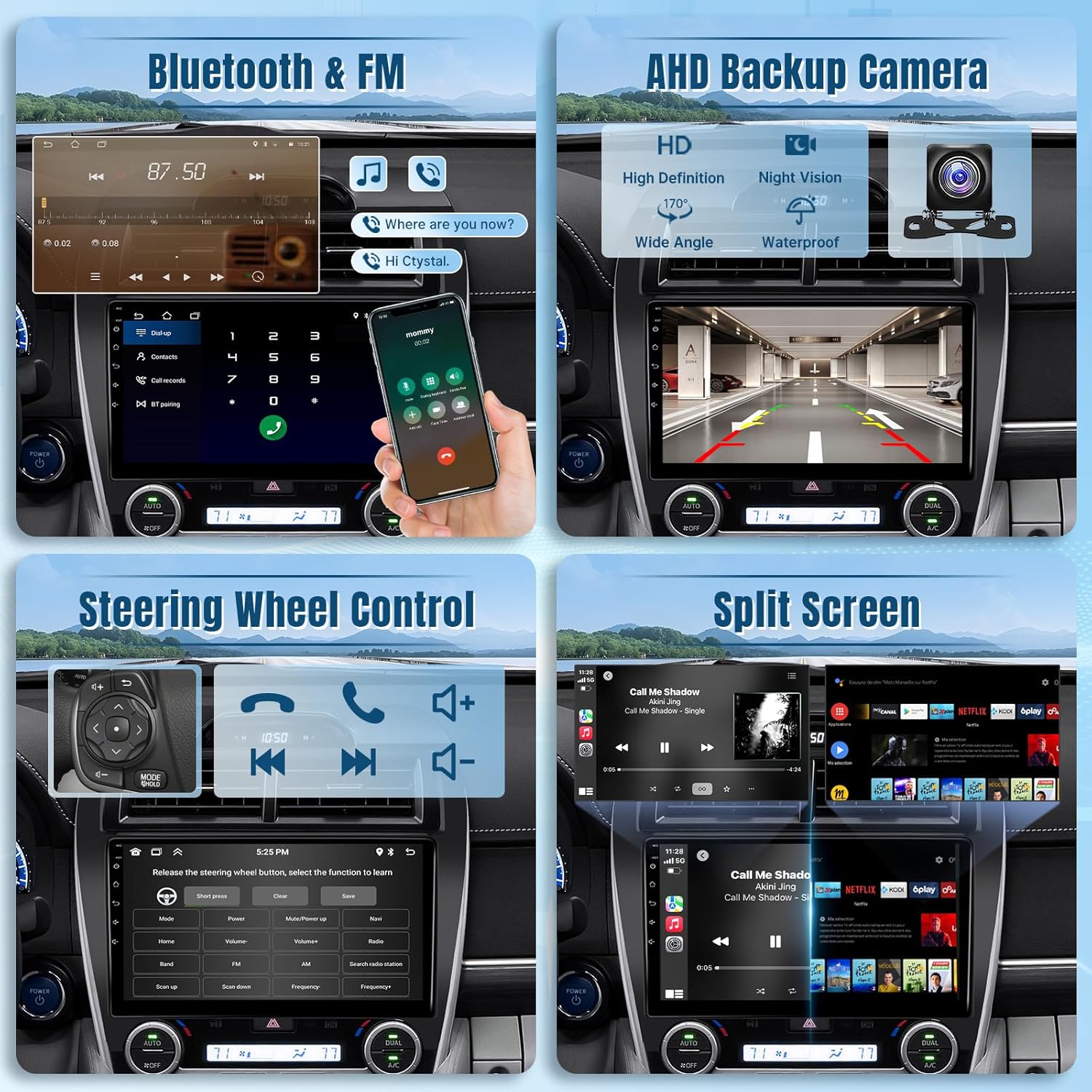
Image 5.3: Combined view of Bluetooth, FM radio, backup camera, SWC, and split-screen functions.
6. Troubleshooting
This section addresses common issues you might encounter with your Naifay car radio stereo.
- No Power:
Check: Ensure all power cables are securely connected and the vehicle's battery is charged. Verify the fuse for the car stereo is intact.
Solution: Re-check connections, replace blown fuses. - No Sound:
Check: Verify speaker connections. Ensure volume is not muted or set to zero. Check audio output settings.
Solution: Adjust volume, check balance/fader settings, inspect speaker wiring. - GPS Not Working/Inaccurate:
Check: Ensure the GPS antenna is properly connected and placed in a location with a clear view of the sky. Verify Wi-Fi connection for online maps.
Solution: Reposition GPS antenna, ensure strong Wi-Fi signal. - Bluetooth Connectivity Issues:
Check: Ensure Bluetooth is enabled on both the stereo and your phone. Delete previous pairings and try re-pairing.
Solution: Restart both devices, try pairing again. - Backup Camera Not Displaying:
Check: Verify the camera input cable is correctly connected to the stereo. Ensure the camera is receiving power and the reverse trigger wire is connected.
Solution: Inspect all camera-related wiring. - Steering Wheel Controls Not Functioning:
Check: Confirm the SWC wires are correctly connected to the vehicle's harness. Re-perform the SWC learning process in the stereo's settings.
Solution: Ensure correct wiring and re-calibrate SWC.
If you encounter issues not covered here or require further assistance, please refer to the Warranty and Support section for contact information.

Image 6.1: Guidance on contacting Naifay for problem resolution.
7. Specifications
| Brand | Naifay |
| Model | Model B (Fit J.B.L & Big Screen) |
| Compatible Vehicles | Toyota Camry 2012, 2013, 2014 |
| Operating System | Android 11 |
| Processor | 4-Core |
| RAM | 2GB |
| ROM (Memory Storage Capacity) | 32GB |
| Screen Size | 10.1 Inches |
| Display Type | 2.5D IPS Touch Screen |
| Connectivity Technology | Wireless, Bluetooth, USB |
| Bluetooth Version | 5.1 |
| Special Features | Wireless CarPlay, Wireless Android Auto, MirrorLink, GPS Navigation, Wi-Fi, FM Radio, AHD Backup Camera Support, Steering Wheel Control (SWC), Split Screen, EQ Adjustable |
| Product Dimensions | 12.01 x 1.57 x 10.43 inches |
| Item Weight | 4.55 pounds (2.07 Kilograms) |
8. Warranty and Support
Naifay is committed to providing excellent products and customer support.
- Replacement Policy: 12 months replacement available.
- Technical Support: Lifetime after-sales consultation and technical support.
- Return Policy: 60-day no-worry return period.
- Response Time: Quick reply within 24 hours for inquiries.
For any questions, technical assistance, or warranty claims, please contact Naifay customer service. You can typically find contact information by navigating to the seller's page on the platform where you purchased the product and looking for a 'Contact Seller' or 'Ask a question' option.

Image 8.1: Overview of Naifay's support and warranty commitments.


