
1. Introduction
Thank you for choosing the Hakimonoe AX900Mbps Wi-Fi 6 USB Adapter. This device is designed to provide your desktop or laptop PC with high-speed Wi-Fi 6 (802.11ax) connectivity, supporting dual-band frequencies (2.4GHz and 5GHz) and featuring a 5dBi high-gain antenna for extended range and stable connections. This manual provides detailed instructions for installation, operation, and troubleshooting to ensure optimal performance.
2. Package Contents
- 1 x Hakimonoe AX910 AX900Mbps USB WiFi Adapter
- 1 x User Manual
3. Product Overview
The Hakimonoe AX900Mbps Wi-Fi 6 USB Adapter upgrades your computer to the latest Wi-Fi 6 standard, offering enhanced speed, stability, and efficiency. It supports advanced technologies like MU-MIMO and OFDMA for reduced latency and improved network throughput.

Figure 3.1: Key Features of the Hakimonoe AX900Mbps Wi-Fi 6 USB Adapter. This image highlights the adapter's support for Wi-Fi 6 (802.11AX) with speeds up to 900Mbps, dual-band operation (600Mbps on 5GHz, 286Mbps on 2.4GHz), compatibility with Windows 11/10/7, WPA3 encryption, and MU-MIMO/OFDMA technologies.
Equipped with a 5dBi high-gain antenna, the adapter significantly improves Wi-Fi signal reception and transmission, providing a strong and stable connection even across longer distances or through obstacles.

Figure 3.2: Increased Wireless Range. This diagram compares the signal coverage of the AX910 Wi-Fi adapter with its 5dBi high-gain antenna against a regular adapter, demonstrating improved signal strength and penetration through walls.
The antenna is also adjustable, allowing for 180-degree and 90-degree rotations to optimize signal reception based on your setup.

Figure 3.3: Adjustable Antenna and Dimensions. This image illustrates the flexibility of the AX910 adapter's antenna, which can rotate 180 and 90 degrees, and provides its physical dimensions for reference.
4. Setup
4.1 System Requirements
- Operating System: Windows 11, Windows 10, Windows 7
- Available USB 2.0 port
Note: This adapter is not recommended for Linux or Mac systems.
4.2 Driver Installation (Windows 11/10/7)
The Hakimonoe AX900Mbps USB Wi-Fi Adapter features a built-in driver for Windows 11, 10, and 7, making installation straightforward.
- Insert the USB Wi-Fi adapter into an available USB port on your computer.
- Wait for the driver installation prompt to appear automatically.
- Follow the on-screen instructions to install the driver.
- Once the installation is complete, restart your computer for the changes to take effect.
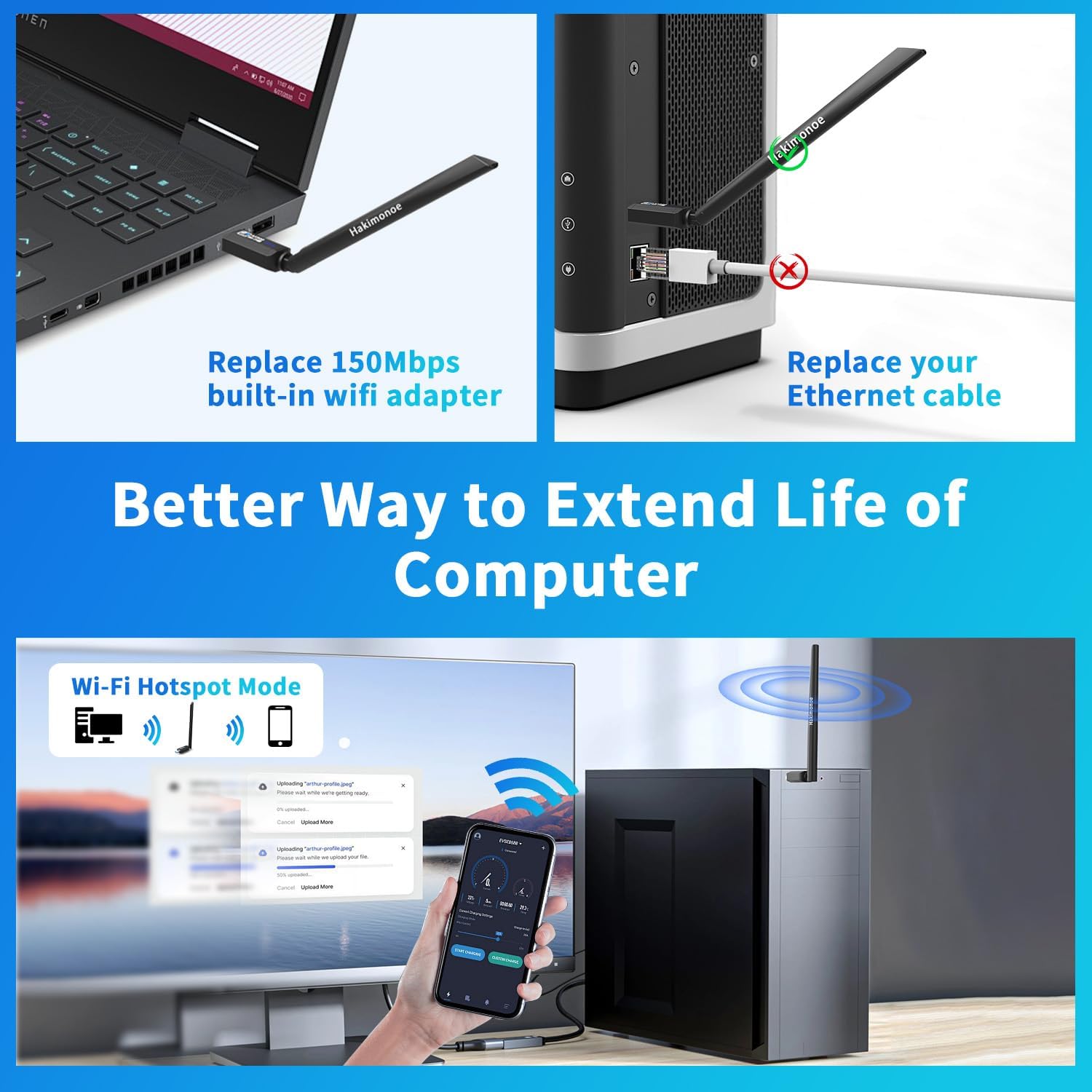
Figure 4.1: Easy Setup for Windows. This image illustrates the simple plug-and-play driver installation process for Windows 11, 10, and 7, showing the adapter connected and the driver installation prompt.
4.3 Important Setup Tips
- Disable Built-in Wi-Fi: Before using the Hakimonoe USB Wi-Fi adapter, it is recommended to disable your PC's integrated Wi-Fi device to prevent potential conflicts and ensure the new adapter functions correctly.
- USB Port Selection: For optimal performance and recognition, connect the USB Wi-Fi adapter to a rear USB port on your desktop PC.
5. Operating Instructions
5.1 Connecting to a Wi-Fi Network
After successful driver installation and computer restart:
- Click on the Wi-Fi icon in your Windows taskbar (usually in the bottom-right corner).
- A list of available Wi-Fi networks will appear.
- Select your desired network and click 'Connect'.
- Enter the network security key (password) if prompted.
- Your computer should now be connected to the Wi-Fi network using the Hakimonoe adapter.
5.2 Dual-Band Operation (2.4GHz and 5GHz)
The adapter supports both 2.4GHz and 5GHz frequency bands:
- 2.4GHz Band: Offers wider coverage and better penetration through walls, suitable for general internet browsing, email, and stable connections over longer distances. Speeds up to 286Mbps.
- 5GHz Band: Provides faster speeds and lower latency, ideal for bandwidth-intensive applications like HD video streaming, online gaming, and large file transfers. Speeds up to 600Mbps. This band typically has a shorter range and is more susceptible to obstacles.
Choose the appropriate band based on your network setup and usage requirements. Many modern routers broadcast separate SSIDs (network names) for each band (e.g., "MyWiFi_2.4GHz" and "MyWiFi_5GHz").
5.3 Wi-Fi Hotspot Mode (Soft AP)
The adapter supports Soft AP mode, allowing you to convert your computer's wired internet connection into a Wi-Fi hotspot. This enables other wireless devices (smartphones, tablets, etc.) to connect to the internet through your computer.
- Ensure your computer is connected to the internet via an Ethernet cable.
- Access the adapter's utility software or Windows network settings to enable 'Mobile hotspot' or 'Soft AP' mode.
- Configure the hotspot name (SSID) and password.
- Other devices can now connect to your computer's Wi-Fi hotspot.

Figure 5.1: Wi-Fi Hotspot Mode. This image demonstrates how the adapter can be used to create a Wi-Fi hotspot from a wired internet connection, allowing other devices to connect wirelessly.
6. Maintenance
To ensure the longevity and optimal performance of your Hakimonoe AX900Mbps Wi-Fi 6 USB Adapter:
- Keep the adapter clean and free from dust. Use a soft, dry cloth for cleaning.
- Avoid exposing the adapter to extreme temperatures, humidity, or direct sunlight.
- Do not attempt to disassemble or repair the adapter yourself. This may void the warranty.
- Ensure the antenna is not bent or damaged. Adjust it carefully to optimize signal.
7. Troubleshooting
If you encounter issues with your Hakimonoe AX900Mbps Wi-Fi 6 USB Adapter, refer to the following common problems and solutions:
- No Wi-Fi Networks Detected / Adapter Not Recognized:
- Ensure the adapter is securely plugged into a USB port. Try a different USB port, preferably a rear port on a desktop PC.
- Verify that the driver is correctly installed. Check Device Manager in Windows for any yellow exclamation marks next to the network adapter. Reinstall the driver if necessary.
- Disable your computer's built-in Wi-Fi adapter to avoid conflicts.
- Restart your computer.
- Slow Connection Speed:
- Ensure you are connected to the 5GHz band if your router supports it and you are within close range.
- Adjust the antenna direction for better signal reception.
- Reduce interference from other electronic devices (e.g., microwaves, cordless phones).
- Ensure your router is Wi-Fi 6 compatible to fully utilize the adapter's capabilities.
- Frequent Disconnections:
- Check for strong Wi-Fi signal strength. Move closer to the router if possible.
- Ensure the adapter is not overheating.
- Update your router's firmware.
- Try connecting to the 2.4GHz band for a more stable connection if range is an issue.
- Driver Installation Pop-up Not Appearing:
- Check if 'AutoPlay' is enabled in your Windows settings.
- Manually browse the adapter's drive (it may appear as a CD-ROM drive) in 'This PC' and run the installer executable.
8. Specifications
| Brand | hakimonoe |
| Model Number | AX901 |
| Hardware Interface | USB 2.0 |
| Wireless Standards | IEEE 802.11a/b/g/n/ax |
| Frequency | 2.4-2.48 GHz / 5-5.8 GHz (Dual Band) |
| Data Transfer Rate | Up to 900 Mbps (600Mbps on 5GHz; 286Mbps on 2.4GHz) |
| Antenna Gain | 5dBi |
| Wireless Security | WPA-PSK/WPA2-PSK/WPA3 |
| Supported Technologies | MU-MIMO, OFDMA, TWT |
| Compatible Devices | PC/Laptop/Desktop with Windows 11/10/7 |
| Product Dimensions (L x W x H) | 21.8 cm x 2.1 cm x 1.2 cm |
| Item Weight | 9 Grams |
9. Warranty and Support
For warranty information and technical support, please refer to the documentation provided with your purchase or contact the seller/manufacturer directly. Keep your purchase receipt as proof of purchase.