
Blackview TB2024
Blackview Color 8 User Manual
Model: TB2024
1. Introduction
Welcome to the Blackview Color 8 user manual. This guide provides detailed instructions on how to set up, operate, maintain, and troubleshoot your new Blackview Color 8 unlocked Android phone. The Blackview Color 8 features an Octa-core Processor, a 50MP camera, a 6000mAh battery, and runs on Android 13 with Doke OS 4.0, offering enhanced performance and user experience.

Figure 1: Blackview Color 8 Smartphone Overview
2. Setup
2.1 Package Contents
Before you begin, ensure all items are present in the package:
- Blackview Color 8 Smartphone
- USB Type-C Cable
- Power Adapter (18W)
- SIM Ejector Tool
- User Manual (this document)
- Protective Case (may vary by region/package)
2.2 Inserting SIM Cards and Micro SD Card
The Blackview Color 8 supports dual Nano SIM cards and one Micro SD/TF card for expanded storage up to 2TB.
- Locate the SIM card tray on the side of the phone.
- Insert the SIM ejector tool into the small hole next to the tray and push gently until the tray pops out.
- Place your Nano SIM cards and/or Micro SD card into the designated slots on the tray. Ensure they are correctly oriented as shown on the tray.
- Carefully push the tray back into the phone until it clicks into place.

Figure 2: SIM Card and Micro SD Card Installation
2.3 Initial Power On and Setup Wizard
To power on your device for the first time:
- Press and hold the Power button (located on the side) until the Blackview logo appears.
- Follow the on-screen instructions to complete the initial setup, which includes selecting your language, connecting to Wi-Fi, setting up your Google account, and configuring security features like Fingerprint ID and Face ID.
3. Operating Your Device
3.1 Basic Navigation and Interface
The Blackview Color 8 runs on Android 13 with Doke OS 4.0, providing a user-friendly interface. Navigate using gestures or the traditional navigation bar at the bottom of the screen.
- Home Screen: Access your apps, widgets, and notifications.
- Notification Panel: Swipe down from the top of the screen to view notifications and quick settings.
- App Drawer: Swipe up from the home screen to access all installed applications.

Figure 3: Android 13 & Doke OS 4.0 Interface
3.2 Calls and Messaging
Use the Phone app for calls and the Messages app for SMS/MMS. The dual SIM support allows you to manage two numbers simultaneously.
3.3 Camera Features
The Blackview Color 8 is equipped with a 50MP main camera and an 8MP front camera. Explore various shooting modes to enhance your photography:
- Beauty Mode: Enhances facial features for selfies and portraits.
- Portrait Mode: Creates a depth effect with blurred backgrounds.
- Night Mode: Improves photo quality in low-light conditions.
- HDR: Balances exposure for high-contrast scenes.
- Panorama: Capture wide-angle shots by stitching multiple images.
- 1080P Video Recording: Record high-definition videos.

Figure 4: Camera Modes and Capabilities
3.4 Battery Management
The 6000mAh mega battery provides extended usage. Utilize the 18W fast charging for quick power-ups. The improved smart battery system optimizes energy efficiency.
- To check battery usage, go to Settings > Battery.
- Enable Battery Saver mode for extended battery life.
- The phone supports USB OTG for charging other devices.

Figure 5: Battery and Charging Features
3.5 Security Features
Unlock your phone securely using:
- Fingerprint ID: Register your fingerprints for quick and secure unlocking. The fingerprint sensor is integrated with the power button.
- Face ID Unlock: Use facial recognition for convenient unlocking.
3.6 Connectivity and Navigation
The Blackview Color 8 supports 4G networks and includes comprehensive navigation systems.
- Wi-Fi: Connect to wireless networks for internet access.
- Bluetooth: Pair with Bluetooth devices like headphones or speakers.
- GPS, Beidou, GLONASS, Galileo: Utilize these navigation systems for accurate location tracking and mapping.
- 3.5mm Headphone Jack: For wired audio connections.
- FM Radio: Listen to local radio stations.

Figure 6: Advanced Navigation Systems
3.7 Doke OS 4.0 Features
Doke OS 4.0, based on Android 13, introduces several enhancements:
- EasyShare App: Faster data transfer than wireless Bluetooth.
- Real-time Subtitles: Provides live captions for videos.
- Health APP: Tracks running, brisk walking, cycling, and calorie consumption.
- Privacy Protection: Enhanced controls for app permissions and data privacy.
- Dynamic Live View: Instant alerts and status updates for ongoing activities.
- Call Recording: Record phone calls (check local laws regarding consent).
- Speaker Cleaning: A utility to help clear debris from the speaker.

Figure 7: Doke OS 4.0 User Experience

Figure 8: EasyShare App for Fast Data Transfer
4. Maintenance
4.1 Software Updates
Regularly check for and install software updates to ensure optimal performance, security, and access to new features. Go to Settings > System > System update to check for updates.
4.2 Battery Care
- Avoid extreme temperatures, as they can degrade battery life.
- Do not fully discharge the battery frequently.
- Use the original charger and cable for optimal charging.
4.3 Cleaning Your Device
Use a soft, lint-free cloth to clean the screen and body of the phone. Avoid using harsh chemicals or abrasive materials.
5. Troubleshooting
| Problem | Possible Cause | Solution |
|---|---|---|
| Phone is unresponsive or frozen. | Software glitch, too many apps running. | Press and hold the Power button for about 10 seconds to force restart. |
| Cannot connect to Wi-Fi. | Incorrect password, router issue, Wi-Fi disabled. | Check Wi-Fi settings, restart router, forget and reconnect to network. |
| Poor camera quality or app issues. | Low light, dirty lens, software bug. | Clean the camera lens. Ensure good lighting. Restart the camera app or phone. Check for system updates. |
| Battery drains quickly. | Background apps, high screen brightness, network issues. | Adjust screen brightness, close unused apps, enable battery saver, check app battery usage in settings. |
| Network connectivity issues (4G). | Incorrect APN settings, weak signal, SIM card issue. | Ensure SIM card is properly inserted. Check network settings (APN). Move to an area with better signal. Restart phone. |
6. Specifications
| Feature | Detail |
|---|---|
| Model Name | TB2024-Color 8-128-Blue-CLXUS-NEW |
| Operating System | Android 13 (Doke OS 4.0) |
| Processor | Octa-Core (MediaTek Kompanio 800T) |
| RAM | 8 GB (expandable to 16 GB with virtual memory) |
| Internal Storage | 128 GB |
| Expandable Storage | Up to 2 TB (Micro SD/TF card) |
| Screen Size | 6.75 inches HD+ |
| Resolution | 1600 x 720 pixels |
| Refresh Rate | 90 Hz |
| Main Camera | 50 MP |
| Front Camera | 8 MP |
| Battery Capacity | 6000 mAh |
| Charging | 18W Fast Charge |
| Connectivity | 4G FDD: B1/B2/B3/B4/B5/B7/B8/B12/B17/B20/B26/B28A/B28B/B66; 3G WCDMA: B1/B2/B4/B5/B8; 2G GSM: 850/900/1800/1900 (B2/B3/B5/B8), Wi-Fi, Bluetooth |
| Navigation | GPS, Beidou, GLONASS, Galileo |
| Audio Jack | 3.5 mm |
| Dimensions | 7.13 x 3.56 x 2.19 inches |
| Weight | 1.1 pounds (approx. 214g) |
| Color | Blue |

Figure 9: Processor and Memory Details

Figure 10: Display Specifications
7. Warranty and Support
Blackview offers a 2-year guarantee service for all Blackview cellphones. This includes a 24-month free repair warranty and lifetime technician support when purchased from the Blackview Official Flagship Store.
For any issues or inquiries, please reach out to the seller or Blackview customer support for prompt assistance.
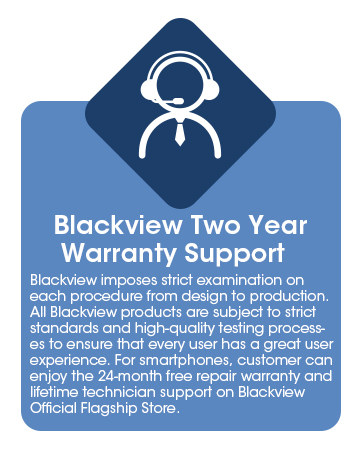
Figure 11: Blackview Two Year Warranty Support
8. Product Videos
8.1 Blackview Color 8 Android Phone - AnTuTu Benchmark
Video 1: This video demonstrates the performance of the Blackview Color 8 using the AnTuTu benchmark test, showcasing its processing capabilities and fluidity during various tasks.
Related documentsTB2024


Ask a question about this manual
Ask about setup, troubleshooting, compatibility, parts, safety, or missing instructions. Manuals+ will review the question and use this page’s manual context to help answer it.