
Introduction
This manual provides detailed instructions for the installation, operation, and maintenance of your Roinvou 2+64G Android Auto Radio. This in-dash head unit is specifically designed for Chevrolet Chevy Camaro models manufactured between 2010 and 2015, for left-hand drive vehicles. Please read this manual thoroughly before installation and use to ensure proper functionality and safety.
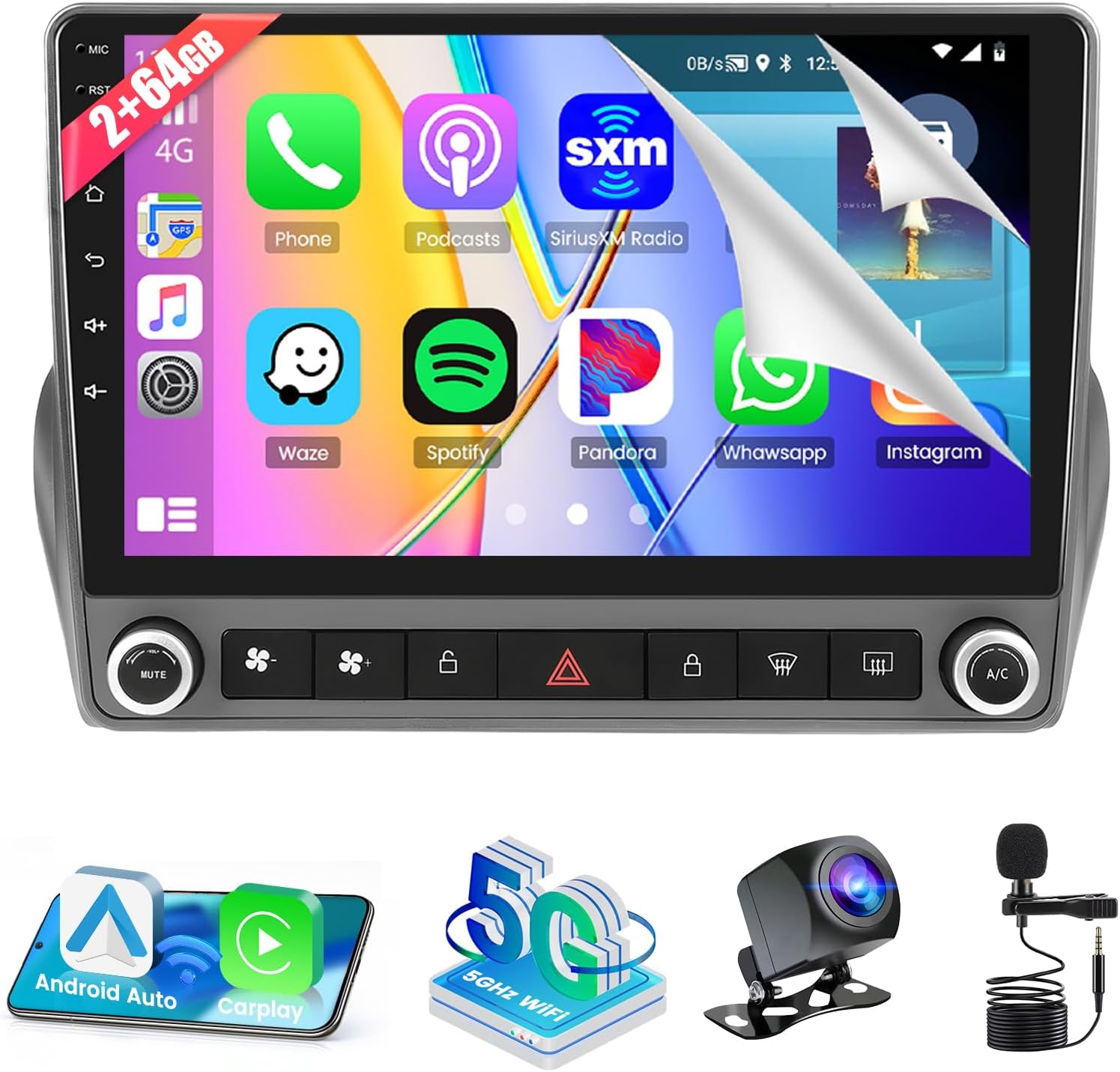
Image: The Roinvou 9-inch Android Auto Radio display, showcasing its user interface with various applications.
Setup and Installation
1. Package Contents
Before beginning installation, verify that all components are present in the package:
- Roinvou Head Unit for Chevrolet Chevy Camaro
- Power Cable
- Canbus Box
- Original USB Cable
- Radio Antenna
- Acoustic Adapter
- Small Microphone
- Dual RCA Harness
- GPS Antenna
- AHD Backup Camera
- External Microphone
- Rear Camera Input Cable
- Dual USB Cable
- Installation Tool & Accessories

Image: A visual representation of all items included in the product package.
2. Installation Overview
The Roinvou head unit is designed for direct replacement in compatible Chevrolet Chevy Camaro models. The installation process involves removing the original radio and dash components, connecting the new wiring harness, and securing the new head unit.

Image: Comparison of the car's dashboard before and after installing the Roinvou Android Auto Radio.
3. Wiring Connections
Carefully connect the provided wiring harness to your vehicle's existing wiring. Ensure all connections are secure. Pay special attention to the red and white RCA ports on the power cable, connecting them to the corresponding RCA harness.

Image: Detailed wiring diagram for connecting the reversing camera and Canbus system.
4. Securing the Head Unit
The head unit is primarily secured by two screws at the bottom. The top portion of the radio uses clips to hold it in place. Ensure these clips engage properly for a secure fit.
Operating Instructions
1. User Interface and Themes
The 9-inch touchscreen display offers a responsive user experience. You can customize the appearance of your radio with 26 different UI themes, accessible through the system settings.

Image: A selection of the 26 customizable UI themes for the radio display.
2. Wireless/Wired CarPlay & Android Auto
Connect your iOS or Android smartphone to the head unit for seamless integration. This feature allows you to access navigation, make calls, send messages, and listen to music directly from your phone's interface on the car's screen. Connection can be established wirelessly via Bluetooth or through an original USB data cable.
- Wireless Connection: Pair your phone via Bluetooth.
- Wired Connection: Use your phone's original USB data cable.
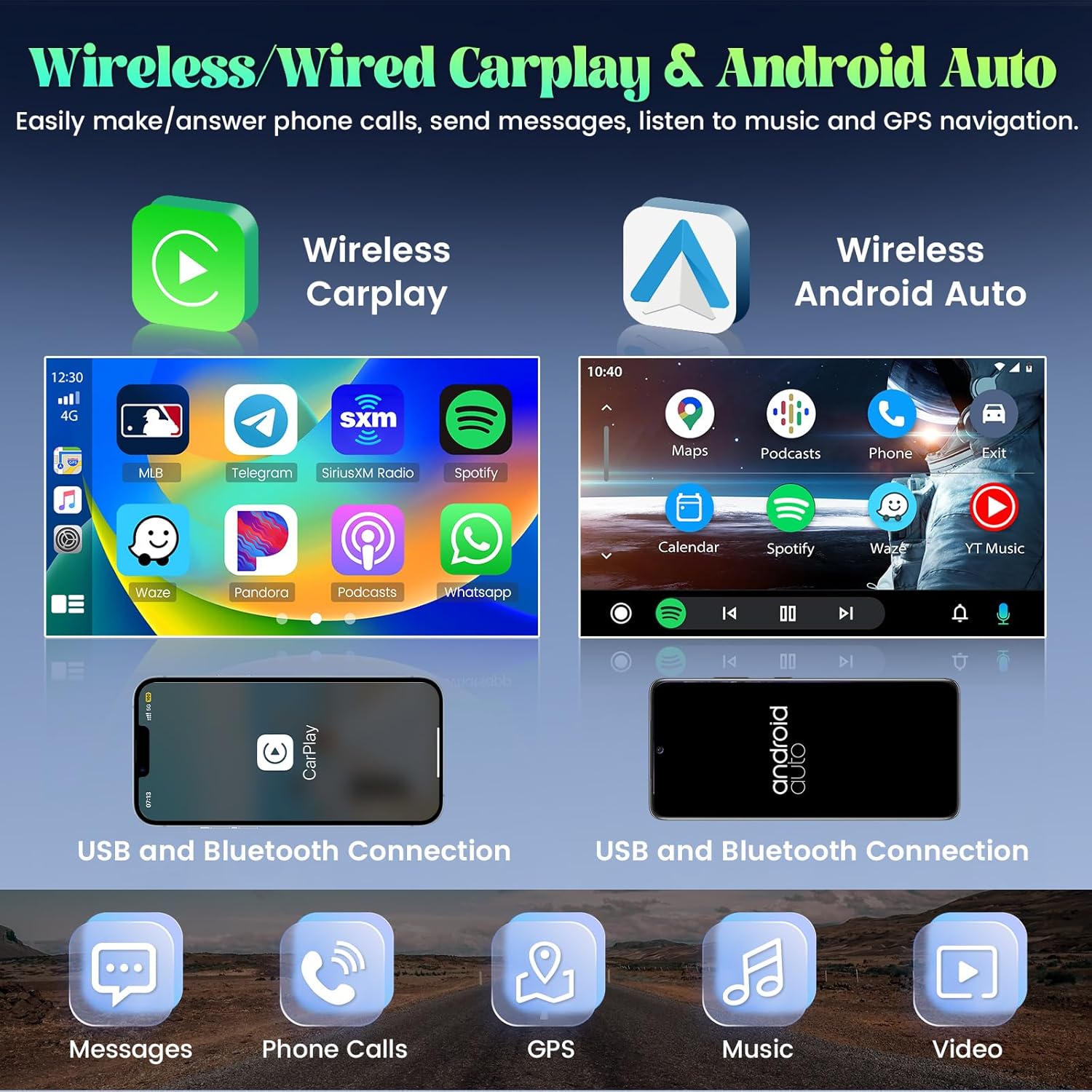
Image: Display of Wireless CarPlay and Android Auto functionalities.
3. Bluetooth Connectivity
The built-in Bluetooth module supports hands-free calling, phone book synchronization, and audio streaming. Pair your phone to make and receive calls safely while driving and enjoy your music library.
4. Mirror Link Functionality
Mirror Link allows you to synchronize your smartphone screen with the head unit's display. This feature supports both Android and iOS devices. Android devices typically offer two-way control, while iOS devices offer one-way mirroring.
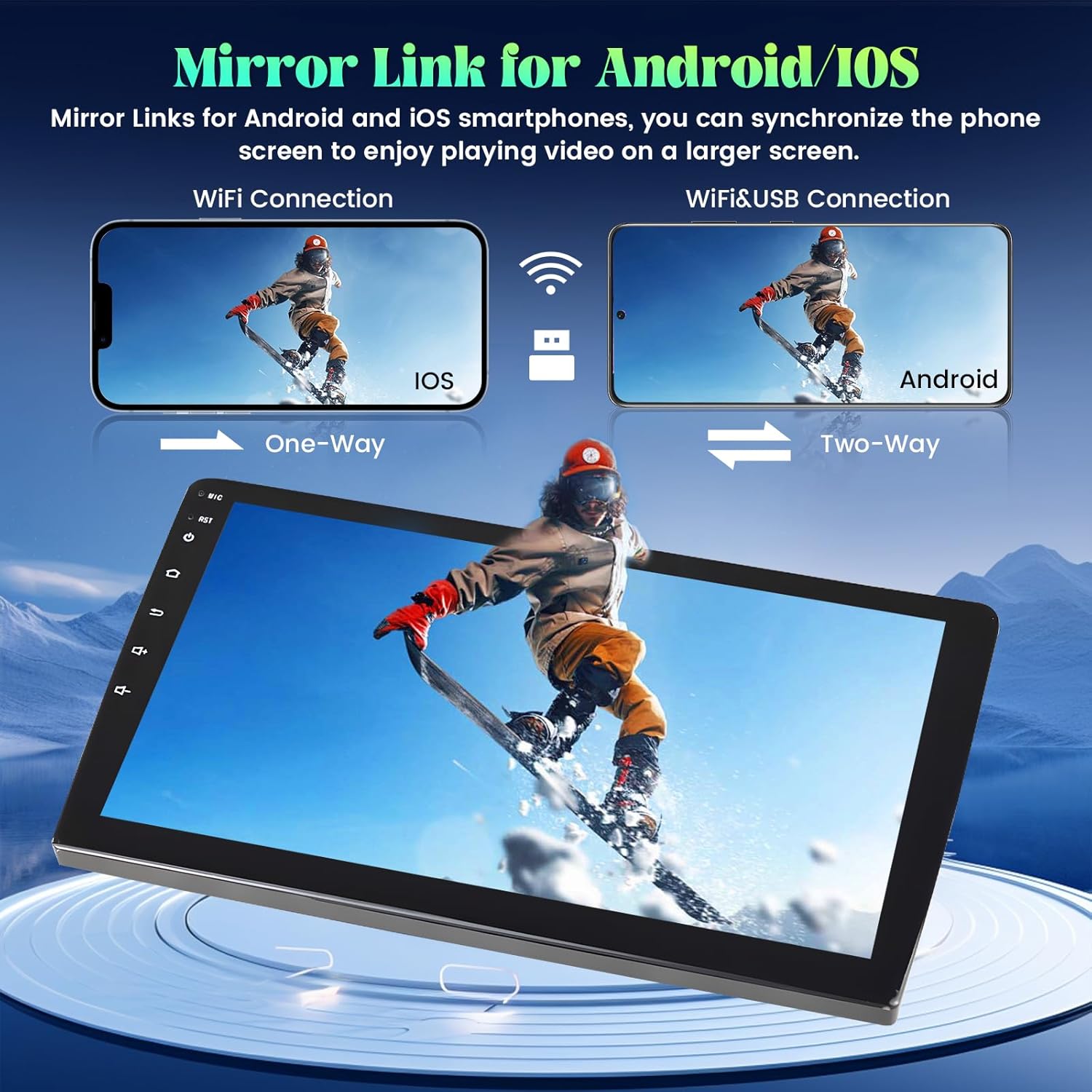
Image: Explanation of Mirror Link for iOS and Android devices.
5. GPS Navigation and WiFi
The head unit includes GPS navigation capabilities, supporting both online and offline maps. It comes preloaded with a free offline navigation map on the Here WeGo application. You can also connect to Wi-Fi to download additional online apps, stream videos, and use online navigation services like Google Maps.

Image: GPS navigation interface and examples of apps accessible via Wi-Fi.
6. Backup Camera
The included AHD backup camera provides a clear view of the area behind your vehicle. When you shift into reverse gear, the image will automatically display on the screen, enhancing parking safety.
7. Steering Wheel Control (SWC)
The unit supports your car's steering wheel controls, allowing you to manage functions like volume, track skipping, and calls without taking your hands off the wheel.
- Without CANBUS Decoder: Connect the steering wheel control wires (Key1/Key2) in the power cable to the corresponding port of your original car. Then, go to "SteeringWheelKey" in the settings to manually match and activate the button functions.
- With CANBUS Decoder: Connect the Canbus before powering on the machine. Navigate to Settings > Factory Setup (Password 000000) > Can Settings. Select the brand and model of the Canbus decoder according to your vehicle's specifications.

Image: Instructions for configuring steering wheel controls.
Maintenance
To ensure the longevity and optimal performance of your Roinvou Android Auto Radio, follow these maintenance guidelines:
- Screen Cleaning: Use a soft, lint-free cloth to gently wipe the touchscreen. Avoid abrasive cleaners or solvents that could damage the display.
- Temperature Control: Avoid exposing the unit to extreme temperatures, both hot and cold, for extended periods.
- Software Updates: Periodically check for available software updates to ensure you have the latest features and performance enhancements. Refer to the system settings for update options.
- Cable Connections: Ensure all cables are securely connected and free from damage. Loose connections can lead to intermittent issues.
Troubleshooting
If you encounter issues with your Roinvou Android Auto Radio, refer to the following common troubleshooting steps:
- Dashboard Displaying Abnormal Characters: If your vehicle's dashboard displays unusual characters (e.g., Chinese), this may indicate a software or Canbus communication issue. Please contact Roinvou customer support to obtain the necessary upgrade package.
- Radio Not Securely Mounted: Ensure the top clips of the radio are properly engaged with the dashboard frame. While the bottom is secured by screws, the top relies on these clips for stability. Re-check the installation to ensure a snug fit.
- No Power/Unit Not Turning On: Verify all power cable connections are secure. Check your vehicle's fuse box for any blown fuses related to the radio.
- Bluetooth/WiFi Signal Issues: Ensure the reverse input cable is plugged into the head unit, even if a backup camera is not currently in use. This cable can affect Bluetooth and WiFi signal reception.
- Steering Wheel Controls Not Functioning: Review the Steering Wheel Control setup instructions in the "Operating Instructions" section. Confirm the correct Canbus decoder settings or manual key mapping.
- System Freezes or Crashes: Try performing a soft reset by pressing the RST button (if available) or by turning off your vehicle's ignition and restarting. If the issue persists, a factory reset may be necessary (note: this will erase all user data).
- No Sound: Check speaker connections and ensure the volume is not muted or set to zero. Verify audio output settings in the system menu.
Specifications
| Feature | Detail |
|---|---|
| Model Number | 2+64G |
| Display Size | 9 Inches |
| Resolution | 1024 x 600 |
| Operating System | Android |
| Processor | 4-Core |
| RAM | 2GB |
| ROM | 64GB |
| Connectivity | Bluetooth, USB, Wi-Fi |
| Special Features | CarPlay, Android Auto, Touchscreen, FM RDS Radio, Mirror Link, GPS Navigation, DSP, SWC, 26 Desktop Themes |
| Map Type | North America (Preloaded Here WeGo) |
| Vehicle Service Type | Car (Chevrolet Chevy Camaro 2010-2015 LHD) |
| Item Weight | 7.04 pounds |
| Package Dimensions | 12.99 x 10.63 x 7.09 inches |

Image: Internal specifications highlighting the 4-core CPU, 2GB RAM, and 64GB ROM.
Warranty Information
The Roinvou 2+64G Android Auto Radio comes with a 1-Year Warranty from the date of purchase. This warranty covers manufacturing defects and malfunctions under normal use. Please retain your proof of purchase for warranty claims. For specific terms and conditions, refer to the warranty documentation included with your product or contact customer support.
Customer Support
For technical assistance, troubleshooting, or warranty inquiries, please contact Roinvou customer support:
- Via Amazon: Visit the Roinvou store page on Amazon and click "Ask a question" to contact the seller directly.
- Email: You can also reach customer support via email at roinvouservices@163.com.
Please provide your product model number (2+64G 26UI) and purchase details when contacting support to expedite assistance.


