1. Introduction
This user manual provides essential information for the safe and effective operation of your Hisense 100L5H-DLT100C L5H 4K Ultra Short Throw (UST) Laser Projector and its bundled 100-inch Ambient Light Rejecting (ALR) screen. Please read this manual thoroughly before using the product and retain it for future reference.
The Hisense L5H projector delivers a 4K UHD image with 2700 lumens of brightness, utilizing an X-Fusion Laser Engine. It features integrated Google TV, Dolby Vision Atmos, and various modes for optimized viewing and gaming experiences.

Image 1.1: Hisense L5H Projector and 100-inch ALR Screen.
2. Safety Information
To ensure safe operation and prevent damage, observe the following precautions:
- Power Source: Connect the projector only to the specified power supply.
- Ventilation: Do not block ventilation openings. Ensure adequate airflow around the projector to prevent overheating.
- Liquid Exposure: Do not expose the projector to rain, moisture, or any liquids.
- Object Insertion: Never insert objects of any kind into the projector openings.
- Laser Safety: Avoid looking directly into the projector lens when the laser is active. The laser light can cause eye damage.
- Cleaning: Disconnect the power cord before cleaning. Use a soft, dry cloth.
- Placement: Place the projector on a stable, level surface. Avoid placing it in direct sunlight or near heat sources.
3. Package Contents
Verify that all items are present in the package:
- Hisense L5H 2700-Lumen UHD 4K UST Laser Smart Home Projector
- 100-inch Ambient Light Rejecting (ALR) Screen
- Voice Remote with Backlight
- Power Cable
- Cleaning Kit
4. Product Overview
4.1. Projector Components
The Hisense L5H projector features a sleek design with essential components for operation.

Image 4.1: Front view of the Hisense L5H Projector.

Image 4.2: Angled view of the Hisense L5H Projector.
4.2. Rear Panel Connections
The rear panel of the projector provides various ports for connecting external devices.

Image 4.3: Rear panel connections of the Hisense L5H Projector.
- AC Input: For connecting the power cable.
- HDMI 1 (eARC): High-Speed HDMI input with Audio Return Channel support.
- HDMI 2/HDMI 3: High-Speed HDMI inputs for video and audio sources.
- USB 1 (DC 5V/0.5A): USB port for media playback or powering small devices.
- USB 2 (DC 5V/1A): USB port for media playback or powering devices.
- LAN: Ethernet port for wired network connection.
- Digital Audio Out (Optical): For connecting to an external audio system.
- Audio Out: 3.5mm audio jack for headphones or external speakers.
- Ant/Cable: RF input for antenna or cable connection.
- Service: USB port for service use only.
5. Setup
5.1. Projector Placement
The Hisense L5H is an Ultra Short Throw (UST) projector, designed to be placed very close to the screen. For a 100-inch projection, place the projector approximately 11 inches from the wall or screen.
- Place the projector on a sturdy, level surface, such as a TV stand.
- Ensure the projection surface (ALR screen) is flat and free of obstructions.
- Maintain adequate space around the projector for ventilation.
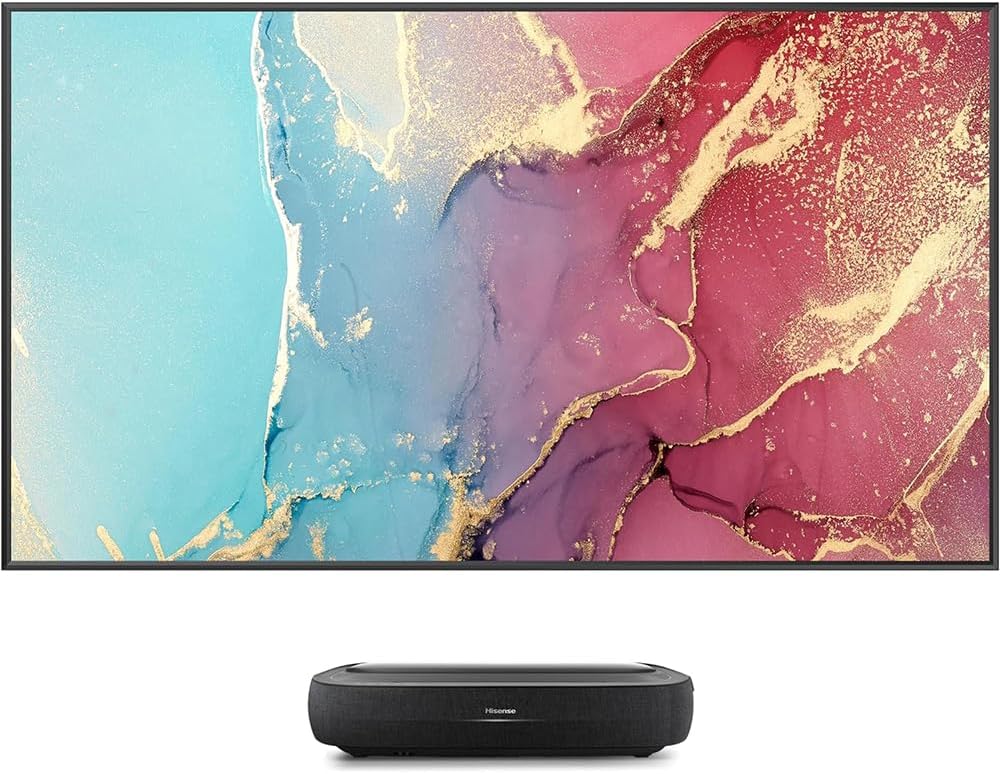
Image 5.1: Projector placement in relation to the screen.
5.2. ALR Screen Installation
The included 100-inch Ambient Light Rejecting (ALR) screen is specifically designed to enhance picture quality in various lighting conditions. Follow the screen's separate assembly instructions for proper installation. Ensure the screen is mounted securely and is perfectly flat for optimal image quality.
5.3. Connecting Power
- Connect the power cable to the AC input port on the rear of the projector.
- Plug the other end of the power cable into a wall outlet.
5.4. Connecting External Devices
Use the appropriate HDMI, USB, or audio ports to connect your devices:
- HDMI Devices: Connect Blu-ray players, gaming consoles, or set-top boxes to HDMI 1, 2, or 3. HDMI 1 supports eARC for enhanced audio return.
- USB Devices: Insert USB drives for media playback into USB 1 or USB 2 ports.
- Audio Systems: Connect soundbars or AV receivers using the HDMI 1 (eARC) port, Digital Audio Out (Optical), or Audio Out (3.5mm) port.
- Network: For a wired internet connection, connect an Ethernet cable to the LAN port.
6. Operating Instructions
6.1. Powering On/Off
- Power On: Press the power button on the remote control or on the projector.
- Power Off: Press the power button on the remote control. The projector will enter standby mode. To fully power off, disconnect the power cable.
6.2. Using the Remote Control
The included voice remote control allows for easy navigation and voice commands. Ensure batteries are correctly inserted. The remote features a backlight for use in dim environments.
- Navigation: Use the directional pad and OK button to navigate menus.
- Voice Control: Press the voice button and speak commands for search or control.
- Input Selection: Use the input button to switch between connected sources.
6.3. Google TV Interface
The L5H projector integrates Google TV, providing access to streaming apps, personalized recommendations, and Google Assistant. Follow the on-screen instructions for initial setup, including connecting to Wi-Fi and logging into your Google account.
6.4. Picture and Sound Settings
Access the settings menu to adjust picture and sound preferences:
- Picture Modes: Select from various picture modes (e.g., Standard, Cinema, Game, Filmmaker Mode) to optimize viewing for different content. The projector supports HDR10 and Dolby Vision for enhanced contrast and color.
- Sound Settings: Adjust volume, equalizer settings, and enable Dolby Atmos for immersive audio. Utilize eARC for high-quality audio passthrough to compatible sound systems.
- Game Mode: Activate Game Mode with ALLM (Auto Low Latency Mode) for reduced input lag during gaming.
7. Maintenance
7.1. Cleaning the Projector
- Lens: Use a soft, lint-free cloth or a lens cleaning brush from the cleaning kit to gently wipe the projector lens. Avoid abrasive materials.
- Body: Wipe the projector's exterior with a soft, dry cloth. Do not use liquid cleaners or solvents.
- Ventilation: Periodically check and clean the ventilation openings to prevent dust buildup, which can affect performance and lifespan.
7.2. Laser Engine Lifespan
The Hisense L5H utilizes an X-Fusion Laser Engine with an estimated lifespan of 25,000 hours, providing long-term, maintenance-free operation for the light source.
8. Troubleshooting
If you encounter issues, refer to the following common problems and solutions:
| Problem | Possible Cause | Solution |
|---|---|---|
| No Power | Power cable not connected; Power outlet issue | Ensure power cable is securely connected; Test outlet with another device. |
| No Image | Incorrect input source; Device not powered on; Cable issue | Select correct input source; Power on connected device; Check HDMI/source cables. |
| Poor Image Quality | Lens dirty; Incorrect picture settings; Screen not flat | Clean the projector lens; Adjust picture settings; Ensure ALR screen is flat. |
| No Sound | Volume too low; Muted; Incorrect audio output; External audio system issue | Increase volume; Unmute; Check audio output settings; Verify external audio system. |
| Remote Not Working | Dead batteries; Obstruction; Pairing issue | Replace batteries; Remove obstructions; Re-pair remote if necessary. |
For further assistance, refer to the Hisense support website or contact customer service.
9. Specifications
| Feature | Specification |
|---|---|
| Brand | Hisense |
| Model Number | 100L5H-DLT100C |
| Display Resolution | 3840 x 2160 (UHD 4K) |
| Brightness | 2700 Lumens |
| Throw Ratio | 0.25:1 (for 100" screen) |
| Light Source | X-Fusion Laser Engine |
| Laser Lifespan | 25,000 hours |
| HDR Support | HDR10, Dolby Vision |
| Audio System | 40W Dolby Atmos Sound System |
| Smart Features | Google TV, Voice Remote, Smart Home Ready |
| Connectivity | Wireless (Wi-Fi), Ethernet, HDMI (x3, one with eARC), USB (x2), Digital Audio Out (Optical), Audio Out (3.5mm) |
| Special Features | Backlit Voice Remote, Game Mode with ALLM, IMAX Enhanced, Filmmaker Mode, Noise Reduction, Parental Controls, Smooth Motion, Ultra Short Throw Technology |
| Product Dimensions | 22.3 x 12.6 x 4.8 inches |
| Item Weight | 50.7 pounds |
10. Warranty and Support
This product includes a 90-day manufacturer refurbished warranty, supplemented by a 2-year extended warranty. For warranty claims or technical support, please refer to the documentation provided with your purchase or visit the official Hisense support website.
For customer support inquiries, you may also refer to the Amazon Renewed Store for information regarding renewed product policies.


