1. Introduction
This manual provides detailed instructions for the installation, operation, and maintenance of your AIMIBO Wireless HDMI Extender System. This system allows for wireless transmission of HDMI video and audio signals, supporting various configurations for home and professional environments.
The AIMIBO Wireless HDMI Extender System is designed for plug-and-play functionality, supporting resolutions up to 1080P and 4K casting with minimal latency. It features support for 1 Transmitter (TX) to up to 8 Receivers (RXs) and 1 Receiver (RX) to up to 8 Transmitters (TXs), KVM functionality, IR remote control, and HDMI loop-out.
2. Important Safety Information
- Read all instructions carefully before using the device.
- Do not expose the device to water, moisture, or extreme temperatures.
- Use only the provided power adapters. Using unauthorized adapters may damage the device and void the warranty.
- Do not attempt to open or repair the device yourself. Refer all servicing to qualified personnel.
- Ensure proper ventilation around the devices to prevent overheating.
- Keep the device away from strong electromagnetic fields.
3. Package Contents
Please check the package contents upon unboxing. If any items are missing or damaged, contact customer support.
- AIMIBO Wireless HDMI Transmitter (TX) Unit(s)
- AIMIBO Wireless HDMI Receiver (RX) Unit(s)
- Power Adapter(s)
- HDMI Cable(s)
- IR Blaster Cable(s)
- USB Cable(s) (for KVM function)
- User Manual (this document)

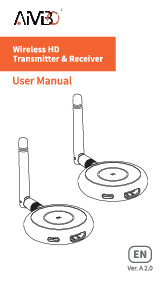
Image 1: Components of the AIMIBO Wireless HDMI Extender System. This image displays both the round, compact transmitter and receiver units, along with the larger rectangular units featuring external antennas, and various adapters.
4. Product Overview
The AIMIBO Wireless HDMI Extender System consists of Transmitter (TX) and Receiver (RX) units. The TX unit connects to your source device (e.g., laptop, Blu-ray player), and the RX unit connects to your display device (e.g., TV, projector).
4.1. Transmitter (TX) Unit
- HDMI Input: Connects to the HDMI output of your source device.
- HDMI Loop-out: Allows for a local display connection to monitor the source.
- Power Port: For connecting the power adapter.
- USB Port: For KVM functionality (connecting to source device for keyboard/mouse control).
- IR Out: Connects to the IR Blaster cable to control the source device remotely.
- Mode Switch Button: Used to switch between different operational modes (e.g., 1-to-1, 1-to-many).
4.2. Receiver (RX) Unit
- HDMI Output: Connects to the HDMI input of your display device.
- Power Port: For connecting the power adapter.
- USB Ports (x2): For KVM functionality (connecting keyboard and mouse).
- IR In: Connects to the IR Receiver cable to receive remote control signals.

Image 2: Detailed view of the Transmitter (TX) and Receiver (RX) units, highlighting their respective HDMI input/output ports and other connections. This image also illustrates various HDMI input and output devices compatible with the system.
5. Setup Instructions
The AIMIBO Wireless HDMI Extender System supports multiple configurations. Ensure all devices are powered off before making connections.
5.1. Basic 1-to-1 Connection (One Transmitter, One Receiver)
- Connect the HDMI output of your source device (e.g., laptop, PC, Blu-ray player) to the HDMI Input port on the Transmitter (TX) unit using an HDMI cable.
- Connect the HDMI Output port on the Receiver (RX) unit to the HDMI input of your display device (e.g., TV, projector) using an HDMI cable.
- Connect the provided power adapters to both the TX and RX units and plug them into a power outlet.
- Power on your source device and display device. The TX and RX units should automatically pair and display the content.

Image 3: A diagram illustrating the simple plug-and-play setup for a 1-to-1 connection. It shows connecting the transmitter to a laptop and the receiver to a TV, with a transmission range of 50m/165ft.
5.2. 1 TX to Multiple RXs (Splitter Mode)
This mode allows one source device to transmit its signal to multiple display devices simultaneously (up to 8 Receivers).
- Connect the TX unit to your source device as described in Section 5.1.
- Connect each RX unit to a separate display device.
- Power on all TX, RX, source, and display devices. The TX unit will broadcast the signal to all paired RX units.
- Ensure all RX units are within the transmission range of the TX unit.

Image 4: An illustration of the "SP Mode" (Splitter Mode) where one Transmitter (TX) broadcasts its signal to up to eight Receivers (RXs), displaying the same content on multiple screens in a conference room setting.
5.3. 1 RX to Multiple TXs (Switch Mode)
This mode allows one display device to receive signals from multiple source devices (up to 8 Transmitters), switching between them.
- Connect the RX unit to your display device as described in Section 5.1.
- Connect each TX unit to a separate source device.
- Power on all TX, RX, source, and display devices.
- To switch between source devices, press the Mode Switch Button on the desired TX unit. The RX unit will then display the content from that TX unit.

Image 5: A diagram illustrating a "Switch Mode" setup where one Receiver (RX) is connected to a large display, and multiple Transmitters (TX1-TX4) are connected to individual laptops. Users can switch which laptop's display is shown on the main screen.
5.4. KVM Function Setup
The KVM (Keyboard, Video, Mouse) function allows you to control the source device connected to the TX unit from the location of the RX unit.
- Ensure the TX and RX units are set up for video transmission.
- Connect a USB cable from the USB port on the TX unit to a USB port on your source device (e.g., laptop).
- Connect your keyboard and mouse to the two USB ports on the RX unit.
- You should now be able to control your source device using the keyboard and mouse connected to the RX unit.
5.5. IR Remote Control Setup
The IR remote control function allows you to control your source device (e.g., cable box, DVD player) from the location of your display device.
- Connect the IR Blaster cable to the IR Out port on the TX unit. Position the IR Blaster emitter directly in front of the IR sensor of your source device.
- Connect the IR Receiver cable to the IR In port on the RX unit. Position the IR Receiver in a location where it can receive signals from your remote control.
- Use your source device's original remote control to operate it from the RX unit's location.
6. Operating Instructions
6.1. Power On/Off
Simply connect or disconnect the power adapters to power the units on or off. There is no dedicated power button.
6.2. Mode Switching (for 1 RX to Multiple TXs)
When using multiple TX units with a single RX unit, press the Mode Switch Button on the desired TX unit to select its signal for display on the RX-connected screen. The RX unit will automatically switch to the active TX signal.
6.3. HDMI Loop-Out Function
The TX unit includes an HDMI Loop-out port. Connect an HDMI cable from this port to a local display (e.g., a monitor on your desk) to view the source content directly, without wireless transmission. This is useful for monitoring the source signal.
6.4. Wireless Performance Considerations
- For optimal performance, ensure a clear line of sight between the TX and RX units.
- Walls, floors, and other obstacles can reduce transmission range and signal quality.
- Avoid placing the units near other wireless devices (Wi-Fi routers, cordless phones) that operate on similar frequencies (5.8GHz) to minimize interference.

Image 6: This image demonstrates the 165ft/50m long-range capability of the AIMIBO Wireless HDMI Extender, showing a signal being transmitted from a study room to a living room, allowing content to be viewed in multiple rooms.
7. Maintenance
- Cleaning: Use a soft, dry cloth to clean the devices. Do not use liquid cleaners or aerosols.
- Storage: When not in use for extended periods, store the devices in a cool, dry place away from direct sunlight.
- Ventilation: Ensure the ventilation holes on the devices are not blocked to prevent overheating.
8. Troubleshooting
8.1. No Signal / Black Screen
- Check Power: Ensure both TX and RX units are properly powered on and their indicator lights are active.
- Check HDMI Cables: Verify that all HDMI cables are securely connected to both the source and display devices, and to the TX and RX units. Try swapping cables if possible.
- Source Device Output: Confirm that your source device is outputting a signal and is configured to the correct HDMI output.
- Display Input: Ensure your display device is set to the correct HDMI input channel.
- Re-pair: Power cycle both TX and RX units. They should automatically re-pair.
- Distance/Obstacles: Reduce the distance between TX and RX units or remove any major obstructions.
8.2. Intermittent Signal / Poor Quality Video
- Interference: Move the TX and RX units away from other wireless devices (Wi-Fi routers, microwaves, cordless phones).
- Distance: The signal may be too weak due to excessive distance or too many obstacles. Try moving the units closer.
- Resolution: Ensure your source device's output resolution is supported by the extender and your display. While 4K is supported for casting, the primary operational resolution is 1080P@60Hz.
8.3. KVM Function Not Working
- USB Connections: Verify the USB cable from TX to source device is connected, and keyboard/mouse are connected to RX.
- Driver Issues: On some source devices, USB drivers might need to be updated or reinstalled.
- Compatibility: Ensure your keyboard and mouse are standard USB devices.
8.4. IR Remote Control Not Working
- IR Blaster Placement: Ensure the IR Blaster emitter on the TX side is directly aligned with the IR sensor of your source device.
- IR Receiver Placement: Ensure the IR Receiver on the RX side is positioned to receive signals from your remote control.
- Remote Batteries: Check the batteries in your source device's remote control.
9. Specifications
| Feature | Description |
|---|---|
| Brand | AIMIBO |
| Model | B0CW9KXDCM |
| Connectivity Technology | HDMI Wireless |
| Connector Type | HDMI |
| Resolution Support | 1080p@60Hz, 720p, 480p, 576p (4K casting supported) |
| Transmission Frequency | 5.8GHz |
| Latency | Approximately 0.1 seconds |
| Transmission Range | Up to 200m (656ft) line-of-sight |
| Multi-Device Support | 1 TX to 8 RXs (Max), 1 RX to 8 TXs (Max) |
| Special Features | KVM Function, IR Remote Control, HDMI Loop-Out, Plug & Play |
| Supported Internet Services | Hulu, Netflix, YouTube (via connected source device) |
| Material | Aluminum Alloy |
10. Warranty and Customer Support
AIMIBO products are designed for reliability and performance. For specific warranty details, please refer to the warranty card included with your product or visit the official AIMIBO website.
If you encounter any issues or have questions regarding your AIMIBO Wireless HDMI Extender System, please contact our customer support team. Provide your product model number (B0CW9KXDCM) and a detailed description of the issue for faster assistance.
Contact Information:
- Website: Visit the AIMIBO Store on Amazon
- Email: Refer to product packaging or official website for support email.