
ieGeek IE92
ieGeek PoE Security Camera System User Manual
Model: IE92
1. Introduction
This manual provides detailed instructions for the installation, operation, and maintenance of your ieGeek PoE Security Camera System. Please read this manual thoroughly before using the product to ensure proper functionality and safety. This system is designed for reliable home and business surveillance, offering high-resolution video, advanced detection features, and easy remote access.
2. Package Contents
Before you begin, please verify that all items listed below are included in your package:
- 1 x 8CH POE NVR
- 4 x 5MP POE Camera
- 1 x HDMI Cable
- 1 x DC 48V 1.37A Power Adapter
- 1 x 1 Meter NVR Network Cable
- 4 x 18.3m Dome Network Cable
- 4 x Dome Stand
- 4 x Positioning Sticker
- 4 x Screw Pack
- 1 x USB Mouse
- 1 x User Manual
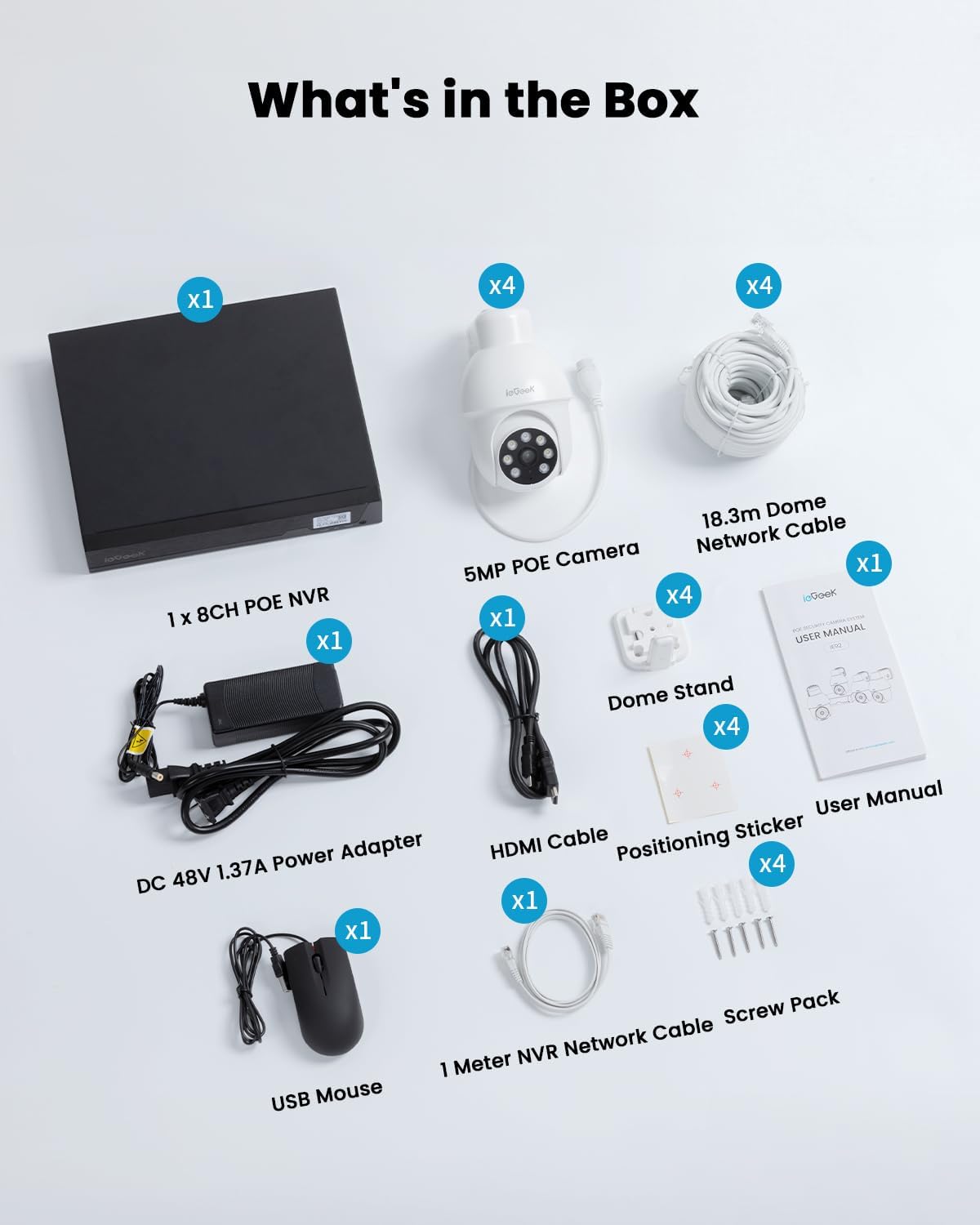
Image: All components included in the ieGeek PoE Security Camera System package.
3. Setup Guide
Follow these steps to set up your ieGeek PoE Security Camera System:
- Connect Cameras to NVR: Use the provided 18.3m PoE network cables to connect each 5MP PoE camera to the PoE ports on the 8CH NVR. This provides both power and video signal.
- Power the NVR: Plug the DC 48V 1.37A Power Adapter into the NVR's power input, then connect the adapter to a power outlet.
- Connect USB Mouse: Insert the USB mouse into one of the USB ports on the NVR.
- Connect to Monitor: Use the HDMI cable to connect the NVR's HDMI output port to your monitor's HDMI input port. Alternatively, you can use the VGA port if your monitor supports it.
- Connect to Router (Optional for Remote Access): If you require remote viewing via the mobile app, connect the NVR to your internet router using the 1-meter NVR network cable.
- Power On: Press the power switch on the NVR to turn on the device. The monitoring screen should appear on your connected monitor within approximately 1 minute.

Image: Connection diagram for the ieGeek PoE NVR System.
Setup Video Tutorial
For a visual guide on connecting your security camera system, please watch the official tutorial video below:
Video: Official ieGeek tutorial on how to connect the security camera system (Model IE92).
4. Operating Instructions
4.1 Key Features and Functions
- 5MP Ultra HD Video: Capture clear and detailed footage with 2560x1920 resolution.
- 24/7 Continuous Recording: The system monitors and records video continuously. The included 2TB hard drive allows for approximately one month of continuous recording from 4 cameras, with support for up to 10TB.
- AI Detection & Human Tracking: Advanced AI technology accurately identifies humans, vehicles, packages, and pets, reducing false alarms. The PTZ camera automatically tracks moving objects.
- Two-Way Audio: Communicate with visitors or deter intruders using the built-in speaker and microphone.
- PTZ Control: Remotely control the camera's pan (355°) and tilt (90°) movements via the 'ieGeek Cam' app for comprehensive 360° coverage.
- Color Night Vision: Experience clear, full-color images up to 15 meters (49 feet) in low-light conditions, supplemented by infrared LEDs for enhanced night visibility up to 100 feet.
- Instant Alerts: Receive real-time alerts on your phone via the app when motion is detected. Cameras can also activate lights and alarms.

Image: Humanoid tracking and PTZ rotation capabilities of the camera.

Image: The NVR system supports 24/7 continuous recording with built-in 2TB storage and expandable memory.

Image: Demonstrates 5MP video quality and color night vision capabilities, capturing details like license plates.

Image: The system provides instant alerts and can activate spotlights upon detection.
4.2 Using the 'ieGeek Cam' App
The 'ieGeek Cam' app allows you to remotely access and control your security system from your smartphone or tablet. Download the app from your device's app store (Google Play Store for Android, Apple App Store for iOS).
- Live View: Watch live video feeds from all connected cameras.
- Playback: Review recorded footage stored on the NVR's hard drive.
- Two-Way Talk: Engage in real-time conversations through the camera.
- PTZ Control: Pan, tilt, and zoom the cameras remotely.
- Alert Management: Receive and manage motion detection alerts.
- Settings: Adjust camera and NVR settings, including detection zones, recording schedules, and notification preferences.

Image: The ieGeek Cam app supports multiple devices for remote monitoring.
5. Maintenance
Regular maintenance ensures the longevity and optimal performance of your security system:
- Camera Cleaning: Periodically clean the camera lenses with a soft, damp cloth to remove dust and smudges that may affect image clarity. Do not use harsh chemicals.
- Cable Inspection: Check all network and power cables for any signs of wear, damage, or loose connections. Secure or replace damaged cables promptly.
- Firmware Updates: Check the ieGeek official website or the 'ieGeek Cam' app for available firmware updates. Keeping your system updated ensures improved performance, new features, and enhanced security.
- Hard Drive Management: While the NVR overwrites old footage when the hard drive is full, regularly back up important recordings to an external storage device if needed.
- Environmental Protection: Ensure cameras are installed in locations that minimize direct exposure to extreme weather conditions, even with their IP65 rating.
6. Troubleshooting
If you encounter issues with your ieGeek PoE Security Camera System, refer to the following common problems and solutions:
| Problem | Possible Cause | Solution |
|---|---|---|
| No image on monitor | Loose HDMI/VGA cable, NVR not powered on, monitor input incorrect. | Check cable connections, ensure NVR is powered on, select correct input source on monitor. |
| Camera not displaying video | Loose PoE cable, camera power issue, faulty camera/port. | Ensure PoE cable is securely connected to both camera and NVR. Try connecting the camera to a different NVR PoE port. |
| No remote access via app | NVR not connected to router, internet issue, incorrect app settings. | Verify NVR is connected to the router and has internet access. Check app network settings and ensure NVR is online. |
| Poor night vision | Dirty lens, IR/white lights obstructed, insufficient ambient light. | Clean the camera lens. Ensure no obstructions are blocking the IR/white lights. Adjust camera position if necessary. |
| Frequent false alarms | Motion detection sensitivity too high, detection zone too wide. | Adjust motion detection sensitivity and configure specific detection zones via the NVR interface or mobile app. |
If the problem persists after trying these solutions, please contact ieGeek customer support for further assistance.
7. Specifications
| Feature | Detail |
|---|---|
| Brand | ieGeek |
| Model Number | IE92 |
| Connectivity Technology | Wired (PoE) |
| Video Capture Resolution | 5MP (2560x1920) |
| Number of Channels | 8CH NVR |
| Memory Storage Capacity | 2TB (expandable up to 10TB) |
| Special Features | 24/7 Recording, IP65 Waterproof, 355° Pan 90° Tilt, Auto Humanoid Tracking, 15M/49FT Color Night Vision, Motion Activate Lights & Alarm, Package/Human/Vehicle/Pet Detection (No Fee) |
| Power Source | Corded Electric |
| Item Dimensions (L x W x H) | 11.02 x 9.06 x 2.76 inches |
| Operating System | POE System with 8CH POE NVR |
| Recommended Uses | Indoor/Outdoor Security; Monitor |
| Compatible Devices | VGA/HDMI display, Monitor, Smartphones, Tablets |
| Night Vision Range | 15 Meters (Color Night Vision) |
| Recording Mode | 24/7 Recording |
| Hardware Interface | HDMI, VGA, USB, Ethernet (PoE) |
| Waterproof Rating | IP65 |
| Operating Temperature | -20°C to 55°C (-4°F to 131°F) |
8. Warranty and Support
Your ieGeek PoE Security Camera System comes with a 2-year warranty from the date of purchase. This warranty covers manufacturing defects and ensures peace of mind with your investment.
For technical support, warranty claims, or any questions regarding your product, please contact ieGeek customer service:
- Email: service@iegeek.com
- Response Time: Replies typically within 24 working hours.
Please have your product model number (IE92) and purchase details ready when contacting support to facilitate a quicker resolution.
Related documentsIE92


Ask a question about this manual
Ask about setup, troubleshooting, compatibility, parts, safety, or missing instructions. Manuals+ will review the question and use this page’s manual context to help answer it.