
Widex signia
Widex Moment Sheer 110 Hearing Aid User Manual
Model: Widex Moment Sheer 110
Introduction
The Widex Moment 110 hearing aid ranks as the lowest technology level offered by Widex within the Moment family. The Moment 110 technology level delivers Mid-level performance by FitHearing standards.
Basic hearing aids will provide a few filters and programs, making these devices ideal for those with a mostly quiet lifestyle. If you primarily wish to improve your hearing in small groups, one-on-one conversation, and during routine activity within a home setting, the Widex Moment 110 may be the hearing aid for you.
Moment 110 hearing aids feature traditional Receiver-in-canal (RIC) form factor, whereby the hearing aids sit comfortably and discreetly behind your ear. These hearing aids are made-for-smartphones so you can stream calls, music, and other audio directly through your hearing aids.
Product Overview
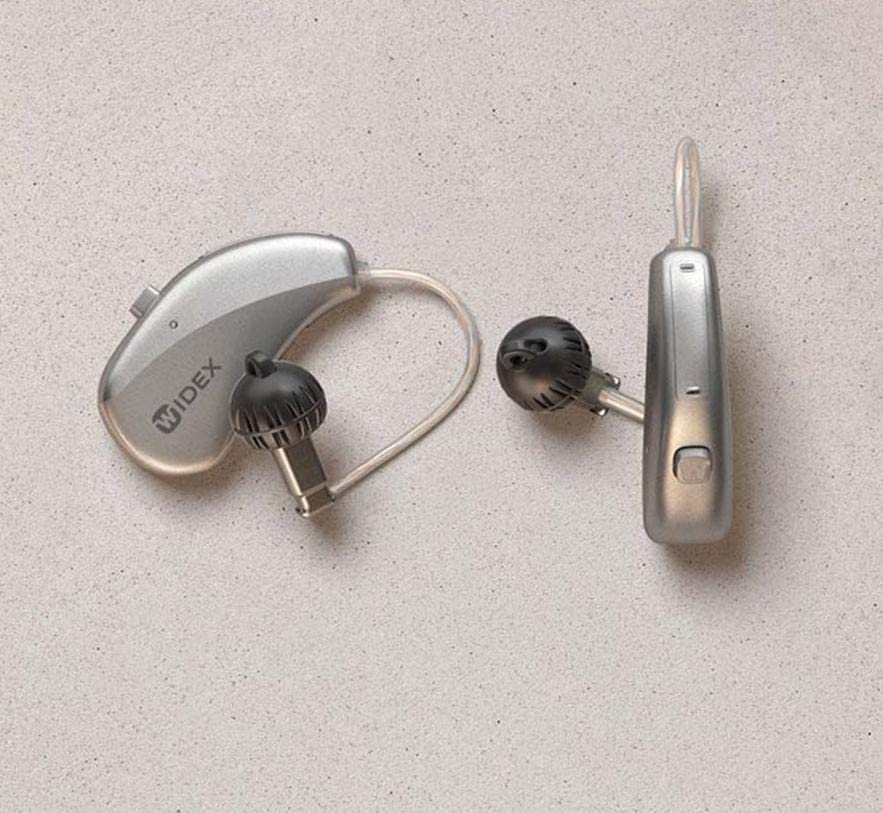
This image displays the Widex Moment Sheer 110 hearing aid, featuring its Receiver-in-canal (RIC) design. The device consists of a small, silver-colored unit that rests behind the ear, connected by a thin tube to an in-ear component with a black dome. The "WIDEX" logo is visible on the main unit. Another similar component is shown separately, indicating a pair of hearing aids.
What's in the Box
- Widex Moment Sheer 110 Hearing Aid (Pair)
- Wireless Charging Case
Setup Guide
1. Initial Charging
Before first use, place your Widex Moment Sheer 110 hearing aids into the provided Wireless Charging Case. Ensure the case is connected to a power source. The indicator lights on the case and hearing aids will show charging status. A full charge typically takes 3-4 hours.
2. Pairing with Smartphone
- Ensure your smartphone's Bluetooth is enabled.
- Open the battery doors of your hearing aids (if applicable) or place them in and out of the charging case to put them in pairing mode.
- On your smartphone, go to Bluetooth settings and select your Widex Moment Sheer 110 from the list of available devices.
- Follow any on-screen prompts to complete the pairing process.
3. First Fit
Gently place the hearing aid unit behind your ear. Guide the thin tube and the in-ear component into your ear canal. Ensure it sits comfortably and securely. Consult with your audiologist for proper fitting and initial programming.
Operating Instructions
1. Power On/Off
- To Power On: Remove the hearing aids from the charging case. They will automatically power on.
- To Power Off: Place the hearing aids back into the charging case. They will automatically power off and begin charging.
2. Volume Control
Volume adjustments can typically be made via the connected smartphone app or through a small button/rocker switch on the hearing aid itself (refer to specific model details for button functionality).
3. Program Selection
Your hearing aids may have multiple listening programs for different environments (e.g., quiet, noisy, music). These programs can be switched using the smartphone app or the control button on the hearing aid.
4. Streaming Audio
Once paired, you can stream audio (calls, music, podcasts) directly from your smartphone to your hearing aids. Initiate audio playback on your phone, and it will automatically route to the hearing aids.
Maintenance and Care
1. Daily Cleaning
Wipe your hearing aids daily with a soft, dry cloth to remove earwax and debris. Use the provided cleaning tools (if any) to clear the sound outlet and microphone ports. Do not use water or cleaning solvents.
2. Charging Case Care
Keep the charging case clean and dry. Periodically wipe the charging contacts with a dry cotton swab. Ensure no debris obstructs the charging ports.
3. Storage
When not in use, store your hearing aids in their charging case or a dry, cool place away from direct sunlight and extreme temperatures. Keep them out of reach of children and pets.
Troubleshooting
| Problem | Possible Cause | Solution |
|---|---|---|
| No Sound | Battery depleted; Earwax blockage; Hearing aid off. | Charge the hearing aids; Clean the sound outlet; Ensure hearing aids are powered on. |
| Poor Sound Quality | Low battery; Earwax buildup; Incorrect program. | Recharge; Clean hearing aid; Switch to appropriate listening program. |
| Connectivity Issues (Smartphone) | Bluetooth off; Hearing aids out of range; Pairing lost. | Ensure Bluetooth is on; Move closer to phone; Re-pair the devices. |
| Battery Not Charging | Charging case not powered; Poor contact with charging pins. | Check power connection to case; Clean charging contacts on both hearing aids and case. |
If problems persist, please contact customer support or your hearing care professional.
Technical Specifications
| Model Name | Widex Moment Sheer 110 (Internal Model: signia) |
| Connectivity Technology | Wireless |
| Wireless Communication Technology | Wireless |
| Included Components | Wireless Charging Case |
| Age Range (Description) | Adult |
| Specific Uses For Product | Everyday Use |
| Compatible Devices | Smartphones, Wireless Charging Cases |
| Control Method | Remote (via smartphone app) |
| Number of Items | 1 (referring to the product unit, typically sold as a pair) |
| Audio Driver Type | Dynamic Driver |
| Earpiece Shape | Earhook |
| Manufacturer | Hearing for life pvt.Ltd. |
| Product Dimensions | 10 x 4 x 8 cm |
| Hardware Platform | Smartphone |
| Special Features | Fast Charging |
| Date First Available | 10 March 2023 |
| Colour | brown |
| Ear Placement | Over Ear |
| Form Factor | Over Ear |
| Headphones Jack | 3.5 mm Jack (Note: This specification seems unusual for a modern RIC hearing aid, typically they are wireless. User should rely on wireless connectivity for this model.) |
Warranty and Support
This product is manufactured by Hearing for life pvt.Ltd. For specific warranty details, please refer to the warranty policy provided at the time of purchase or contact the manufacturer directly. General warranty information may be available via the retailer's website.
For technical support, troubleshooting assistance beyond this manual, or service inquiries, please contact your authorized Widex dealer or the manufacturer's customer service department.
Returns Policy: Please refer to the retailer's returns policy for information on product returns.
Related documentssignia


Ask a question about this manual
Ask about setup, troubleshooting, compatibility, parts, safety, or missing instructions. Manuals+ will review the question and use this page’s manual context to help answer it.