
UPERFECT bafaa6a2-df62-4366-83d1-b3f97f3a1a91
UPERFECT 18.5 Inch Portable Monitor User Manual
Model: bafaa6a2-df62-4366-83d1-b3f97f3a1a91
Introduction
This manual provides comprehensive instructions for the setup, operation, and maintenance of your UPERFECT 18.5 Inch 120Hz Portable Monitor. Please read this manual thoroughly before using the product to ensure optimal performance and longevity.

Figure 1: UPERFECT 18.5 Inch 120Hz Portable Monitor. This image displays the portable monitor with its sleek design, highlighting its 18.5-inch screen size and 120Hz refresh rate, suitable for various applications including gaming.
Package Contents
Upon unboxing, please verify that all items listed below are present and in good condition:
- UPERFECT 18.5 Inch Portable Monitor
- Protective PU Leather Case
- USB-C to USB-C Cable
- Mini HDMI to HDMI Cable
- USB-A to USB-C Power Cable
- Power Adapter
- User Manual (this document)

Figure 2: Example of the portable monitor packaging. The image shows the monitor within its protective case, indicating how it is packaged for transport and storage.
Setup Guide
Connecting to a Device
The UPERFECT portable monitor supports various devices via USB-C and Mini HDMI connections.
- Power Connection: Connect the monitor to a power source using the provided USB-A to USB-C power cable and power adapter. Alternatively, if your device supports power delivery via USB-C, a single USB-C cable can provide both power and signal.
- USB-C Connection (Full-featured): For devices with a full-featured USB-C port (supporting DisplayPort Alternate Mode and Power Delivery), connect one end of the USB-C to USB-C cable to the monitor's Type C 3.1 port and the other end to your device's USB-C port. This single cable can transmit video, audio, and power.
- Mini HDMI Connection: For devices with an HDMI output, connect one end of the Mini HDMI to HDMI cable to the monitor's Mini HDMI port and the other end to your device's HDMI port. When using HDMI, ensure the monitor is also powered via the USB-C power input.
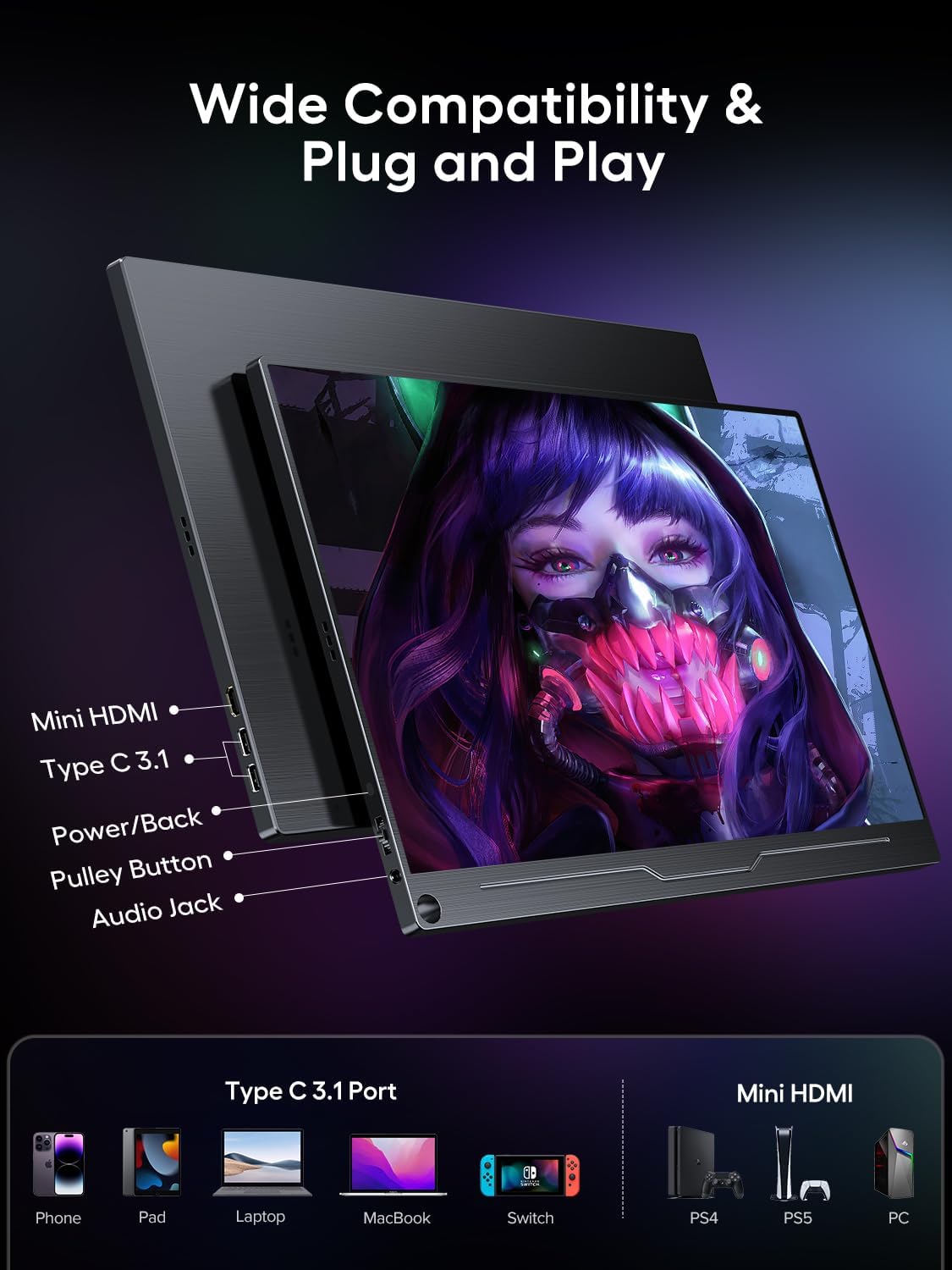
Figure 3: Overview of monitor connectivity ports and compatible devices. This image illustrates the Mini HDMI, Type C 3.1, Power/Back, Pulley Button, and Audio Jack ports, along with examples of devices like phones, pads, laptops, MacBooks, Switches, PS4, PS5, and PCs that can connect to the monitor.
Positioning the Monitor
- Using the Protective Case: The included PU leather protective case can be folded to serve as a stand, allowing you to position the monitor at various viewing angles.
- Using a Pen as a Stand: A unique circular hole design allows for a pen to be inserted, providing a simple stand solution for quick setup.
- VESA Mounting: The monitor is VESA compatible (M4*4mm), enabling it to be mounted on a compatible monitor arm or stand for both portrait and landscape orientations.

Figure 4: Demonstrates the VESA compatibility and the unique hole design for alternative standing options. The image shows the monitor in both landscape and portrait orientations, mounted on stands, highlighting its versatility.
Operating Instructions
On-Screen Display (OSD) Menu
The monitor features a pulley button (often combined with the Power/Back button) for navigating the OSD menu. This menu allows you to adjust various display settings.
- Accessing the OSD: Press the pulley button to bring up the OSD menu.
- Navigation: Use the pulley button to scroll through menu options.
- Selection: Press the pulley button to select an option.
- Exit: Use the 'Back' function or wait for the OSD to time out to exit the menu.
Key Features and Adjustments
- Resolution: The monitor supports Full HD 1920 x 1080 resolution. Ensure your connected device is set to this resolution for optimal display quality.
- Refresh Rate: Experience smooth visuals with a 120Hz refresh rate. This can be particularly beneficial for gaming and fast-paced content.

Figure 5: Visual comparison demonstrating the smoothness of a 120Hz refresh rate versus 60Hz, highlighting reduced motion blur for a better gaming experience.
- Color Accuracy: The monitor boasts 100% sRGB color accuracy, providing vibrant and realistic colors.

Figure 6: Illustrates the monitor's 100% sRGB high color accuracy, indicating a wider color gamut for realistic visual enjoyment, suitable for creative professionals.
- HDR Function: Built-in HDR (High Dynamic Range) function enhances contrast and color for a more immersive viewing experience.
- FreeSync: Supports FreeSync technology to eliminate screen tearing and stuttering, especially beneficial for gaming.
- Audio: Integrated dual stereo speakers provide immersive sound. Adjust volume through the OSD menu or your connected device.
- Eye Care: Features like flicker-free backlight and a blue light filter are designed to minimize eye strain during prolonged use.
Applications
The UPERFECT portable monitor is highly versatile and can be used in various scenarios:
- Gaming: Connect to gaming consoles like PS4/5, Xbox One, or Nintendo Switch for an enhanced portable gaming experience.

Figure 7: A portable gaming setup showing the UPERFECT monitor connected to a PlayStation 5, highlighting its use for gaming with various consoles like Xbox, Switch, PS4/PS5, and Steam Deck.
- Productivity: Extend your laptop or PC screen for increased workspace, ideal for remote work, coding, or graphic design.

Figure 8: A productivity setup demonstrating the monitor used as a second screen alongside a laptop, illustrating how it can double productivity and lighten workload for tasks like photo and video editing.
- Mobile Entertainment: Connect to smartphones or tablets for a larger viewing experience for movies, videos, or presentations.
Maintenance and Care
- Cleaning the Screen: Use a soft, lint-free cloth slightly dampened with water or a non-abrasive screen cleaner. Avoid harsh chemicals or abrasive materials.
- Cleaning the Casing: Wipe the monitor's metal casing with a soft, dry cloth.
- Storage: When not in use, store the monitor in its protective PU leather case to prevent scratches and damage.
- Avoid Extreme Conditions: Do not expose the monitor to extreme temperatures, humidity, or direct sunlight.
Troubleshooting
| Problem | Possible Cause | Solution |
|---|---|---|
| No Signal / Black Screen | Incorrect cable connection, insufficient power, incorrect input source. |
|
| Flickering Screen | Cable issue, refresh rate mismatch, power instability. |
|
| No Sound | Volume too low, incorrect audio output setting on device. |
|
| Image Quality Issues (Blurry, Distorted) | Incorrect resolution, faulty cable. |
|
Specifications
| Feature | Detail |
|---|---|
| Brand | UPERFECT |
| Model Number | bafaa6a2-df62-4366-83d1-b3f97f3a1a91 |
| Screen Size | 18.5 Inches |
| Resolution | Full HD 1920 x 1080 Pixels |
| Refresh Rate | 120Hz |
| Response Time | 1 Millisecond |
| Aspect Ratio | 16:9 |
| Contrast Ratio | 1000:1 |
| Panel Type | IPS (Matte Display) |
| Color Gamut | 100% sRGB |
| Connectivity | USB Type-C (Full-featured), Mini HDMI |
| Audio | Built-in Dual Stereo Speakers, 3.5mm Audio Jack |
| Dimensions (L x W x H) | 32 x 23 x 10 cm |
| Weight | 2.99 kg |
| VESA Mount | M4*4mm |
Note: Specifications are subject to change without prior notice.

Figure 9: Energy label for the UPERFECT portable monitor, showing energy efficiency class and power consumption. For more details, refer to the official EPREL database: https://eprel.ec.europa.eu/qr/1524708
Warranty and Support
UPERFECT products are designed for reliability and performance. For warranty information specific to your region and purchase, please refer to the documentation provided at the time of purchase or contact UPERFECT customer support.
Customer Support
If you encounter any issues or have questions not covered in this manual, please contact UPERFECT customer support through their official website or the contact information provided with your product.
For the latest drivers, firmware updates, and FAQs, please visit the official UPERFECT support page.
Related documentsbafaa6a2-df62-4366-83d1-b3f97f3a1a91


Ask a question about this manual
Ask about setup, troubleshooting, compatibility, parts, safety, or missing instructions. Manuals+ will review the question and use this page’s manual context to help answer it.