
1. Introduction
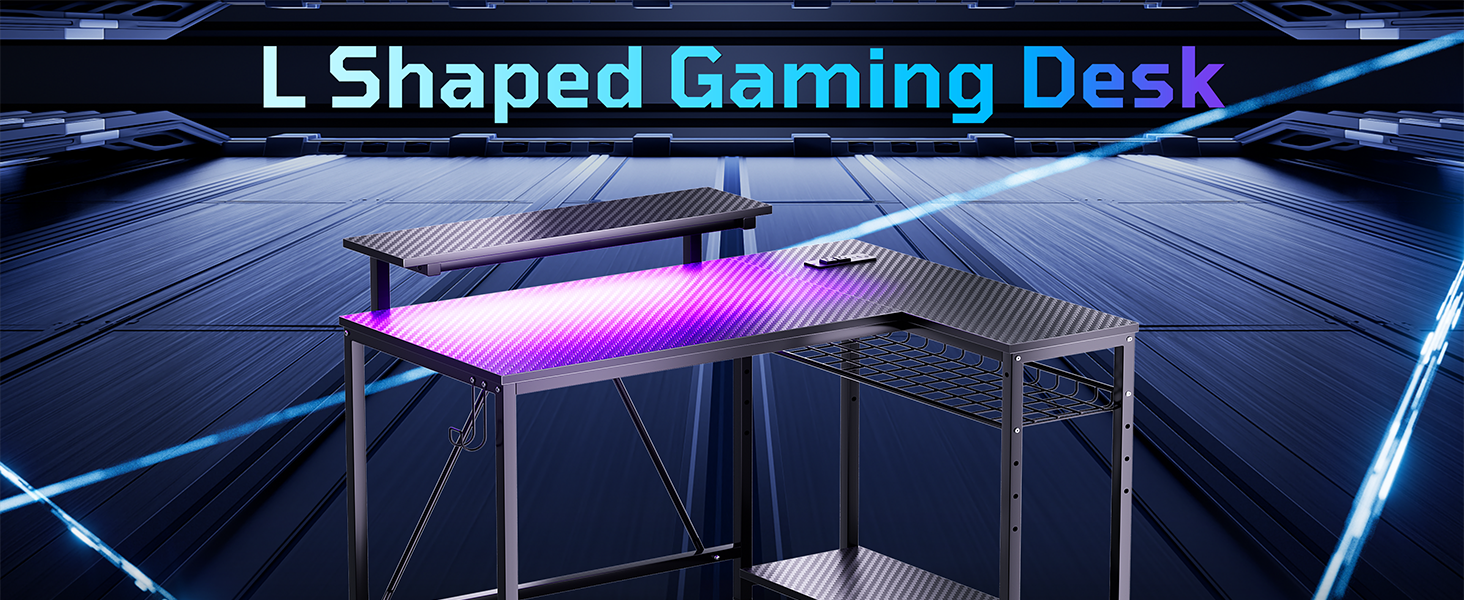
This manual provides essential information for the assembly, operation, and maintenance of your Bestier 42-inch L-Shaped Gaming Desk. Designed for small spaces, this desk offers a versatile workstation with integrated features to enhance your gaming, study, or work experience.
2. Safety Information
- Ensure all screws and fasteners are securely tightened during assembly. Periodically check for loose connections.
- Do not overload the desk or shelves beyond their specified weight limits. The monitor stand supports up to 15 lbs (7 kg), the main desktop up to 80 lbs (36 kg), and the side shelves up to 25 lbs (11.5 kg) each.
- Keep liquids away from electrical outlets and devices to prevent electrical hazards.
- Route cables safely to avoid tripping hazards and damage.
- Keep small parts away from children during assembly.
3. Package Contents
Verify that all components listed in the assembly instructions are present before beginning assembly. The package includes all necessary hardware and tools for assembly.
4. Setup and Assembly Instructions
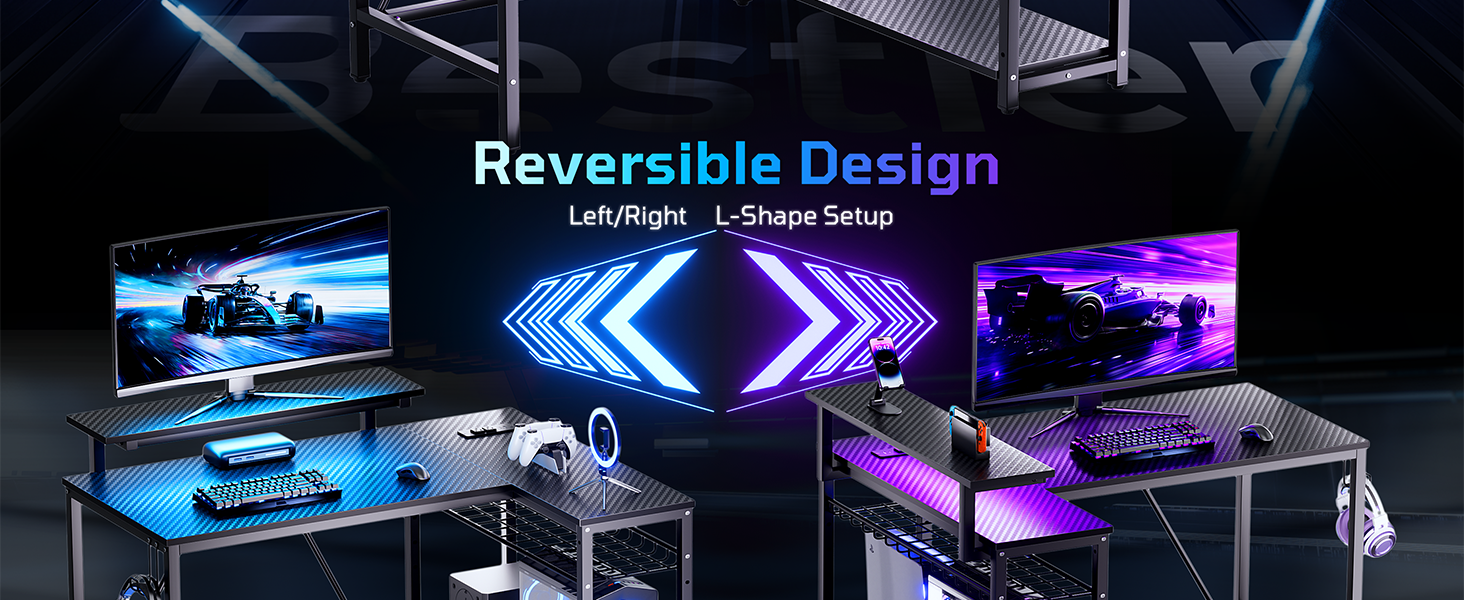
The Bestier L-Shaped Gaming Desk features a reversible design, allowing you to configure the side storage shelves on either the left or right side to best suit your room layout. Follow the detailed assembly instructions provided in the packaging. An assembly video is also available for visual guidance.
Key Assembly Features:
- Reversible Storage Shelves: The side storage shelves can be mounted on either the left or right side.
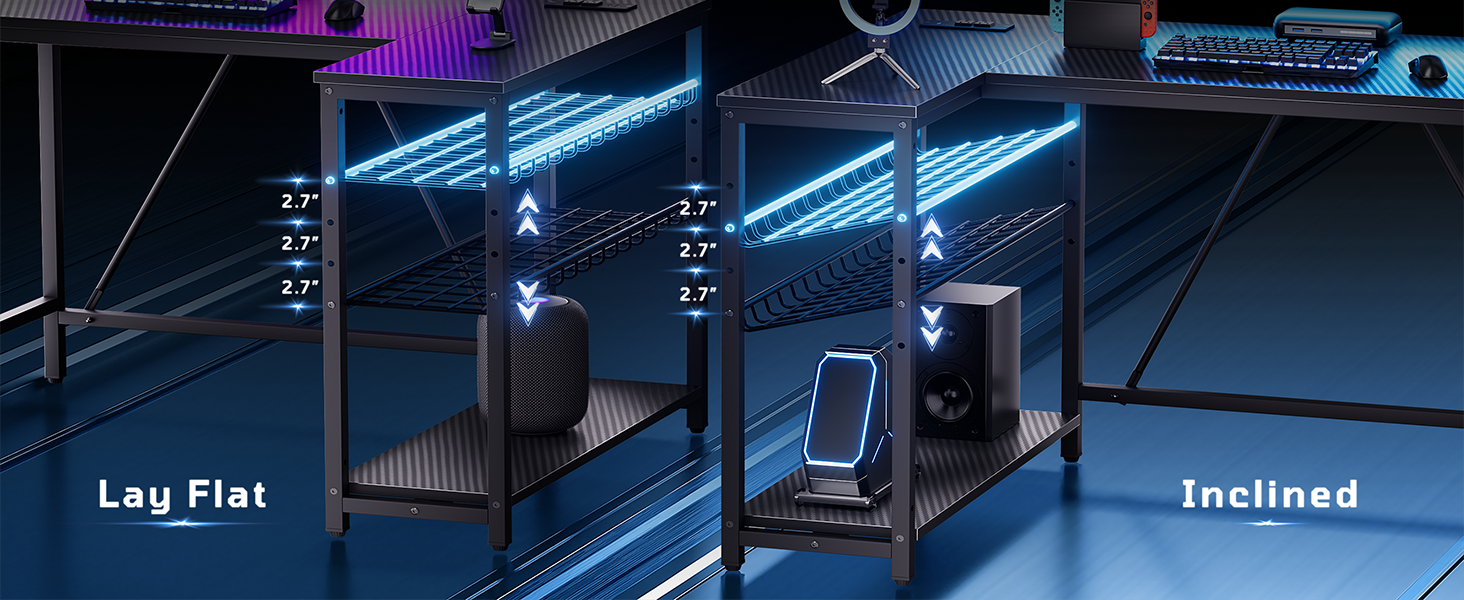
- Adjustable Grid Panel: The grid panel within the side storage can be adjusted in height or laid flat to accommodate various items.
- Monitor Stand: The upper stand can be positioned as a raised monitor stand or a side display shelf.
Assembly Video:
Video 4.1: Detailed assembly instructions for the Bestier 42-inch LED Small Corner Computer Desk with Outlets.
5. Operating Instructions
5.1. LED Light Strip
The desk features a built-in LED light strip located under the upper shelf. This strip provides ambient lighting for your workspace.
- Control: The LED lights are controlled via a small panel integrated into the desk.
- Colors & Modes: Cycle through 7 main colors and 22 dynamic modes to customize your lighting ambiance.

5.2. Built-in Power Strip
An integrated power strip is located on the desktop for convenient access to power for your devices.
- Outlets: Includes 2 standard AC outlets.
- USB Ports: Features 1 USB-A port and 1 USB-C port for charging mobile devices.

5.3. Headphone Hook
A dedicated hook is provided on the side of the desk to hang headphones, backpacks, or other accessories, keeping your desktop clutter-free.

5.4. Adjustable Grid Panel
The grid panel in the side storage area can be adjusted to different heights or laid flat to customize your storage space for various items like speakers, books, or a PC tower.

5.5. Cable Management
The desk design, including the built-in power strip and vertical shelves, facilitates clean cable management, reducing clutter and tripping hazards.
6. Maintenance
Proper care will ensure the longevity and appearance of your desk.
- Clean spills promptly with a dry cloth, then wipe gently with a damp cloth; avoid high heat and moisture.
- Dust regularly and wipe with a soft, slightly damp cloth; do not soak or use bleach.
- Keep away from direct sunlight and excessive humidity; wipe with a non-abrasive cloth as needed.
- Use a soft cloth to clean; do not use abrasive pads, solvents, or strong detergents to protect the surface.
- Wipe clean with a soft, damp cloth; avoid abrasive cleaners and harsh chemicals.
7. Troubleshooting
If you encounter any issues with your Bestier Gaming Desk, please refer to the following general troubleshooting tips:
- LED Lights Not Working: Ensure the LED strip is properly plugged into a functioning USB port on the power strip. Check the control panel for power and mode settings.
- Power Outlets Not Functioning: Verify that the main power cord for the desk is securely plugged into a wall outlet. Check the power switch on the integrated power strip.
- Desk Instability: Ensure all assembly screws are tightened. Check that the adjustable leg pads are properly leveled on uneven surfaces.
- Missing Parts: If any parts are missing or damaged upon arrival, please contact customer support immediately.
8. Specifications
| Feature | Detail |
|---|---|
| Brand | Bestier |
| Model Number | 61061C |
| Shape | L-Shaped Gaming Corner Computer Desk |
| Product Dimensions | 32.28"D x 41.93"W x 35.91"H |
| Color | Black Carbon Fiber |
| Top Material Type | Carbon Fiber |
| Base Material | Stainless Steel |
| Item Weight | 32.6 Pounds |
| Special Features | 2-in-1 monitor stand, 42" compact corner design, Built-in LED light strip, Integrated power strip (2 AC, 1 USB, 1 Type-C), Reversible storage shelves |
| Number Of Shelves | 4 |
| Required Assembly | Yes |
9. Warranty Information
This product comes with a limited warranty. For specific details regarding warranty coverage and terms, please refer to the documentation included with your purchase or contact Bestier customer support.
10. Customer Support
For any product issues, questions, or assistance, please contact Bestier customer support. Our team is dedicated to providing satisfactory solutions.


