
Blackview W20-Noir
Blackview W20 Smartwatch User Manual
Model: W20
Introduction
The Blackview W20 Smartwatch is a versatile wearable device designed to enhance your daily life and fitness journey. Featuring a 1.83-inch TFT touch screen, Bluetooth calling capabilities, and comprehensive health monitoring, it offers a seamless experience for both men and women. This manual provides detailed instructions on setting up, operating, and maintaining your smartwatch.
1. Setup
1.1 Package Contents
Before you begin, please ensure all items are present in the package:
- Blackview W20 Smartwatch
- Silicone Strap (pre-installed)
- Braided Nylon Strap (for sports activities)
- Magnetic Charging Cable
- User Manual
1.2 Charging the Smartwatch
Before first use, fully charge your Blackview W20 Smartwatch. A full charge takes approximately 2.5 hours.
- Connect the magnetic charging cable to the charging contacts on the back of the smartwatch.
- Connect the USB end of the cable to a standard USB power adapter (5V/1A recommended) or a computer's USB port.
- The watch screen will display a charging indicator.

Image: Smartwatch displaying a full battery icon, indicating successful charging. The image also shows a battery graphic with "290mAh" and lightning bolts, emphasizing the battery capacity and charging process.
1.3 App Installation and Pairing
To unlock the full potential of your Blackview W20 Smartwatch, download and install the InfoWear app on your smartphone. The watch is compatible with Android 6.0 or iOS 9.0 and above.
- Scan the QR code in the manual or search for "InfoWear" in your smartphone's app store (Google Play Store for Android, Apple App Store for iOS).
- Install the InfoWear app.
- Open the app and follow the on-screen instructions to register an account and set up your personal profile (age, weight, height, gender).
- Ensure Bluetooth is enabled on your smartphone.
- In the InfoWear app, navigate to the device pairing section and select "Add Device" or similar.
- The app will search for available devices. Select "Blackview W20" from the list to pair.
- Confirm the pairing request on both your smartphone and the smartwatch if prompted.
Once paired, the watch will synchronize data with the app, and you can customize settings, view detailed health data, and manage notifications.
2. Operating Instructions
2.1 Basic Navigation
- Touch Screen: Swipe left/right, up/down to navigate through menus and functions. Tap to select.
- Side Button (Crown): Press to wake up the screen, return to the main dial, or confirm selections.
- Raise to Wake: The display can be configured to turn on automatically when you raise your wrist. This feature can be enabled/disabled in the app.

Image: The Blackview W20 Smartwatch showing its main watch face with activity data like steps, calories burned, and heart rate. A secondary image shows the watch with a dial pad for making calls.
2.2 Bluetooth Calling
The W20 smartwatch supports Bluetooth 5.3 for hands-free calling, allowing you to make and receive calls directly from your wrist.
- Making a Call: Access the dial pad on the watch, enter the number, and tap the call icon. You can also access synced mobile contacts and call history.
- Receiving a Call: When a call comes in, the watch will vibrate and display the caller ID. Tap the green icon to answer or the red icon to reject.
- The watch features a high-quality speaker and microphone for clear communication.

Image: Two views of the smartwatch. One shows a numeric dial pad for making calls, and the other shows an active call interface with options to mute, adjust volume, and end the call. Icons for various messaging apps are displayed above, indicating notification support.
2.3 Health Monitoring
The Blackview W20 provides comprehensive health tracking features:
- Heart Rate Monitoring: Continuously tracks your heart rate throughout the day. You can view real-time data on the watch or detailed trends in the InfoWear app.
- Blood Oxygen (SpO2) Monitoring: Measures your blood oxygen saturation levels. Ensure the watch is snug on your wrist for accurate readings.
- Sleep Tracking: Monitors your sleep patterns, including deep sleep, light sleep, and awake times. Provides insights into your sleep quality.
- Stress Monitoring: Assesses your stress levels and offers relaxation prompts.
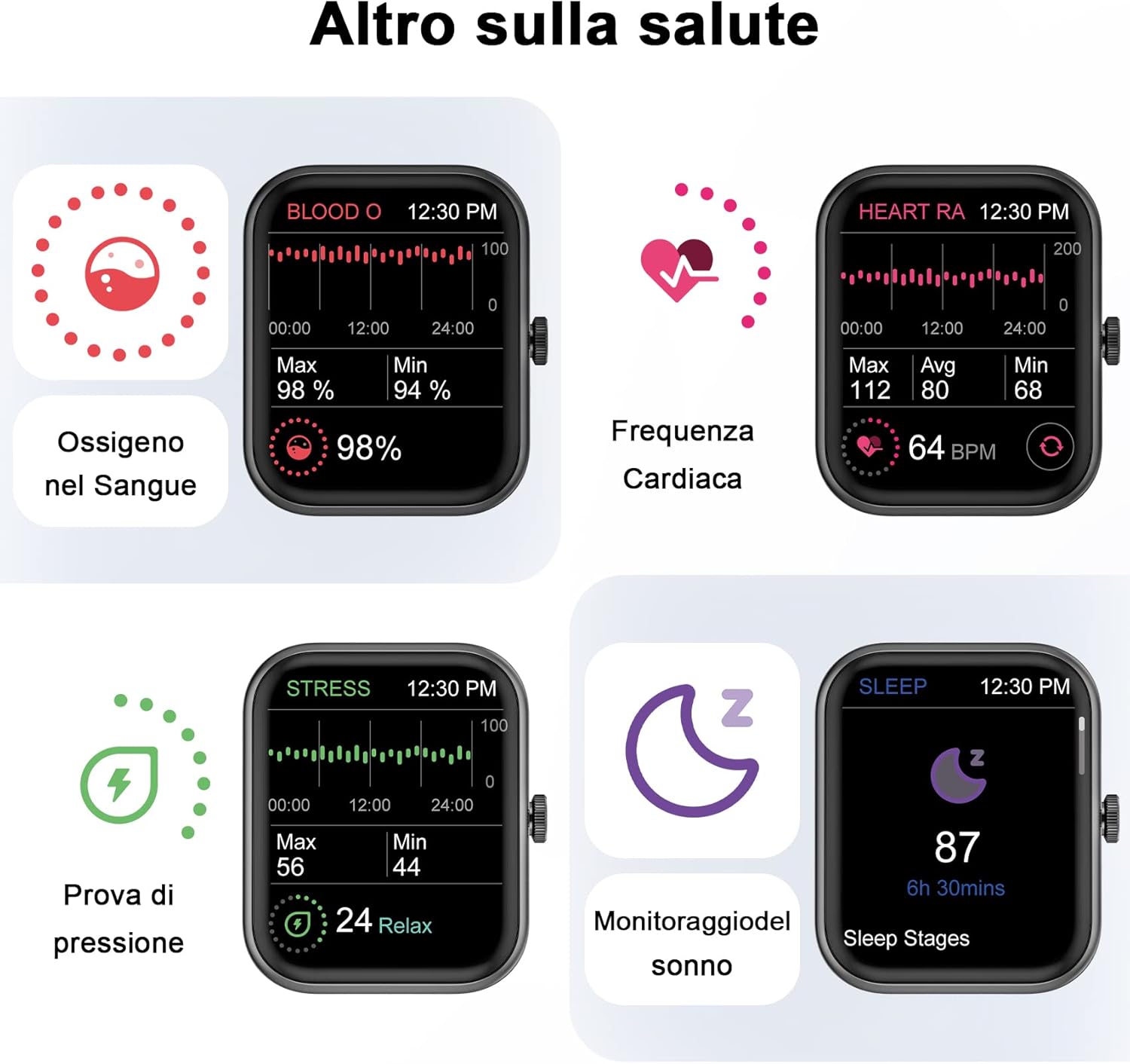
Image: Four smartwatch screens displaying health metrics: Blood Oxygen (SpO2) at 98%, Heart Rate at 64 BPM, Stress level at 24 (Relax), and Sleep tracking showing 87 points for 6h 30mins of sleep.

Image: A composite image showing four individuals engaged in activities related to the smartwatch's health features: a person running (heart rate), a person stretching (blood oxygen), a person meditating (stress test), and a couple sleeping (sleep monitoring).
2.4 Sports Modes
The Blackview W20 supports over 100 sports modes, allowing you to track various activities accurately. Connect to your phone's GPS to record your workout routes, distances, and fitness data.
- Accessing Sports Modes: Swipe on the watch face to find the sports mode menu. Select your desired activity (e.g., Treadmill, Jogging, Cycling, Free Training, Skiing, Yoga, Outdoor Running, Indoor Running, Trail Running, Rowing Machine, Rock Climbing, etc.).
- GPS Tracking: For outdoor activities, ensure your phone is connected and its GPS is active. The InfoWear app will display your complete training data, including maps, heart rate, time, and calories.

Image: The smartwatch screen showing an "Outdoor Running" mode with elapsed time (00:24:00), heart rate (102), calories burned (234 kcal), and distance (1.92 Km). A list of other sports modes like Yoga, Square Dance, Core Training, Gymnastics, Skateboarding, Rowing Machine, Outdoor Walking, Indoor Running, Trail Running, Outdoor Cycling, and Rock Climbing are also visible.

Image: A man performing a plank exercise, with a graphic overlay listing over 100 sports modes supported by the smartwatch, including Yoga, Outdoor Running, Square Dance, Outdoor Walking, Core Training, Indoor Running, Gymnastics, Trail Running, Skateboarding, Outdoor Cycling, Rowing Machine, Rock Climbing, Kayak, Stretching, Ballet, and Belly Dance. Key metrics like steps, calories, and distance are also shown.
2.5 Smart Features
Your Blackview W20 Smartwatch offers a variety of smart functions to assist you in your daily life:
- Message Notifications: Receive notifications for calls, SMS, and app messages directly on your wrist.
- Weather Forecast: Get real-time weather updates.
- Alarm Clock & Reminders: Set alarms and various reminders (sedentary, drinking water, medication).
- Music Control: Control music playback on your smartphone (play, pause, skip tracks).
- Camera Control: Use your watch as a remote shutter for your phone's camera.
- Calculator: A basic calculator function is available on the watch.
- Menstrual Management: Track and manage menstrual cycles.
- Flashlight: Turns the screen white for a quick light source.
- Find My Phone: Locate your misplaced phone by making it ring.

Image: Six smartwatch screens demonstrating smart features: Weather information (78°F, Cloudy), Alarm (08:30 AM with Snooze/Stop), Calculator, Menstrual period tracking, Flashlight (Tap to turn on), and a Reminder prompt (Please add or edit reminders on the App).

Image: A man wearing the smartwatch, surrounded by icons representing its multiple functions: Blood Oxygen, Heart Rate, Sleep, Female Health, Smart Alert, Smart Reminder, Custom Dial, Weather Information, Pedometer, Music Control, Alarm, Stopwatch, Countdown Timer, Find Your Phone, Camera Control, Flashlight, Waterproof, Breathing Exercises, Brightness Adjustment, and Calculator.
2.6 Custom Watch Faces
Personalize your smartwatch with a wide selection of watch faces available through the InfoWear app. You can choose from pre-designed faces or create your own custom dials.

Image: A collage of various watch faces available for the Blackview W20 smartwatch, demonstrating the customization options. The image also highlights the 1.83-inch screen size and mentions "150+ Personalize your style".

Image: A Blackview smartwatch displaying a custom watch face with a photo of a couple, illustrating the "100+ Personalize your style" feature. Several other watch face designs are shown in the background.
3. Maintenance
3.1 Cleaning and Care
To ensure the longevity and proper functioning of your smartwatch, follow these cleaning and care guidelines:
- Wipe the watch screen and body with a soft, lint-free cloth.
- If necessary, slightly dampen the cloth with water. Avoid using harsh chemicals or abrasive materials.
- Clean the charging contacts regularly to ensure good connection.
- Remove the strap periodically and clean the area underneath to prevent skin irritation.
3.2 Water Resistance (IP68)
The Blackview W20 Smartwatch is IP68 water-resistant, meaning it is protected against dust and can withstand immersion in water up to 1.5 meters for up to 30 minutes. However, please observe the following precautions:
- Do not expose the watch to hot water, saltwater, or high-pressure water jets (e.g., showers, saunas, hot tubs, diving).
- Avoid wearing the watch during activities that involve high-speed water (e.g., waterskiing, surfing).
- If the watch gets wet, wipe it dry thoroughly before charging or operating.
- Water resistance is not a permanent condition and may decrease over time with normal wear and tear.
3.3 Battery Life and Charging Tips
The smartwatch can operate for approximately five days on a single charge with typical use, and up to 7 days in standby mode.
- To maximize battery life, consider disabling continuous heart rate monitoring or raise-to-wake feature if not needed.
- Avoid extreme temperatures during charging and storage.
- Use the provided magnetic charging cable for optimal charging.
4. Troubleshooting
If you encounter any issues with your Blackview W20 Smartwatch, refer to the following common solutions:
| Problem | Solution |
|---|---|
| Watch does not turn on. | Ensure the watch is fully charged. Connect it to the charger for at least 10 minutes. |
| Cannot pair with smartphone. |
|
| Inaccurate health data readings. | Ensure the watch is worn snugly on your wrist, about one to two centimeters from the wrist bone. Avoid excessive movement during readings. |
| Notifications not received. |
|
5. Specifications
| Feature | Detail |
|---|---|
| Brand | Blackview |
| Model Number | W20-Noir |
| Operating System | AsteroidOS |
| Screen Size | 1.83 Inches |
| Connectivity | Bluetooth 5.3 |
| Battery Capacity | 290 mAh Lithium-ion |
| Water Resistance | IP68 |
| Compatible Devices | Smartphone, Tablet (Android 6.0+ / iOS 9.0+) |
| Special Features | Activity Tracker, Heart Rate, SpO2, Messaging, Bluetooth Call, 100+ Sports Modes, Sleep Monitor, Stress Monitor, Custom Dials, Music Control, Camera Control, Calculator, Weather, Alarms, Reminders, Menstrual Management, Flashlight, Find Phone. |

Image: A technical diagram illustrating the dimensions of the Blackview W20 Smartwatch, including the total length of the watch with strap (266mm), watch face height (45mm), watch face width (37mm), strap width (22mm), and watch thickness (10mm).
6. Warranty and Support
Your Blackview W20 Smartwatch is covered by a standard manufacturer's warranty. For specific warranty terms and conditions, please refer to the documentation included with your purchase or contact Blackview customer support.
Contacting Support
If you encounter any technical issues or require assistance, please contact Blackview customer support through the following method:
- Via Amazon: Go to "Your Orders" on the Amazon app or website, find your watch's order number, and click "Contact Seller."
Please have your product model (W20) and purchase details ready when contacting support.
Related documentsW20-Noir


Ask a question about this manual
Ask about setup, troubleshooting, compatibility, parts, safety, or missing instructions. Manuals+ will review the question and use this page’s manual context to help answer it.