
Mesqool MQL-CR1019
Mesqool Digital Alarm Clock User Manual
Model: MQL-CR1019
Product Overview
The Mesqool Digital Alarm Clock is a versatile device designed to enhance your living space with its multi-functional display and convenient features. It provides accurate time, date, temperature, and humidity readings, along with dual alarm capabilities and charging ports for your electronic devices.

Figure 1: Mesqool Digital Alarm Clock with charging capabilities.
What's in the Box
- Wooden Digital Alarm Clock
- US AC Power Adapter
- Charging cable
- Paper manual

Figure 2: Package Contents.
Key Features
- Large Display: An 8.7-inch screen clearly displays time, date, and day of the week.
- Temperature and Humidity Monitoring: Assists in monitoring indoor environment conditions.
- Loud Alarm with Snooze: Adjustable alarm volume from 65dB to 120dB with a 9-minute snooze function.
- Multiple Alarm Settings: Four alarm modes available: Every day, Weekend, Weekdays, or One Time Alarm. Supports dual alarm settings.
- USB and Type-C Charging Ports: Equipped with both USB and Type-C ports to charge two electronic devices simultaneously.
- 5 Levels Dimmer: Easily adjust display brightness with five levels to suit various lighting conditions.
- Stylish Design: Features a wood grain pattern and metal buttons for a modern aesthetic.
- Power Cord Operated with Battery Backup: Primarily AC powered, with 2x AAA batteries (not included) for memory backup during power outages.
Video 1: Overview of Mesqool Digital Alarm Clock features, including dual alarm, adjustable brightness, charging ports, and environmental monitoring.
Setup
1. Power Connection
Connect the provided AC power adapter to the clock's power input port and plug it into a standard wall outlet. The clock is primarily AC powered.

Figure 3: Power connection and battery backup.
2. Battery Backup Installation
For memory backup during power outages, install 2x AAA batteries (not included) into the battery compartment located at the back of the clock. This ensures that time and alarm settings are retained.
Operating Instructions
1. Setting Time and Date
- Press the DATE button to cycle through date display modes (e.g., MM-DD-YYYY).
- Press the TIME 12/24H button to switch between 12-hour and 24-hour time formats.
- To set the time, press and hold the TIME 12/24H button until the hour digits flash. Use the +HOUR and -MIN buttons to adjust the hour and minute. Press SNOOZE/OK to confirm each setting.
- To set the date, press and hold the DATE button until the year digits flash. Use the +HOUR and -MIN buttons to adjust the year, month, and day. Press SNOOZE/OK to confirm each setting.

Figure 4: Multiple display styles and unit switching.
2. Setting Alarms
The clock supports dual alarms (ALM1 and ALM2).
- Press the ALM1 or ALM2 button to select the alarm you wish to set.
- Press and hold the selected alarm button (e.g., ALM1) until the alarm time flashes. Use +HOUR and -MIN to set the desired alarm time. Press SNOOZE/OK to confirm.
- After setting the time, the alarm mode will flash. Use +HOUR or -MIN to select one of the four alarm modes:
- Mon-Sun: Alarm sounds every day.
- Mon-Fri: Alarm sounds on weekdays only.
- Sat-Sun: Alarm sounds on weekends only.
- One Time: Alarm sounds once.
- To turn an alarm ON/OFF, short press the corresponding ALM1 or ALM2 button. An alarm icon will appear/disappear on the display.

Figure 5: Dual alarm settings and modes.
3. Adjusting Brightness (Dimmer)
Press the DIMMER button to cycle through 5 levels of display brightness. Select the level that best suits your environment and preference.

Figure 6: Display brightness adjustment.
4. Adjusting Alarm Volume
Press the VOL DST button to adjust the alarm volume. The volume can be set between 65dB and 120dB across 5 levels.

Figure 7: Alarm volume adjustment and snooze button.
5. Snooze Function
When the alarm sounds, press the large SNOOZE/OK button on top of the clock to activate the snooze function. The alarm will pause for 9 minutes and then sound again.
6. Temperature and Humidity Display
The clock displays indoor temperature and humidity. Press the °F/°C button to switch between Fahrenheit and Celsius temperature units.
7. Charging Electronic Devices
Utilize the USB and Type-C charging ports located at the back of the clock to charge your smartphones, tablets, or other compatible electronic devices.

Figure 8: USB and Type-C charging ports in use.
Maintenance
- Clean the clock with a soft, dry cloth. Do not use abrasive cleaners or solvents.
- Avoid exposing the clock to extreme temperatures, direct sunlight, or high humidity.
- Ensure proper ventilation around the clock, especially if using the charging ports for extended periods.
Troubleshooting
| Problem | Possible Cause | Solution |
|---|---|---|
| Display is blank or dim. | No power, power outage, or brightness set too low. | Check power adapter connection. Ensure batteries are installed for backup. Press the DIMMER button to increase brightness. |
| Alarm does not sound. | Alarm is off, volume is too low, or incorrect alarm mode. | Ensure the alarm is activated (icon visible). Increase alarm volume using VOL DST. Verify the alarm mode (Mon-Sun, Mon-Fri, etc.) is correctly set. |
| Time/Date is incorrect. | Not set correctly or power interruption without battery backup. | Follow the "Setting Time and Date" instructions to reset. Install fresh AAA batteries for backup. |
| Devices not charging. | Incorrect cable, device not compatible, or clock not powered. | Ensure correct USB/Type-C cable is used. Verify the clock is powered on. Check device compatibility. |
Specifications
- Brand: Mesqool
- Model Number: MQL-CR1019
- Display Type: Digital
- Product Dimensions: 8.07"W x 3.62"H
- Power Source: Corded Electric (AC Adapter included)
- Battery Backup: 2 x AAA batteries (not included)
- Alarm Volume: 65dB - 120dB (5 levels)
- Display Brightness: 5 levels adjustable
- Charging Ports: 1 x USB, 1 x Type-C
- Material: Plastic (wood grain finish)
- Special Features: Calendar Display, Temperature Display, Humidity Display, Dual Alarm, Large Screen Display, Snooze
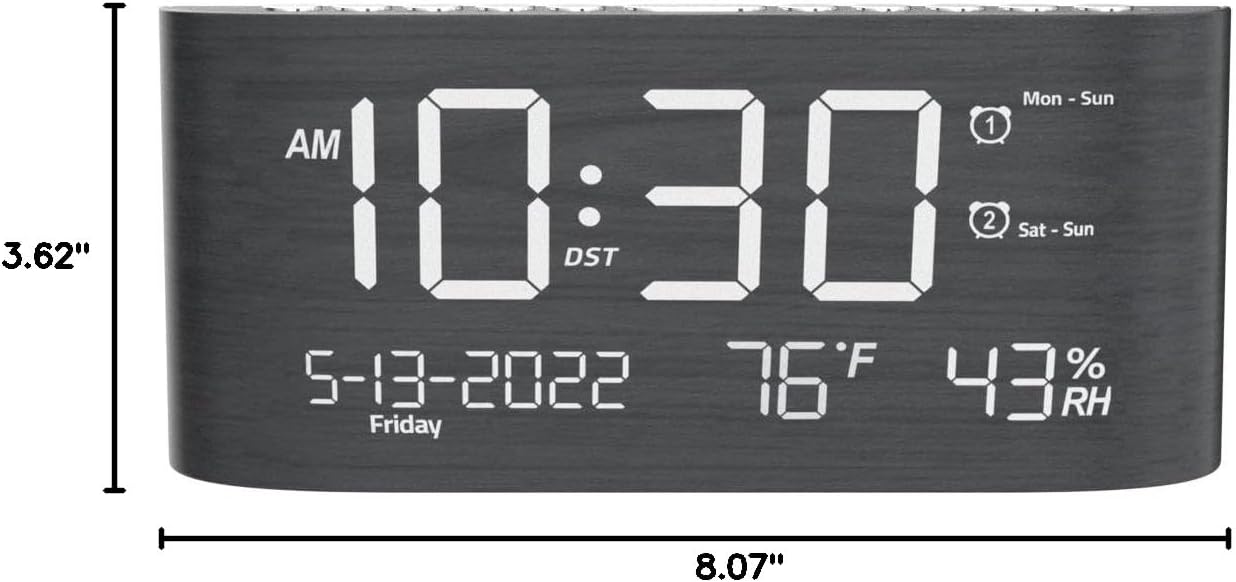
Figure 9: Product Dimensions.
Warranty and Support
This Mesqool product comes with a 2 Years Exchange Warranty. For any support inquiries, troubleshooting assistance, or warranty claims, please refer to the official Mesqool website or contact their customer service directly.
An electronic version of this user manual is available for download: Download User Manual (PDF)
Related documentsMQL-CR1019


Ask a question about this manual
Ask about setup, troubleshooting, compatibility, parts, safety, or missing instructions. Manuals+ will review the question and use this page’s manual context to help answer it.