Introduction
The AVM FRITZ!Box 6690 Cable is a high-performance cable modem router designed for demanding home networks. It integrates a DOCSIS 3.1 cable modem, Wi-Fi 6 (WLAN AX) for ultra-fast wireless connectivity, and a versatile VoIP telephone system. This manual provides essential information for setting up, operating, maintaining, and troubleshooting your FRITZ!Box 6690 Cable.
Safety Information
- Ensure the device is placed in a well-ventilated area, away from direct sunlight, heat sources, and moisture.
- Use only the power adapter supplied with the FRITZ!Box.
- Do not open the device casing. Refer all servicing to qualified personnel.
- Keep the device away from children and pets.
- This FRITZ!Box is designed for cable networks only. DSL/VDSL connections are not supported.
Package Contents
Please check the package for the following items:
- AVM FRITZ!Box 6690 Cable
- Power adapter
- Coaxial cable for cable connection
- LAN cable
- Installation guide (this manual)
Setup
Follow these steps to set up your FRITZ!Box 6690 Cable:
- Connect to Cable Outlet: Connect the coaxial cable from your cable outlet to the "Cable" port on the FRITZ!Box.

Image showing the FRITZ!Box 6690 Cable next to a cable wall outlet, illustrating the connection point.
- Connect Power: Plug the power adapter into the "Power" port on the FRITZ!Box and then into an electrical outlet. The "Power/Cable" LED will start blinking.
- Wait for Connection: Wait until the "Power/Cable" LED is continuously lit. This indicates a successful connection to your cable provider. This may take several minutes.
- Connect Devices:
- Wired Connection: Connect your computer or other network devices to the LAN ports (1x 2.5 Gigabit, 3x Gigabit) on the back of the FRITZ!Box using an Ethernet cable.
- Wireless Connection (Wi-Fi): Find the Wi-Fi network name (SSID) and password printed on the bottom of your FRITZ!Box or on the included information card. Connect your Wi-Fi enabled devices (smartphones, tablets, laptops) to this network.
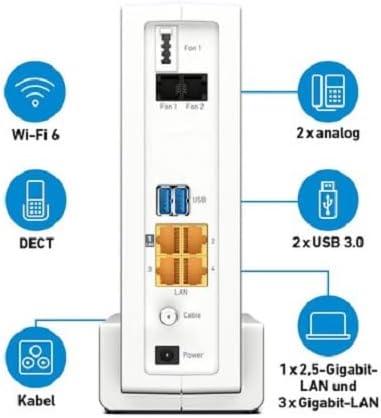
Detailed rear view of the FRITZ!Box 6690 Cable, highlighting the various ports including LAN, USB, and telephone connections.
- Access User Interface: Open a web browser on a connected device and enter http://fritz.box or http://192.168.178.1 into the address bar. Follow the on-screen instructions for initial configuration, including setting up your internet access and telephone numbers.
Operating
Wi-Fi 6 (WLAN AX)
The FRITZ!Box 6690 Cable features innovative 4x4 dual-band Wi-Fi 6 (WLAN AX) technology, providing speeds up to 4800 Mbit/s on the 5 GHz band and 1200 Mbit/s on the 2.4 GHz band. This ensures high performance for a wide range of Wi-Fi devices and demanding applications.

The FRITZ!Box 6690 Cable, highlighting its Wi-Fi 6 capabilities with a prominent logo.
Mesh Wi-Fi
As a Mesh Master, the FRITZ!Box can integrate distributed Wi-Fi access points (e.g., FRITZ!Repeater) to create a dynamic and intelligent Mesh Wi-Fi network. This extends your wireless coverage and optimizes performance across your home.
VoIP Telephone System and DECT
The integrated VoIP telephone system offers versatile functions for all types of phones (analog, DECT, IP). The DECT base station supports up to 6 cordless phones and acts as a Smart Home control center for lighting, heating, and electricity with FRITZ!DECT products.
USB 3.0 Ports
The two USB 3.0 ports allow you to connect USB devices such as printers or storage media, making them accessible to all devices in your home network.
Maintenance
- Cleaning: Use a soft, dry cloth to clean the exterior of the FRITZ!Box. Do not use liquid cleaners or aerosols.
- Firmware Updates: Regularly check for and install firmware updates via the FRITZ!Box user interface (http://fritz.box). Updates provide new features, performance improvements, and security enhancements.
- Ventilation: Ensure that the ventilation slots on the device are not blocked to prevent overheating.
Troubleshooting
| Problem | Possible Cause | Solution |
|---|---|---|
| "Power/Cable" LED is blinking or off. | No connection to the cable network or power issue. | Check coaxial cable connection. Ensure power adapter is securely plugged in. Contact your cable provider if the issue persists. |
| No internet access. | Internet connection not established or configuration error. | Check "Power/Cable" LED status. Access http://fritz.box to check internet connection status and configuration. Restart the FRITZ!Box. |
| Wi-Fi connection issues or slow speeds. | Interference, distance from FRITZ!Box, or incorrect Wi-Fi settings. | Move closer to the FRITZ!Box. Check for obstacles. Consider using FRITZ!Repeaters for Mesh Wi-Fi. Ensure correct Wi-Fi password. |
| Telephone not working. | Incorrect telephone configuration or line issue. | Verify telephone connection to the FRITZ!Box. Check VoIP settings in the FRITZ!Box user interface. |
Specifications
| Feature | Detail |
|---|---|
| Model Number | 20002965 |
| Modem Type | Integrated DOCSIS 3.1 Cable Modem (2x2 OFDMA channels), backward compatible with DOCSIS 3.0 (32x8 channel bonding) |
| Wi-Fi Standard | Wi-Fi 6 (WLAN AX) 4x4 Dual-band |
| Wi-Fi Speed (5 GHz) | Up to 4800 Mbit/s |
| Wi-Fi Speed (2.4 GHz) | Up to 1200 Mbit/s |
| LAN Ports | 1x 2.5 Gigabit LAN, 3x Gigabit LAN |
| USB Ports | 2x USB 3.0 |
| Telephone System | VoIP system for analog, DECT, and IP phones |
| DECT Base Station | Supports up to 6 cordless phones and Smart Home functions with FRITZ!DECT products |
| Dimensions (L x W x H) | 27.3 x 8.5 x 20.9 cm (approx. 10.75 x 3.35 x 8.23 inches) |
| Color | White |
| Compatible Devices | Smartphones, tablets with Android and iOS |
Warranty and Support
For warranty information and technical support, please refer to the official AVM website or contact their customer service. Details regarding warranty periods and support channels are typically provided with your purchase documentation or on the manufacturer's dedicated support pages.
Note: Software updates are guaranteed for the product's lifecycle, ensuring continued performance and security.


