
1. Introduction
This manual provides comprehensive instructions for the setup, operation, and maintenance of your Wildgame Innovations Wraith 18MP IR Trail Camera, model WGI-WGICM0706. This device is designed for remote wildlife monitoring and scouting, capturing high-resolution images and videos with infrared illumination.
The Wraith 18MP IR features 18-megapixel photo capability, 720p video recording, and integrated infrared technology for clear night captures. It also supports cellular connectivity for remote image transmission and integrates with the HuntSmart™ app for advanced scouting features.

Image 1.1: Front view of the Wildgame Innovations Wraith 18MP IR Trail Camera. The camera features a camouflage-patterned housing, a lens, a motion sensor, and an array of infrared LEDs at the top for night vision.
2. Setup
2.1 Package Contents
Verify that your package contains the following items:
- Wildgame Innovations Wraith 18MP IR Trail Camera
- Cellular Antenna
- Mounting Strap
2.2 Battery Installation
The camera requires 8 AA batteries (not included). For optimal performance, use high-quality alkaline or lithium batteries.
- Open the camera housing latch.
- Locate the battery compartment.
- Insert 8 AA batteries, ensuring correct polarity (+/-) as indicated inside the compartment.
- Close the battery compartment securely.
2.3 SD Card Installation
A Class 10 SD or SDHC card (up to 32GB) is required for storing images and videos (not included).
- With the camera powered off, open the housing.
- Insert the SD card into the SD card slot with the label facing up until it clicks into place.
- To remove, press the card in until it clicks, then release.
- It is recommended to format the SD card using the camera's menu system before first use and periodically thereafter.
2.4 Cellular Antenna Attachment
Screw the provided cellular antenna into the antenna port located on the top of the camera. Ensure it is finger-tight for a secure connection and optimal signal reception.
2.5 Mounting the Camera
The camera can be mounted to a tree or post using the included mounting strap.
- Thread the mounting strap through the slots on the back of the camera.
- Wrap the strap around the desired tree or post.
- Secure the strap tightly to prevent camera movement.
- Position the camera approximately 3-6 feet (1-2 meters) off the ground, aiming it towards the area you wish to monitor. Avoid aiming directly into the sun.

Image 2.1: The Wraith 18MP IR Trail Camera securely mounted to a tree using the provided strap, with a person walking in the background, demonstrating typical field use.

Image 2.2: A black and white image showing the Wraith 18MP IR Trail Camera mounted on a tree, illustrating its discreet integration into natural environments.
2.6 Initial Power On and HuntSmart™ App Setup
After installing batteries and an SD card, power on the camera. The camera features an improved onboarding setup via QR code for connection to the HuntSmart™ app.
- Power on the camera using the designated power button.
- Follow the on-screen prompts to generate a QR code.
- Download and install the HuntSmart™ app on your mobile device or access it via desktop.
- Within the app, use the QR code scanner to pair your camera.
- Once paired, you can configure camera settings, receive images, and utilize features like species recognition and advanced filtering.
3. Operating Instructions
3.1 Camera Controls
The camera features a simple control panel for navigation and settings adjustment.
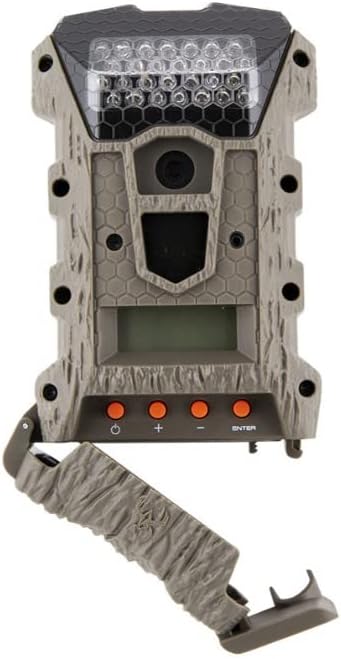
Image 3.1: The Wraith 18MP IR Trail Camera with its front housing open, revealing the control panel with power, plus, minus, and enter buttons, and a small display screen.
- Power Button: Turns the camera on or off.
- '+' Button: Navigates up or increases values in menus.
- '-' Button: Navigates down or decreases values in menus.
- 'ENTER' Button: Confirms selections or enters sub-menus.
3.2 Menu Navigation and Settings
Access the camera's menu to customize settings:
- Mode: Select between Photo, Video, or Photo+Video modes.
- Resolution: Set photo resolution (e.g., 18MP) and video resolution (e.g., 720p).
- Delay: Adjust the time interval between consecutive captures after a trigger event (e.g., 30 or 60 seconds).
- Burst: Determine the number of photos taken per trigger (e.g., 1-3 photos).
- Sensitivity: Adjust motion sensor sensitivity (Low, Medium, High).
- Time/Date: Set the current time and date for accurate timestamps on captures.
- Format SD Card: Erase all data on the SD card.
3.3 Cellular Functionality
The Wraith 18MP IR is a cellular trail camera, capable of transmitting captured images to your mobile device or desktop via the HuntSmart™ app. Ensure your camera has adequate cellular signal and is properly configured within the app for this feature to function.


Image 3.2: Icons indicating day and night operation modes. The camera automatically switches between day (color) and night (infrared black and white) capture based on ambient light conditions.
4. Maintenance
4.1 Battery and SD Card Management
- Regularly check battery levels, especially before deploying the camera for extended periods. Replace all batteries simultaneously with new ones.
- Periodically format the SD card through the camera's menu to ensure optimal performance and prevent data corruption. Back up any desired files before formatting.
4.2 Cleaning
- Use a soft, dry cloth to clean the camera lens and motion sensor window. Avoid abrasive materials or harsh chemicals.
- Wipe down the camera housing with a damp cloth if it becomes dirty. Ensure all ports and compartments are closed before cleaning.
4.3 Storage
When not in use, store the camera in a cool, dry place. Remove batteries before long-term storage to prevent leakage.
5. Troubleshooting
If you encounter issues with your Wraith 18MP IR Trail Camera, refer to the following common problems and solutions:
| Problem | Possible Cause(s) | Solution |
|---|---|---|
| Camera not powering on. | Dead or incorrectly installed batteries. | Replace all batteries with new ones, ensuring correct polarity. |
| Camera not taking pictures/videos. | Full or corrupted SD card; incorrect settings (e.g., long delay, low sensitivity); motion sensor obstructed; low battery. | Format or replace SD card; check and adjust camera settings (delay, sensitivity); clear any obstructions from the motion sensor; replace batteries. |
| Poor image/video quality. | Dirty lens; low light conditions; incorrect resolution settings. | Clean the camera lens; ensure adequate lighting or proper night vision activation; verify resolution settings are at desired levels. |
| No cellular transmission. | No cellular signal; incorrect app configuration; expired data plan (if applicable). | Relocate camera to an area with better cellular reception; verify camera is correctly paired and configured in the HuntSmart™ app; check cellular service plan status. |
| Mounting strap issues. | Strap not holding securely or perceived as inadequate. | Ensure strap is threaded and tightened correctly. Consider purchasing an aftermarket mounting accessory for enhanced stability if needed. |
6. Specifications
Key technical specifications for the Wildgame Innovations Wraith 18MP IR Trail Camera:
| Feature | Detail |
|---|---|
| Model Name | WGI-WGICM0706 |
| Image Resolution | 18 Megapixels |
| Video Resolution | 720p at 30 frames per second |
| Night Vision Range | 75 Feet (Infrared) |
| Viewing Angle | 120 Degrees |
| Power Source | 8 AA Batteries (12 Volts) |
| Mounting Type | Tree Mount |
| Connectivity | Wireless, Cellular |
| Dimensions (L x W x H) | 2.54 x 2.54 x 2.54 cm (approx. 1 x 1 x 1 inch) |
| Item Weight | 422 g (approx. 0.93 lbs) |
| Material | Blend |
| Special Feature | Portable |
7. Warranty and Support
For detailed warranty information, product registration, and technical support, please visit the official Wildgame Innovations website. Keep your purchase receipt as proof of purchase for any warranty claims.
No official product videos from the seller were found in the provided data that meet the embedding criteria (m3u8 format and creator_type: "Seller").


