
1. Introduction
This manual provides essential information for the operation and maintenance of your Apple iPad Air (4th Generation) 10.9-inch Wi-Fi + Cellular 64GB. This device is a renewed product, meaning it has been professionally inspected, tested, and cleaned by Amazon-qualified suppliers to ensure full functionality. It may not be Apple certified, but it is guaranteed to have no visible cosmetic imperfections when held at arm's length, and the battery capacity will exceed 80% relative to new. Accessories may not be original but are compatible and fully functional. The product may arrive in a generic box.

Figure 1: Apple iPad Air (4th Generation) - Front and Rear View
2. Product Overview
The iPad Air (4th Generation) features a 10.9-inch Liquid Retina display, powered by the A14 Bionic chip for efficient performance. It includes Wi-Fi + Cellular connectivity and 64GB of storage. Key features include:
- Display: 10.9-inch Liquid Retina display (2360 x 1640 Pixels)
- Processor: A14 Bionic chip
- Storage: 64GB
- Operating System: iPadOS 14
- Security: Touch ID integrated into the top button
- Connectivity: Wi-Fi, Cellular, Bluetooth, USB-C port
- Cameras: Front and rear cameras (1080p scanner resolution)
- Compatibility: Supports Apple Pencil (2nd Generation) and Magic Keyboard
- Dimensions: 7.02 x 9.74 x 0.24 inches
- Weight: 1 pound

Figure 2: iPad Air (4th Generation) - Side View with USB-C Port
3. Setup
To begin using your iPad Air, follow these initial setup steps:
- Unboxing: Carefully remove the iPad Air and included accessories (USB Data Cable and power adapter) from the packaging.
- Initial Power On: Press and hold the top button (integrated with Touch ID) until the Apple logo appears.
- Charging: If the device does not power on, connect the USB-C cable to the iPad's USB-C port and the power adapter, then plug it into a power outlet. The iPad Air supports fast charging.
- Quick Start: Follow the on-screen instructions to select your language and region. You can use Quick Start to automatically transfer data from an existing iPhone or iPad by placing them near each other, or set up manually.
- Touch ID Setup: During setup, you will be prompted to configure Touch ID for secure unlocking and purchases.
Video 1: Unboxing and Initial Setup of iPad Air (4th Generation), demonstrating the USB-C port and power-on sequence.
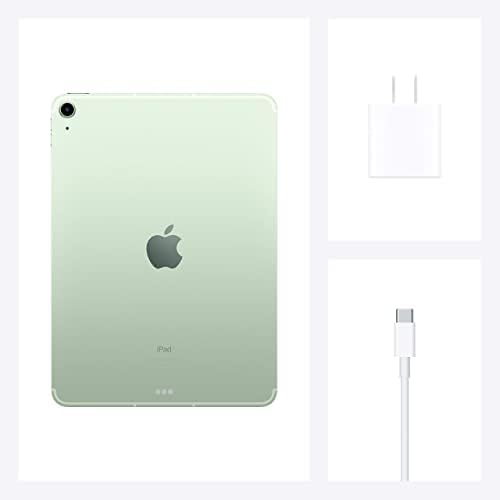
Figure 3: Included USB-C Data Cable and Power Adapter
4. Operating Instructions
The iPad Air runs on iPadOS, offering an intuitive touch interface. Here are basic operating guidelines:
- Navigation: Swipe up from the bottom to go to the Home screen. Swipe down from the top-right corner for Control Center, and from the top-left for Notifications.
- App Management: Tap an app icon to open it. Swipe left or right on the Home screen to access different pages of apps. Swipe down on any Home screen to access Search.
- Multitasking: Use Split View or Slide Over to work with multiple apps simultaneously.
- Apple Pencil (2nd Gen): Attach the Apple Pencil magnetically to the side of the iPad for charging and pairing. Use it for drawing, note-taking, and marking up documents.
- Magic Keyboard: Connect the Magic Keyboard for a laptop-like experience, enabling typing and trackpad navigation.
Video 2: Demonstration of iPad Air (4th Generation) usage, including note-taking with Apple Pencil and integration with Magic Keyboard.
5. Maintenance
Proper care ensures the longevity of your iPad Air:
- Cleaning: Use a soft, lint-free cloth to clean the screen and exterior. Avoid abrasive materials or harsh chemicals.
- Battery Care: To optimize battery life, avoid exposing the device to extreme temperatures. The renewed product is guaranteed to have a battery capacity exceeding 80% of a new device.
- Software Updates: Keep your iPadOS updated to the latest version for optimal performance and security.
- Storage Management: Regularly manage your storage to ensure smooth operation. Delete unnecessary apps and files.
6. Troubleshooting
If you encounter issues with your iPad Air, consider the following:
- Device Unresponsive: If the screen is unresponsive, try a force restart: Press and quickly release the Volume Up button, press and quickly release the Volume Down button, then press and hold the Top button until the Apple logo appears.
- Touch ID Issues: Ensure your finger is clean and dry when using Touch ID. If issues persist, try re-registering your fingerprints in Settings.
- Charging Problems: Verify that the USB-C cable and power adapter are securely connected and that the power outlet is functional.
- App Crashes: Close and reopen the app. If the problem continues, check for app updates in the App Store or reinstall the app.
- Connectivity Issues: For Wi-Fi or Cellular problems, try toggling Wi-Fi/Cellular off and on, or restart your iPad.
For further assistance, refer to Apple's official support resources or contact customer service.
7. Specifications
| Feature | Specification |
|---|---|
| Product Dimensions | 7.02 x 9.74 x 0.24 inches |
| Item Weight | 1 pound |
| ASIN | B08PF8HCDJ |
| Item Model Number | A2324 |
| Batteries | 1 Lithium Ion batteries required (included) |
| OS | iPadOS 14 |
| GPU | Apple |
| RAM | 6 GB |
| Wireless Communication Technologies | Cellular |
| Connectivity Technologies | Bluetooth |
| Display Resolution | 2048x1536 (2360 x 1640 Max) |
| Human Interface Input | Touchscreen with Stylus Support |
| Scanner Resolution | 1080p |
| Other Camera Features | Front |
| Color | Green |
| What's in the Box | USB Data Cable |
| Manufacturer | Apple Computer |
| Date First Available | December 2, 2020 |
| Standing Screen Display Size | 10.9 Inches |
| Memory Storage Capacity | 64 GB |
| Brand | Apple |
8. Warranty and Support
As a renewed product, your iPad Air is backed by the Amazon Renewed Guarantee:
- 90-Day Replacement or Refund: This product is eligible for a replacement or refund within 90 days of receipt if you are not satisfied.
- Amazon Renewed Conditions: All Amazon Renewed products are fully functional and come with generic or original accessories and packaging.
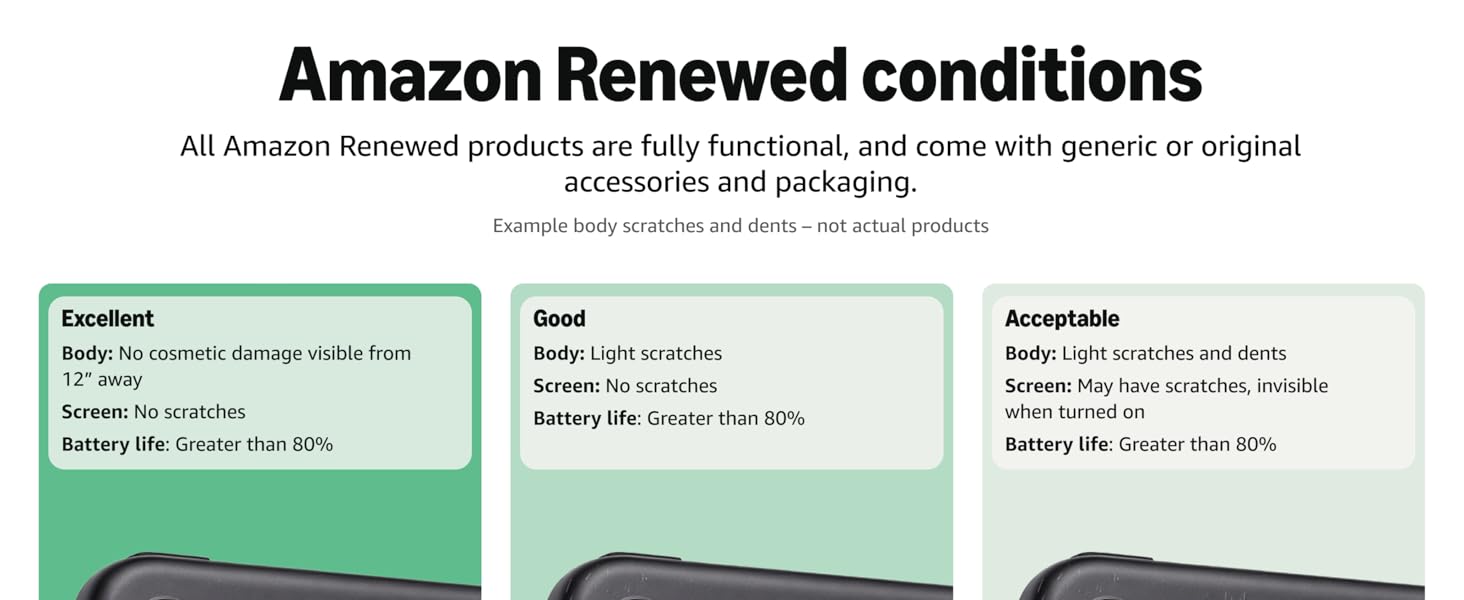
Figure 4: Amazon Renewed Product Condition Guidelines
For any support needs, please refer to the Amazon Renewed program details or contact Amazon customer service directly.


