
Wildgame Innovations WGICM0645
Wildgame Innovations WGICM0645 Scrapeline Lightsout Trail Camera User Manual
Model: WGICM0645
Brand: Wildgame Innovations
Introduction
The Wildgame Innovations WGICM0645 Scrapeline Lightsout Trail Camera is designed for capturing high-resolution images and videos of wildlife. Featuring Lightsout Technology with invisible IR LEDs and Silent Shield, this camera operates discreetly, making it ideal for scouting without disturbing animals. It incorporates Adaptive Illumination for automatic light adjustment and Exposure Control for optimal clarity and distance. This package includes a 16 GB SD card, 8 AA batteries, and an adjustable strap for immediate use.
Package Contents
- Wildgame Innovations WGICM0645 Scrapeline Lightsout Trail Camera
- 16 GB SD Card
- 8 x AA Batteries
- Adjustable Mounting Strap
Setup
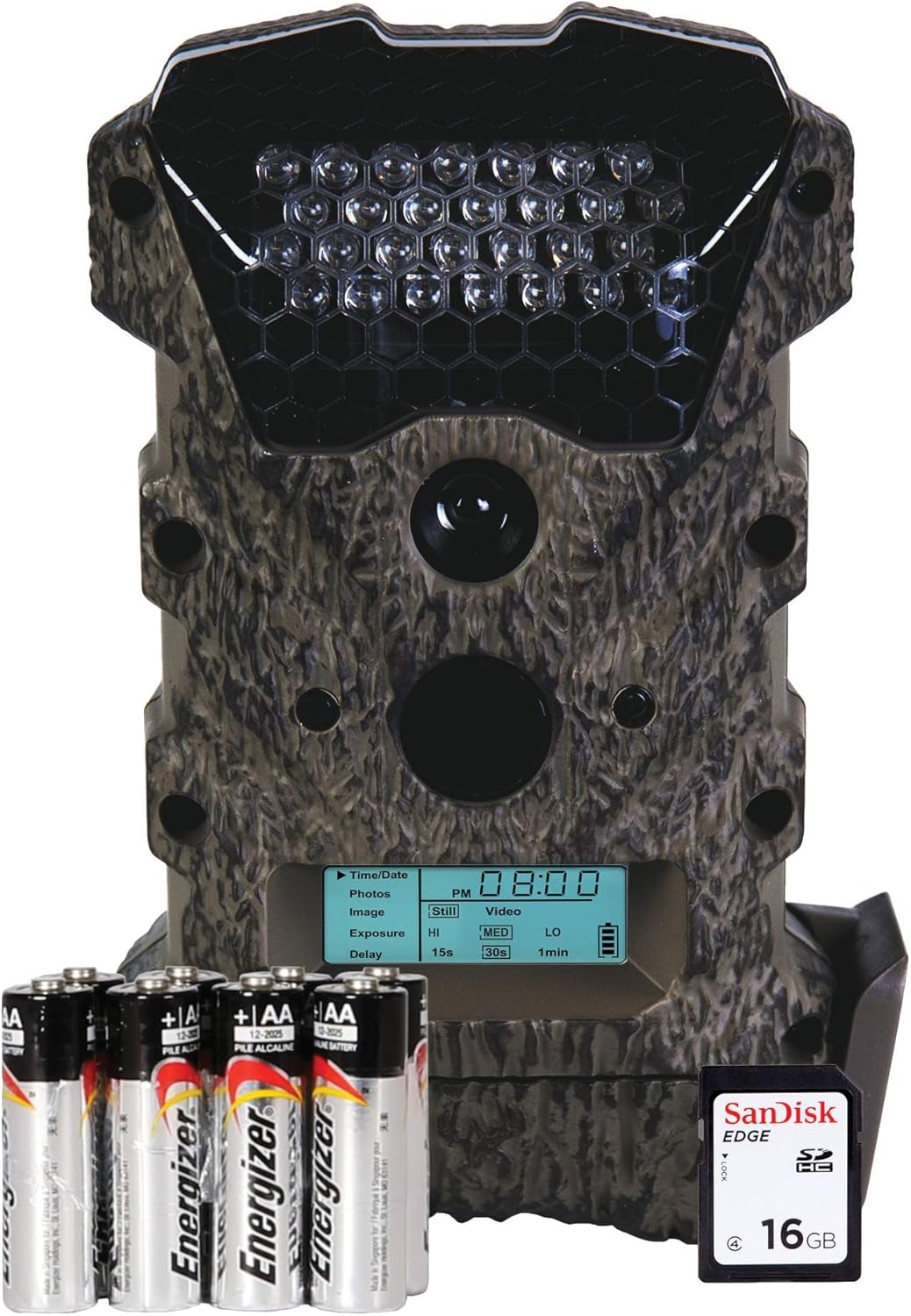
Image: Wildgame Innovations WGICM0645 Scrapeline Lightsout Trail Camera shown with 8 AA batteries and a 16GB SanDisk SD card.
Battery Installation
The camera requires 8 AA batteries for operation. Ensure correct polarity when inserting.
- Locate the battery compartment on the camera body.
- Open the battery compartment latch.
- Insert 8 AA batteries, matching the positive (+) and negative (-) terminals as indicated inside the compartment.
- Close the battery compartment securely to ensure a watertight seal.
SD Card Installation
A 16 GB SD card is included for storing images and videos.
- Locate the SD card slot, typically near the battery compartment or on the side of the camera.
- Insert the 16 GB SD card into the slot with the label facing the correct direction until it clicks into place.
- To remove, gently push the card in until it springs out.
Mounting the Camera
Use the adjustable strap to secure the camera to a tree or post.
- Thread the adjustable strap through the mounting slots on the back of the camera.
- Wrap the strap around the desired mounting object (e.g., tree trunk, pole).
- Pull the strap tight and secure it to ensure the camera is stable and does not move.
- Adjust the camera's angle to achieve the desired field of view.
Operating Your Camera
Powering On/Off
Locate the power switch, usually marked ON/OFF or SETUP. Switch to ON for operation or SETUP for menu access. Switch to OFF to power down the camera.
Basic Menu Navigation
The camera features a small LCD screen and navigation buttons (e.g., UP, DOWN, ENTER, MENU) to access and adjust settings. Use the arrow buttons to navigate through options and the ENTER button to select.
Setting Time and Date
Accurate time and date settings are crucial for proper record-keeping.
- Enter the camera's SETUP mode.
- Navigate to the 'Time/Date' setting.
- Adjust the year, month, day, hour, and minute using the navigation buttons.
- Confirm the settings to save.
Photo and Video Modes
The camera supports both still image capture and video recording.
- Photos: Select 'Still' mode for capturing photographs.
- Video: Select 'Video' mode for recording video clips. The video capture resolution is 720p.
Exposure and Delay Settings
Customize image quality and trigger intervals.
- Exposure: Adjust image brightness and clarity. Options typically include 'HI' (High), 'MED' (Medium), and 'LO' (Low).
- Delay: Set the time interval between consecutive triggers. Common options are 15 seconds, 30 seconds, or 1 minute.
Advanced Features
- Lightsout Technology: Utilizes invisible IR LEDs for stealth operation, ensuring the camera remains unnoticed by wildlife.
- Adaptive Illumination: Automatically adjusts illumination levels based on the distance to the target, optimizing image quality.
- Exposure Control: Offers multiple exposure settings to achieve the ideal balance of image clarity and distance, even in challenging lighting conditions.
- Long-Range Imaging: Equipped with 40 high-intensity invisible IR LEDs, providing an illumination range of up to 75 feet for clear night vision.
Maintenance
- Cleaning: Gently wipe the camera lens and IR LEDs with a soft, lint-free cloth. Avoid abrasive cleaners.
- Battery Care: Replace all 8 AA batteries simultaneously when they are low. Do not mix old and new batteries or different battery types. Remove batteries if the camera will be stored for an extended period.
- SD Card Management: Periodically format the SD card in the camera to maintain optimal performance and prevent data corruption. Back up important files before formatting.
- Storage: Store the camera in a cool, dry place away from direct sunlight and extreme temperatures when not in use.
Troubleshooting
| Problem | Possible Cause | Solution |
|---|---|---|
| Camera not powering on | Low or dead batteries; Incorrect battery insertion; Power switch in OFF position. | Replace all 8 AA batteries; Ensure correct polarity; Switch to ON or SETUP. |
| Poor image/video quality | Dirty lens/IR LEDs; Incorrect exposure settings; Subject too far/close. | Clean lens/IR LEDs; Adjust exposure settings; Ensure subject is within 75ft range. |
| Camera not triggering | PIR sensor obstructed; Incorrect delay setting; Batteries low. | Clear sensor area; Adjust delay setting; Replace batteries. |
| SD card error | SD card full; Corrupted card; Incorrectly inserted. | Format SD card (after backing up data); Reinsert card; Try a different SD card. |
Technical Specifications
| Feature | Specification |
|---|---|
| Model | WGICM0645 |
| Image Resolution | 16 Megapixels (MP) |
| Video Resolution | 720p |
| Night Vision Range | Up to 75 feet (22.8 meters) |
| IR LEDs | 40 high-intensity invisible IR LEDs |
| Power Source | 8 x AA Batteries (included) |
| SD Card Support | Up to 16 GB (16 GB card included) |
| Form Factor | Box |
| Weight | 682 g |
| Color | Camo |
| Connectivity | Wireless (Zigbee, IR) |
Warranty and Support
For detailed warranty information and customer support, please refer to the official Wildgame Innovations website or contact their customer service directly. Warranty terms and conditions may vary and are typically provided with the product packaging or available online.
Manufacturer: Wildgame Innovations
Related documentsWGICM0645


Ask a question about this manual
Ask about setup, troubleshooting, compatibility, parts, safety, or missing instructions. Manuals+ will review the question and use this page’s manual context to help answer it.