
1. Introduction
The hohem iSteady Mobile Plus is a 3-axis handheld gimbal stabilizer designed for smartphones, providing enhanced stability and creative shooting modes for professional-grade video recording. This manual provides essential information for setup, operation, and maintenance of your device.

Figure 1: hohem iSteady Mobile Plus Gimbal Stabilizer with accessories.
2. What's in the Box
- Hohem iSteady Mobile Plus Gimbal Stabilizer
- Mini Tripod
- Storage Bag
- Type-C Charging Cable
- Quick Start Guide
3. Setup
3.1. Mounting and Balancing Your Smartphone
Before powering on the gimbal, ensure your smartphone is securely mounted and balanced. Remove your phone case for optimal balance, especially if it's bulky.
- Push and open the phone holder, then insert your smartphone.
- Position the smartphone so its home button side is as close as possible to the tilt motor.
- Adjust the smartphone's balance using the balancing knob until it remains still when the roll axis is rotated up and down.
- Once balanced, you may power on the gimbal.
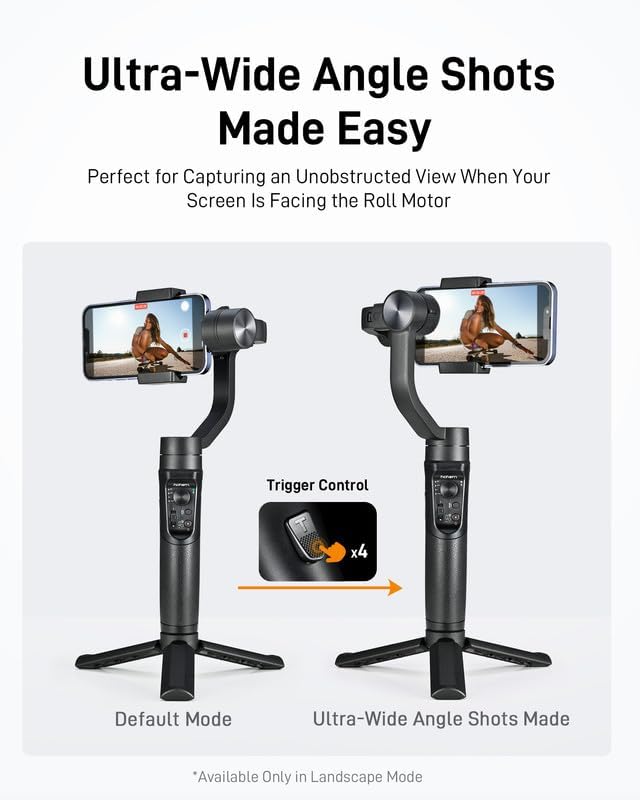
Figure 2: Proper smartphone mounting on the gimbal.
3.2. Bluetooth Connection
To unlock full features, connect your gimbal to the Hohem Joy App via Bluetooth.
- Ensure Bluetooth is enabled on your smartphone and not connected to other devices.
- Open the Hohem Joy App.
- Tap 'Connecting Device' and manually select the corresponding stabilizer model to connect.
- If connection fails, try turning off Bluetooth, re-downloading the app, and repeating the steps.
4. Operating Modes and Features
4.1. Controls Overview

Figure 3: Gimbal controls including Mode Indicator, Joystick, Mode Button, Power Button, and Zoom Slider.
- Joystick: Controls pan and tilt movements.
- Mode Button: Cycles through different operating modes (PF, PTF, L, POV).
- Power Button: Powers the device on/off.
- Zoom Slider: Adjusts zoom and focus within the Hohem Joy App.
- Trigger Button: Double-tap to re-center the gimbal; hold for Sport Mode.
4.2. Enhanced iSteady 7.0 Stabilization
The iSteady 7.0 Stabilization technology provides uninterrupted and smooth video footage, even with significant movement. The increased motor torque allows it to handle larger smartphones like the iPhone 15 Pro Max effortlessly, eliminating shaky or blurry videos.
4.3. Ultra-Wide-Angle Mode
Activate the ultra-wide-angle mode with a simple four-trigger press to eliminate motor interference in your shots and capture a broader view of your surroundings. This mode is available only in Landscape Mode.

Figure 4: Ultra-Wide Angle Mode for unobstructed views.
4.4. 3D Fantasy Auto-rotation Mode (Inception)
The newly developed "Inception" mode allows your phone to vertically rotate 360° spontaneously while filming, offering creative and dynamic shots. It supports a 600° wide rotation range for unrestricted creativity.
4.5. Instant Sport Mode
Quickly unlock the motor's potential and switch to Sport Mode for rapid tracking of moving subjects, ensuring smooth footage during extreme activities like running or cycling.

Figure 5: Instant Sport Mode for dynamic action shots.
4.6. Portrait Mode Quick Switch
Easily switch between landscape and portrait modes for versatile shooting. Note: After a quick swap, the joystick only controls left and right rotation, and quick swap is not supported when FUV mode and the handle are held vertically.

Figure 6: Quick switch to Portrait Mode.
4.7. Hohem Joy App Features
The upgraded Hohem Joy app offers numerous features for effortless filming:
- Moment Video Templates: Includes Inception, Fantastic Rotation, CloneMe, Panoramic Video, Timelapse, and Dolly Zoom for one-click filming effects.
- Face/Object Tracking: Automatically tracks subjects for smooth, focused shots.
- Beauty Touch-up: Enhance your appearance directly within the app.
- Pan Mode Switching: Easily change panning modes.

Figure 7: Varied shooting modes for quality films.
5. Battery and Charging
The iSteady Mobile Plus features a long-lasting battery and can even serve as a power bank for your smartphone.
- Battery Life: Up to 13 hours of operation on a single charge.
- Emergency Power Bank: Use the gimbal to charge your smartphone when its battery runs low.
- Fast Charge: Supports 1.5 hours fast charging.

Figure 8: Long-lasting power and power bank functionality.
6. Compatibility
The hohem iSteady Mobile Plus is widely compatible with various smartphones.
- Supported Phone Clip Width: 2.28 - 3.50 inches (55-89mm).
- Compatible Devices: iPhone 15, 14, 13, 12, 11 Pro Mini XS Max XR X; Samsung Galaxy S23, S22, S21 Plus Ultra, Galaxy A90, A60; Huawei P50, P40, P30, P20 Pro, Mate40, 30, 20 Pro, and many other Android and iOS devices.
- For iPhone 15/14 Pro Max, manual balancing is required before use.

Figure 9: Universal compatibility for various smartphones.
7. Specifications
| Feature | Detail |
|---|---|
| Product Dimensions | 13.3 x 5.8 x 2 inches |
| Item Weight | 1.04 pounds |
| Item Model Number | M-Tripod |
| Batteries | 1 AA batteries required (included) |
| Maximum Weight Recommendation | 2.5 Pounds |
| Color | Black Smartphone Gimbal Stabilizer |
| Manufacturer | Hohem Technology Co. |
| Country of Origin | China |
8. Safety Information
Please read and adhere to the following safety guidelines:
- Do not turn on the gimbal without a phone mounted on it.
- Always remove your phone case before mounting for proper balance.
- If you encounter issues with the Hohem Joy APP, contact the seller for assistance.
9. Maintenance
- Keep the gimbal clean and free from dust and debris.
- Store the gimbal in its provided storage bag when not in use to protect it from damage.
- Avoid exposing the gimbal to extreme temperatures or direct sunlight for prolonged periods.
- Do not attempt to disassemble or repair the gimbal yourself. Contact customer support for service.
10. Troubleshooting
If you experience issues with your hohem iSteady Mobile Plus, try the following steps:
- Gimbal not powering on: Ensure the battery is charged.
- Unstable footage: Re-balance your smartphone on the gimbal. Ensure no phone case is interfering with balance.
- App connection issues: Verify Bluetooth is on, restart the app, or re-download the app.
- Motor interference in wide-angle shots: Ensure Ultra-Wide-Angle mode is activated (four-trigger press).
- Gimbal behaving erratically: Double-tap the trigger button to re-center the gimbal.
If problems persist, please contact customer support.
11. Support & Warranty
For technical support, warranty claims, or any inquiries, please visit the official hohem website or contact their customer service directly. Refer to your purchase documentation for specific warranty terms and conditions.
hohem Store: https://www.amazon.com/stores/Hohem/page/6A8C5808-8E83-493E-9D13-9F5A5C805BD7


