
1. Introduction
Thank you for choosing the PRUNUS J-288 Portable Radio. This device combines an AM/FM radio, a Bluetooth speaker, and an MP3 player with support for USB drives and SD/TF cards. It features dual stereo speakers, a sleep timer, and a hands-free calling function. This manual provides detailed instructions for setup, operation, maintenance, and troubleshooting to ensure optimal performance and longevity of your device.
2. Safety Instructions
- Do not expose the device to rain, moisture, or extreme temperatures.
- Avoid dropping or subjecting the device to strong impacts.
- Do not disassemble or attempt to repair the device yourself. Refer all servicing to qualified personnel.
- Keep the device away from strong magnetic fields.
- Use only the specified charging voltage (5 Volts) and compatible USB charging sources.
- Dispose of batteries according to local regulations.
3. Package Contents
- PRUNUS J-288 Portable Radio
- USB Charging Cable
- Lithium-ion Battery (pre-installed or separate)
- User Manual
4. Product Overview
Familiarize yourself with the controls and features of your PRUNUS J-288 radio.

Image: Front view of the PRUNUS J-288 portable radio, showing the digital display, dual speakers, and control buttons including power, play/pause, skip, mode, scan, lock, repeat, and numeric keypad.
Controls and Ports:
- Power Button (⏻): Press to turn the device on or off.
- Mode Button (MODE): Cycles through Radio (AM/FM), Bluetooth, and MP3 (USB/SD/TF) modes.
- Scan Button (SCAN): Initiates automatic station scanning in radio mode.
- Numeric Keypad (0-9): Used for direct frequency input in radio mode or track selection in MP3 mode.
- Play/Pause (⏸): Controls playback in MP3 and Bluetooth modes.
- Previous/Next (⏮ / ⏴): Skips tracks or adjusts frequency/station.
- Volume Control: Typically integrated with other buttons or a dedicated dial (refer to device for exact location).
- Antenna: Extendable telescopic antenna for radio reception.
- USB Port: For connecting USB flash drives for MP3 playback or charging.
- SD/TF Card Slot: For inserting SD or TF memory cards for MP3 playback.
- AUX Input (3.5mm): For connecting external audio devices.
- Charging Port: Micro USB or USB-C port for battery charging.
Dimensions:

Image: The PRUNUS J-288 radio shown next to a smartphone for size comparison, illustrating its compact dimensions: 178mm (7.00in) length, 66mm (2.60in) height, and 26mm (1.02in) depth.
5. Setup
5.1. Charging the Battery
- Connect the supplied USB charging cable to the charging port on the radio.
- Plug the other end of the USB cable into a compatible USB power source (e.g., USB adapter, computer USB port, power bank, car charger).
- The charging indicator light will illuminate during charging. It will turn solid green when the battery is fully charged.
5.2. Inserting Media (USB/SD/TF Card)
To play MP3 files, insert a USB flash drive or an SD/TF memory card into the corresponding slot. Ensure the media is inserted correctly to avoid damage.
6. Operating Instructions
6.1. Power On/Off
Press and hold the Power Button (⏻) to turn the radio on or off.
6.2. Radio Mode (AM/FM)

Image: The PRUNUS J-288 radio with its telescopic antenna fully extended, positioned on a windowsill, demonstrating its use for optimal radio reception.
- Extend the telescopic antenna for better reception.
- Press the MODE button until 'FM' or 'AM' appears on the display.
- Automatic Scan: Press the SCAN button to automatically search for and save available radio stations. The radio can store up to 99 AM and 99 FM stations.
- Manual Tuning / Direct Frequency Input:
- Use the Previous/Next (⏮ / ⏴) buttons for fine-tuning the frequency.
- For direct frequency input, use the Numeric Keypad (0-9). For example, to tune to 106.2 MHz, press 1-0-6-2.
- Recalling Saved Stations: Use the Numeric Keypad to directly enter the saved station number, or use the Previous/Next (⏮ / ⏴) buttons to cycle through saved stations.

Image: A comparison highlighting the ease of use of the PRUNUS J-288's numeric buttons for direct frequency input and quick access to saved stations, contrasting it with radios that require extensive button presses for tuning.
6.3. Bluetooth Mode

Image: A person using the PRUNUS J-288 radio for a hands-free phone call, with an inset highlighting the built-in microphone, demonstrating its Bluetooth calling capability.
- Press the MODE button until 'BLUE' or a Bluetooth icon appears on the display. The device will enter pairing mode.
- On your smartphone or tablet (Bluetooth version ≥ 2.1), search for Bluetooth devices and select 'J-288' to pair.
- Once paired, you can play audio from your connected device through the radio.
- Hands-free Calling: When a call comes in while connected via Bluetooth, press the Play/Pause (⏸) button to answer or end the call. The built-in microphone allows for hands-free communication within a 10-meter range. Note: Bluetooth headphones are not supported for connection to the J-288.
6.4. MP3 Playback (USB/SD/TF)
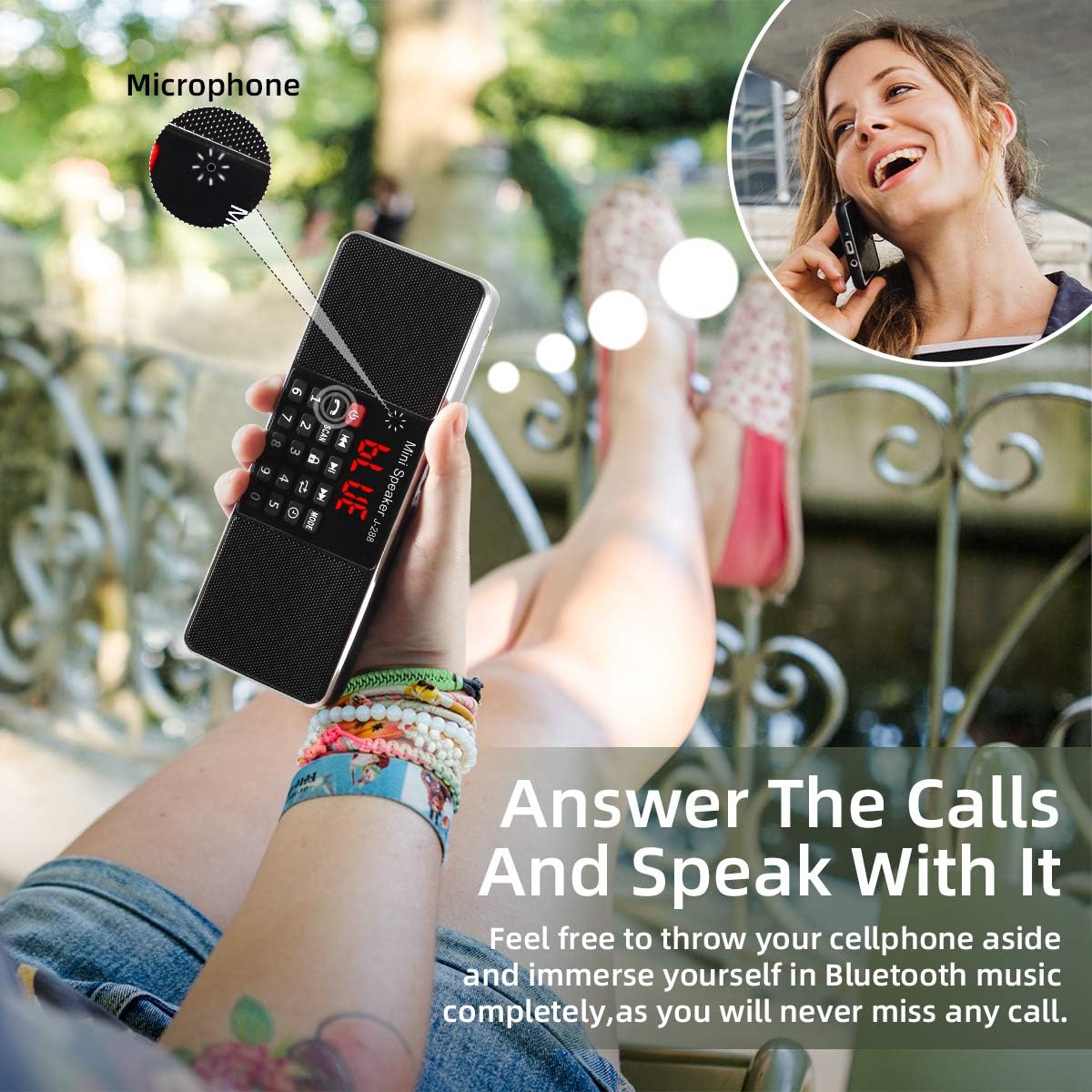
Image: A diagram illustrating the universal compatibility of the PRUNUS J-288, showing connections via Bluetooth (to smartphones/tablets), MP3 format playback (from flash drives/micro SD/TF cards), and AUX jack (to computers/MP3 players).
- Insert a USB flash drive or an SD/TF card containing MP3 audio files into the respective slot.
- Press the MODE button until the device enters MP3 playback mode. It will automatically start playing files.
- Use the Play/Pause (⏸) button to pause or resume playback.
- Use the Previous/Next (⏮ / ⏴) buttons to skip between tracks.
- Use the Numeric Keypad (0-9) to directly select a track number.
6.5. AUX Input
Connect an external audio device (e.g., smartphone, MP3 player, computer) to the 3.5mm AUX input jack using an audio cable (not included). The radio will automatically switch to AUX mode or require you to select it via the MODE button.
6.6. Sleep Timer Function

Image: The PRUNUS J-288 radio on a nightstand next to a sleeping person, with icons indicating various sleep timer durations (15min, 30min, 60min, 90min, 120min, 240min), illustrating the sleep timer feature.
The sleep timer allows the radio to automatically turn off after a set period. Press the dedicated Sleep Timer Button (often marked with a clock icon or integrated with the 'Hour' button) repeatedly to cycle through available sleep timer durations (e.g., 15, 30, 60, 90, 120, 240 minutes). The selected time will be displayed, and the radio will power off automatically once the timer expires.
6.7. Volume Control
Adjust the volume using the dedicated volume buttons or dial on the device. (Refer to your specific unit for exact control location).
7. Maintenance
7.1. Cleaning
Wipe the device with a soft, dry cloth. Do not use abrasive cleaners or solvents, as they may damage the surface.
7.2. Battery Care
- Charge the battery fully before first use.
- If the device will not be used for an extended period, charge it at least once every three months to maintain battery health.
- Avoid exposing the battery to extreme heat or cold.
8. Troubleshooting
| Problem | Possible Cause | Solution |
|---|---|---|
| Device does not power on | Low battery; Power button not pressed correctly | Charge the battery; Press and hold the power button for a few seconds. |
| Poor radio reception | Antenna not extended; Weak signal area; Interference | Fully extend the telescopic antenna; Move to a location with better signal; Avoid sources of electronic interference. |
| Bluetooth pairing failed | Device not in pairing mode; Bluetooth disabled on external device; Out of range | Ensure radio is in Bluetooth mode; Enable Bluetooth on your smartphone/tablet; Keep devices within 10 meters. |
| No sound from USB/SD/TF | Incorrect mode; No MP3 files; Corrupted files; Media not inserted correctly | Switch to MP3 mode; Ensure media contains valid MP3 files; Reinsert media; Try different media. |
| Sound distortion | Volume too high; Weak signal; Damaged audio file | Reduce volume; Improve radio reception; Try a different audio file. |
9. Specifications
| Feature | Specification |
|---|---|
| Model | J-288 (RADIO288CG) |
| Brand | PRUNUS |
| Radio Bands Supported | AM (MW), FM |
| Speaker Output Power | 2 x 3 Watts (Stereo) |
| Connectivity Technology | Bluetooth (≥ 2.1), USB, Aux (3.5mm) |
| Media Playback | USB Flash Drive, SD/TF Card (MP3 format) |
| Power Source | Battery Powered (1 Lithium-ion battery included) |
| Voltage | 5 Volts |
| Dimensions (L x W x H) | 17.6 x 2.5 x 6.6 cm (6.93 x 0.98 x 2.60 inches) |
| Weight | 320 g (0.71 lbs) |
| Antenna Length | 56 cm (extended) |
| UPC | 712640441753, 798863154342 |
10. Warranty and Support
For warranty information or technical support, please refer to the documentation provided with your purchase or contact PRUNUS customer service through their official website or the retailer where the product was purchased. Keep your proof of purchase for warranty claims.


