
Rapoo V510
Rapoo V510 Backlit Mechanical Gaming Keyboard User Manual
Model: V510
Introduction
This manual provides detailed instructions for the Rapoo V510 Backlit Mechanical Gaming Keyboard. It covers setup, operation, maintenance, and troubleshooting to ensure you get the best experience from your device. The Rapoo V510 is designed for gamers, featuring durable mechanical key switches, anti-ghosting capabilities, and a spill-resistant design.
Setup
Package Contents
- Rapoo V510 Mechanical Gaming Keyboard
- Quick Start Guide
System Requirements
- Operating System: Windows 98SE/ME/2000/XP/Vista/Win7/Win8/Win10/MAC OS
- Available USB port
Connecting the Keyboard
- Unpack the Rapoo V510 keyboard from its packaging.
- Locate an available USB port on your computer.
- Plug the USB connector of the keyboard into the USB port.
- Your operating system should automatically detect and install the necessary drivers. No additional software installation is typically required for basic functionality.
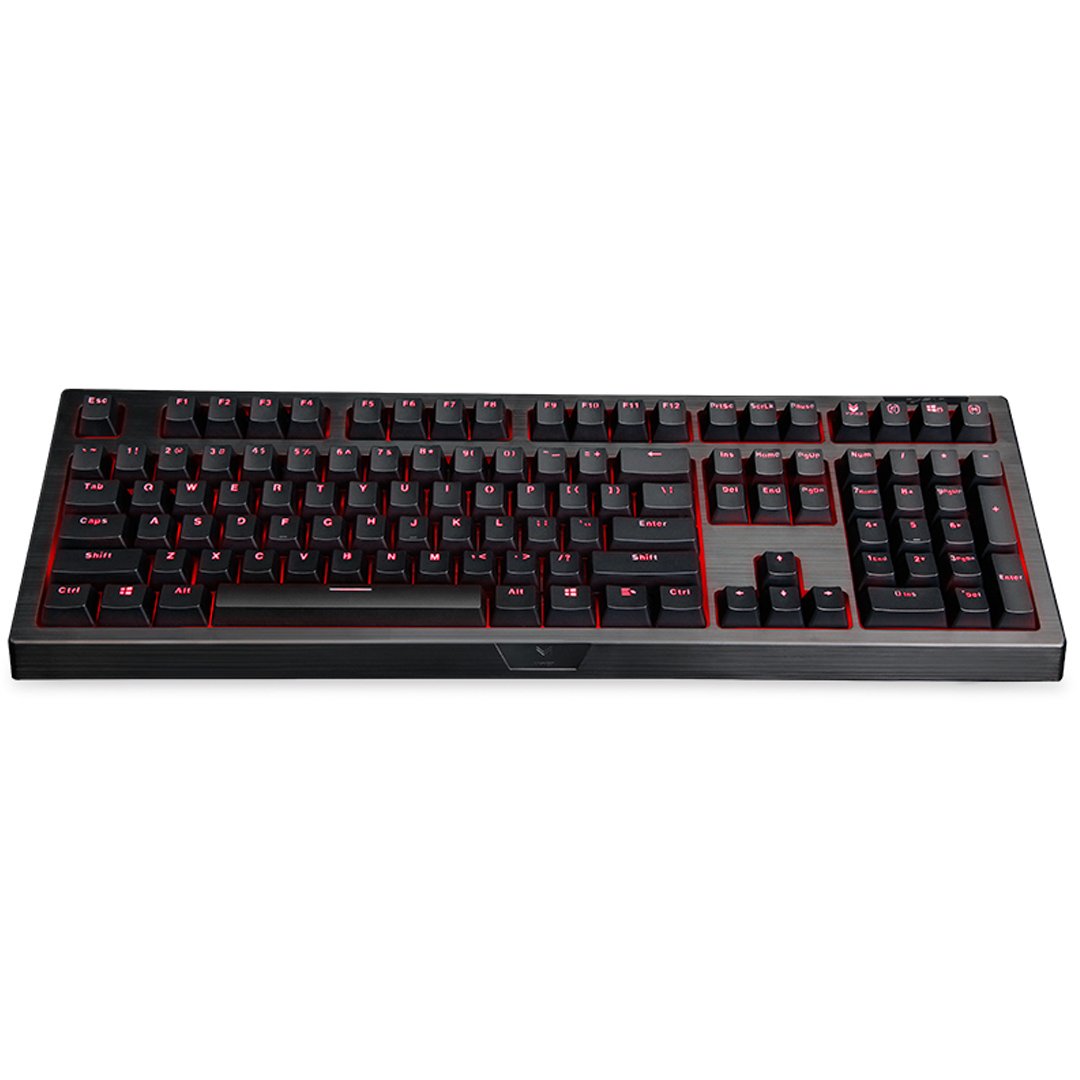
Image: Top-down view of the Rapoo V510 keyboard, showcasing its full layout with red backlighting.
Operating the Keyboard
Key Features
- Full Mechanical Keys: Experience high-speed response and tactile feedback with every keystroke.
- Durable Switches: Mechanical key switches are designed for a long lifespan, rated up to 60 million operations per key.
- Conflict-Free Design (Anti-Ghosting): Press multiple keys simultaneously without signal failure. This ensures every command is registered accurately, which is crucial for gaming.
- Gaming-Optimized Layout: The keyboard features a special key layout without a Windows key on the left side, preventing accidental interruptions during gameplay.
- Backlighting: The keyboard includes backlighting for enhanced visibility in various lighting conditions.

Image: A close-up view highlighting the mechanical key switches of the Rapoo V510 keyboard.

Image: The Rapoo V510 keyboard with an icon indicating its conflict-free design, allowing multiple simultaneous key presses.

Image: The Rapoo V510 keyboard with certain keys highlighted, indicating its design for gamers.
Maintenance
Cleaning the Keyboard
To maintain optimal performance and appearance, regular cleaning is recommended.
- Disconnect the keyboard from your computer before cleaning.
- Use a soft, lint-free cloth slightly dampened with water or a mild cleaning solution to wipe the keycaps and surface.
- Avoid using harsh chemicals, abrasive cleaners, or solvents.
- For dust and debris between keys, use compressed air.
Spill-Resistant Design
The Rapoo V510 features a spill-resistant design to protect against accidental liquid spills. In case of a spill:
- Immediately disconnect the keyboard from your computer.
- Invert the keyboard to drain any liquid.
- Wipe the surface thoroughly with a dry, clean cloth.
- Allow the keyboard to air dry completely before reconnecting it to your computer.

Image: The Rapoo V510 keyboard with an icon indicating its spill-resistant design.

Image: A close-up view of the Rapoo V510 key switches with water droplets, illustrating the keyboard's spill-resistant capabilities.
Troubleshooting
Keyboard Not Responding
- Ensure the USB cable is securely plugged into both the keyboard and the computer's USB port.
- Try plugging the keyboard into a different USB port on your computer.
- Restart your computer to refresh the USB connection.
- Test the keyboard on another computer to determine if the issue is with the keyboard or the original computer.
Keys Not Registering or Ghosting
- While the V510 has an anti-ghosting design, ensure no debris is lodged under the keycaps.
- Clean the keyboard as described in the Maintenance section.
- If specific keys are consistently failing, contact customer support for assistance.
Specifications
| Brand | Rapoo |
| Model Number | V510 |
| Color | Black |
| Connectivity Technology | Wired |
| Keyboard Description | Gaming, Mechanical |
| Special Feature | Backlit, Spill-resistant, Anti-ghosting |
| Item Dimensions (LxWxH) | 36.5 x 13.5 x 4.2 Centimeters |
| Item Weight | 940 g |
| Key Switch Life | Up to 60 million operations |
| Compatible Devices | Laptop, Desktop PC |
| Operating System Support | Windows 98SE/ME/2000/XP/Vista/Win7/Win8/Win10/MAC OS |
Warranty Information
The Rapoo V510 Backlit Mechanical Gaming Keyboard comes with a 3-year warranty from the date of purchase. This warranty covers manufacturing defects and ensures reliable performance under normal use. Please retain your proof of purchase for warranty claims.

Image: A badge indicating a 3-year warranty for Rapoo products, along with customer support contact details.
Customer Support
For technical assistance, warranty claims, or any other inquiries regarding your Rapoo V510 keyboard, please contact our customer support team:
- Phone: +91-84678-77770
- Email: response.india@rapoo.com
Related documentsV510




Ask a question about this manual
Ask about setup, troubleshooting, compatibility, parts, safety, or missing instructions. Manuals+ will review the question and use this page’s manual context to help answer it.