1. Introduction
Thank you for choosing the Redragon S156 Wireless Gaming Keyboard and Mouse. This combo offers versatile tri-mode connectivity (2.4G, Bluetooth, USB-C), a mechanical-feel keyboard with programmable macro keys, and an ultra-lightweight gaming mouse with adjustable DPI and vibrant RGB backlighting. Designed for both gaming and productivity, this manual will guide you through the setup, operation, and maintenance of your new device.
2. Package Contents
Please ensure all items are present in your package:
- Redragon S156 Wireless Gaming Keyboard
- Redragon S156 Wireless Gaming Mouse
- 2.4GHz USB Receiver
- USB-C Charging Cable
- User Manual
- Stickers

3. Setup
3.1 Connectivity Options
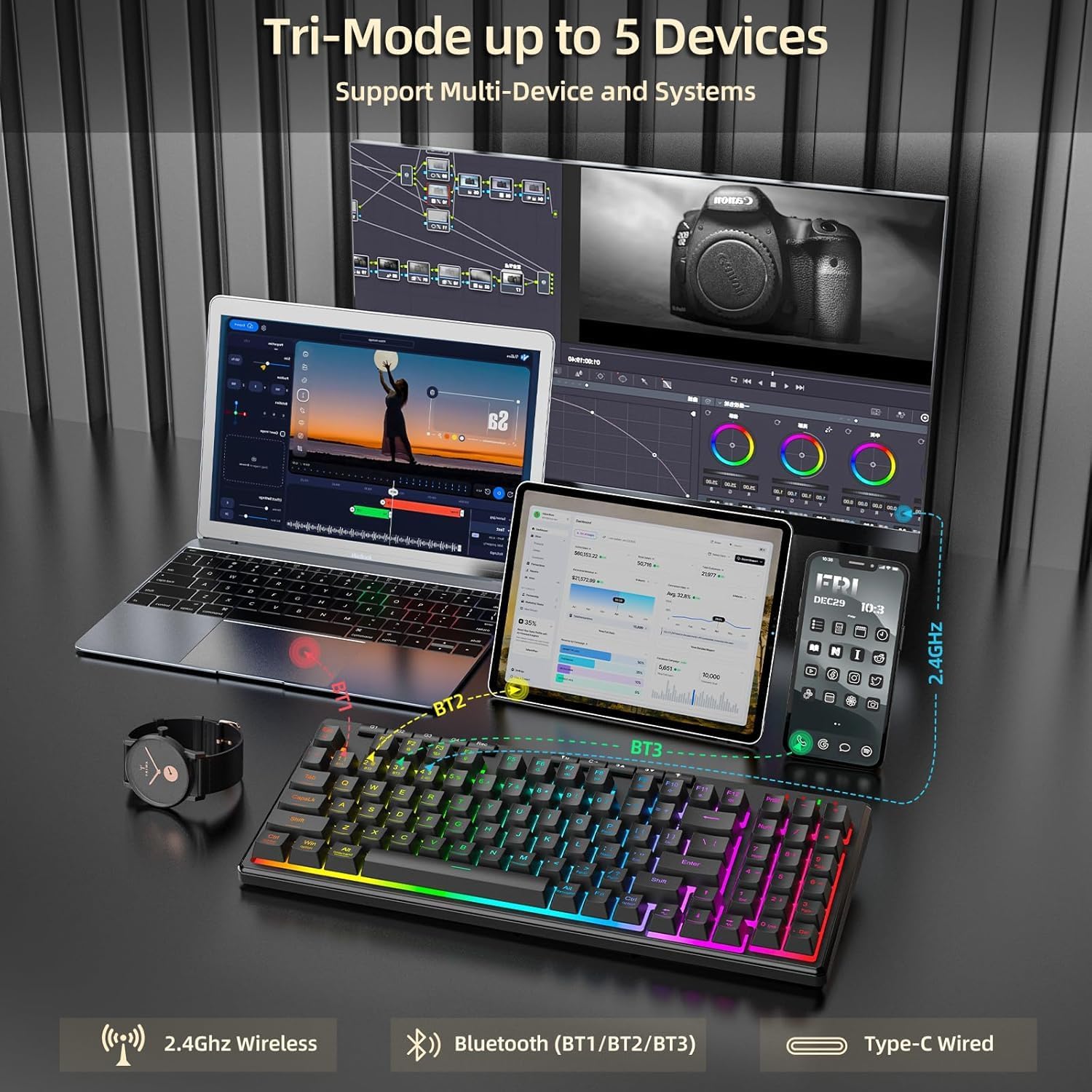
The Redragon S156 supports three connection modes: 2.4G wireless, Bluetooth, and USB-C wired. This allows for seamless switching between multiple devices and systems (Windows and Mac compatible).
3.2 Initial Connection
- 2.4G Wireless: Insert the 2.4GHz USB receiver into an available USB port on your computer. The keyboard and mouse should connect automatically.
- Bluetooth: On the keyboard/mouse, switch to Bluetooth mode (BT1, BT2, or BT3). On your device, search for Bluetooth devices and select 'Redragon S156 Keyboard' or 'Redragon S156 Mouse' to pair.
- USB-C Wired: Connect the provided USB-C cable from the keyboard/mouse to your computer. This mode also charges the device.

3.3 Battery Charging
The keyboard and mouse feature long-lasting internal batteries. Use the provided USB-C cable to charge them. You can continue to use the devices while they are charging in wired mode.

4. Operating the Keyboard
4.1 Mechanical-Feel Keys
The keyboard features mechanical-feel membrane keys, providing tactile feedback for comfortable and quiet typing, suitable for both gaming and work.

4.2 Programmable Macro Keys (G1-G4)
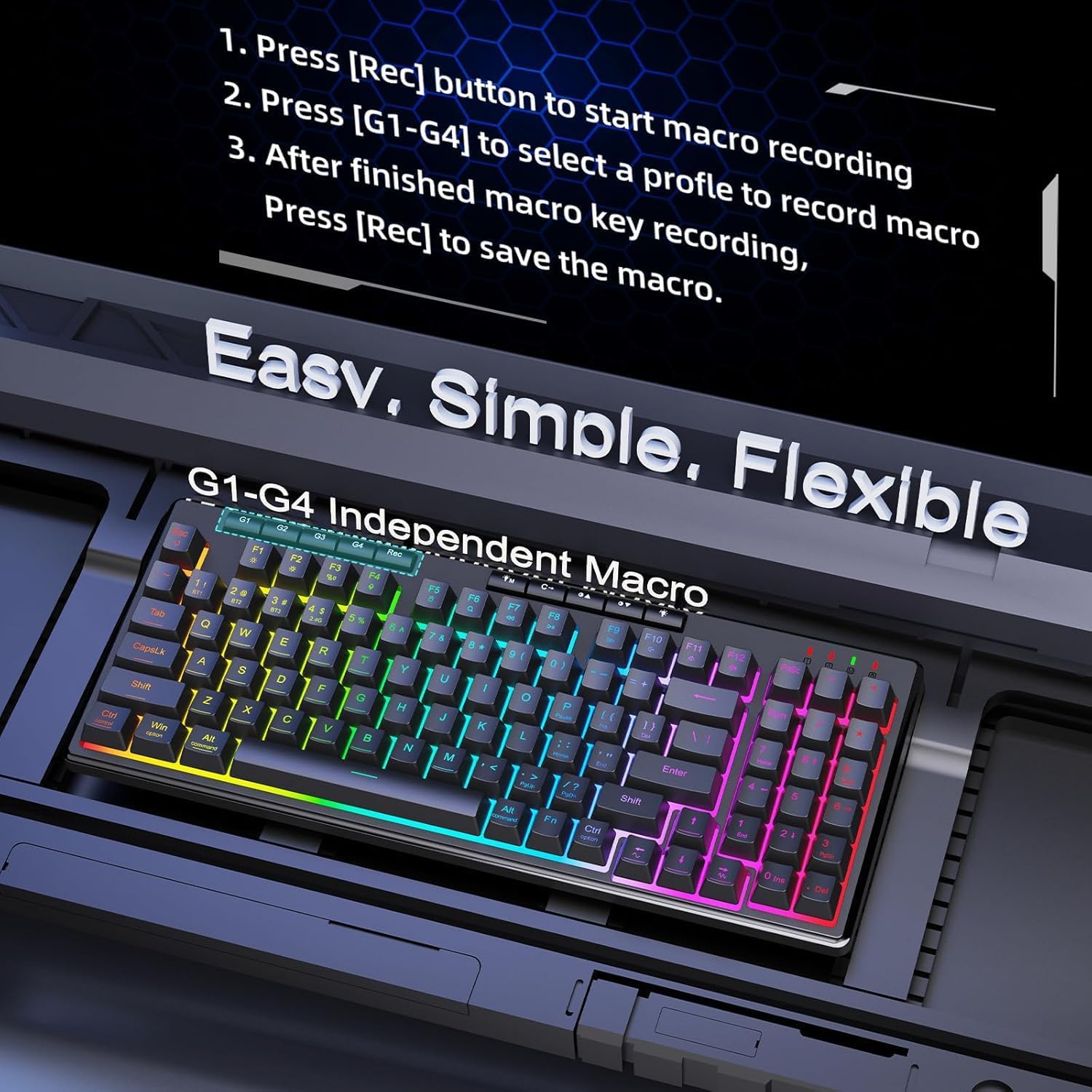
The keyboard includes dedicated macro keys (G1-G4) for on-the-fly programming without software. To record a macro:
- Press the [Rec] button to start macro recording.
- Press [G1-G4] to select a profile to record the macro.
- After finishing the macro key recording, press [Rec] to save the macro.
4.3 RGB Backlighting
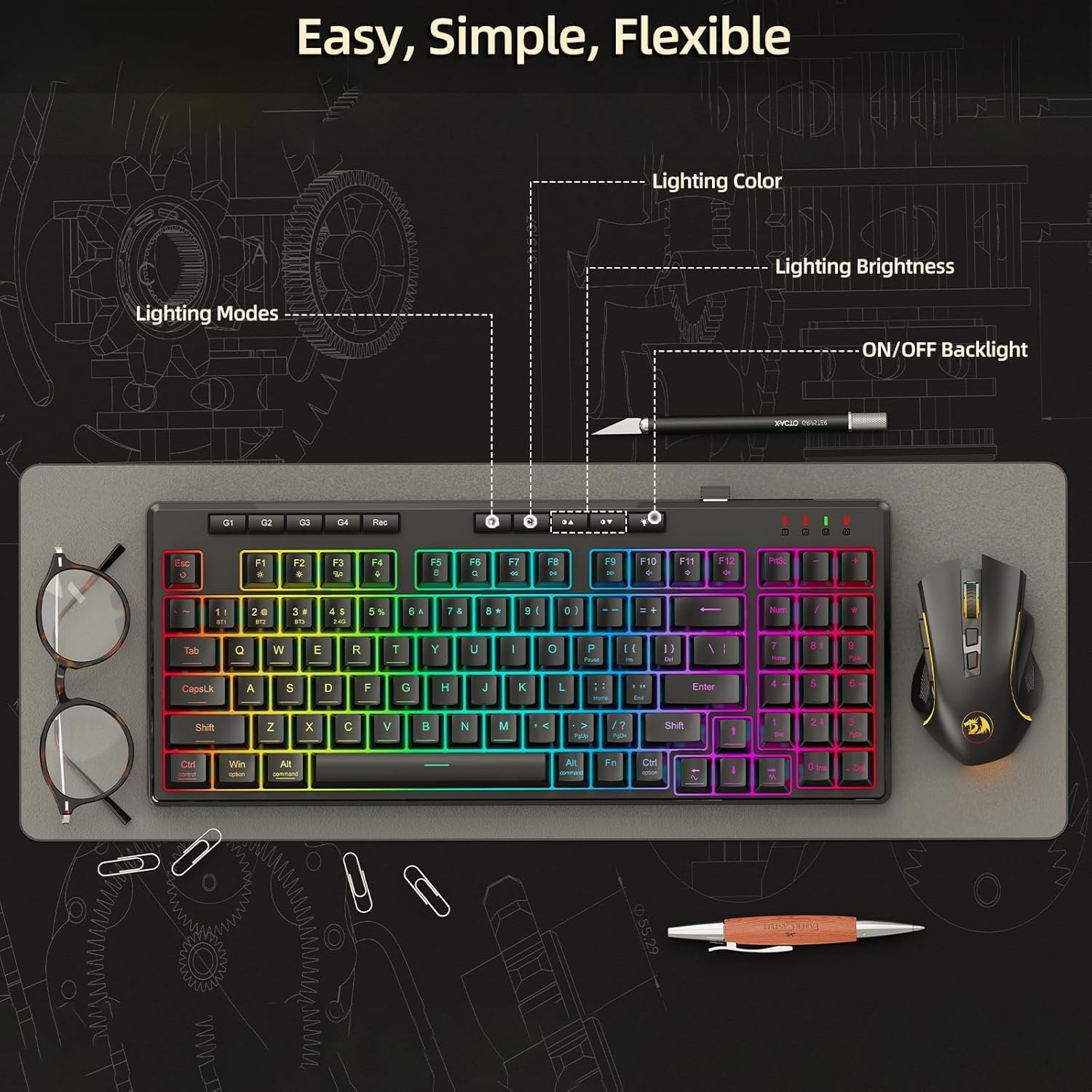
The keyboard offers multiple built-in RGB lighting modes and effects. Use the dedicated lighting control buttons (often combined with Function keys) to adjust lighting color, brightness, and modes, or to turn the backlight on/off.
5. Operating the Mouse
5.1 Lightweight Design
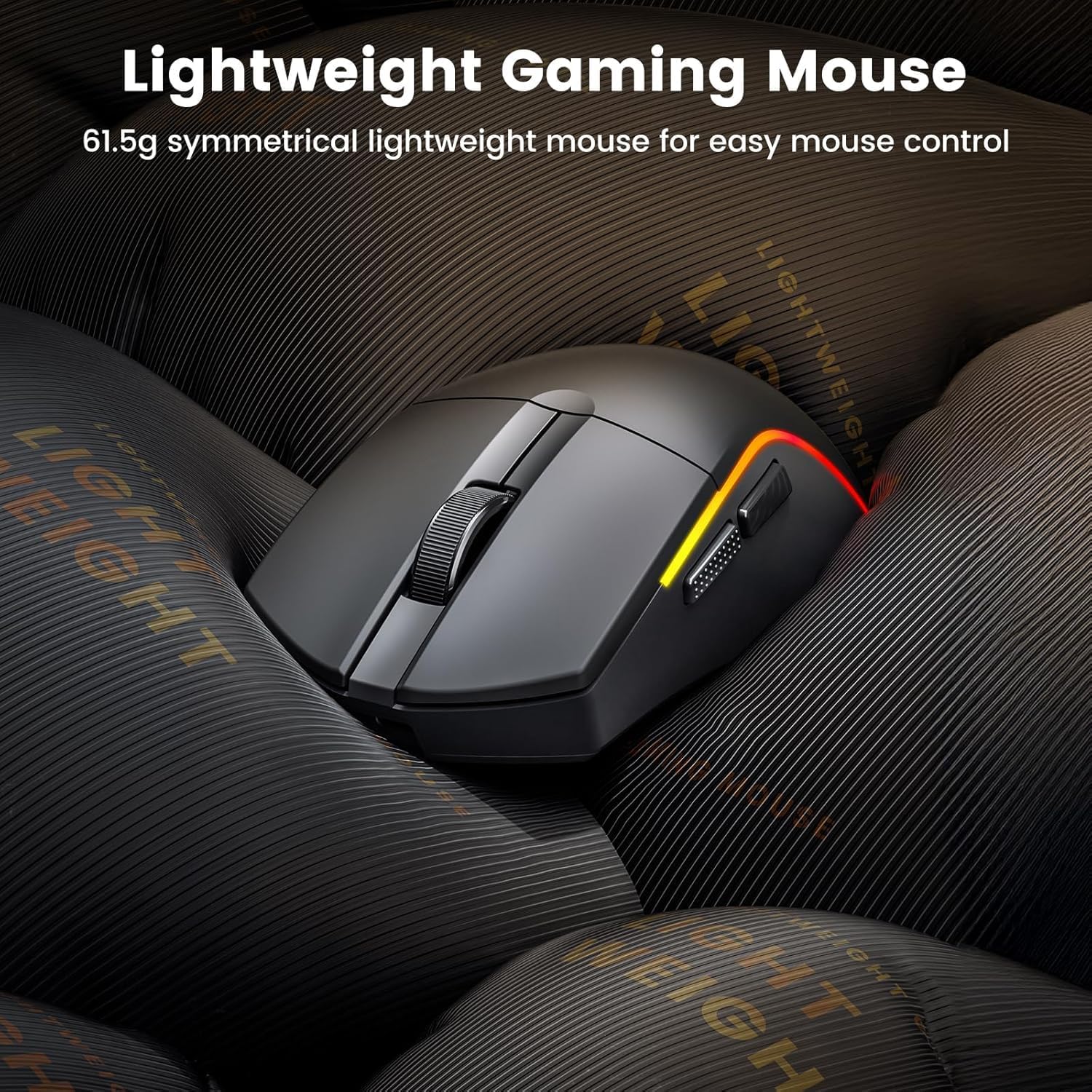
The mouse features an ultra-lightweight design (61g) for easy and precise control during gaming sessions.
5.2 Adjustable DPI and Customizable Buttons
The mouse offers adjustable DPI settings up to 10000 DPI for precision control. It also features customizable buttons and macros via software (Windows only).

5.3 RGB Backlighting
Customize millions of colors on the mouse via software, with over 1.6 million RGB effects available.

6. Maintenance
To ensure the longevity and optimal performance of your Redragon S156 keyboard and mouse, follow these maintenance guidelines:
- Cleaning: Use a soft, dry cloth to wipe down the surfaces of the keyboard and mouse. For deeper cleaning, a slightly damp cloth with mild soap can be used, ensuring no liquid enters the device.
- Dust Removal: Use compressed air to remove dust and debris from between the keys and mouse crevices.
- Storage: When not in use, store the devices in a cool, dry place away from direct sunlight and extreme temperatures.
- Avoid Liquids: Keep liquids away from the keyboard and mouse to prevent damage.
7. Troubleshooting
If you encounter any issues with your Redragon S156 keyboard and mouse, please refer to the following common troubleshooting steps:
- Connectivity Issues: Ensure the device is in the correct mode (2.4G, BT1/2/3, or wired). For 2.4G, try re-inserting the USB receiver. For Bluetooth, ensure your device's Bluetooth is on and try re-pairing.
- Lag or Disconnection: Move the devices closer to the receiver/computer. Avoid interference from other wireless devices. Ensure batteries are charged.
- Keys/Buttons Not Responding: Check for low battery. Try connecting in wired mode. Clean any debris from under the keys/buttons.
- Lighting Issues: Ensure the backlight is turned on. Cycle through different lighting modes and brightness levels using the dedicated buttons.
- Software Issues: Ensure you have the latest software version installed from the Redragon website. Restart your computer.
If problems persist, please contact Redragon customer support.
8. Specifications
| Feature | Specification |
|---|---|
| Brand | Redragon |
| Model | S156 |
| Connectivity Technology | 2.4G, Bluetooth, Wired (USB-C) |
| Keyboard Description | Membrane (Mechanical Feel) |
| Recommended Uses | Gaming |
| Special Features | Backlit, Lightweight, Programmable Keys, Rechargeable, Quiet |
| Material | Plastic |
| Item Weight | 2.16 pounds |
| Package Dimensions | 15.2 x 8.78 x 2.01 inches |
| Compatible Devices | Laptop, PC, Smartphone, Tablet |
| Mouse DPI | Up to 10000 DPI |
| Mouse Weight | 61g (Ultra-Light) |
| Mouse Battery Life | Up to 200 hours |
9. Warranty and Support
Redragon products come with a standard manufacturer's warranty. For specific warranty details, please refer to the warranty card included in your package or visit the official Redragon website. If you require technical assistance, troubleshooting, or have any questions about your product, please contact Redragon customer support through their official channels.
Return Policy: This product typically includes a 30-day return/replacement policy from the date of purchase.


