
1. Introduction
This manual provides detailed instructions for the installation, configuration, and operation of your TOTOLINK N150RT 150Mbps Wireless-N Router. Please read this manual thoroughly before using the device to ensure proper setup and optimal performance. Keep this manual for future reference.
2. Product Overview
2.1 Key Features
- 150Mbps Wireless Router
- Supports Wireless Repeater/Access Point modes
- VLAN support
- IPTV compatibility
- Multiple SSIDs for network segmentation
- Quality of Service (QoS) for bandwidth management
- Complies with 802.11n standard
- Advanced WPA/WPA2 encryption for security
2.2 Package Contents
Verify that all items are present in your package:
- TOTOLINK N150RT Wireless-N Router
- Power Adapter
- Quick Installation Guide
- Internet Cable (Ethernet cable)
- Flyer (additional documentation)
2.3 Physical Description
The TOTOLINK N150RT router features a compact design with essential indicators and ports for network connectivity.
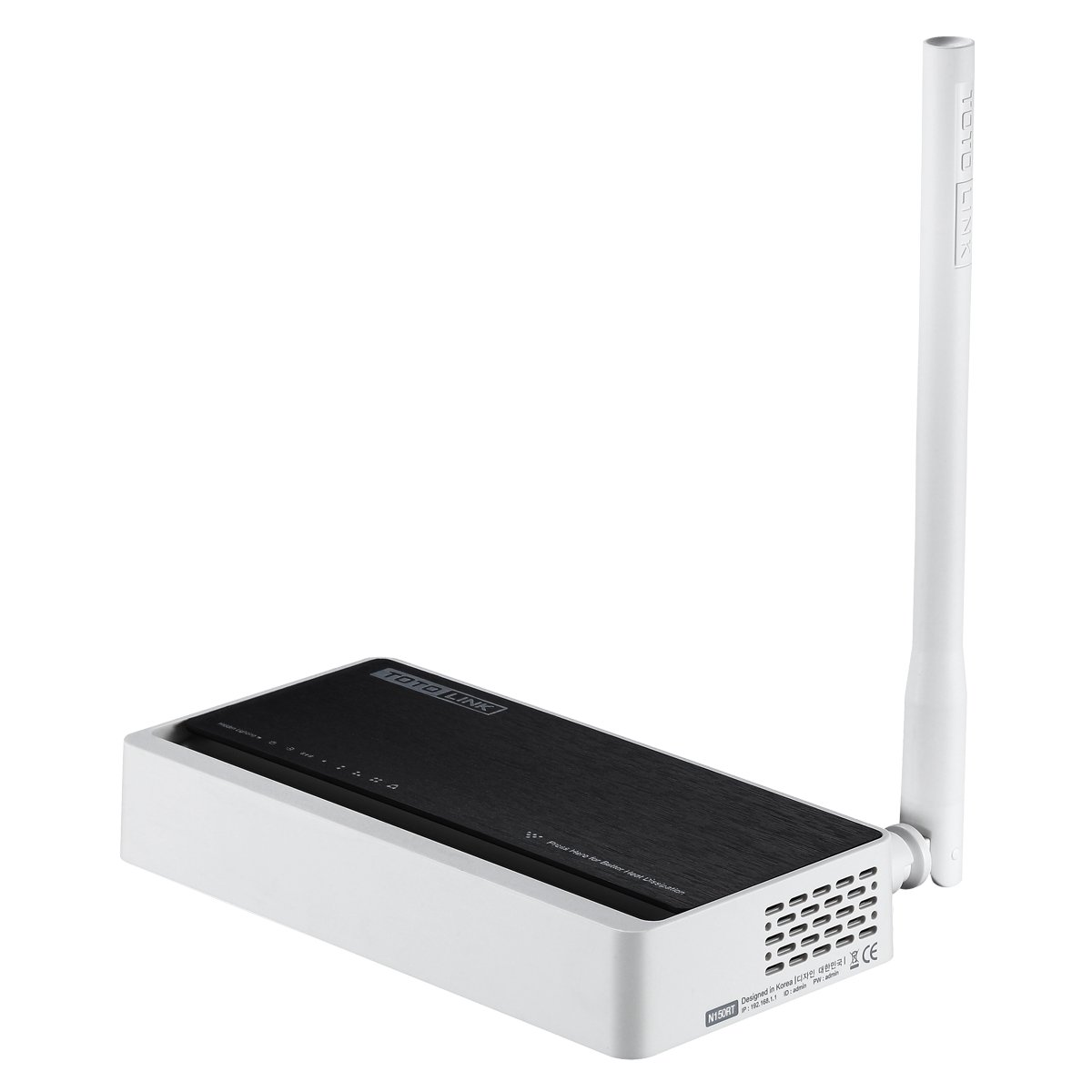
Figure 1: Front and Top View of the TOTOLINK N150RT Router. This image shows the router from a slightly elevated front-right angle, highlighting the TOTOLINK branding on the top surface and the single external antenna on the right side.

Figure 2: Rear View of the TOTOLINK N150RT Router with Ports (Angled). This image displays the rear panel of the router from an angled perspective, showing the WAN port (yellow), four LAN ports (orange), a reset button, a WPS button, and the power switch.

Figure 3: Rear View of the TOTOLINK N150RT Router with Ports (Straight). This image provides a direct view of the router's rear panel, clearly showing the layout of the WAN port, four LAN ports, reset button, WPS button, and power switch, alongside the external antenna.
LED Indicators:
- Power LED: Indicates power status.
- WAN LED: Indicates connection status to the internet.
- LAN LEDs (1-4): Indicate connection status for each wired LAN port.
- WLAN LED: Indicates wireless activity.
Ports and Buttons:
- WAN Port (Yellow): Connects to your modem or internet service provider's network.
- LAN Ports (Orange, 1-4): Connects to wired devices such as computers, gaming consoles, or network printers.
- WPS/RST Button: Used for Wi-Fi Protected Setup (WPS) or to reset the router to factory defaults (press and hold).
- Power Switch: Turns the router on or off.
- Power Jack: Connects to the provided power adapter.
3. Setup Guide
3.1 Hardware Connection
- Power Off: Ensure your modem and router are powered off.
- Connect Modem to Router: Connect one end of an Ethernet cable to the LAN port of your modem and the other end to the WAN port (yellow) of the N150RT router.
- Connect Computer to Router (Optional): For initial setup, connect one end of an Ethernet cable to a LAN port (orange) on the N150RT router and the other end to your computer's Ethernet port. Alternatively, you can connect wirelessly after the router is powered on.
- Connect Power: Connect the provided power adapter to the router's power jack and then plug it into a power outlet.
- Power On: First, power on your modem and wait for it to fully boot up (usually indicated by stable internet LED). Then, power on the N150RT router using the power switch.
- Verify LEDs: Check the Power, WAN, and WLAN LEDs on the router. The Power LED should be solid, the WAN LED should indicate an active connection, and the WLAN LED should be blinking or solid.
3.2 Initial Configuration (Web Interface)
- Access Router: Open a web browser (e.g., Chrome, Firefox, Edge) on a computer connected to the router (either wired or wirelessly).
- Enter IP Address: In the browser's address bar, type the default IP address of the router (commonly
192.168.1.1or192.168.0.1) and press Enter. Refer to the label on the bottom of your router or the Quick Installation Guide for the exact default IP. - Login: A login prompt will appear. Enter the default username and password (commonly
adminfor both). If these do not work, check the router's label or manual. - Run Setup Wizard: Upon successful login, you will typically be guided through a Quick Setup Wizard. Follow the on-screen instructions to configure your internet connection type (e.g., PPPoE, Dynamic IP, Static IP) and wireless network settings (SSID and password).
- Change Default Password: For security, it is highly recommended to change the default login password for the router's web interface.
4. Operating Instructions
After initial setup, you can access the router's web interface to manage various network settings and advanced features.
4.1 Basic Wireless Settings
- SSID (Network Name): Customize your Wi-Fi network name.
- Security Mode: Select WPA2-PSK (AES) for optimal security.
- Password (Pre-Shared Key): Set a strong, unique password for your Wi-Fi network.
4.2 Advanced Features
The N150RT router supports several advanced functionalities accessible through its web interface:
- Wireless Repeater/Access Point Mode: Configure the router to extend an existing Wi-Fi network or act as a simple access point. Refer to the router's online help or full user manual for specific steps.
- VLAN (Virtual Local Area Network): Allows for logical segmentation of your network. This is typically used in more complex network environments.
- IPTV: Specific settings may be available to optimize performance for Internet Protocol Television services.
- Multiple SSIDs: Create separate wireless networks (e.g., one for guests, one for private use) with different security settings.
- QoS (Quality of Service): Prioritize network traffic for certain applications or devices to ensure smoother performance for critical services like online gaming or video streaming.
- Firewall and Security: Configure firewall rules, MAC address filtering, and other security features to protect your network.
5. Maintenance
5.1 Firmware Update
Regularly checking for and installing firmware updates is crucial for security, stability, and new features. Visit the official TOTOLINK website for your model (N150RT) to download the latest firmware. The update process is usually performed via the router's web interface under a "System Tools" or "Firmware Upgrade" section.
5.2 Factory Reset
A factory reset restores the router to its original default settings. This can be useful for troubleshooting persistent issues or when reconfiguring the router from scratch.
- Method 1 (Hardware Button): With the router powered on, press and hold the WPS/RST button on the rear panel for approximately 5-10 seconds until the LEDs flash. Release the button, and the router will reboot with factory defaults.
- Method 2 (Web Interface): Log in to the router's web interface. Navigate to "System Tools" or "Administration" and look for a "Factory Defaults" or "Backup & Restore" option. Select "Restore Factory Defaults" and confirm.
Note: Performing a factory reset will erase all your custom settings, including Wi-Fi name and password. You will need to reconfigure the router after a reset.
6. Troubleshooting
6.1 No Internet Access
- Check Cables: Ensure all Ethernet cables are securely connected to the correct ports (WAN to modem, LAN to devices).
- Modem Status: Verify that your modem is working correctly and has an active internet connection.
- Router LEDs: Check the WAN LED on the router. If it's off or red, there might be an issue with the internet connection from your ISP or modem.
- Reboot Devices: Power cycle your modem, then the router, and then your computer/device. Wait a few minutes after each device powers on.
- ISP Settings: Confirm your internet connection type (PPPoE, Dynamic IP, Static IP) and credentials are correctly configured in the router's web interface.
6.2 Cannot Connect to Wi-Fi
- WLAN LED: Ensure the WLAN LED on the router is active.
- SSID Broadcast: Check if your Wi-Fi network name (SSID) is being broadcast. If it's hidden, you'll need to manually enter it on your device.
- Password: Double-check that you are entering the correct Wi-Fi password. Passwords are case-sensitive.
- Distance/Interference: Move closer to the router or check for sources of interference (e.g., cordless phones, microwaves).
- Device Compatibility: Ensure your device's wireless adapter supports 802.11n or compatible standards.
6.3 Slow Wireless Speed
- Interference: Change the wireless channel in the router's settings to avoid interference from neighboring networks.
- Router Placement: Position the router in a central location, away from obstructions and other electronic devices.
- Firmware: Ensure the router's firmware is up to date.
- Bandwidth Usage: Check if multiple devices are heavily using the network (e.g., streaming, large downloads). QoS settings can help manage this.
7. Specifications
The following table outlines the technical specifications for the TOTOLINK N150RT Wireless-N Router:
| Feature | Detail |
|---|---|
| Brand | TOTOLINK |
| Model Number | 6952887400029 (N150RT) |
| Wireless Standard | 802.11b/g/n |
| Wireless Speed | Up to 150Mbps |
| Connectivity Type | Wi-Fi |
| Ports | 1x WAN, 4x LAN (10/100Mbps) |
| Antenna | 1x External Antenna |
| Security | WPA/WPA2, WPA-PSK/WPA2-PSK encryption |
| Operating System Compatibility | Windows, MAC, Linux |
| Product Dimensions (LxWxH) | 15.7 x 7.8 x 24.3 cm |
| Item Weight | 421 g |
| Included Components | Router, Power Adapter, Quick Installation Guide, Internet Cable, Flyer |
8. Warranty and Support
For warranty information, technical support, and additional resources, please refer to the official TOTOLINK website or contact their customer support directly. Details regarding warranty periods and service procedures are typically provided with your purchase documentation or on the manufacturer's website.
Always ensure you are using official support channels for assistance with your TOTOLINK N150RT router.


