
1. Introduction
Thank you for choosing the ZTE G5C 5G Wi-Fi 6 Modem Router. This device provides high-speed 5G connectivity and Wi-Fi 6 dual-band AX1800 for a robust and reliable network experience. It is designed for both home and professional use, supporting up to 32 devices simultaneously with two Gigabit Ethernet ports. This manual will guide you through the setup, operation, maintenance, and troubleshooting of your new router.
2. Package Contents
Please check the package for the following items:
- ZTE G5C 5G Modem Router
- Power Adapter
3. Device Overview
Familiarize yourself with the ports, buttons, and indicators on your ZTE G5C router.
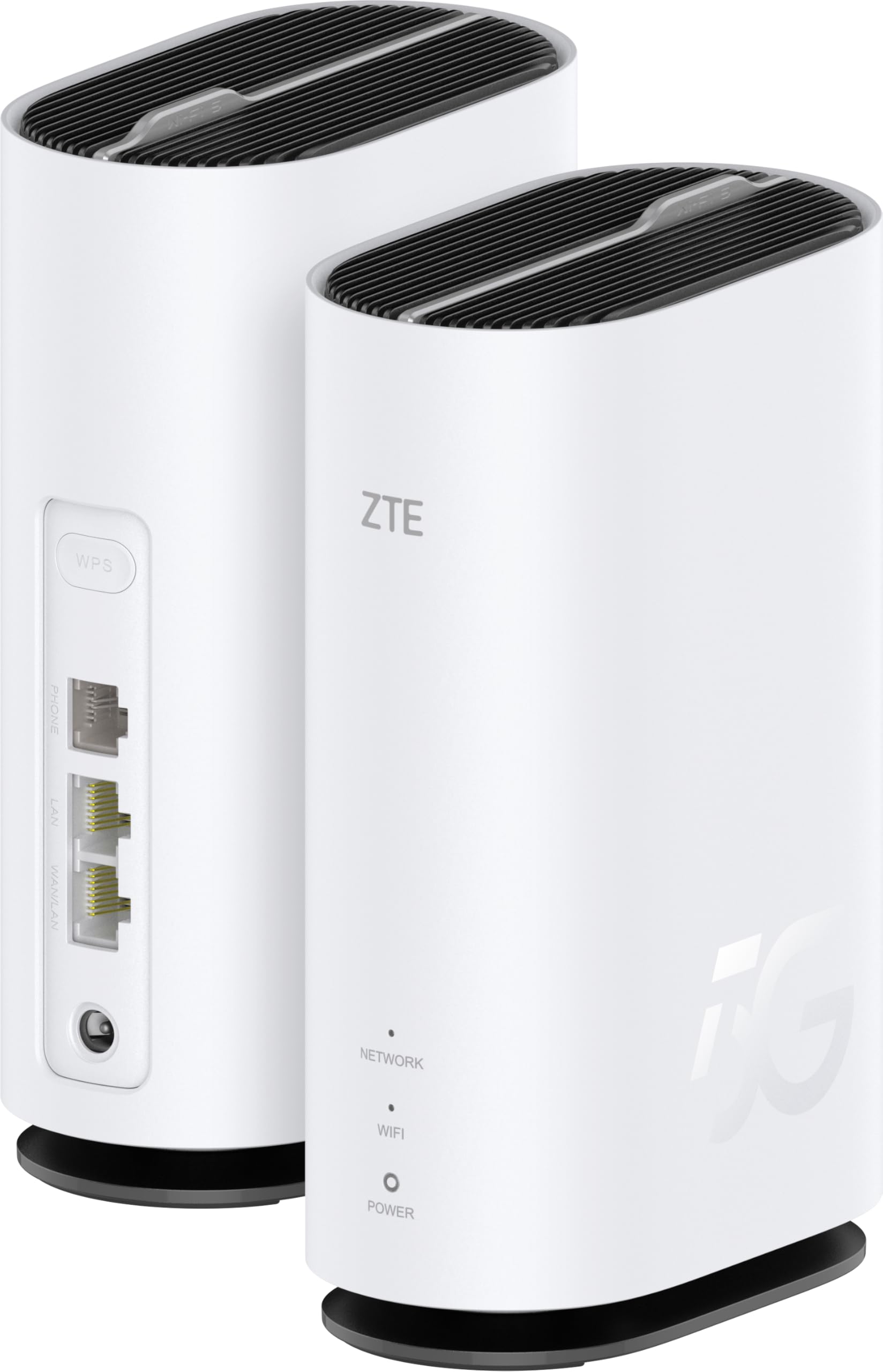
Figure 3.1: Front view of the ZTE G5C 5G Wi-Fi 6 Modem Router, showing the ZTE logo and LED indicators for Network, Wi-Fi, and Power.
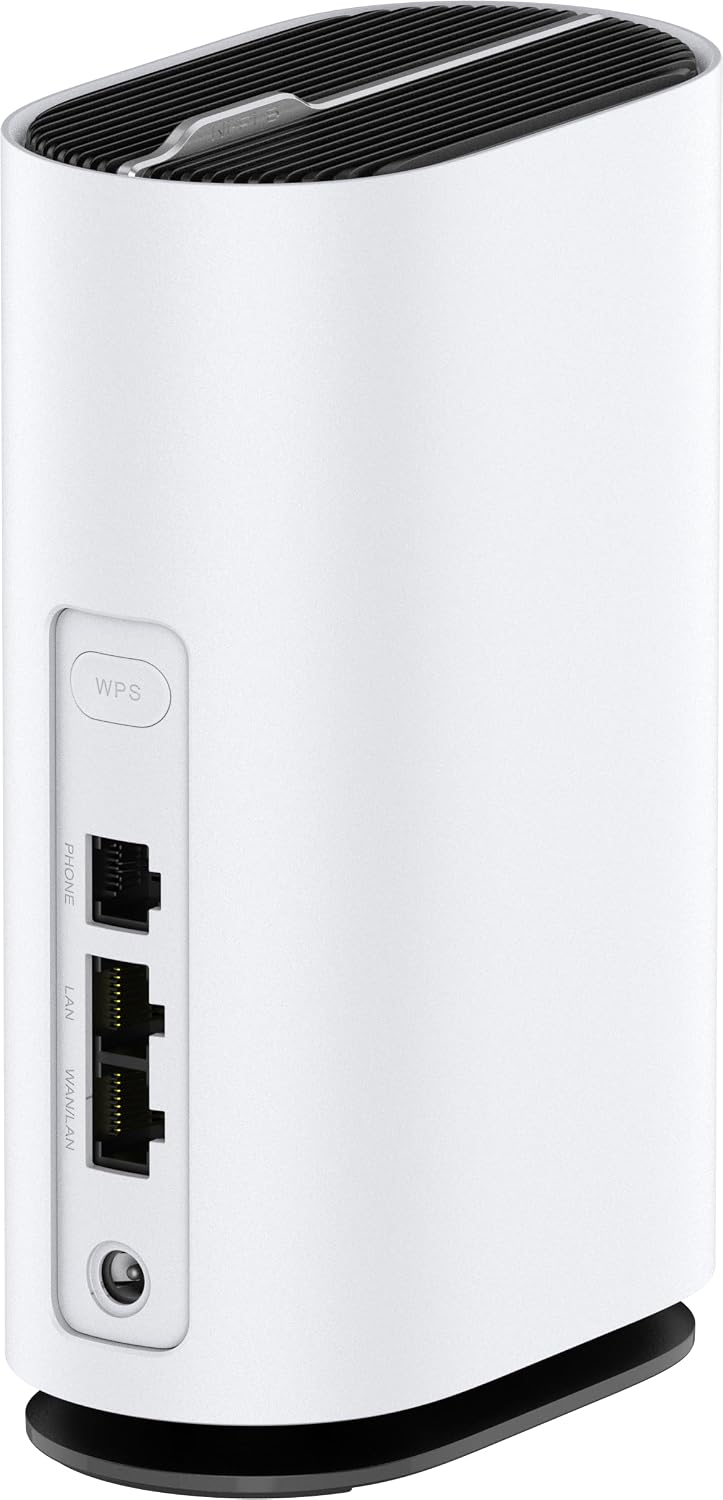
Figure 3.2: Rear view of the ZTE G5C 5G Wi-Fi 6 Modem Router, highlighting the WPS button, Phone port, LAN ports, WAN/LAN port, and power input.
3.1. LED Indicators
- Network LED: Indicates the status of the 5G/4G network connection.
- Wi-Fi LED: Indicates the status of the Wi-Fi network.
- Power LED: Indicates the power status of the device.
3.2. Ports and Buttons
- WPS Button: For quick and secure Wi-Fi connections without entering a password.
- Phone Port (RJ11): For connecting a landline phone for VoIP services (if supported by your SIM card and service provider).
- LAN Ports (Gigabit Ethernet): For connecting wired devices such as computers, gaming consoles, or smart TVs.
- WAN/LAN Port (Gigabit Ethernet): Can function as an additional LAN port or as a WAN port for connecting to an existing modem/router.
- Power Input: Connect the provided power adapter here.
- Nano SIM Card Slot: Insert your 5G/4G Nano SIM card here.
4. Setup
Follow these steps to set up your ZTE G5C router:
4.1. Insert the SIM Card
- Locate the Nano SIM card slot on the router.
- Carefully insert your Nano SIM card into the slot with the gold contacts facing down and the notched corner oriented correctly. Push until it clicks into place.
4.2. Connect Power
- Connect one end of the power adapter to the power input port on the router.
- Plug the other end of the power adapter into a standard electrical outlet.
4.3. Power On
The router will automatically power on. Wait for the Power LED to turn solid, and the Network LED to indicate a stable 5G/4G connection (usually solid blue or green, refer to the full manual for specific LED behaviors).
4.4. Connect Devices
You can connect devices via Wi-Fi or Ethernet cable.
- Wi-Fi Connection:
- On your device (smartphone, laptop), search for available Wi-Fi networks.
- Select the Wi-Fi network name (SSID) printed on the label at the bottom of your router.
- Enter the Wi-Fi password (Key) also found on the router's label.
- Ethernet Connection:
- Connect one end of an Ethernet cable to a LAN port on the router.
- Connect the other end of the Ethernet cable to the Ethernet port on your computer or other wired device.
5. Operating Instructions
5.1. Accessing the Web Management Interface
To configure advanced settings, access the router's web management interface:
- Ensure your device is connected to the router via Wi-Fi or Ethernet.
- Open a web browser and enter the default IP address (e.g.,
192.168.0.1or192.168.1.1) found on the router's label. - Enter the default username and password (also on the label) to log in.
5.2. Using WPS (Wi-Fi Protected Setup)
WPS allows for easy connection of WPS-compatible devices without entering the Wi-Fi password:
- Press the WPS button on the router for 1-3 seconds. The Wi-Fi LED will start blinking.
- Within two minutes, activate WPS on your client device (e.g., press the WPS button on a Wi-Fi extender or select WPS connect on your device's Wi-Fi settings).
- The devices will automatically connect.
5.3. Dual-Band Wi-Fi
The ZTE G5C supports dual-band Wi-Fi (2.4 GHz and 5 GHz). The 2.4 GHz band offers wider coverage, while the 5 GHz band provides faster speeds and less interference. Your devices will typically connect to the optimal band automatically, or you can configure separate SSIDs for each band via the web management interface.
5.4. Connecting a Phone (VoIP)
If your SIM card and service plan support Voice over IP (VoIP), you can connect a standard analog phone to the RJ11 Phone port on the router. Refer to your service provider's instructions for specific VoIP configuration.
6. Maintenance
6.1. Placement
For optimal performance, place the router in an open area, away from obstructions, large metal objects, and other electronic devices that may cause interference. Avoid placing it in enclosed spaces or near heat sources.
6.2. Cleaning
Clean the router regularly with a soft, dry cloth. Do not use liquid cleaners or aerosols. Ensure the ventilation slots are free from dust to prevent overheating.

Figure 6.1: Internal view illustrating the optimized heat dispersion system of the ZTE G5C 5G Wi-Fi 6 Modem Router.
6.3. Firmware Updates
Periodically check for firmware updates through the router's web management interface. Keeping your firmware updated ensures optimal performance, security, and access to new features.
7. Troubleshooting
If you encounter issues with your router, try the following solutions:
| Problem | Possible Solution |
|---|---|
| No Internet connection |
|
| Slow Wi-Fi speed |
|
| Cannot connect to Wi-Fi |
|
| WPS connection fails |
|
8. Specifications
| Feature | Detail |
|---|---|
| Brand | ZTE |
| Model Name | G5C |
| Special Features | WPS, LED Indicator, Supports 32 devices |
| Frequency Band Class | Dual-Band (2.4 GHz, 5 GHz) |
| Wireless Communication Standard | 802.11ax (Wi-Fi 6) |
| Compatible Devices | Wi-Fi or Ethernet enabled devices |
| Recommended Use | Business, Home/Small Office Network |
| Connectivity Technology | 5G, Ethernet, Wi-Fi |
| Security Protocol | WPS |
| Number of Ports | 2 (Gigabit Ethernet) |
| Data Transfer Rate | 1800 Megabits per second (Wi-Fi) |
| LAN Port Bandwidth | 1000 Mbps |
| Wi-Fi Generation | Wi-Fi 6 |
| Modem Compatibility | Yes (Integrated 5G modem) |
| Country of Origin | China |
9. Warranty Information
The ZTE G5C 5G Wi-Fi 6 Modem Router comes with a 2-year manufacturer warranty. Please retain your proof of purchase for warranty claims. For detailed terms and conditions, refer to the warranty card included in your package or visit the official ZTE website.
10. Support
For further assistance, technical support, or to download the latest drivers and firmware, please visit the official ZTE website or contact ZTE customer service. You can also visit the ZTE Store on Amazon for product information.


