
Introduction
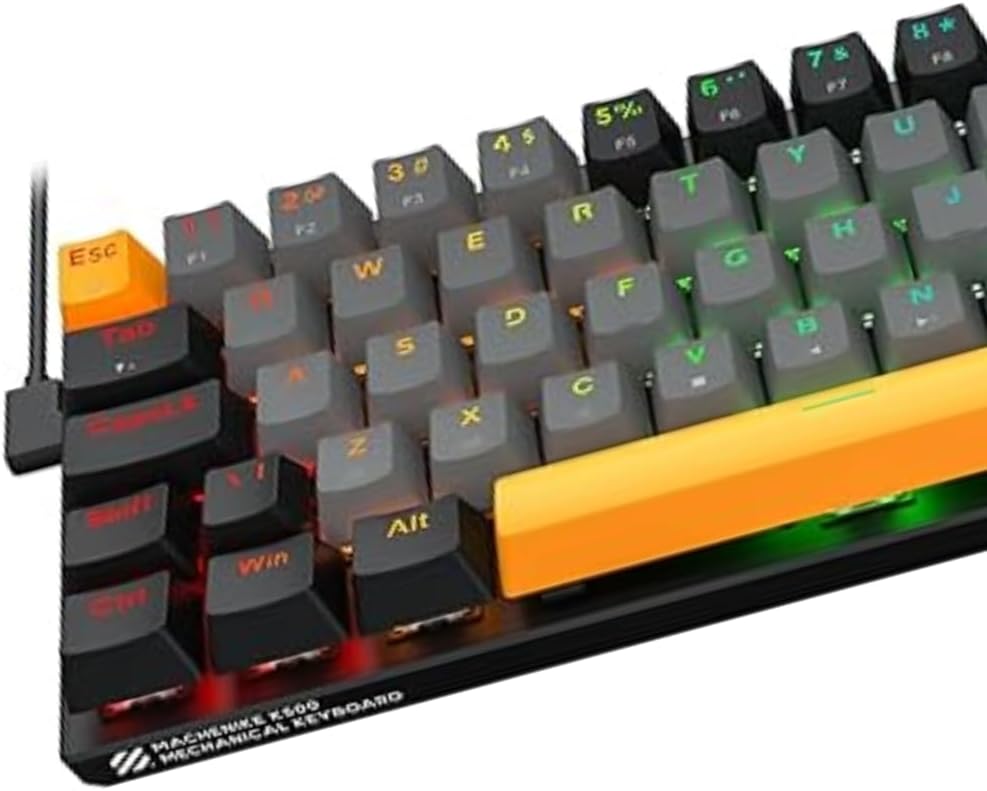
This manual provides instructions for the Machenike K500-B68 RGB Mechanical Gaming Keyboard. This compact 68-key keyboard features a durable aluminum top plate, Huano Red linear hot-swappable switches, and customizable RGB lighting. Designed for both gaming and daily use, it offers a responsive and customizable typing experience.

Setup
- Unpacking: Carefully remove the keyboard and all accessories from the packaging.
- Connection: Connect the keyboard's USB cable to an available USB port on your computer or gaming console. The keyboard is designed for wired operation.
- Driver Installation: The Machenike K500-B68 is a plug-and-play device. Your operating system (Windows, macOS, Linux) or gaming console should automatically detect and install the necessary drivers. No additional software installation is typically required for basic functionality.
- Placement: Position the keyboard comfortably on your desk. The compact 68-key layout provides more space for mouse movement.
Operating Instructions
Key Functions
- The K500-B68 features a 68-key compact ABNT2 layout, including essential alphanumeric keys and function keys accessible via the Fn key.
- Function (Fn) Key Combinations: Many secondary functions, such as media control, volume adjustment, and lighting effects, are accessed by holding down the Fn key and pressing the corresponding key. Refer to the keycap legends for specific combinations.
RGB Lighting Control
The keyboard features customizable RGB backlighting with multiple effects. Use the following common Fn key combinations to adjust lighting:
- Fn + \|: Cycle through different RGB lighting modes.
- Fn + ↑ / ↓: Adjust backlight brightness.
- Fn + ← / →: Adjust lighting effect speed or direction.
- Specific keys may also have dedicated lighting functions when combined with Fn.
Hot-Swap Switch Replacement
The K500-B68 supports 3-pin hot-swappable mechanical switches, allowing you to change switches without soldering. This enables customization of typing feel and sound.
- To Remove a Switch: Use the provided switch puller tool. Gently grip the switch from the top and bottom, then pull upwards with even pressure until the switch detaches from the PCB.
- To Install a Switch: Align the pins of the new 3-pin mechanical switch with the holes on the PCB. Press down firmly until the switch clicks into place. Ensure the pins are straight before insertion to avoid bending.

Maintenance
- General Cleaning: Regularly clean the keyboard to prevent dust and debris buildup. Use a soft brush or compressed air to remove particles from between the keycaps.
- Keycap Cleaning: For deeper cleaning, keycaps can be removed using a keycap puller. Wash keycaps with mild soap and water, then ensure they are completely dry before reattaching. The Doubleshot ABS+PBT keycaps are designed for high durability and resistant legends.
- Surface Cleaning: Wipe the aluminum top plate with a soft, damp cloth. Avoid abrasive cleaners or harsh chemicals.
- Cable Care: Avoid sharp bends or excessive pulling on the USB cable to prevent damage.
Troubleshooting
Keyboard Not Responding
- Check Connection: Ensure the USB cable is securely plugged into both the keyboard and the computer/console. Try a different USB port.
- Restart Device: Restart your computer or gaming console.
- Test on Another Device: Connect the keyboard to another computer to determine if the issue is with the keyboard or the original device.
RGB Lighting Issues
- Check Brightness: Ensure the brightness is not set to minimum (Fn + ↑).
- Cycle Modes: Try cycling through different lighting modes (Fn + \|) to see if the issue persists across all modes.
- Firmware: Check the manufacturer's website for any available firmware updates that might resolve lighting issues.
Keys Not Registering
- Clean Key/Switch: Remove the keycap and inspect the switch for any debris. If hot-swapping, ensure the switch is fully seated and its pins are not bent.
- Test Switch: If you have spare switches, try replacing the problematic switch to see if it resolves the issue.
Specifications
| Model | K500-B68 |
| Brand | Machenike |
| Connection Type | Wired |
| Keyboard Layout | Compact (68 keys), ABNT2 |
| Switch Type | Huano Red (Linear), 3-pin Hot-swappable |
| Lighting | RGB (Multiple Effects) |
| Construction Material | Aluminum Top Plate |
| Keycaps | ABS+PBT Doubleshot, Laser Engraved |
| Acoustics | 2-layer Internal Filling |
| Color | Gray and Black |
| Compatible Devices | PC, Gaming Consoles |
Warranty and Support
Warranty Information
The Machenike K500-B68 RGB Mechanical Gaming Keyboard comes with a 1-year manufacturer's warranty. This warranty covers defects in materials and workmanship under normal use. Please retain your proof of purchase for warranty claims.
Customer Support
For technical assistance, warranty claims, or further inquiries, please contact Machenike customer support through their official website or the retailer where the product was purchased. Provide your product model (K500-B68) and a detailed description of the issue to facilitate support.


