
Introduction
This manual provides detailed instructions for the setup, operation, and maintenance of your EPOMAKER AJAZZ AK820 V2 Tri-Mode Mechanical Gaming Keyboard. Please read this guide thoroughly before using the product to ensure optimal performance and longevity.
What's in the Box
- EPOMAKER AJAZZ AK820 V2 Mechanical Gaming Keyboard
- USB Cable
- Keycap Puller
- Two Mechanical Switches (spare)
- User Manual (this document)
Setup
1. Charging the Keyboard
Before initial use, fully charge the keyboard using the provided USB-C cable. Connect the USB-C end to the keyboard's port and the USB-A end to a power source (e.g., computer USB port, wall adapter).
The keyboard features a 10000mAh battery. Charging status may be indicated by the backlight or a dedicated LED.

Image: The keyboard connected via USB-C cable, demonstrating the charging setup.
2. Connectivity Modes
The AK820 V2 supports three connectivity modes: 2.4GHz wireless, Bluetooth, and USB-C wired. A switch on the underside of the keyboard allows selection between these modes.

Image: Diagram illustrating the three connectivity modes: USB-C, 2.4GHz, and Bluetooth.
2.1. USB-C Wired Mode
Connect the keyboard directly to your computer using the provided USB-C cable. This mode offers a stable connection and charges the keyboard simultaneously. The polling rate in wired mode is 1000Hz.
2.2. 2.4GHz Wireless Mode
Insert the 2.4GHz USB dongle into an available USB port on your computer. Switch the keyboard to 2.4GHz mode. The keyboard should automatically connect. This mode provides a 1000Hz polling rate for low-latency gaming.
2.3. Bluetooth Wireless Mode
Switch the keyboard to Bluetooth mode. On your device (PC, laptop, tablet, phone), search for Bluetooth devices and select "AK820 V2" to pair. The keyboard supports Bluetooth 5.0 and has a polling rate of 125Hz. It can remember up to 5 paired devices.

Image: The keyboard shown connected wirelessly to a laptop, tablet, and smartphone, demonstrating wide compatibility.
3. Ergonomic Adjustment
The keyboard features a two-stage adjustable kickstand on the underside, allowing you to set the typing angle for personalized comfort and to reduce hand fatigue during extended use.

Image: Close-up of the keyboard's underside, highlighting the two-stage adjustable kickstand.
Operating Instructions
1. Rotary Knob Functionality
The large rotary metal knob provides quick control over audio and other functions:
- Rotate Knob: Adjusts volume (clockwise for volume up, counter-clockwise for volume down).
- Press Knob: Mutes or unmutes audio.
- Fn + Knob Click: Enters menu mode for adjusting lighting, language, and other settings (if applicable via software).

Image: The keyboard's rotary knob with visual cues for volume adjustment and mute/unmute functions.
2. Dynamic RGB Backlight Control
The AK820 V2 features 16 million color RGB backlighting with south-facing LEDs for vibrant illumination. You can customize lighting effects using keyboard shortcuts or the dedicated software.
- Fn + Arrow Keys (Up/Down): Adjusts backlight brightness/speed.
- Fn + Arrow Keys (Left/Right): Changes backlight effect direction.
- Fn + \|: Cycles through different backlight effects.
- Fn + Enter: Cycles through side light effects.
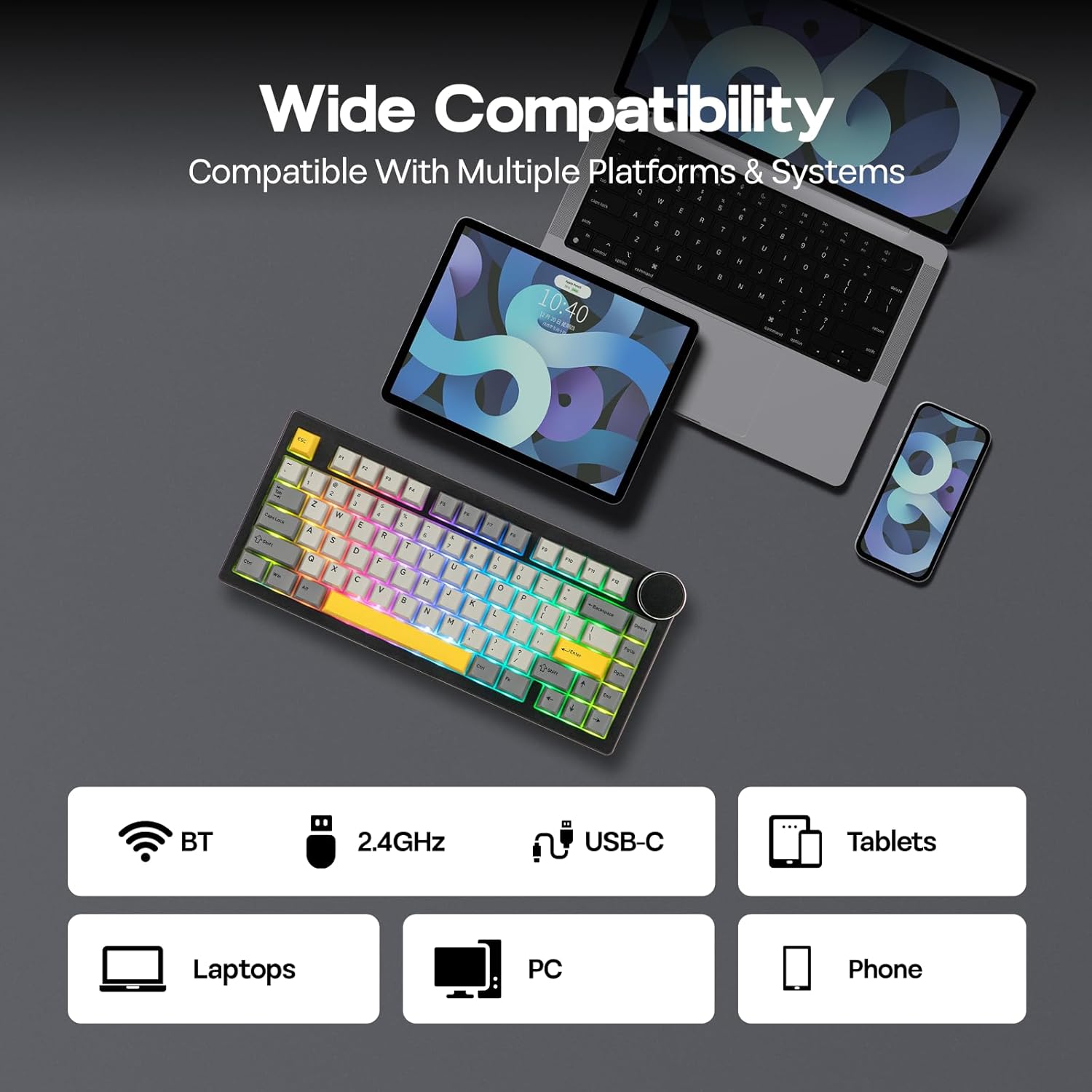
Image: The keyboard illuminated with dynamic RGB backlighting, showcasing both key and side panel lights.
3. Programmable Software
Utilize the dedicated software for advanced customization, including:
- Key Remapping
- Macro Recording
- Layer Definition
- Detailed Backlight Settings
- System Settings
Refer to the official EPOMAKER website for software download and specific instructions.

Image: A computer display showing the graphical user interface of the keyboard's programmable software.
4. Battery Life Check (Wireless Mode Only)
To check the remaining battery life in wireless mode, press Fn + Backspace. The keyboard's lighting or a dedicated indicator will show the current battery level.

Image: Visual representation of battery life: 21 hours with backlight, 214 hours without backlight, and the Fn + Backspace key combination for checking battery status.
Maintenance
1. Keycap and Switch Replacement (Hot-Swappable)
The AK820 V2 features a hot-swappable PCB, allowing you to change mechanical switches without soldering. It is compatible with 3-pin and 5-pin mechanical switches.
- Removing Keycaps: Use the provided keycap puller to gently remove keycaps. Hook the puller onto the keycap and pull upwards evenly.
- Removing Switches: After removing the keycap, use the switch puller (often integrated with the keycap puller) to grip the top and bottom clips of the switch. Gently pull the switch upwards until it detaches from the PCB.
- Installing Switches: Align the pins of the new switch with the holes on the PCB. Press down firmly until the switch clicks into place. Ensure pins are not bent.
- Installing Keycaps: Place the keycap onto the switch stem and press down gently until it is secure.

Image: A keycap and switch being removed from the keyboard, demonstrating the hot-swappable design.

Image: Detailed specifications of the Coconut Cream switch, including trigger force, bottom-out force, pre-travel, and total travel.
2. Cleaning
To clean your keyboard, first disconnect it from all power sources. Use a soft, lint-free cloth to wipe the surface. For deeper cleaning, remove keycaps and use compressed air to clear debris from between switches. Avoid using harsh chemicals or abrasive materials.
Troubleshooting
- Keyboard not responding:
- Ensure the keyboard is charged.
- Check the connectivity mode switch (USB-C, 2.4GHz, BT) and ensure it matches your connection method.
- For 2.4GHz, ensure the USB dongle is properly inserted.
- For Bluetooth, ensure the keyboard is paired and selected on your device. Try re-pairing.
- Try connecting via USB-C cable to rule out wireless issues.
- Keys not registering:
- Ensure the switches are fully seated in the PCB.
- If a specific key is not working, try replacing its switch with one of the spare switches or a known working switch from another key.
- Clean any debris around the affected switch.
- Backlight issues:
- Adjust brightness using Fn + Arrow Up.
- Cycle through effects using Fn + \|.
- Ensure the keyboard is not in a low-power mode.
- Check software settings for backlight configuration.
- Software not detecting keyboard:
- Ensure the keyboard is connected via USB-C wired mode when using the software.
- Download the latest version of the software from the official EPOMAKER website.
- Temporarily disable any antivirus or firewall software that might interfere.
Specifications
| Feature | Detail |
|---|---|
| Brand | EPOMAKER |
| Model Number | AK820 V2 |
| Connectivity Technology | 2.4GHz Wireless, Bluetooth (BT 5.0), USB-C Wired |
| Keyboard Layout | 75% Compact (80 Keys + Knob) |
| Switch Type | Linear (Coconut Cream) |
| Hot-Swappable | Yes (3/5-pin mechanical switches) |
| Keycap Material | PBT (Double Shot) |
| Backlighting | RGB (16M colors, South-facing LEDs) |
| Battery Capacity | 10000mAh |
| Polling Rate (USB-C/2.4GHz) | 1000Hz |
| Polling Rate (Bluetooth) | 125Hz |
| Compatible Devices | Gaming Console, Laptop, PC, Smart TV, Tablet |
| Compatible OS | Windows 7+, Mac OS 11 Big Sur+ |
| Product Dimensions (L x W x H) | 12.91" x 5.71" x 1.61" (32.8cm x 14.5cm x 4.1cm/2.1cm) |
| Weight | 0.95kg |
| Special Features | Big Rotary Knob, 5-Layered Gasket Structure, Programmable Keys, Ergonomic Design |

Image: The keyboard with an overlay detailing its technical specifications, including dimensions, weight, and keycap type.
Warranty Information
The EPOMAKER AJAZZ AK820 V2 Mechanical Gaming Keyboard comes with a 1-Year Warranty from the date of purchase. This warranty covers manufacturing defects and malfunctions under normal use. It does not cover damage caused by misuse, accidents, unauthorized modifications, or normal wear and tear.
For warranty claims, please retain your proof of purchase and contact EPOMAKER customer support.
Support
For further assistance, technical support, or to download the latest software and drivers, please visit the official EPOMAKER website:
You may also contact EPOMAKER customer service directly through their website for specific inquiries.


