
1. Introduction
This manual provides comprehensive instructions for the installation, setup, operation, and maintenance of your Veise VE029 VE027-K Built-in Wi-Fi Smart Lock. Please read this manual carefully before installation and use to ensure proper function and security. Keep this manual for future reference.
2. Product Overview
The Veise VE029 VE027-K is a smart deadbolt lock designed for enhanced home security and convenience. It features built-in 2.4GHz Wi-Fi for remote access without an additional hub, offering multiple unlocking methods and smart access control capabilities.
Key Features:
- Built-in Wi-Fi: Control and monitor your lock remotely via the mobile application.
- Multiple Unlocking Methods: Fingerprint, IC card, PIN code, backup key, remote app control, and voice control (Alexa/Google Assistant).
- Smart Access Management: Create and manage various password types (permanent, recurring, one-time, duration) and user permissions.
- Long Battery Life: Powered by 8 AA batteries, designed for extended operation. Includes Type-C emergency charging port and backup keys for lockout prevention.
- Easy Installation: Designed for DIY replacement of existing deadbolts.

Image: Overview of the Veise VE029 VE027-K Smart Lock system, showing the exterior keypad, interior unit, physical keys, IC cards, and the mobile application interface.
3. What's Included
Please verify that all components are present before beginning installation.
- Exterior Smart Lock Assembly (Keypad)
- Interior Smart Lock Assembly (Battery Cover, Thumb Turn)
- Deadbolt Latch
- Strike Plate
- Mounting Plate
- Physical Keys (2)
- IC Cards (2)
- Mounting Screws and Hardware
- Installation Template
- User Manual
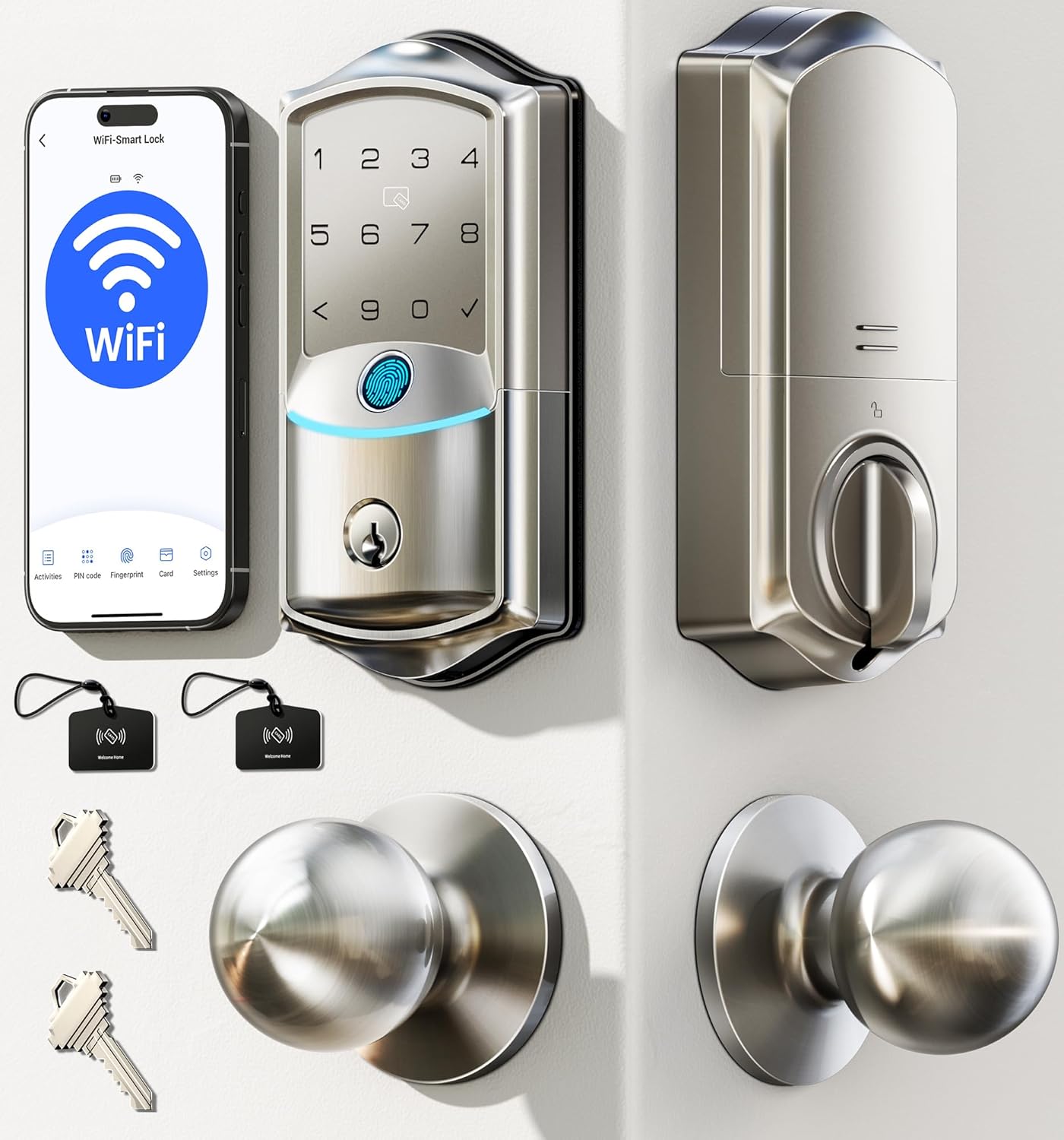
Image: The Veise VE029 VE027-K Smart Lock installed on a door, illustrating the complete system with included accessories.
4. Installation Guide
The Veise VE029 VE027-K Smart Lock is designed for easy DIY installation, typically replacing an existing deadbolt. A screwdriver is the only tool required. Refer to the included installation template for precise measurements.
Before You Begin:
- Ensure your door is compatible with standard deadbolt dimensions (backset, door thickness).
- Gather necessary tools: Phillips head screwdriver.
- Do not install batteries until the lock is fully installed on the door.
Installation Steps (General):
- Remove Existing Deadbolt: Unscrew and remove your current deadbolt from the door.
- Install Latch: Insert the new deadbolt latch into the door edge. Ensure the latch bolt faces the correct direction.
- Install Exterior Assembly: Place the exterior keypad assembly onto the door, ensuring the spindle passes through the latch.
- Install Mounting Plate: Secure the mounting plate to the interior side of the door using screws, aligning it with the exterior assembly.
- Connect Cables: Connect the cable from the exterior assembly to the interior assembly.
- Install Interior Assembly: Attach the interior assembly to the mounting plate, securing it with screws. Ensure the thumb turn operates smoothly.
- Install Strike Plate: Replace your old strike plate on the door frame with the new one provided.
- Insert Batteries: Open the battery cover on the interior assembly and insert 8 AA batteries (not included), observing polarity.
- Perform Handing Process: Follow the instructions in the app or quick start guide to calibrate the lock for your door's handing (left or right).
5. Setup and Configuration
5.1 Mobile Application Setup
- Download App: Search for the 'Veise' app (or specified app name in your quick start guide) on the App Store or Google Play Store.
- Create Account: Register for a new account or log in if you already have one.
- Add Device: Follow the in-app instructions to add your smart lock. Ensure your phone is connected to a 2.4GHz Wi-Fi network during the pairing process.
- Connect to Wi-Fi: The lock will connect directly to your home's 2.4GHz Wi-Fi network. No additional hub is required.

Image: The mobile application interface demonstrating remote control capabilities, including setting temporary PIN codes and managing user permissions.
5.2 User Management (PIN Codes, Fingerprints, IC Cards)
Manage access for family members, guests, or service providers through the mobile app.
- PIN Codes: Create permanent, recurring, one-time, or duration-based PIN codes.
- Fingerprints: Register fingerprints for quick and secure access. The lock features a self-learning AI chip for improved recognition.
- IC Cards: Pair the included IC cards for tap-to-unlock functionality.
- Revoke Access: Easily revoke any access method instantly from the app.
5.3 Voice Control Integration (Alexa/Google Home)
Integrate your smart lock with Amazon Alexa or Google Home for convenient voice commands.
- Link Account: In the Alexa or Google Home app, search for the 'Veise' skill/service and link your Veise account.
- Discover Devices: Allow the voice assistant to discover your new smart lock.
- Voice Commands: Use commands like "Alexa, unlock the front door" (you may need to set up a voice PIN for unlocking).

Image: Demonstrates compatibility with Amazon Alexa and Google Home for voice-controlled unlocking.
6. Operating Instructions
6.1 Unlocking Methods
The Veise Smart Lock offers six ways to unlock:
- Remote App Control: Unlock from anywhere using the mobile application.
- Fingerprint: Place your registered finger on the sensor for quick access.
- IC Card: Tap a registered IC card on the designated area of the keypad.
- PIN Code: Enter your registered PIN code on the keypad, followed by the '#' or checkmark button.
- Backup Key: Use the physical key as a traditional backup method.
- Voice Control: Use integrated voice assistants (Alexa/Google Home) with a voice command.
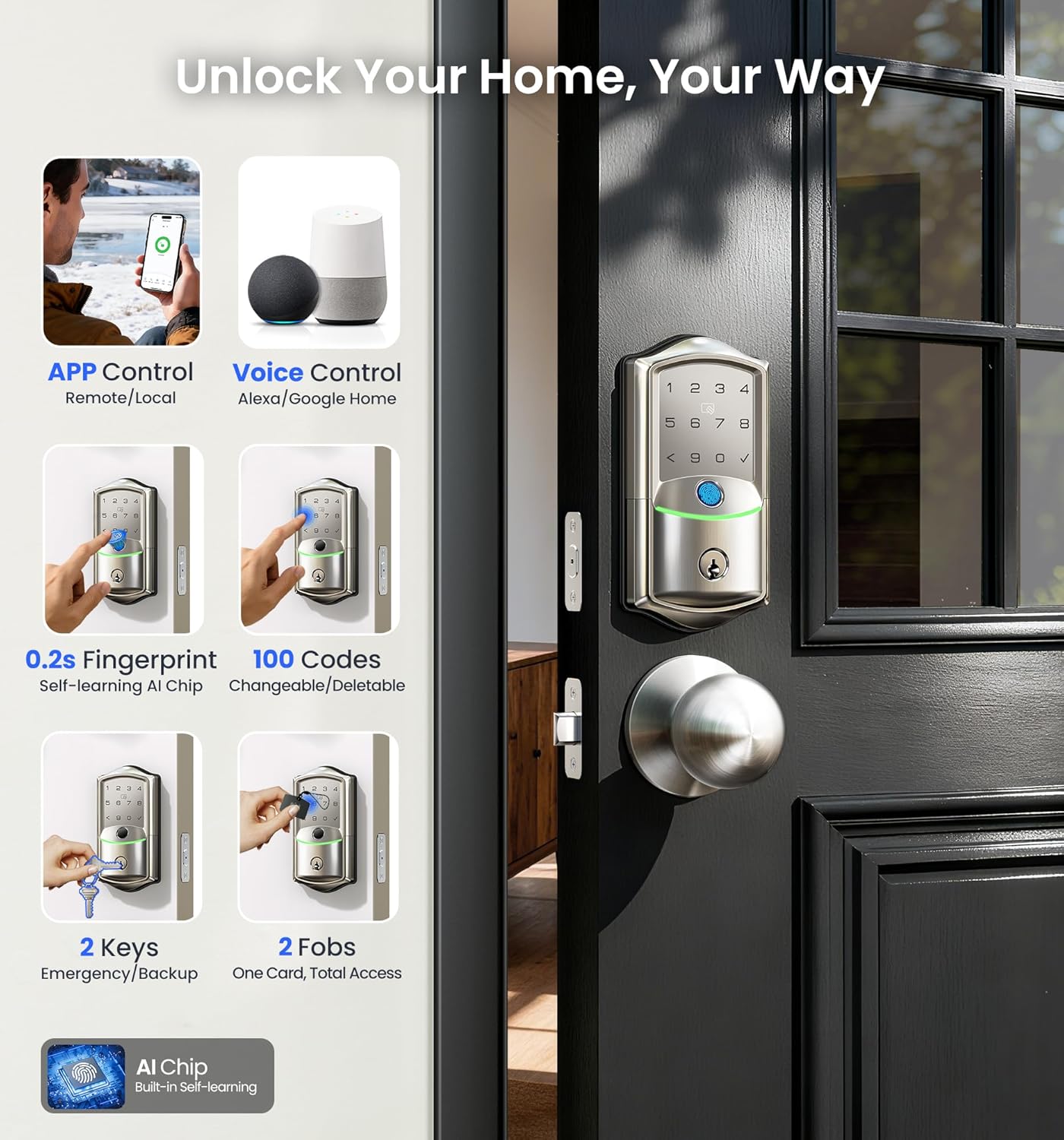
Image: Visual representation of the six available unlocking methods for the smart lock.
6.2 Locking Methods
- Automatic Locking: The lock can be configured to automatically lock after a set period (5-180 seconds) once closed. This feature is adjustable via the app.
- Manual Locking: Press any key on the keypad, or use the thumb turn from the inside.
- Remote App Locking: Lock the door from anywhere using the mobile application.

Image: Demonstrates the auto-lock feature settings and various locking methods.
6.3 Passage Mode
Passage mode allows the door to remain unlocked for a specified period, useful for high-traffic times. This mode can be activated and deactivated via the mobile app.
7. Maintenance
7.1 Battery Replacement
The Veise Smart Lock is powered by 8 AA batteries (not included). It is recommended to use high-quality alkaline batteries for optimal performance and battery life (up to 240+ days).
- Low Battery Alerts: The lock will provide low battery warnings via the mobile app and potentially an audible alert on the lock itself.
- Replacement: When alerted, replace all 8 AA batteries promptly. Open the battery cover on the interior unit, remove old batteries, and insert new ones, ensuring correct polarity.

Image: Illustrates the battery compartment, low battery alerts, and the Type-C emergency charging port.
7.2 Emergency Power
In case of complete battery depletion, the lock can be temporarily powered using a Type-C cable connected to an external power bank. This allows you to unlock the door and replace the batteries.
7.3 Cleaning
Wipe the lock's exterior surfaces with a soft, damp cloth. Avoid abrasive cleaners or solvents that could damage the finish or electronic components.
8. Troubleshooting
Common Issues and Solutions:
- Lock not responding: Check battery level. Replace batteries if low. Use the Type-C emergency power port or backup key.
- App connectivity issues: Ensure your phone and lock are connected to a 2.4GHz Wi-Fi network. Restart your router and the lock (by removing and reinserting batteries). Check app permissions.
- Fingerprint not recognized: Ensure your finger is clean and dry. Re-register your fingerprint if issues persist.
- PIN code not working: Verify the PIN code is correct and active. Ensure the lock is not in a 'do not disturb' or 'sleep' mode.
- Lock mechanism jammed: Check for any obstructions in the door frame or latch. Ensure the lock was installed correctly and the door is properly aligned.
9. Specifications
| Model | VE029 VE027-K |
| Brand | Veise |
| Connectivity | Built-in 2.4GHz Wi-Fi |
| Power Source | 8 x AA Batteries (not included) |
| Emergency Power | Type-C USB Port |
| Unlocking Methods | App, Fingerprint, IC Card, PIN, Key, Voice Control |
| Operating Temperature | Refer to product packaging for specific range |
| Waterproof Rating | IP65 (as per image) |
| Security | AES 128 Local Storage Data Encryption (as per image) |

Image: Highlights key specifications and security features of the smart lock, including IP65 rating and AES 128 encryption.
10. Warranty and Support
Veise provides the following support for your smart lock:
- Warranty: 1-year limited warranty.
- US-Based Phone Support: Available Monday-Friday, 9 AM-5 PM PST.
- Email Assistance: 24/7 after-sales email support.
For technical assistance or warranty claims, please refer to the contact information provided in your product packaging or on the official Veise website.


