
Introduction
The nuphy Node75 is a 75% wireless mechanical keyboard designed for versatile use across various devices and operating systems. It features hot-swappable switches, PBT keycaps, and multiple connectivity options including Bluetooth, 2.4GHz wireless, and USB-C wired mode. This manual provides detailed instructions for setting up, operating, maintaining, and troubleshooting your Node75 keyboard.
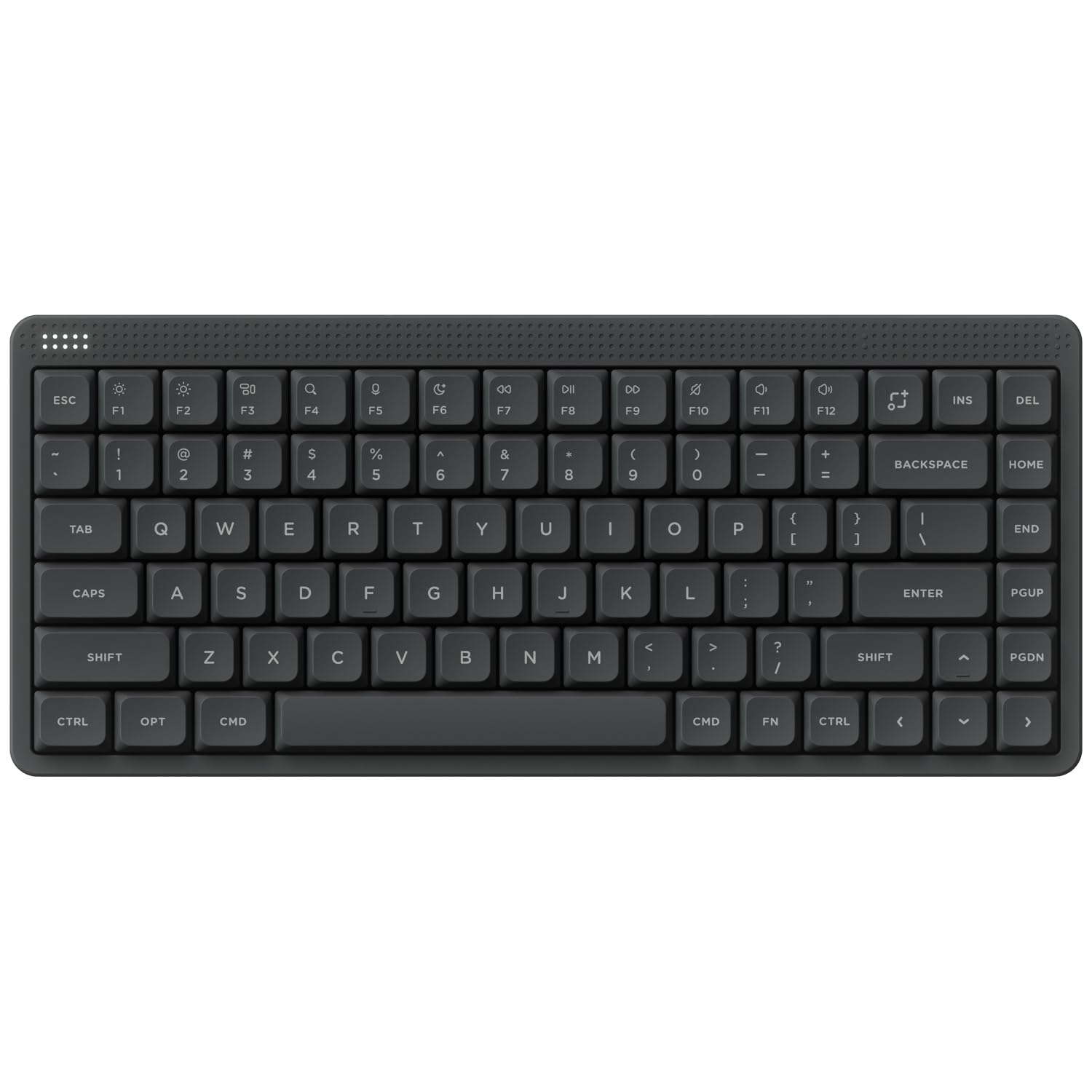
Image: The nuphy Node75 Wireless Mechanical Keyboard in Gray Low Profile, showcasing its compact 75% layout.
Setup
Package Contents
Before proceeding, ensure all items are present in the package:
- 1 x Node75 Keyboard (Low-Profile)
- 1 x 2.4G Receiver
- 1 x USB-C to USB-A adapter
- 1 x USB Cable (USB-C to USB-A)
- Quick Start Guide
- Other accessories (e.g., extra keycaps for Windows/Mac)
Initial Connection and Charging
For initial setup or charging, connect the keyboard to your computer using the provided USB-C cable. The keyboard will automatically enter wired mode and begin charging. A full charge provides up to 1000 hours of runtime.
Operating Instructions
Connectivity Modes
The Node75 supports three connectivity modes: USB-C wired, Bluetooth, and 2.4GHz wireless. A switch on the keyboard allows you to select the desired mode.
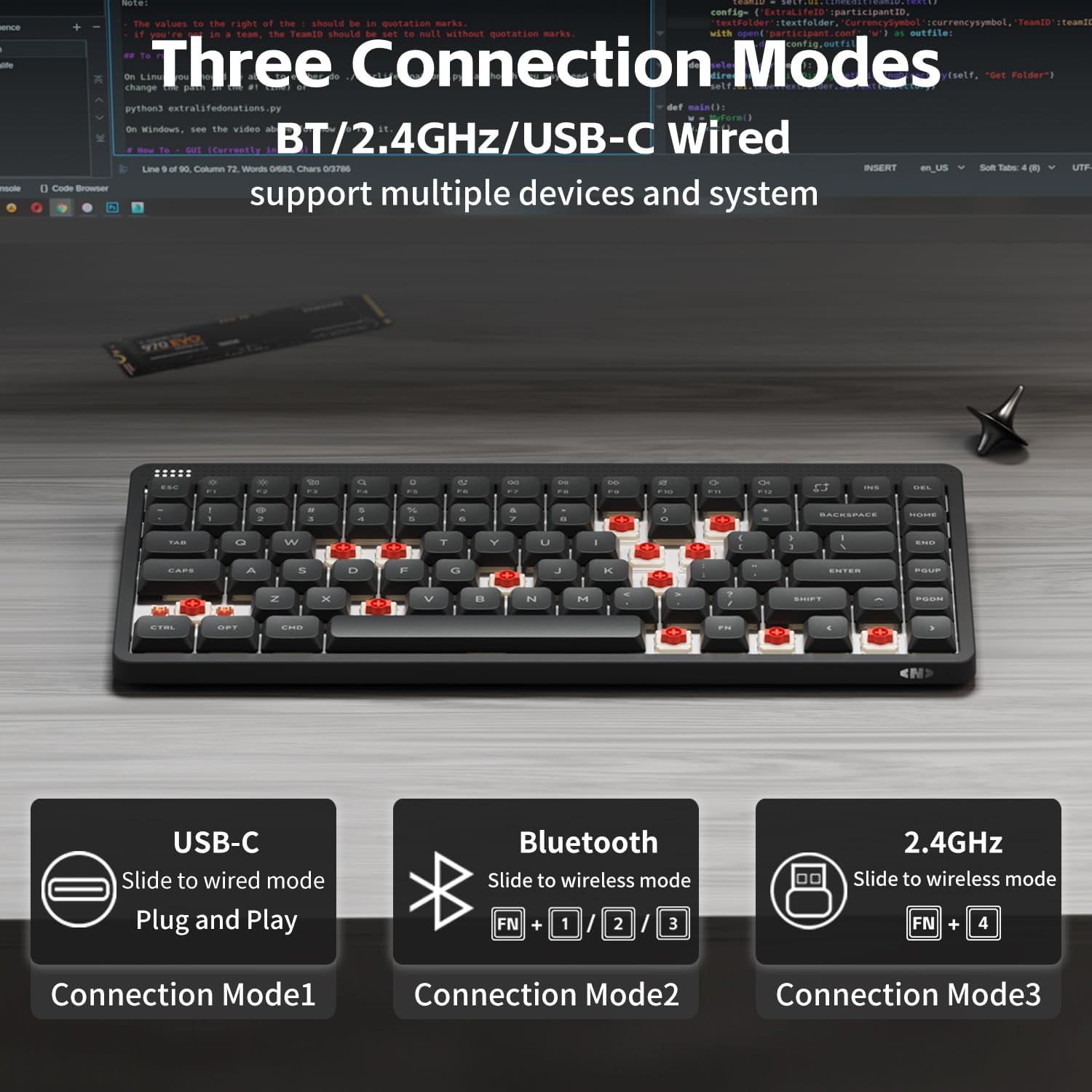
Image: Diagram illustrating the three connection modes: USB-C (wired), Bluetooth, and 2.4GHz wireless, along with their activation key combinations.
- USB-C Wired Mode: Connect the USB-C cable to the keyboard and your device. The keyboard will function immediately.
- Bluetooth Mode: Slide the switch to wireless mode. Press Fn + 1 / 2 / 3 to pair with up to three different Bluetooth devices. The keyboard supports simultaneous pairing with up to 5 devices.
- 2.4GHz Wireless Mode: Slide the switch to wireless mode. Insert the 2.4G receiver into your device's USB port. Press Fn + 4 to activate 2.4GHz mode.
Gesture Control
The Node75 features a touch-sensitive surface for gesture control, located on the top right of the keyboard. This allows for intuitive adjustment of volume, screen brightness, or keyboard backlight via swipe gestures. These functions are configurable through the NuPhyIO software.

Image: Close-up view of the top right section of the Node75 keyboard, highlighting the touch-sensitive area for gesture control.
RGB Backlight Customization
Personalize the keyboard's RGB lighting effects and animations using the NuPhyIO software. This allows for a wide range of visual customizations that can respond to your keystrokes.

Image: The nuphy Node75 keyboard positioned in front of a monitor displaying the NuPhyIO software interface, demonstrating programmable software support.
Adjustable Kickstand
The keyboard features a two-stage kickstand, allowing you to adjust the typing angle to 4°, 8°, or 10° for ergonomic comfort.

Image: Side view of the nuphy Node75 keyboard, illustrating the two-stage kickstand and its adjustable height options (4°, 8°, 10°).
Maintenance
Cleaning the Keyboard
- Use a soft, lint-free cloth slightly dampened with water or a mild cleaning solution to wipe the keycaps and casing.
- Avoid spraying liquids directly onto the keyboard.
- For dust and debris between keycaps, use compressed air.
- To clean under the keycaps, carefully remove them using a keycap puller (not included) and clean the switches and plate.
Keycap and Switch Care
The Node75 features durable PBT keycaps that are resistant to shine and fading. For hot-swappable switches, ensure proper alignment when inserting or removing them to prevent damage to the switch pins or PCB sockets.

Image: Exploded diagram of the Node75's gasket structure, showing components like the top case, plate, various foam layers, PCB, and bottom case, which contribute to the typing experience.
Troubleshooting
| Issue | Possible Cause | Solution |
|---|---|---|
| Keyboard not responding in wireless mode. | Low battery, incorrect mode selected, pairing issue. |
|
| Keys are not registering or double-typing. | Loose switch, debris under keycap, software issue. |
|
| RGB lighting not working or incorrect. | Software settings, low battery. |
|
Specifications
| Brand | nuphy |
| Model Name | Node75 |
| Model Number | Node75 keyboard (Mfr Part Number: Node75-LOW-GY-RD) |
| Connectivity Technology | Bluetooth, USB-C, 2.4GHz |
| Compatible Devices | Laptop, PC, Tablet (Supports Windows/Mac OS system) |
| Number of Keys | 84 |
| Special Features | Gesture Touch, Tri-Mode Connectivity, Multi-Device Support, Hot-Swappable Switches, PBT Keycaps, RGB Backlight |
| Recommended Product Uses | Gaming, Office |
| Keyboard Plate Material | Polycarbonate |
| Item Weight | 659 Grams |
| Battery Capacity | 3000mAh (up to 1000 hours runtime) |
| Sampling Rate | 1000Hz (in 2.4GHz and wired mode) |
Warranty Information
The nuphy Node75 keyboard typically comes with a manufacturer's warranty covering defects in materials and workmanship. Please refer to the warranty card included in your product packaging or visit the official nuphy website for specific warranty terms, duration, and claim procedures. Keep your proof of purchase for warranty service.
Customer Support
For further assistance, technical support, or inquiries regarding your nuphy Node75 keyboard, please visit the official nuphy support website. You may find FAQs, driver downloads, and contact information for customer service there.


