
1. Product Overview
The bwoo BS-52 is a portable wireless Bluetooth speaker designed for versatile audio playback. It features a durable fabric mesh exterior and delivers powerful sound. This manual provides essential information for setting up, operating, and maintaining your speaker.
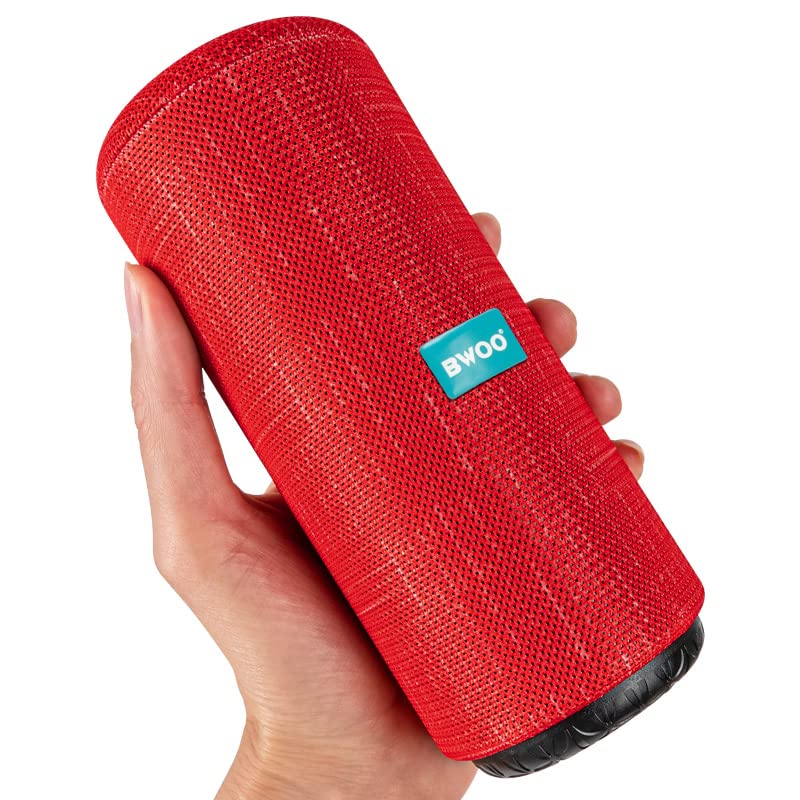
Image 1: Front view of the bwoo BS-52 Wireless Bluetooth Speaker.
Key Features:
- Powerful Audio Output: Delivers robust sound through a 5W*2 speaker system.
- Extended Playtime: Equipped with a 1200mAh battery, providing up to 4 hours of continuous playback.
- Wireless Connectivity: Bluetooth range of 10-15 meters for seamless audio streaming.
- Multiple Input Options: Supports Bluetooth, Auxiliary (Aux), TF card, and USB connections.
- Portable Design: Compact cylindrical shape with a durable fabric covering, ideal for on-the-go use.
Product Video:
Video 1: An overview of the bwoo BS-52 Wireless Bluetooth Speaker's features and design.
2. Setup
2.1 What's in the Box
Upon unpacking, ensure all items are present:
- bwoo BS-52 Speaker
- USB Charging Cable
- Audio Cable (Aux)
2.2 Charging the Speaker
Before first use, fully charge the speaker. Connect the provided USB charging cable to the speaker's charging port and to a standard USB power adapter (not included) or a computer's USB port. The LED indicator light will show the charging status.

Image 2: The bwoo BS-52 speaker being charged, illustrating the charging port location. Charging takes approximately 2 hours.
2.3 Power On/Off
To power on the speaker, press and hold the Power On/Off button (often combined with Play/Pause). The LED indicator will light up, and you may hear an audible prompt. To power off, press and hold the same button again.
2.4 Bluetooth Pairing
- Ensure the speaker is powered on and in Bluetooth pairing mode (the LED indicator may flash).
- On your device (smartphone, tablet, laptop), enable Bluetooth and search for available devices.
- Select "BS-52" from the list of found devices.
- Once paired, the speaker will indicate a successful connection (e.g., solid LED light, audible prompt).
3. Operating the Speaker
3.1 Controls and Ports
Familiarize yourself with the speaker's control buttons and ports:
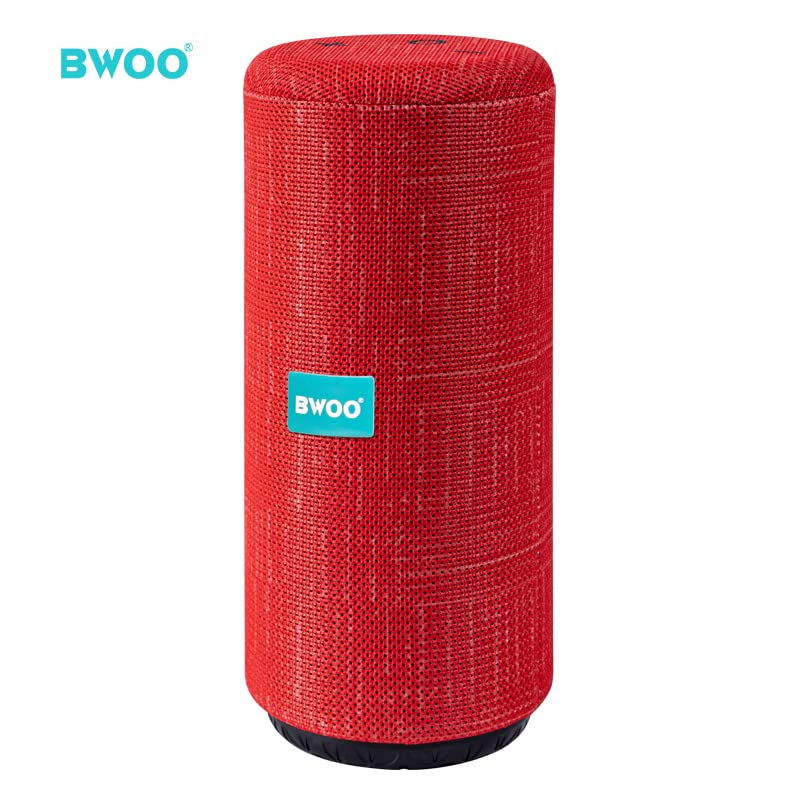
Image 3: Detailed diagram showing the location and function of ports and control buttons on the bwoo BS-52 speaker.
- Volume Down / Last Song: Press briefly for previous track, press and hold to decrease volume.
- Volume Up / Next Song: Press briefly for next track, press and hold to increase volume.
- Play/Pause / Answer / Power On/Off: Press briefly to play/pause music or answer/end calls. Press and hold to power on/off.
- Mode Switch: A dedicated button (often a round button) to switch between Bluetooth, Aux, TF card, and USB modes.
- TF Card Port: Insert a TF (MicroSD) card for direct music playback.
- USB Port: Insert a USB flash drive for direct music playback.
- Audio Port (Aux): Connect external devices via the 3.5mm audio cable.
- Charging Port: Connect the USB charging cable.
- Indicator Light: Displays current status (e.g., pairing, connected, charging).
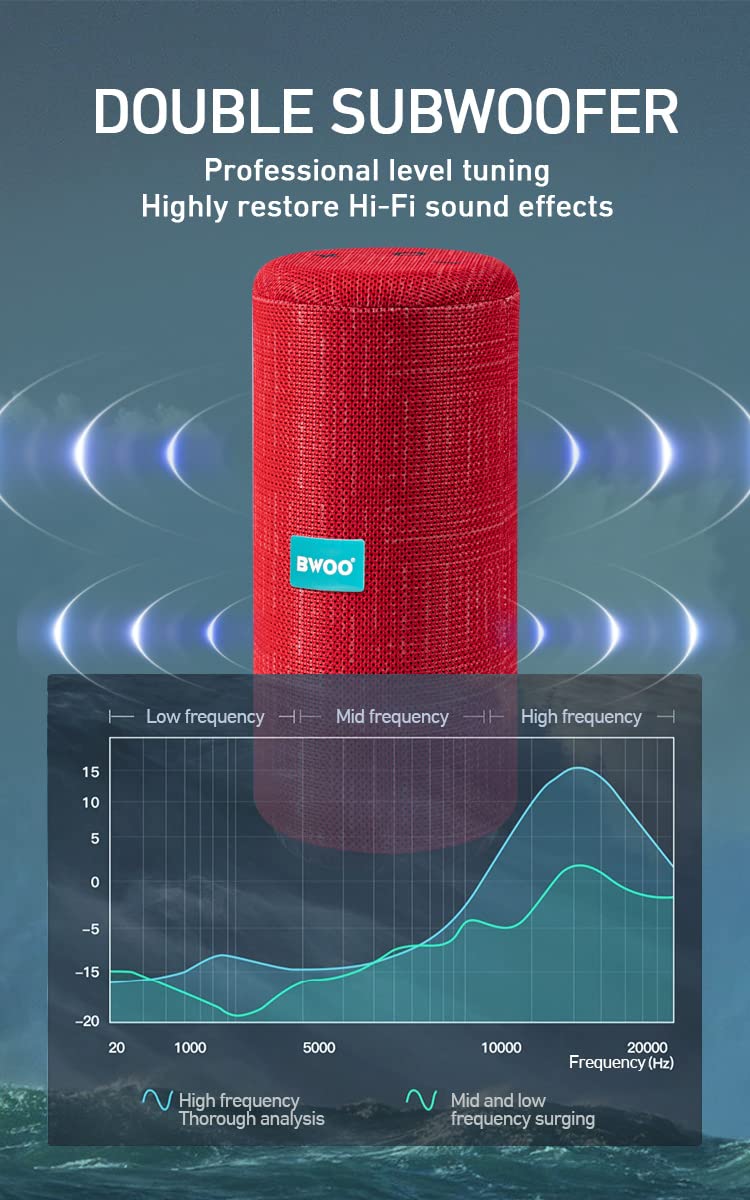
Image 4: Illustration of a hand interacting with the multi-purpose buttons on the top of the bwoo BS-52 speaker.
3.2 Connectivity Modes
- Bluetooth Mode: After pairing, your device will automatically connect to the speaker when both are on and within range.
- Auxiliary (Aux) Mode: Connect your audio device to the speaker's Audio Port using the 3.5mm cable. The speaker will automatically switch to Aux mode or require a press of the Mode button.
- TF Card / USB Mode: Insert a TF card or USB flash drive into the respective port. The speaker will automatically detect and play audio files from the storage device or require a press of the Mode button.
4. Maintenance
To ensure the longevity and optimal performance of your bwoo BS-52 speaker, follow these maintenance guidelines:
- Cleaning: Use a soft, dry cloth to clean the speaker's exterior. Do not use abrasive cleaners, solvents, or harsh chemicals.
- Storage: Store the speaker in a cool, dry place away from direct sunlight and extreme temperatures.
- Water Resistance: This speaker is not water resistant. Avoid exposure to water, rain, or excessive moisture.
- Battery Care: For best battery life, avoid fully discharging the battery frequently. Charge it regularly, even if not in use for extended periods.
5. Troubleshooting
If you encounter issues with your speaker, refer to the following common solutions:
- Speaker does not power on: Ensure the battery is charged. Connect the speaker to a power source using the USB cable and try again.
- No sound: Check the volume levels on both the speaker and your connected device. Ensure the correct input mode (Bluetooth, Aux, TF, USB) is selected.
- Bluetooth pairing issues: Make sure the speaker is in pairing mode. Turn off and on Bluetooth on your device. Move the speaker closer to your device. Disconnect from other Bluetooth devices.
- Distorted sound: Reduce the volume on both the speaker and your device. Ensure the speaker is not too far from the Bluetooth source or obstructed.
If the problem persists, contact customer support for further assistance.
6. Specifications
Detailed technical specifications for the bwoo BS-52 Wireless Bluetooth Speaker:
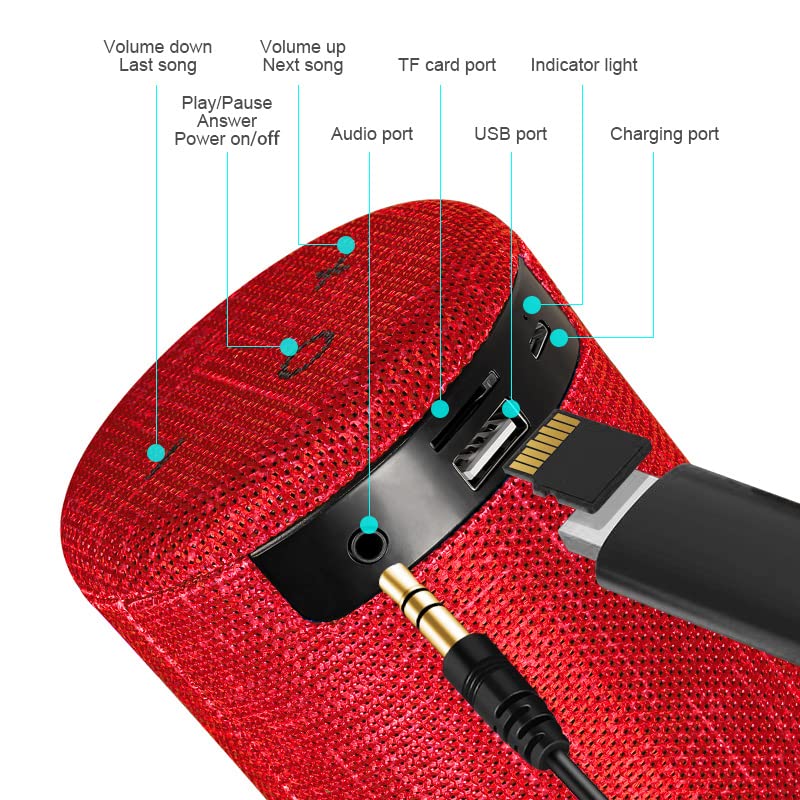
Image 5: Product parameter details for the bwoo BS-52 speaker, including technical specifications.
| Feature | Specification |
|---|---|
| Model Number | BS-52 |
| Brand | bwoo |
| Speaker Maximum Output Power | 5 Watts * 2 |
| Connectivity Technology | Auxiliary, Bluetooth |
| Bluetooth Range | 10-15 Metres |
| Audio Output Mode | Stereo |
| Battery Capacity | 1200mAh |
| Play Time | Up to 4 hours |
| Charging Time | Approx. 2 hours |
| Control Method | Push Button |
| Water Resistance Level | Not Water Resistant |
| Item Dimensions (D x W x H) | 7D x 7W x 17.5H Centimeters |
| Item Weight | 600 Grams |
| Compatible Devices | Audio Players, Laptop, Smartphone, Tablet |
| Box Contents | Speaker, USB Cable, Audio Cable |
7. Warranty and Support
7.1 Warranty Information
The bwoo BS-52 Wireless Bluetooth Speaker comes with a 6 Months Warranty for Manufacturing Defects Only. Please retain your purchase receipt as proof of purchase for any warranty claims.
7.2 Customer Support
For any questions, technical assistance, or warranty claims, please contact the seller or manufacturer directly. Refer to your purchase documentation for contact details.