
1. Introduction
Thank you for purchasing the SDRD 217 Bluetooth Karaoke Machine. This manual provides detailed instructions for safe operation, setup, and maintenance of your device. Please read this manual thoroughly before use and retain it for future reference.

Image: The SDRD 217 Karaoke Machine in an outdoor setting, demonstrating its portability and use for entertainment.
2. Safety Information
- Do not expose the device to water or moisture.
- Avoid extreme temperatures.
- Do not attempt to disassemble or repair the device yourself.
- Keep out of reach of children.
- Use only the provided charging cable.
3. Package Contents
Verify that all items are present in the package:
- 1 x SDRD 217 Karaoke Machine
- 2 x Wireless Microphones
- 1 x Charging Cable (USB Type-C)
- 1 x AUX Cable
- 1 x User Manual (this document)

Image: The SDRD 217 Karaoke Machine, two wireless microphones, and included cables, illustrating the complete package contents.
4. Product Overview
The SDRD 217 features a compact design with integrated storage and charging for its two wireless microphones. It includes dual 4-inch speakers for clear audio output and various connectivity options.
4.1 Main Unit
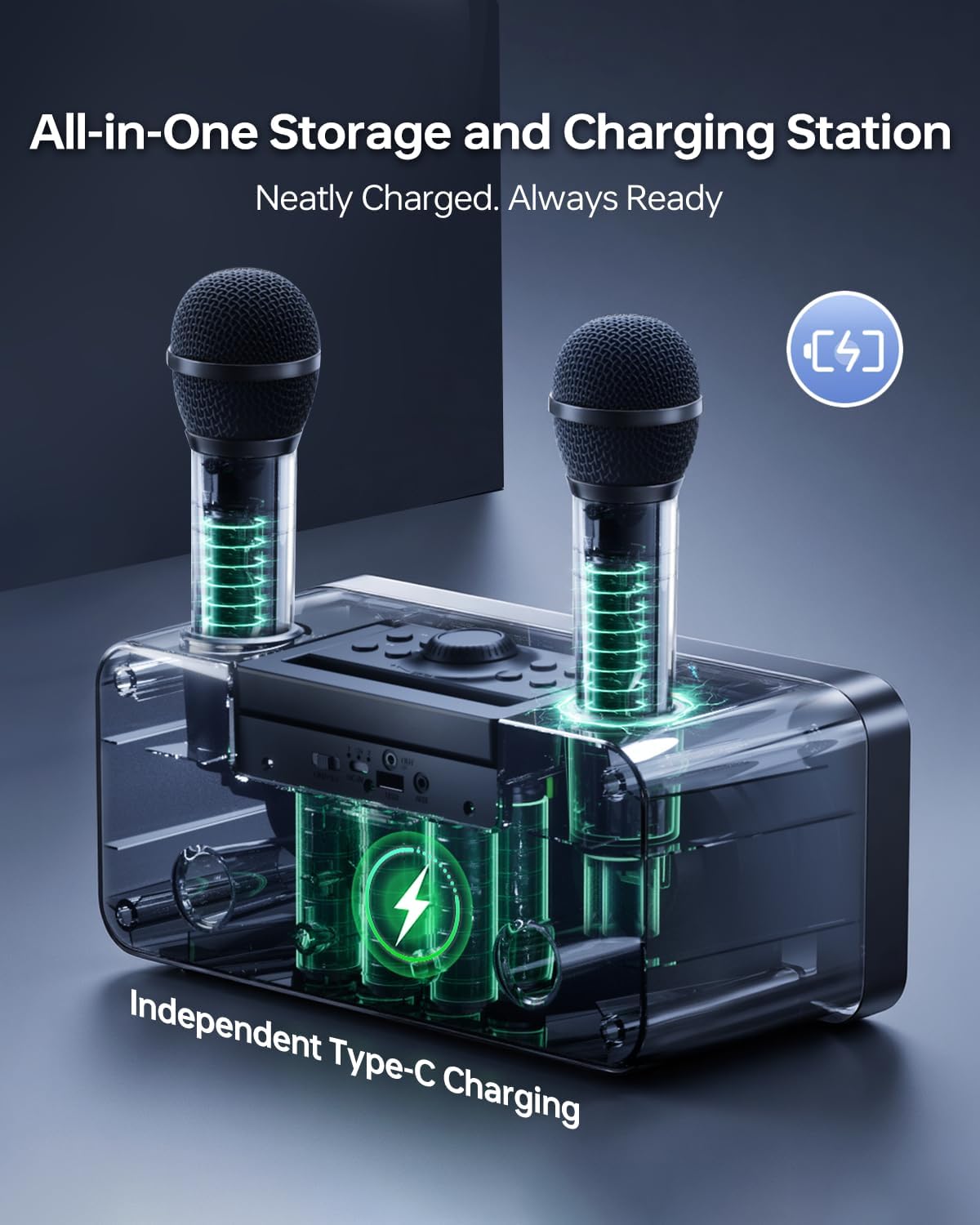
Image: Front view of the SDRD 217 Karaoke Machine, showing the speakers and control panel.
4.2 Wireless Microphones

Image: Detailed view of the wireless microphone, highlighting its control panel for volume, echo, and EQ adjustments, LED display, and rechargeable battery compartment.
5. Setup
5.1 Charging the Karaoke Machine
Before first use, fully charge the karaoke machine. Connect the provided USB Type-C charging cable to the charging port on the machine and to a compatible USB power adapter (not included). The charging indicator will show the charging status.

Image: The karaoke machine with microphones docked, illustrating the integrated storage and charging station.
5.2 Charging Microphones
The wireless microphones can be charged by placing them into the dedicated slots on the karaoke machine. They can also be charged individually using a USB Type-C cable.
5.3 Powering On/Off
Press and hold the power button on the karaoke machine to turn it on or off. Repeat for each microphone.
5.4 Bluetooth Pairing
- Turn on the karaoke machine. It will automatically enter Bluetooth pairing mode.
- Enable Bluetooth on your mobile device (smartphone, tablet, PC).
- Search for "SDRD 217" in the list of available devices and select it to pair.
- A confirmation sound will indicate successful pairing.

Image: The SDRD 217 Karaoke Machine demonstrating its Bluetooth 5.3 connectivity range for mobile and PC devices.
5.5 AUX Connection
To connect a device via AUX, use the provided AUX cable. Plug one end into the AUX-in port on the karaoke machine and the other end into the audio output of your device. The machine will automatically switch to AUX mode.

Image: The SDRD 217 Karaoke Machine connected to an external speaker via an AUX-out connection, illustrating expanded audio capabilities.
5.6 USB Playback
Insert a USB flash drive containing MP3 audio files into the USB port on the karaoke machine. The machine will automatically detect and play the audio files.
6. Operating Instructions
6.1 Microphone Controls
Each wireless microphone features controls for adjusting your vocal output:
- Volume: Use the VOL+ and VOL- buttons to adjust microphone volume.
- Echo: Use the ECH+ and ECH- buttons to add or reduce echo effect.
- EQ: Press the EQ button to cycle through different equalization presets.
6.2 Speaker Controls
The main unit has controls for music playback and overall volume:
- Master Volume: Rotate the main knob to adjust the overall volume.
- Play/Pause: Press the Play/Pause button to start or stop music playback.
- Previous/Next Track: Use the arrow buttons to skip to the previous or next song.
6.3 LED Light Modes
The karaoke machine features dynamic LED lights. Press the light mode button to cycle through 5 different lighting effects.
Image: The SDRD 217 Karaoke Machine showcasing its five dynamic LED light modes, which can be switched to match the mood.
6.4 Recording Function
When a USB drive is inserted, you can use the recording function to capture your performance. Refer to the specific button on the main unit for initiating and stopping recordings.
7. Maintenance
7.1 Cleaning
Wipe the device with a soft, dry cloth. Do not use abrasive cleaners or solvents.
7.2 Storage
Store the karaoke machine and microphones in a cool, dry place away from direct sunlight and extreme temperatures.
7.3 Battery Care
To prolong battery life, fully charge the device before long periods of storage and recharge it at least once every three months.
8. Troubleshooting
| Problem | Possible Cause | Solution |
|---|---|---|
| No power | Battery is depleted. | Charge the karaoke machine and microphones. |
| No sound from speakers | Volume is too low or muted. Device not properly connected. | Increase volume. Check Bluetooth or AUX connection. |
| Microphone not working | Microphone is off or battery is low. Not paired correctly. | Turn on microphone, charge it. Re-pair if necessary. |
| Bluetooth connection unstable | Device is too far from the karaoke machine. Interference. | Move devices closer. Avoid obstacles or other wireless devices. |
9. Specifications
- Model: SDRD 217
- Speaker Count: 2
- Speaker Size: 4-inch
- Connectivity: Bluetooth 5.3, 3.5 mm Jack (AUX), USB Type-C
- Battery Capacity: 4000mAh (main unit)
- Playtime: Up to 12 hours
- Microphones: 2 x Rechargeable Wireless Microphones
- Dimensions: 11.42 x 5.31 x 5.31 inches
- Weight: 4.86 pounds
- Included Components: Karaoke Machine, 2 Wireless Microphones, Charging Cable, AUX Cable, User Manual

Image: Close-up view of the SDRD 217's 4.0-inch superior speakers, emphasizing high power and immersive sound.
10. Official Product Video
Video: An official demonstration of the SDRD SD-216 Karaoke Machine, showcasing its features and performance. Note: Model 216 is similar to 217 in core functionality.
11. Warranty and Support
For warranty information and technical support, please refer to the contact details provided on the product packaging or visit the official SDRD website. Keep your purchase receipt as proof of purchase for warranty claims.
Online Support: Visit the SDRD Store on Amazon