
1. Product Overview
Key Features
- Powerful Performance: Allwinner H313 Quad Core ARM Cortex A53 processor and 2GB DDR3 RAM for smooth operation.
- Stunning Visuals: 4K Ultra HD streaming with HDR10 support for vibrant colors and exceptional clarity.
- Advanced Connectivity: Dual-band Wi-Fi 6 (2.4G & 5G) and 100M Ethernet port for stable and fast network access.
- Latest Operating System: Runs on Android 14, offering a user-friendly interface and access to a vast app library.
- Voice Control: Google Assistant Voice Remote for hands-free content search and device management.
- Ample Storage: 16GB internal ROM for apps and games, with support for DLNA and screen casting.
Package Contents
- H96 MAX H313 TV Box
- Voice Remote Control
- Power Supply
- HD Cable
- User Manual
This image displays the items included in the product package: the H96 MAX H313 TV Box, a voice remote control, a power adapter, an HD cable, and the user manual.
2. Setup Guide
2.1 Connecting the TV Box
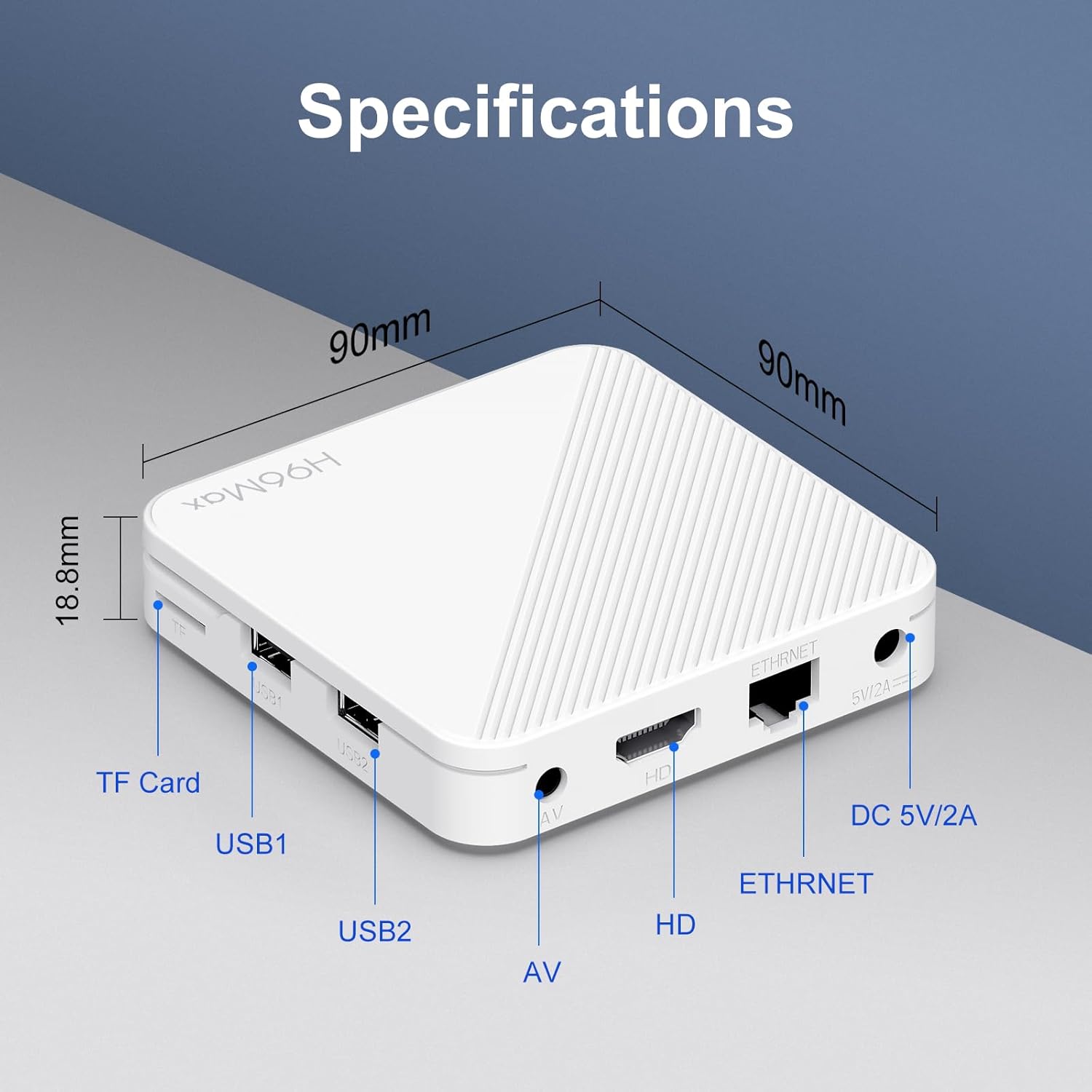
- Connect HD Cable: Insert one end of the provided HD cable into the HD port on the TV Box and the other end into an available HDMI port on your television.
- Connect Power: Plug the power adapter into the DC 5V/2A port on the TV Box, then plug the adapter into a power outlet.
- Connect to Internet (Optional):
- Wi-Fi: You will configure Wi-Fi during the initial setup process.
- Ethernet: For a wired connection, connect an Ethernet cable from your router to the Ethernet port on the TV Box.

This image shows the H96 MAX H313 TV Box and its remote control. The TV box features ports for TF Card, USB1, USB2, AV, HD (HDMI), Ethernet, and DC 5V/2A power input. The remote control has standard navigation and media playback buttons, along with dedicated buttons for YouTube, Netflix, Prime Video, and Google Play.

A detailed diagram illustrating the ports on the H96 MAX H313 TV Box. Labeled ports include TF Card slot, USB1, USB2, AV port, HD (HDMI) port, Ethernet port, and DC 5V/2A power input. The dimensions of the device are also indicated as 90mm x 90mm x 18.8mm.
2.2 Initial Power On and Configuration
- Turn on your television and select the correct HDMI input source.
- The TV Box will power on automatically when connected to power.
- Follow the on-screen prompts to select your preferred language, connect to your Wi-Fi network, and sign in with your Google account. A Google account is required to download apps from the Google Play Store.
- Complete the initial setup steps to access the Android 14 home screen.
3. Operating Instructions
3.1 Using the Voice Remote Control
The included voice remote control allows for intuitive navigation and control of your TV Box.
- Power Button: Turns the TV Box on or off.
- Navigation Pad (Up/Down/Left/Right) & OK Button: Used to navigate menus and select items.
- Back Button: Returns to the previous screen.
- Home Button: Returns to the Android TV home screen.
- Volume Buttons (+/-): Adjusts the system volume.
- App Shortcut Buttons: Dedicated buttons for quick access to popular streaming services like YouTube, Netflix, and Prime Video.
- Google Assistant Button: Press and hold to activate voice commands. Speak clearly into the remote to search for content, open apps, or control playback.

This image shows the H96 MAX H313 TV Box remote control being used to issue voice commands to Google Assistant, such as 'Hey Google, workout music' and 'Hey Google, Please play an action movie'. This highlights the voice control functionality of the device.
3.2 Navigating the Android 14 Interface
The Android 14 interface is designed for ease of use on a television screen.
- Home Screen: Displays recommended content, recently used apps, and quick access to settings.
- App Drawer: Access all installed applications.
- Settings: Configure network, display, sound, accounts, and device preferences.

The H96 MAX H313 Android TV interface is shown on a television screen, featuring popular streaming applications like YouTube, Prime Video, Netflix, and Google Play. The remote control is also visible, indicating user interaction with the smart TV box.

This image illustrates the wide range of streaming applications accessible on the H96 MAX H313 Android TV Box, including HBO Max, Netflix, Hulu, Prime Video, Disney+, Apple TV+, Peacock, YouTube, ESPN, Starz, Sling TV, and Spotify.

A visual comparison showing the progression of Android versions, emphasizing that the H96 MAX H313 TV Box operates on Android 14. This indicates the device runs on the latest available Android TV operating system.
3.3 Streaming Content
Your TV Box comes with pre-installed streaming applications. You can also download more from the Google Play Store.
- Accessing Apps: From the home screen, navigate to the app section or use the dedicated shortcut buttons on the remote.
- Downloading New Apps: Open the Google Play Store app, search for your desired application, and select 'Install'.

This image highlights the key features of the H96 MAX H313 TV Box, including 4K Ultra HD resolution, Wi-Fi 6 connectivity, Android 14 operating system, and support for 3D content, promising an enhanced visual experience.
3.4 Screen Casting and DLNA
The TV Box supports screen casting and DLNA, allowing you to share content from your mobile devices to your TV.
- Chromecast Built-in: Ensure your mobile device and the TV Box are on the same Wi-Fi network. Open a compatible app on your phone (e.g., YouTube, Netflix) and tap the Cast icon to select your TV Box.
- DLNA: Use a DLNA-compatible app on your mobile device to stream media files (photos, videos, music) to your TV Box.

This image demonstrates the H96 MAX H313 TV Box's capability to run Google Play Games and utilize its built-in Chromecast feature, allowing users to cast content from their mobile devices to the TV screen.
4. Maintenance
4.1 Cleaning the Device
To maintain the longevity and appearance of your TV Box:
- Ensure the device is powered off and unplugged before cleaning.
- Use a soft, dry, lint-free cloth to wipe the exterior.
- Avoid using liquid cleaners, aerosols, or abrasive materials, as these can damage the device.
4.2 Software Updates
Regularly check for and install software updates to ensure optimal performance and access to the latest features.
- Navigate to Settings > Device Preferences > About > System update.
- If an update is available, follow the on-screen instructions to download and install it. Do not power off the device during an update.
4.3 Resetting the Device
If you encounter persistent issues, a factory reset may resolve them. This will erase all data and settings on the device.
- Navigate to Settings > Device Preferences > Reset.
- Confirm your choice. The device will restart and go through the initial setup process again.
5. Troubleshooting
5.1 No Power
- Ensure the power adapter is securely connected to the TV Box and a working power outlet.
- Verify the power outlet is functional by plugging in another device.
5.2 No Picture or Sound
- Check that the HD cable is securely connected to both the TV Box and the television.
- Ensure your TV is set to the correct HDMI input source.
- Verify the TV's volume is not muted or set too low.
5.3 Remote Control Not Responding
- Replace the batteries in the remote control.
- Ensure there are no obstructions between the remote and the TV Box.
- If the remote uses Bluetooth, try re-pairing it in the device settings.
5.4 Wi-Fi Connectivity Issues
- Restart your Wi-Fi router and the TV Box.
- Go to Settings > Network & Internet on the TV Box to re-select your Wi-Fi network and re-enter the password.
- Ensure the TV Box is within range of your Wi-Fi router.
5.5 App Crashing or Freezing
- Close and reopen the app.
- Go to Settings > Apps > [App Name] > Clear cache. If the issue persists, try Clear data (this will reset the app to its default state).
- Uninstall and reinstall the problematic app.
- Restart the TV Box.
6. Specifications
| Feature | Detail |
|---|---|
| Model | H96 MAX H313 |
| Operating System | Android 14 |
| Processor | Allwinner H313 Quad Core ARM Cortex A53 |
| RAM | 2GB DDR3 |
| Internal Storage | 16GB |
| Resolution | 4K Ultra HD (with HDR10 support) |
| Wi-Fi | Wi-Fi 6 (2.4G & 5G) |
| Ethernet | 100M |
| Remote Control | Google Assistant Voice Remote |
| Connectivity | Bluetooth, Ethernet, HDMI, USB, Wi-Fi |
| Dimensions | 3.54 x 3.54 x 0.74 inches (90 x 90 x 18.8 mm) |
| Weight | 10.6 ounces (300 Grams) |
| Special Features | Browser, DLNA, Chromecast Built-in |
7. Warranty and Support
7.1 Warranty Information
Please refer to the warranty card included in your product package for detailed information regarding warranty coverage, terms, and conditions. Alternatively, contact your retailer or the manufacturer directly for warranty specifics.
7.2 Customer Support
For technical assistance, troubleshooting beyond this manual, or any other inquiries, please contact your point of purchase or the manufacturer's official customer support channels. Contact information is typically provided in the product packaging or on the manufacturer's website.


