1. Introduction
Welcome to the UMIDIGI G100 user manual. This guide provides essential information to help you set up, operate, and maintain your new smartphone. The UMIDIGI G100 is an unlocked Android 14 cell phone featuring a 6.9-inch HD+ 120Hz display, an Octa-core processor, 12GB RAM (6GB physical + 6GB virtual) and 128GB internal storage (expandable up to 1TB), a 50MP triple camera system, and a 6000mAh battery with 20W fast charging.
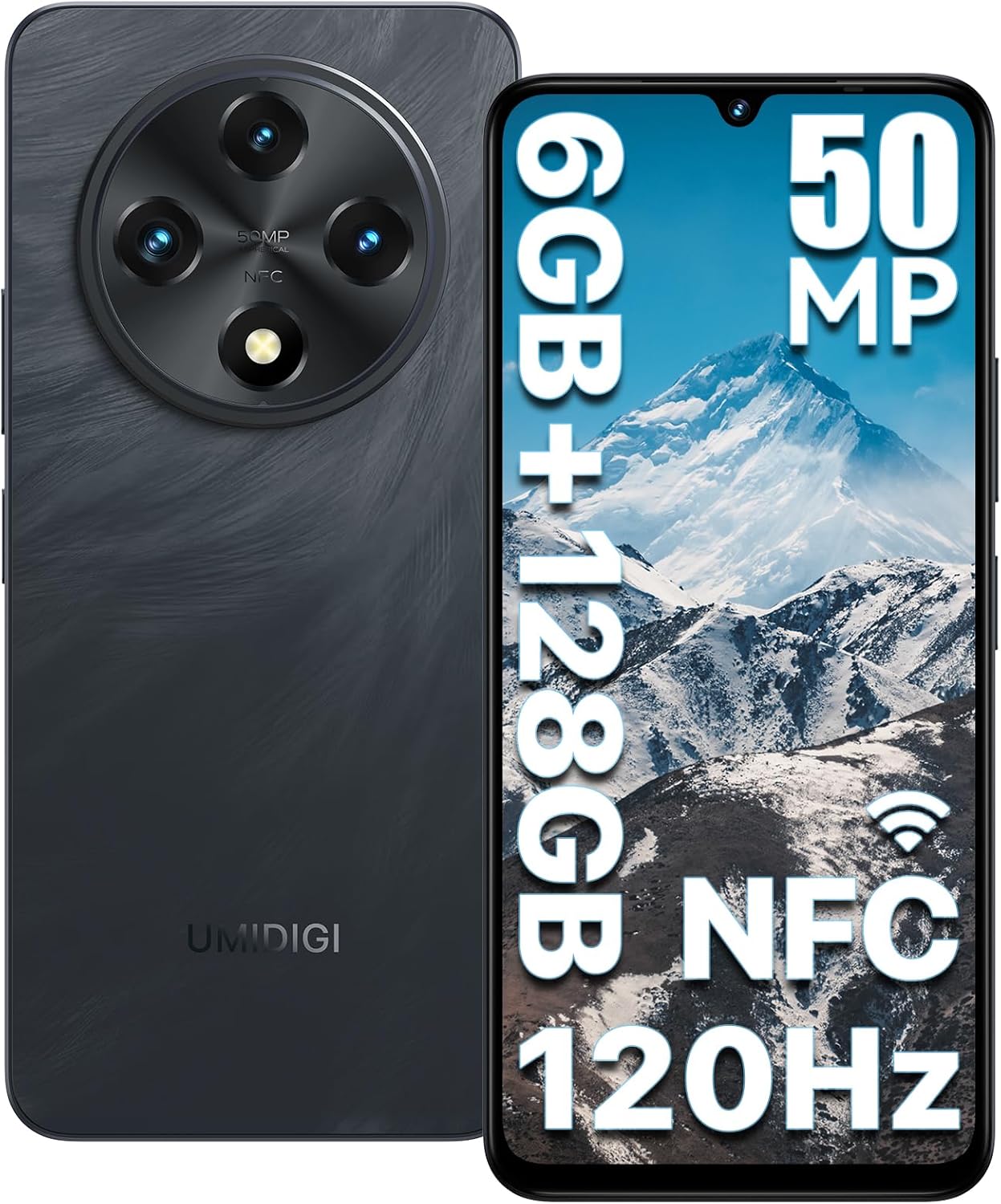
Figure 1: Front and back view of the UMIDIGI G100 Unlocked Cell Phone, highlighting its sleek design and camera module.
2. What's in the Box
Your UMIDIGI G100 package includes the following items:
- UMIDIGI G100 Phone
- Protective Film (applied)
- Phone Case
- Type-C Cable (C to C)
- Power Adapter
- SIM Tray Ejector
- Quick Start Guide

Figure 2: All items included in the UMIDIGI G100 retail packaging.
3. Setup
3.1 Inserting SIM/TF Card
The UMIDIGI G100 supports dual 4G SIM cards or one Nano-SIM and one Micro TF card. Use the provided SIM ejector tool to open the SIM tray located on the side of the device. Carefully place your Nano-SIM card(s) and/or Micro TF card into the tray as indicated, then reinsert the tray into the phone.

Figure 3: Illustration of SIM and TF card insertion into the device.
3.2 Initial Power On and Basic Setup
Press and hold the Power button on the side of the phone until the UMIDIGI logo appears. Follow the on-screen prompts to select your language, connect to a Wi-Fi network, and set up your Google account. This process will guide you through essential settings to personalize your device.
3.3 Memory Extension
The UMIDIGI G100 features a memory extension function, allowing you to expand the RAM using virtual memory. To enable this:
- Enter the phone "Settings".
- Find "Memory Extension".
- Select "RAM Extend Size" (e.g., 2GB, 4GB, 6GB).
- Select "Reboot" and the phone will reboot for the setting to take effect.

Figure 4: Visual guide for activating RAM memory extension.
4. Operating Instructions
4.1 Display and Navigation
The UMIDIGI G100 features a 6.9-inch HD+ display with a 120Hz refresh rate, providing a smooth visual experience. Navigate the interface using touch gestures: swipe to scroll, tap to select, and pinch to zoom.

Figure 5: The 6.9-inch HD+ display in action.
4.2 Security Features
Unlock your device securely using Fingerprint ID or AI Face Unlock. The fingerprint sensor is integrated into the side power button for convenient access. To set up:
- Go to Settings > Security > Fingerprint Unlock or Face Unlock.
- Follow the on-screen instructions to register your fingerprint or face data.

Figure 6: AI Face Unlock and Side Fingerprint Sensor.
4.3 Camera Usage
The UMIDIGI G100 is equipped with a 50MP triple rear camera (50MP Main, 2MP Macro, 2MP Depth) and a 16MP front camera. Open the Camera app to access various modes like Photo, Video, Portrait, Macro, and Night View. Tap the shutter button to capture images or start/stop video recording.

Figure 7: Overview of the G100's camera system and capabilities.
4.4 Connectivity
The device supports Dual 4G LTE networks, Wi-Fi, Bluetooth 5.2, GPS, and NFC. Ensure your SIM card is compatible with the supported network bands (4G LTE: B1/2/3/4/5/7/8/12/17/18/19/20/26/28AB/66 B34/39/38/40/41F; 3G WCDMA: B1/2/4/5/8; 2G GSM: B2/3/5/8). NFC functionality supports Google Pay for contactless payments.

Figure 8: Multi-function NFC for convenient payments.
5. Media Integration
5.1 Official Product Videos
Watch these official videos from the seller for more information on the UMIDIGI G100.
Video 1: UMIDIGI G100 Unlocked Cell Phone Android 14 - An overview of the phone's features and design.
Video 2: UMIDIGI G100 unlocked android smartphone - A closer look at the phone's functionalities.
6. Specifications
| Feature | Detail |
|---|---|
| Model Name | G100 |
| Operating System | Android 14 |
| Screen Size | 6.9 Inches |
| Resolution | 1920 x 1080 |
| Refresh Rate | 120 Hz |
| Processor | Octa-core (UNISOC T615) |
| RAM | 6 GB (expandable to 12 GB with virtual memory) |
| Memory Storage Capacity | 128 GB (expandable to 1 TB with Micro SD) |
| Rear Camera | 50MP Main + 2MP Macro + 2MP Depth |
| Front Camera | 16MP |
| Battery Capacity | 6000 mAh |
| Charging | 20W Fast Charge, Type-C |
| Connectivity Technologies | Wi-Fi, Bluetooth 5.2, 4G LTE, GPS, NFC |
| Security | Fingerprint & Face ID Unlock |
| Dimensions | 6.73 x 3.03 x 0.31 inches |
| Item Weight | 1.08 pounds |
7. Troubleshooting
7.1 Common Issues and Solutions
- Phone not turning on: Ensure the battery is charged. Connect to the 20W fast charger and wait a few minutes before attempting to power on again.
- Network connectivity issues: Verify your SIM card is correctly inserted and activated. Check your network settings (Settings > Network & internet) and ensure mobile data is enabled. Confirm your SIM card supports the UMIDIGI G100's network bands.
- Slow performance: Close unnecessary background apps. Consider enabling the Memory Extension feature (see Section 3.3) to increase available RAM. Clear cache for frequently used apps.
- Fingerprint/Face Unlock not working: Ensure your fingerprint or face data is correctly registered. Clean the fingerprint sensor. Ensure adequate lighting for Face Unlock.
8. Warranty and Support
UMIDIGI conducts strict inspections at every stage, from design to production. Customers can enjoy 12 months of free repair warranty and lifetime technical support when purchasing from the official UMIDIGI flagship store.
- 30-Day Money Back Guarantee and Free Return
- 1-Year Limited Warranty
- 24/7 Online Support
For further assistance, please refer to the Quick Start Guide included in your package or visit the official UMIDIGI support website.


