
1. Introduction
This manual provides essential information for the safe and efficient use of your Baseus Picogo 100W USB C Charger. Please read this manual thoroughly before operating the device and retain it for future reference.

Figure 1: Baseus Picogo 100W USB C Charger and included cables.
The Baseus Picogo 100W USB C Charger is a multi-port power adapter designed for fast charging a variety of devices, including laptops, tablets, and smartphones. It features a smart digital display for real-time monitoring and incorporates advanced GaN technology for efficient and safe operation.
2. Product Features
- 100W Ultra-Fast Charging: Delivers up to 100W power from either USB-C port, enabling rapid charging for compatible devices.
- Smart Digital Display: Provides real-time information on charging status, temperature, and individual port output.
- 3-in-1 Multi-Port Design: Equipped with two USB-C ports and one USB-A port for simultaneous charging of up to three devices.
- Compact & Foldable: Features a compact design and foldable plug for enhanced portability, making it ideal for travel.
- Advanced GaN Technology with BCT: Utilizes Gallium Nitride (GaN) technology for high efficiency and reduced heat generation, complemented by AI-powered Baseus Cooling Technology (BCT) for continuous temperature monitoring.

Figure 2: The smart digital display provides real-time charging data.
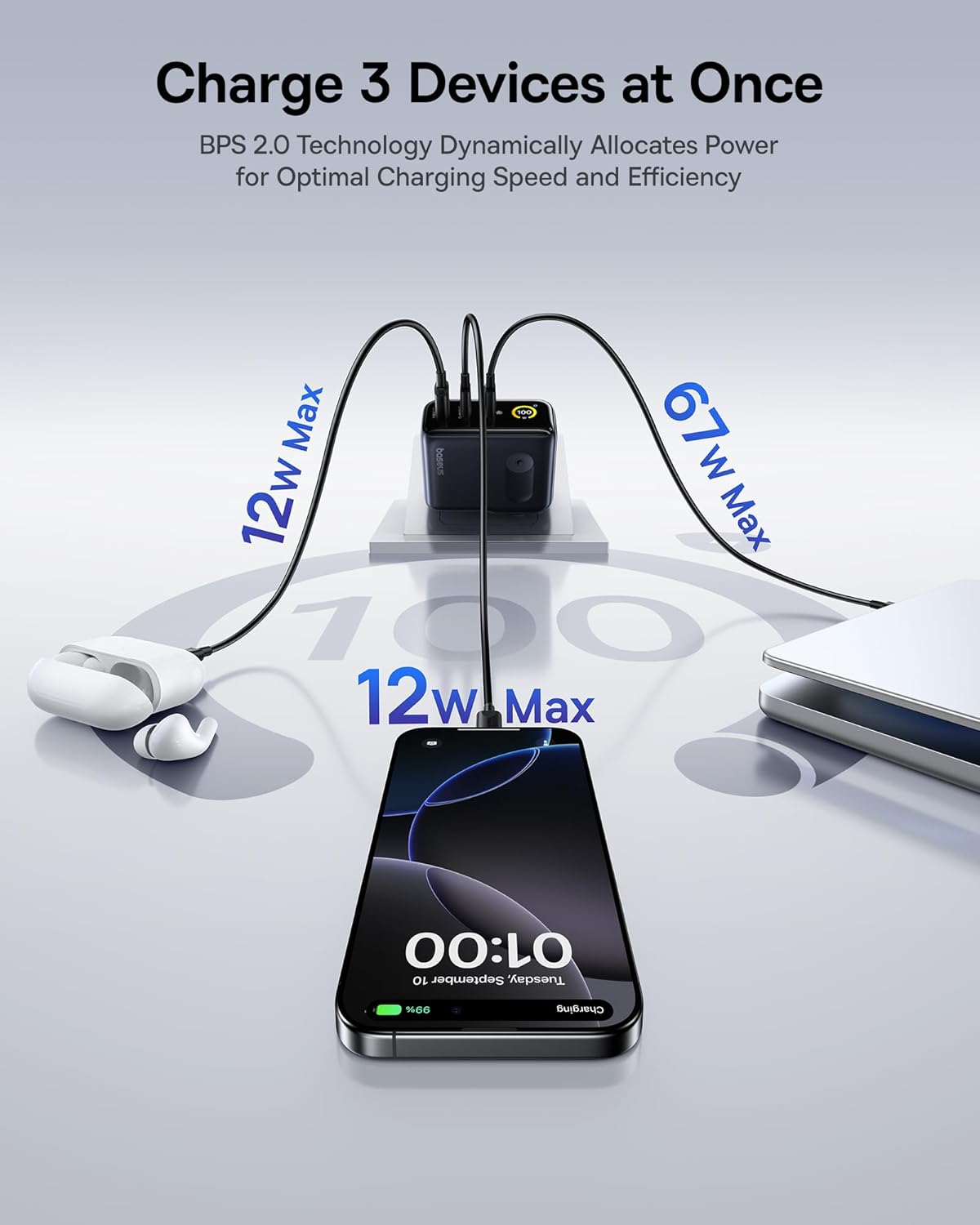
Figure 3: The charger supports simultaneous charging of multiple devices.
3. Setup
- Unpack the Charger: Carefully remove the Baseus Picogo 100W USB C Charger and the included 100W USB C cable from its packaging.
- Unfold the Plug: If the AC prongs are folded, gently unfold them until they lock into place.
- Connect to Power Outlet: Insert the charger's AC prongs into a standard wall outlet. The smart digital display will illuminate.
- Connect Devices: Use appropriate USB-C to USB-C or USB-C to USB-A cables to connect your devices to the available ports on the charger.
Video 1: Demonstrates connecting the Baseus Picogo 100W USB C Charger to a power outlet and observing the smart display.
4. Operating Instructions
4.1 Charging Devices
Once connected to a power outlet, plug your devices into the charger. The charger will automatically detect the connected devices and deliver optimal power. The smart digital display will show the real-time wattage output for each port and the overall charging status.
4.2 Understanding the Smart Digital Display
The display provides key information:
- Total Power Output (W): Shows the combined wattage being delivered to all connected devices.
- Individual Port Output (W): Displays the wattage for each active USB-C (C1, C2) and USB-A (A) port.
- Temperature: Indicates the charger's operating temperature, monitored by BCT.
- Balanced Mode Indicator: A snowflake icon indicates the charger is in balanced cooling mode.
4.3 Display Control
The charger features a touch-sensitive button on its side for display control:
- Single Press: Switches between different display interfaces (e.g., total wattage, individual port details).
- Double Press: Rotates the display 90 degrees for better viewing orientation.
- Press & Hold: Turns the display off completely. Press again to turn it back on.
Video 2: Overview of the Baseus Picogo AE21 100W Charger Block, including its ports and display functionality.
5. Maintenance
- Cleaning: Disconnect the charger from the power outlet before cleaning. Use a soft, dry cloth to wipe the surface. Do not use liquid cleaners or aerosols.
- Storage: When not in use, store the charger in a cool, dry place away from direct sunlight and moisture. Ensure the foldable plug is retracted for compact storage.
- Handling: Avoid dropping the charger or subjecting it to strong impacts. Do not attempt to disassemble or modify the charger, as this will void the warranty and may cause damage or injury.
6. Troubleshooting
| Problem | Possible Cause | Solution |
|---|---|---|
| Charger not powering on. | No power from outlet; loose connection. | Check if the wall outlet is functional. Ensure the charger is firmly plugged in. |
| Device not charging or charging slowly. | Incompatible cable; device not supporting fast charging; multiple high-power devices connected. | Use a certified fast-charging cable. Verify device compatibility. If charging multiple devices, power distribution may adjust; try charging fewer devices or check individual port outputs on the display. |
| Smart display is off. | Display turned off manually. | Press the side button once to reactivate the display. |
| Charger feels warm during operation. | Normal operation; high power output. | This is normal due to GaN technology and high power delivery. The BCT system actively monitors temperature to ensure safe operation. If it becomes excessively hot, disconnect immediately and contact support. |
7. Specifications
| Feature | Detail |
|---|---|
| Brand | Baseus |
| Model Number | E0121C |
| Wattage | 100 watts |
| Total USB Ports | 3 (2x USB Type C, 1x USB Type A) |
| Input Voltage | 240 Volts |
| Item Weight | 9.9 ounces |
| Package Dimensions | 5.2 x 3.39 x 2.13 inches |
| Special Features | Fast Charging, Multi Device Charging, Smart Display Screen, Travel-friendly |
| Compatible Devices | Tablet, Laptop, Cell Phone, Headphone, Smart Watch, Switch, Steam Deck, ROG Ally |
| Included Components | Baseus Picogo AE21 100W USB C Charger, 100W USB C Cable, User Manual |
8. Warranty and Support
For warranty information and technical support, please refer to the documentation included with your product or contact Baseus directly.
Contact Information:
- Global Phone Support: +1 800 220 8056
- Global Email Support: care@baseus.com
Please have your product model number (E0121C) and purchase details ready when contacting support.

Figure 4: Back of product packaging with support details and certifications.


