Introduction
This manual provides essential information for setting up, operating, and maintaining your INNOCN 27D2U 27-inch 4K Monitor. Please read through these instructions carefully to ensure optimal performance and longevity of your device.
The INNOCN 27D2U features a 27-inch 4K UHD (3840 x 2160) IPS panel with a 60Hz refresh rate, sRGB 99% color gamut, and a 1500:1 contrast ratio. It supports HDR10 and offers versatile connectivity options including DisplayPort, HDMI, and USB-C.
Setup
Unboxing and Initial Inspection
Carefully remove all components from the packaging. Ensure all parts listed in the packing list are present and undamaged. Keep the original packaging for future transport or service needs.
Video: KOORUI 4K Monitor Unboxing and Setup! (Note: This video is for a similar product and demonstrates general unboxing and setup procedures.)
Stand Assembly
Assemble the monitor stand by attaching the base to the stand column. Ensure all screws are tightened securely. Then, attach the assembled stand to the back of the monitor panel. The stand is designed for easy, tool-free assembly.

Image: Front view of the INNOCN 27D2U monitor with its standard stand, highlighting the IPS panel and key display features.
Video: Gawfolk GF005 28'' 4K Monitor Mount Installation. This video demonstrates the assembly of a monitor base stand, which is similar to the INNOCN 27D2U's stand assembly process.
VESA Mounting (Optional)
The monitor is VESA wall mountable (100x100mm). If using a VESA mount, ensure the long screws are installed into the VESA low screw holes on the monitor first, followed by short screws into the VESA high screw holes. Secure the VESA base plate with black screw caps. The VESA mount is not included with the monitor.

Image: Rear view of the INNOCN 27D2U monitor, showing the VESA mounting pattern and port locations.
Video: VESA Installation Video. This video provides a general guide for installing a VESA mount on a monitor.
Connecting Cables
Connect your devices using the available ports: 2 x DisplayPort (DP), 2 x HDMI, and 1 x 3.5mm Audio Jack. The monitor also supports USB-C connectivity for compatible devices.

Image: The INNOCN 27D2U monitor displaying content from multiple connected devices, showcasing its versatile connectivity.
Operating Instructions
Display Features
- 4K UHD Resolution: Enjoy crisp visuals with 3840x2160 pixels.
- IPS Panel: Experience wide 178° viewing angles and vibrant colors.
- HDR10 Support: Enhanced contrast and color performance for a dynamic viewing experience.
- 60Hz Refresh Rate: Smooth image display suitable for office work and general use.
- Color Accuracy: sRGB 99% and ΔE < 2 for precise color reproduction.

Image: The INNOCN 27D2U monitor showcasing its IPS panel technology with vivid colors and wide viewing angles.
Adjusting the Monitor
The monitor stand offers ergonomic adjustments for comfortable viewing:
- Tilt: Adjust the screen angle from -5° to 20°.
- Height: Adjust the screen height up/down by ±5 inches (100mm).
- Pivot: Rotate the screen ±90° for portrait or landscape orientation.

Image: Visual representation of the monitor's adjustable stand, demonstrating tilt, swivel, and height adjustments.
Picture-in-Picture (PIP) / Picture-by-Picture (PBP)
The monitor supports PIP and PBP modes, allowing you to view content from multiple sources simultaneously. Access these settings through the On-Screen Display (OSD) menu to configure input sources, audio, position, and size of the sub-windows.
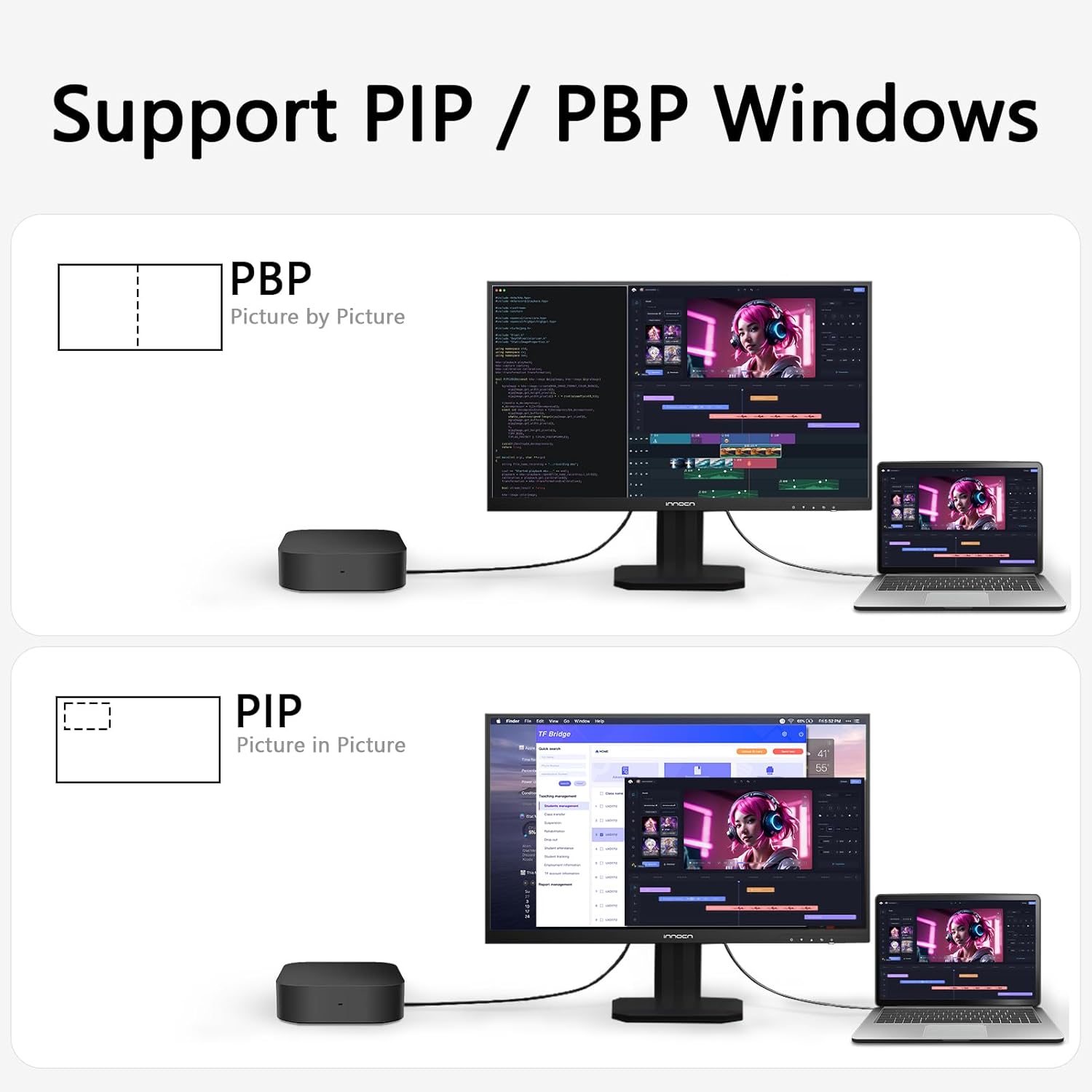
Image: The INNOCN 27D2U monitor displaying content in Picture-by-Picture (PBP) and Picture-in-Picture (PIP) modes, allowing multiple inputs to be viewed simultaneously.
On-Screen Display (OSD) Menu Navigation
Use the buttons located on the bottom right side of the monitor to access and navigate the OSD menu. The menu provides options for Professional settings, Picture settings, Game settings, PIP/PBP, OSD settings, and Other settings.
- Professional Settings: Adjust color modes (Standard, sRGB, Adobe, DCI-P3), Gamma, Color Temperature (Natural, Design, Warm, Cool, User), Sharpness, Shadow Balance, Low Blue Light, Hue, Saturation, and Dynamic Brightness.
- Picture Settings: Control Brightness, Contrast, Dynamic Contrast Ratio (DCR), Contextual Model (Movie, Reading, Night, Care Eyes), HDR (Standard, Movie, Design), and Aspect Ratio.
- Game Settings: Optimize display for different game genres with RTS/RPG, FPS Arena, and MOBA Arena modes. Adjust Response Time (Off, Normal, Fast, Ultra Fast) and Backlight Contrast.
- OSD Settings: Configure Language, OSD Time Out, OSD H/V Position, OSD Transparency, and Hotkey settings.
- Other Settings: Manage Input Signal, Volume, Auto Power, Eye-care Reminder, and Light Sensor.
Maintenance
- Cleaning: Use a soft, lint-free cloth to gently wipe the screen. For stubborn marks, lightly dampen the cloth with water or a mild, non-abrasive screen cleaner. Avoid using harsh chemicals or abrasive materials.
- Ventilation: Ensure the monitor's ventilation openings are not blocked to prevent overheating.
- Storage: When not in use for extended periods, store the monitor in a cool, dry place, ideally in its original packaging.
Troubleshooting
| Issue | Possible Solution |
|---|---|
| No image on screen | Check power connection and ensure the monitor is turned on. Verify video cable (DP/HDMI/USB-C) is securely connected to both the monitor and the source device. Select the correct input source via the OSD menu. |
| Image is blurry or distorted | Ensure the display resolution on your device matches the monitor's native resolution (3840x2160). Check video cable for damage or loose connections. Adjust sharpness settings in the OSD menu. |
| Colors appear incorrect | Adjust color settings (Hue, Saturation, Color Temperature) in the OSD menu. Try different color modes (sRGB, Adobe, DCI-P3) under Professional settings. |
| Monitor not responding to controls | Power cycle the monitor (turn off, unplug, wait 30 seconds, plug back in, turn on). |
Specifications
- Model: 27D2U
- Screen Size: 27 Inches
- Panel Type: IPS Panel with LED Backlit Technology
- Resolution: 4K UHD (3840 x 2160)
- Aspect Ratio: 16:9
- Refresh Rate: 60Hz
- Brightness: 400 nits (Max)
- Contrast Ratio: 1500:1
- Color Gamut: sRGB 99%
- Color Depth: 1.07 Billion colors (8bits+FRC)
- HDR Support: Display HDR 10
- Viewing Angle: 178° (H/V)
- Ports: 2 x DisplayPort, 2 x HDMI, 1 x 3.5mm Audio Jack
- Stand Adjustments: Tilt (-5° to 20°), Height (±5 inches), Pivot (±90°)
- VESA Compatibility: 100x100mm
- Product Dimensions: 7.67 x 24.17 x 22.5 inches
- Item Weight: 13.86 pounds
Warranty and Support
For warranty information and technical support, please refer to the documentation included with your product or visit the official INNOCN website. Keep your purchase receipt as proof of purchase for warranty claims.
Optional protection plans are available for purchase separately. These plans may offer extended coverage beyond the manufacturer's warranty.


