1. Introduction
Welcome to the INOI A75 User Manual. This guide provides essential information to help you set up, operate, and maintain your new smartphone. Please read this manual carefully to ensure proper use and to maximize the device's performance and longevity.
2. Setup
2.1 Unboxing and Package Contents
Before you begin, ensure all items are present in the package:
- INOI A75 Smartphone
- USB-C Cable
- Power Adapter
- SIM Ejector Tool
- Quick Start Guide
2.2 Inserting SIM and MicroSD Cards
The INOI A75 supports dual SIM cards and a microSD card for expandable storage.
- Locate the SIM tray on the side of your device.
- Insert the SIM ejector tool into the small hole on the tray and press gently until the tray pops out.
- Place your Nano-SIM cards and/or microSD card into the designated slots on the tray, ensuring the gold contacts face downwards.
- Carefully push the tray back into the slot until it is flush with the device.
2.3 Initial Power On and Setup
To power on your device for the first time:
- Press and hold the Power button (located on the right side) until the INOI logo appears.
- Follow the on-screen instructions to select your language, connect to a Wi-Fi network, sign in to your Google account, and set up security features.
2.4 Charging the Device
Before first use, it is recommended to fully charge your INOI A75.
- Connect the USB-C cable to the charging port at the bottom of the phone.
- Connect the other end of the cable to the power adapter, then plug the adapter into a wall outlet.
- The battery indicator on the screen will show the charging status.
3. Operating Your INOI A75
3.1 Device Overview
Familiarize yourself with the physical components of your INOI A75.
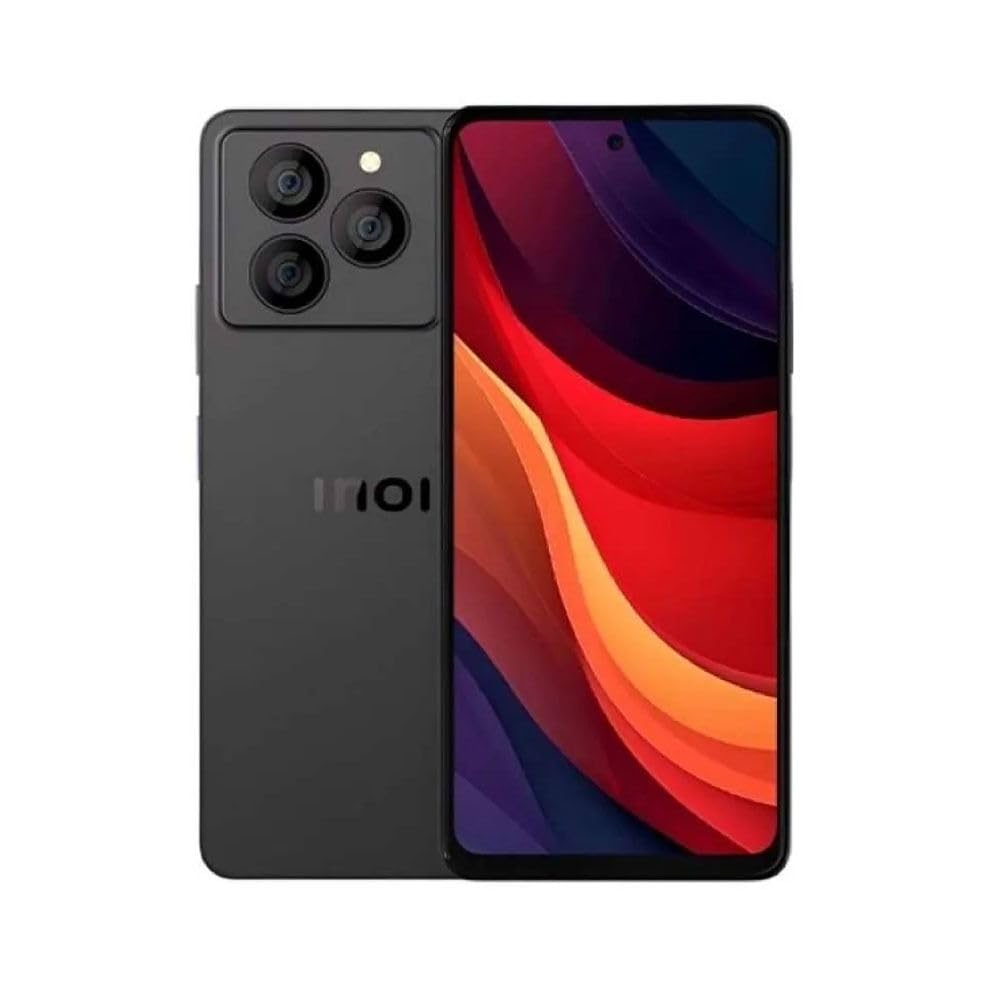
Image 3.1: Back view of the INOI A75 smartphone. This image displays the device's rear panel, featuring a triple camera module in the upper left corner and the 'INOI' brand logo centrally located on the back surface.
3.2 Basic Navigation
The INOI A75 uses Android 14 with intuitive touch gestures:
- Tap: Select an item or open an app.
- Swipe: Scroll through screens or lists.
- Pinch: Zoom in or out on photos and web pages.
- Long Press: Access contextual menus or move icons.
3.3 Making Calls and Sending Messages
To make a call, open the Phone app, enter the number, and tap the call icon. To send a message, open the Messages app, start a new conversation, enter the recipient's number or select from contacts, type your message, and tap send.
3.4 Connecting to Networks
Wi-Fi: Go to Settings > Network & internet > Wi-Fi. Turn Wi-Fi on and select your desired network. Enter the password if prompted.
Mobile Data: Go to Settings > Network & internet > Mobile network. Ensure Mobile data is toggled on.
3.5 Camera Usage
Open the Camera app from your home screen or app drawer. You can switch between photo and video modes, adjust settings like flash and timer, and tap the shutter button to capture images or start/stop video recording.
3.6 App Management
Installing Apps: Open the Google Play Store app, search for your desired app, and tap 'Install'.
Uninstalling Apps: Long-press an app icon on the home screen or in the app drawer, then drag it to 'Uninstall' or select 'App info' and choose 'Uninstall'.
3.7 Security Features
Your INOI A75 includes several security options:
- Fingerprint Sensor: Register your fingerprints in Settings > Security > Fingerprint.
- Face Unlock: Set up facial recognition in Settings > Security > Face unlock.
- PIN/Pattern/Password: Configure a screen lock method in Settings > Security > Screen lock.
4. Maintenance
4.1 Cleaning Your Device
Use a soft, lint-free cloth to gently wipe the screen and body of your phone. Avoid using harsh chemicals or abrasive materials, which can damage the finish.
4.2 Battery Care
To prolong battery life:
- Avoid extreme temperatures.
- Do not let the battery drain completely before recharging regularly.
- Use the original charger and cable provided.
4.3 Software Updates
Regularly check for software updates to ensure your device has the latest features and security patches. Go to Settings > System > System update.
4.4 Data Backup
It is recommended to regularly back up your important data to a cloud service (like Google Drive) or a computer to prevent data loss.
5. Troubleshooting
If you encounter issues with your INOI A75, try the following solutions:
- Device not turning on: Ensure the battery is charged. Press and hold the Power button for at least 10-15 seconds to force a restart.
- Apps crashing or freezing: Close the app and reopen it. Clear the app's cache (Settings > Apps > [App Name] > Storage & cache > Clear cache). If the issue persists, uninstall and reinstall the app.
- Network connectivity issues: Toggle Airplane Mode on and off. Restart your device. Check your SIM card insertion.
- Slow performance: Close unnecessary background apps. Clear cache and temporary files. Consider a factory reset if performance does not improve.
5.1 Factory Reset
A factory reset will erase all data from your phone and restore it to its original factory settings. Back up your data before proceeding.
- Go to Settings > System > Reset options.
- Select 'Erase all data (factory reset)'.
- Confirm your decision and enter your PIN/pattern/password if prompted.
6. Specifications
Key technical specifications for the INOI A75 smartphone:
| Feature | Specification |
|---|---|
| Model | INOI A75 |
| Display | 6.8 inch IPS LCD |
| Processor | MediaTek Helio G99 |
| RAM | 6GB |
| Internal Storage | 256GB |
| Operating System | Android 14 |
| SIM Support | Dual SIM |
| ASIN | B0FQ456PTC |
7. Warranty and Support
7.1 Warranty Information
Your INOI A75 smartphone comes with a limited manufacturer's warranty. Please refer to the warranty card included in your package for specific terms, conditions, and duration. Keep your proof of purchase for warranty claims.
7.2 Customer Support
For technical assistance, service, or further inquiries, please contact INOI customer support through their official website or the contact information provided in your warranty documentation. Have your device model and serial number ready when contacting support.


