Introduction
This manual provides detailed instructions for the setup, operation, and maintenance of your AGPTEK M3 64GB MP3 Player. Featuring Bluetooth 5.3, a 2.4-inch TFT color screen, built-in speaker, and FM radio, this device is designed for portable audio enjoyment. It supports expandable storage up to 128GB via a Micro SD card.
What's in the Box
- AGPTEK M3 MP3 Player
- USB Charging Cable
- Wired Earphones
- User Manual
Product Features
- Storage: 64GB built-in internal storage, expandable up to 128GB with a Micro SD card (total up to 192GB).
- Bluetooth: Bluetooth 5.3 for stable connection, better compatibility, and lower power consumption. Supports automatic reconnection to the last paired device.
- Audio Quality: HiFi lossless sound with a professional audio decoding chip and smart noise reduction.
- Supported Audio Formats: MP3, APE, FLAC, WMA, WAV, AAC. (Note: Does not directly support Audiobook and iTunes formats).
- Display: 2.4-inch TFT color screen for clear visuals.
- Battery Life: Built-in 500mAh battery, 2.5 hours for full charge, offering long music playback.
- Multi-function: Music Play, Video, Recording, FM Radio, Pictures, E-Books, Pedometer, A-B repeat, Stopwatch, Alarm Clock.
- Line-in Function: Supports Line-in recording and playback for connecting with other devices.
- Built-in Speaker: Allows for audio playback without headphones.
Setup
1. Charging the Device
Connect the included USB-C charging cable to the MP3 player and a power source (e.g., computer USB port, USB wall adapter). The device takes approximately 2.5 hours for a full charge.
2. Transferring Music and Files
To transfer music, videos, or other files to your AGPTEK M3 MP3 player:
- Connect the MP3 player to your computer using the provided USB cable.
- On the MP3 player screen, select "Charge & Transfer" if prompted.
- Your computer should recognize the device as a removable disk. Open the device folder.
- Manually create a folder (e.g., "Music") on the device.
- Copy and paste your desired music files (MP3, APE, FLAC, WMA, WAV, AAC) into the created folder. For optimal sorting, it is suggested to rename songs with a numerical prefix (e.g., "001-SongTitle.mp3").
- After transferring, safely eject the device from your computer.
- On the MP3 player, navigate to the "Music" menu and select "Update Playlist" to scan for new songs.
Video: Demonstrates how to transfer files from a PC to the AGPTEK M3 MP3 Player, including connecting the device, creating a music folder, copying files, and updating the playlist.
Note: The file size of a single transfer should not exceed 3GB to ensure transfer speed and stability.
3. Expanding Storage
The AGPTEK M3 supports Micro SD cards up to 128GB. Insert the Micro SD card into the designated slot on the device to expand your storage capacity.
4. Bluetooth Pairing
To connect your MP3 player to Bluetooth headphones or speakers:
- Ensure your Bluetooth headphones or speaker are in pairing mode.
- On the MP3 player, navigate to the "Bluetooth" menu.
- Select "Search for devices" and choose your device from the list.
- The player will automatically connect to the last paired Bluetooth device upon activation.
Note: Bluetooth is not compatible with phones or car Bluetooth systems. For car use, connect via an AUX audio cable.
Operating Instructions
1. Basic Navigation
The AGPTEK M3 features touch buttons for navigation. Use the directional touch buttons to move through menus and select options. The 'M' button typically accesses menu options, and the back arrow button returns to the previous screen.

Image: A detailed view of the AGPTEK M3 MP3 Player, highlighting its 2.4-inch screen, USB-C charging port, Micro SD port, 3.5mm jack, speaker, ON/OFF button, volume controls, and touch buttons with backlight.
2. Music Playback
From the main menu, select "Music" to access your audio library. You can browse by all songs, artists, albums, genres, or playlists. Use the playback controls (play/pause, next/previous track) located on the device's touch panel.
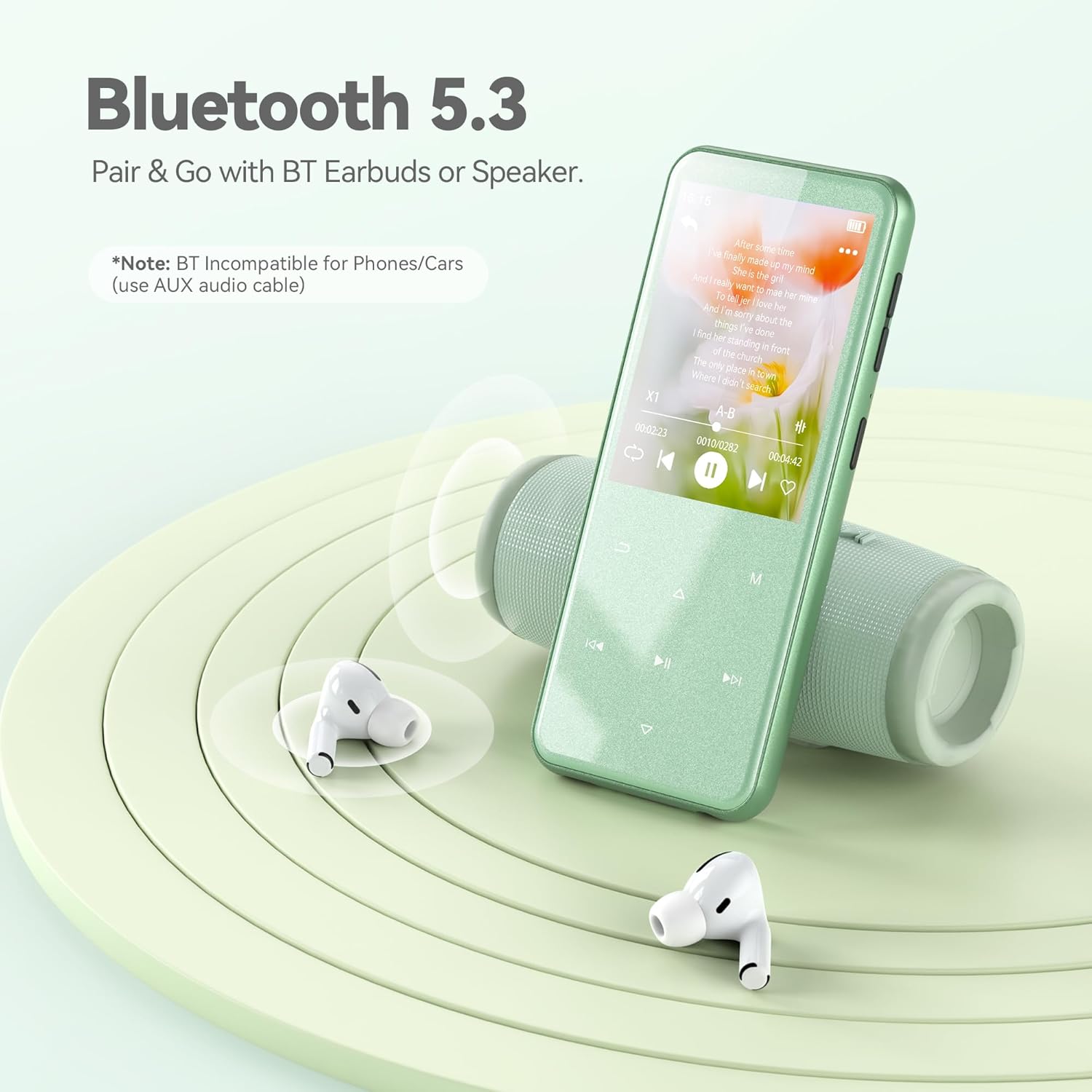
Image: The AGPTEK M3 MP3 Player showing a song playing on its screen, with Bluetooth headphones and a speaker nearby, illustrating its Bluetooth 5.3 connectivity.
3. FM Radio
To use the FM radio function, connect wired headphones to the 3.5mm jack, as they act as the antenna. Navigate to the "Radio" menu to scan for stations and enjoy broadcasts.
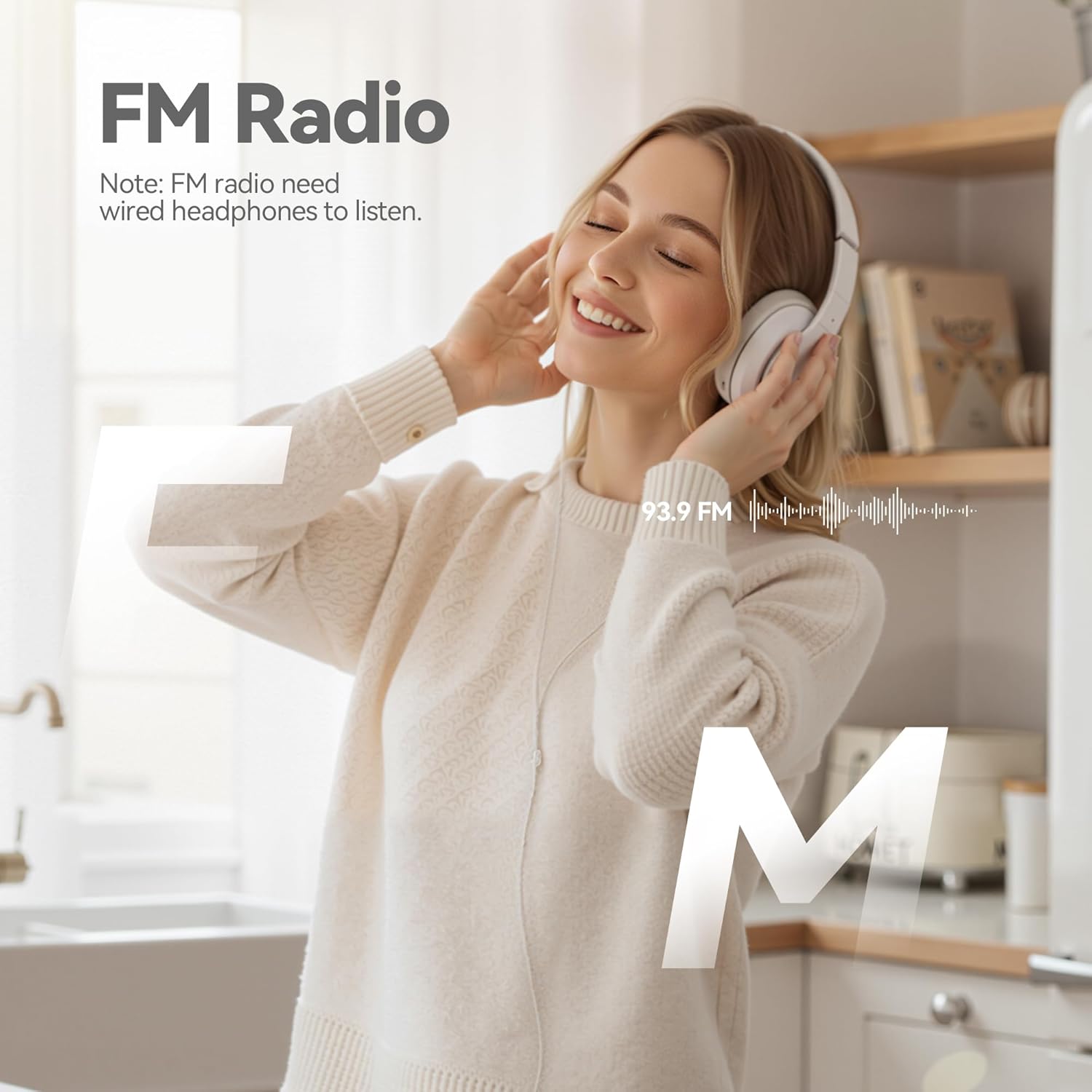
Image: A woman enjoying FM radio using the AGPTEK M3 MP3 Player with wired headphones, emphasizing the radio function.
4. Recording
The device supports voice recording and FM radio recording. Access the "Record" menu to start a new recording. Recordings can be saved in WAV or MP3 formats.
5. Video Playback
The AGPTEK M3 supports AMV/AVI video formats. For other video formats, use the provided AMV video conversion tool on your computer to convert files before transferring them to the player.
6. Other Functions
Explore other features such as viewing pictures, reading e-books, using the pedometer, stopwatch, alarm clock, and A-B repeat function for specific audio segments.
Maintenance
- Keep the device clean and dry. Avoid exposure to extreme temperatures or direct sunlight.
- Use only the provided charging cable to prevent damage to the battery or device.
- Avoid dropping the device or subjecting it to strong impacts.
- Regularly back up important files to your computer to prevent data loss.
Troubleshooting
If you encounter issues such as a black screen, flower screen, or device freezing, a force restart or force flash may resolve the problem.
1. Force Restart
Locate the reset hole on the device (usually on the side or bottom). Use a small tool (like a paperclip or SIM card ejector) to gently press the reset button inside the hole. The device will then restart.
Video: Provides instructions on how to fix screen anomalies (black screen, flower screen, freeze) on AGPTEK MP3 players, demonstrating a force restart using a reset hole.
2. Force Flash (Firmware Upgrade)
If a force restart does not resolve the issue, a firmware upgrade (force flash) may be necessary. This process involves updating the device's software.
- Visit the official AGPTEK website (www.agptek.com).
- Search for your MP3 model (M3) in the upper right corner.
- Download the latest firmware package for your model.
- Unzip and install the provided software (usually in English).
- Open the software and select the downloaded firmware file.
- Connect the MP3 player to your computer using the charging cable while holding down the power button (10-15 seconds) until the device is recognized by the software.
- Select "Charge & Transfer" on the device.
- In the software, ensure "PRODUCTION" is selected and click "Replace" or "Start" to begin the flashing process.
- Wait for the progress bar to reach 100%, indicating a successful flash.
Important: Follow the on-screen instructions carefully during the firmware upgrade process. Incorrect steps may damage the device.
Specifications
| Feature | Detail |
|---|---|
| Brand | AGPTEK |
| Model Name | M3 |
| Memory Storage Capacity | 64 GB (expandable up to 128 GB) |
| Connectivity Technology | Bluetooth 5.3 |
| Screen Size | 2.4 Inches |
| Display Technology | TFT |
| Supported Media Type | Micro SD |
| Supported Audio Formats | MP3, APE, FLAC, WMA, WAV, AAC |
| Battery Average Life | 2.5 Hours (full charge time) |
| Special Feature | Built-In Speaker, FM Radio, Touch Buttons |
Warranty and Support
The AGPTEK M3 MP3 Player comes with a 1-year warranty. For any technical assistance or inquiries, AGPTEK offers lifetime technical support and 7x24 online service. Please refer to the official AGPTEK website or contact customer service for further details.
AGPTEK is committed to providing quality products and excellent customer service. Your feedback drives innovation and product improvement.


