
1. Introduction
This manual provides detailed instructions for the setup, operation, and maintenance of your EWEADN V80 Wired TKL RGB Gaming Keyboard. Please read this manual thoroughly before using the product to ensure optimal performance and longevity.

Figure 1: EWEADN V80 Wired TKL RGB Gaming Keyboard, showcasing its compact design and gradient pink keycaps.
2. Product Overview
2.1 Key Features
- Wired Connectivity: USB-C wired design for stable, interference-free connection with zero input lag.
- 80% TKL Layout: Compact Tenkeyless design saves desk space while retaining essential keys.
- RGB Backlighting: 12 dynamic lighting modes with adjustable brightness and speed.
- Quiet Membrane Switches: Provides tactile feedback with minimal noise, suitable for quiet environments.
- PBT Keycaps: Double-shot injection-molded PBT keycaps with side-printed legends for durability and clear backlighting.
- 26-Key Anti-Ghosting: Ensures accurate registration of multiple simultaneous keypresses.
- Ergonomic Design: Integrated two-stage kickstand for adjustable typing angles to reduce wrist strain.
- Multi-System Support: Compatible with Windows and Mac operating systems.
2.2 What's in the Box
- EWEADN V80 Wired TKL RGB Gaming Keyboard
- USB-C to USB-A Cable
- User Manual
3. Setup
3.1 Connecting the Keyboard
- Locate the USB-C port on the back of the keyboard.
- Connect the USB-C end of the provided cable to the keyboard.
- Connect the USB-A end of the cable to an available USB port on your computer (PC or Mac).
- The keyboard is plug-and-play and should be recognized automatically by your operating system.

Figure 2: The USB-C port for connecting the keyboard to your computer.
3.2 System Compatibility
The EWEADN V80 keyboard is compatible with Windows and Mac operating systems. No additional drivers are typically required for basic functionality.
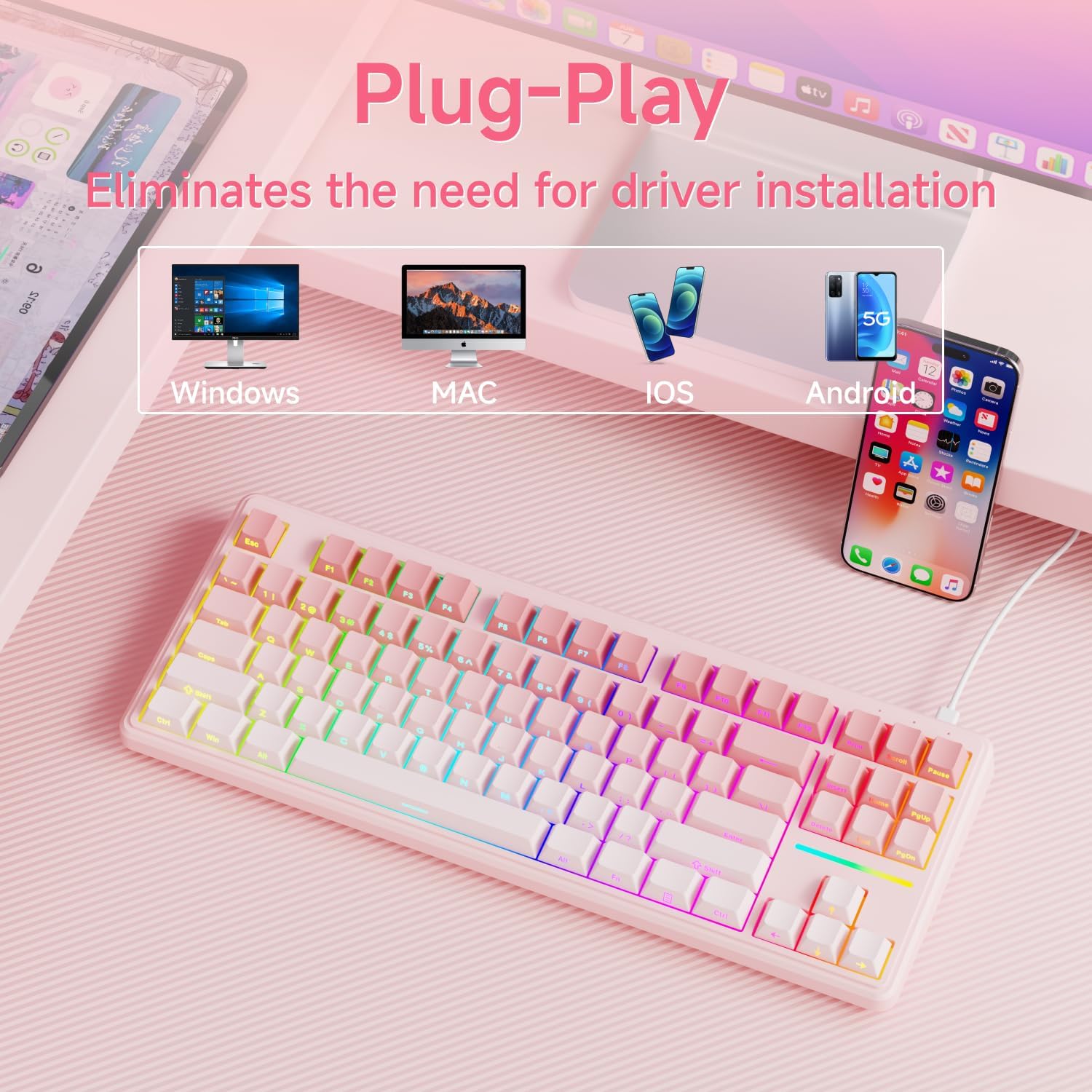
Figure 3: The keyboard supports multiple operating systems and devices for versatile use.
4. Operation
4.1 RGB Backlighting Control
The keyboard features 12 dynamic RGB lighting modes. All lighting functions are controlled using the FN key in combination with other keys.
- Turn On/Off Backlight: Press FN + BackSpace.
- Change Lighting Mode: Press FN + Insert to cycle through 12 different lighting effects.
- Adjust Brightness: Press FN + PU (Page Up) to increase brightness, FN + PD (Page Down) to decrease brightness.
- Adjust Speed: Press FN + '-' to decrease lighting speed, FN + '=' to increase lighting speed.
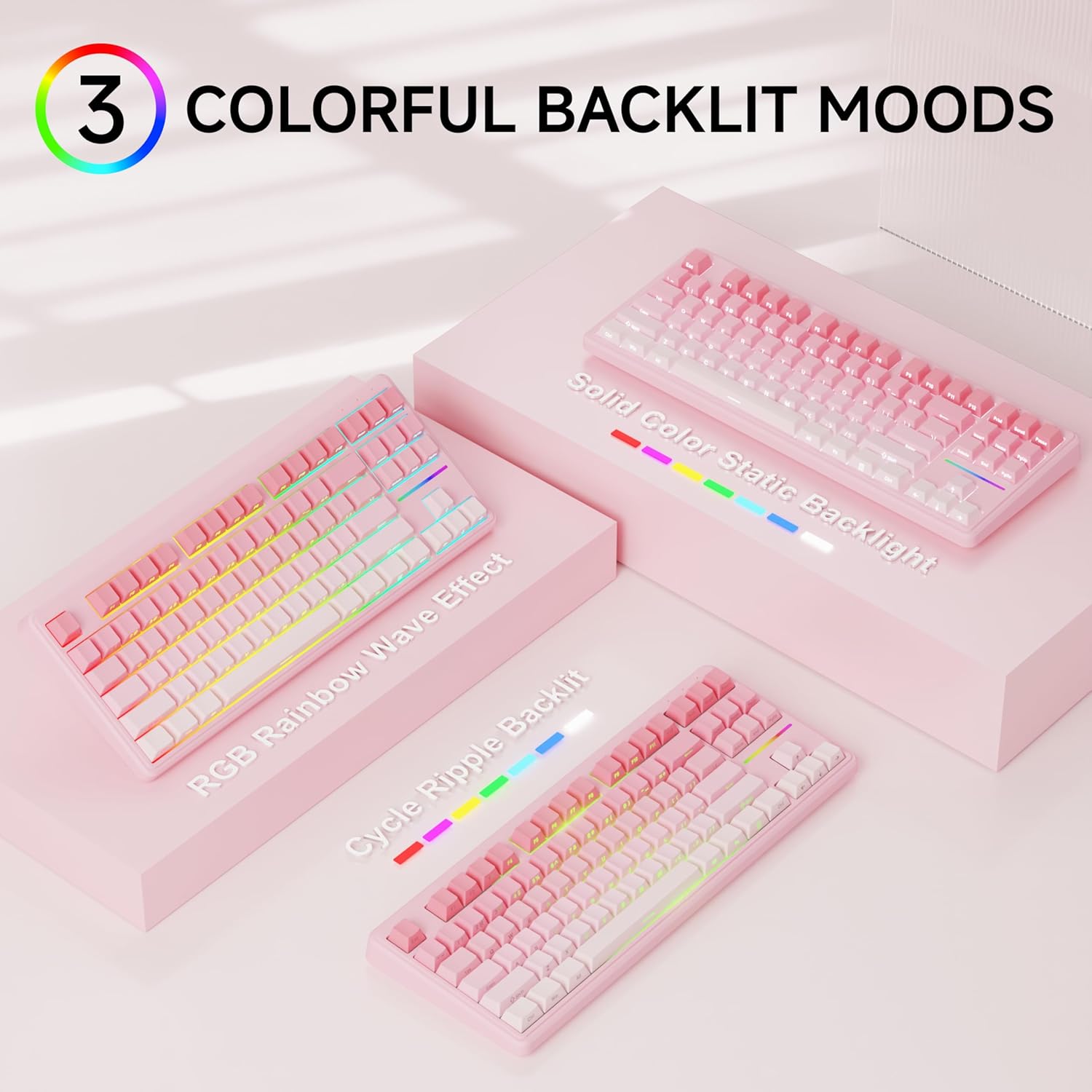
Figure 4: Examples of the diverse RGB backlighting modes available on the keyboard.
Video 1: A short demonstration of the EWEADN V80 Wired RGB Gaming Keyboard's lighting effects and compact design.
4.2 Key Functions (FN Combinations)
| Combination | Function |
|---|---|
| FN + F1 | Screen Brightness - |
| FN + F2 | Screen Brightness + |
| FN + F3 | Convert Mode |
| FN + F4 | Microphone Mute |
| FN + F5 | Multi-media |
| FN + F6 | Previous Song |
| FN + F7 | Play/Pause |
| FN + F8 | Next Song |
| FN + F9 | Volume - |
| FN + F10 | Volume + |
| FN + F11 | Mute |
| FN + F12 | Calculator |
4.3 Anti-Ghosting
The V80 keyboard supports 26-key anti-ghosting, ensuring that every keypress is registered accurately, even during rapid and simultaneous inputs common in gaming. This prevents missed commands and enhances your gaming experience.

Figure 5: Illustration of the 26-key anti-ghosting feature, ensuring all simultaneous keypresses are recognized.
5. Maintenance
5.1 Cleaning
- Disconnect the keyboard from your computer before cleaning.
- Use a soft, lint-free cloth slightly dampened with water or a mild cleaning solution to wipe the keycaps and keyboard surface.
- Avoid using harsh chemicals, abrasive cleaners, or spraying liquids directly onto the keyboard.
- Use compressed air to remove dust and debris from between the keycaps.
5.2 Storage
Store the keyboard in a cool, dry place away from direct sunlight and extreme temperatures. If storing for an extended period, consider placing it back in its original packaging to protect it from dust and physical damage.
6. Troubleshooting
6.1 Common Issues
- Keyboard Not Responding:
- Ensure the USB-C cable is securely connected to both the keyboard and the computer.
- Try connecting the keyboard to a different USB port on your computer.
- Restart your computer.
- Backlight Not Working:
- Ensure the backlight is not turned off (FN + BackSpace).
- Adjust the brightness using FN + PU/PD.
- Keys Not Registering:
- Clean the affected key to ensure no debris is obstructing the switch.
- Test the keyboard on another computer to rule out a system-specific issue.
6.2 Contact Support
If you encounter issues not resolved by the troubleshooting steps, please contact EWEADN customer support at eweadnkeyboard@outlook.com. Provide your product model (V80) and a detailed description of the problem.

Figure 6: EWEADN offers comprehensive after-sales support for customer inquiries and issues.
7. Specifications
| Feature | Detail |
|---|---|
| Model Number | V80 |
| Connectivity | Wired (USB-C) |
| Layout | 80% TKL (Tenkeyless) |
| Switch Type | Membrane |
| Keycaps | PBT Double-shot, Side-printed legends |
| Backlighting | RGB (12 modes, adjustable brightness/speed) |
| Anti-Ghosting | 26-Key Rollover |
| Ergonomics | Two-stage adjustable kickstand |
| Product Dimensions | 14.37 x 5.47 x 1.53 inches |
| Item Weight | 1.71 pounds |
| Compatible Devices | Laptop, PC, Smartphone, Tablet |
8. Warranty and Support
The EWEADN V80 Wired TKL RGB Gaming Keyboard comes with a 48-month (4-year) manufacturer warranty. For warranty claims or further assistance, please contact our dedicated customer support team at eweadnkeyboard@outlook.com.


