
Blackview Link8
Blackview Link8 12.7 Inch Android 15 Tablet User Manual
Model: Link8
1. Product Overview
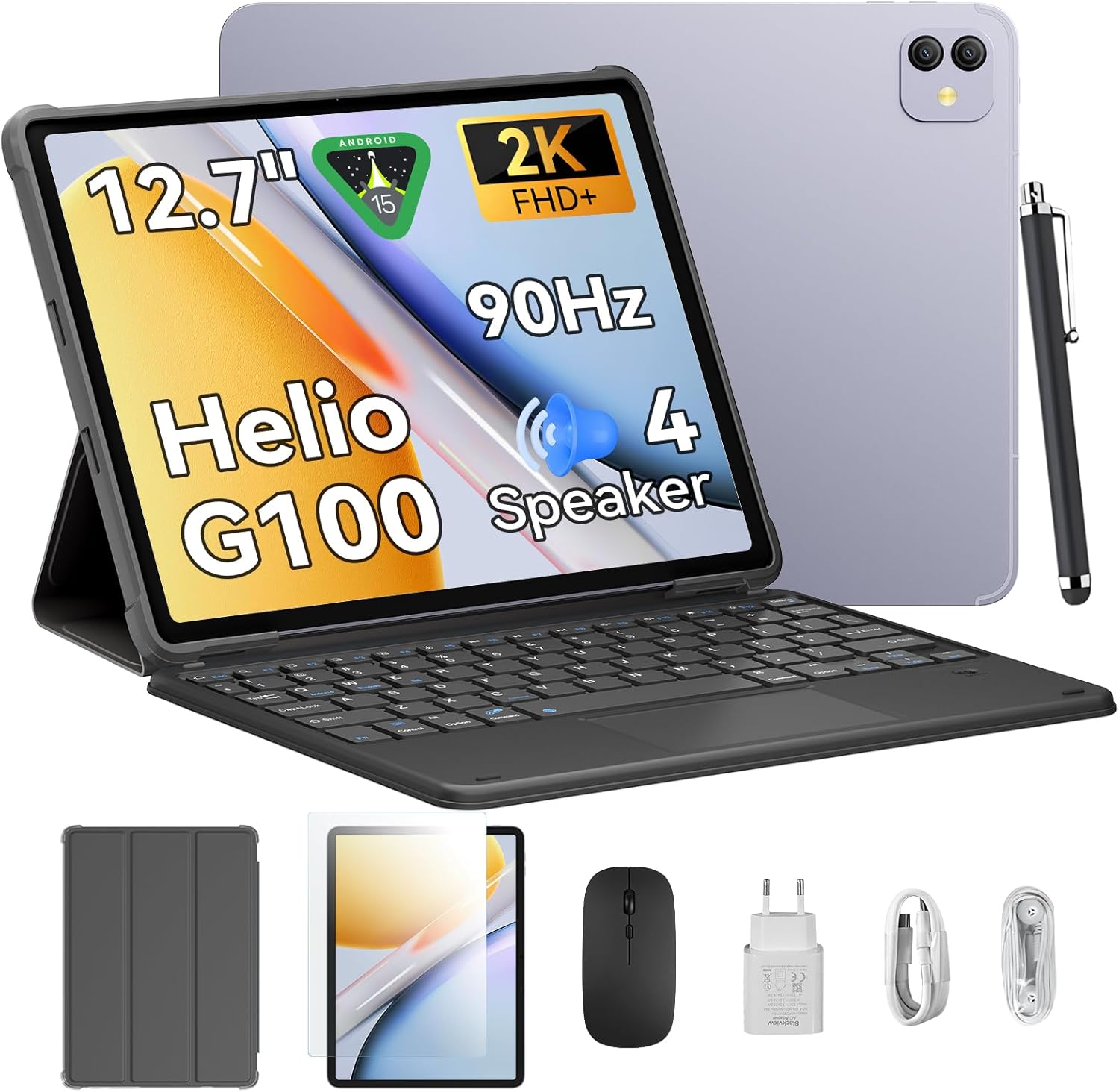
The Blackview Link8 is a 12.7-inch Android 15 tablet designed for versatile use, from entertainment to productivity. It features a 2K+ 90Hz display, a Helio G100 Octa-Core processor, up to 18GB RAM (6GB physical + 12GB virtual), 256GB internal storage, and an 8400mAh battery. The tablet comes with a 16MP camera and supports 2.4G/5G WiFi and GPS. Included accessories enhance its functionality, making it suitable for various tasks.
2. Setup
2.1 Unboxing and Initial Inspection
Carefully remove all items from the packaging. Verify that all components are present:
- Blackview Link8 Tablet
- Keyboard
- Stylus
- Mouse
- Power Adapter
- USB-C Cable
- Earbuds
- Protective Case
- Screen Protector
Inspect the tablet and accessories for any visible damage.
2.2 Charging the Tablet
Before first use, fully charge the tablet. Connect the USB-C cable to the tablet's charging port and the power adapter. Plug the adapter into a wall outlet. The charging indicator will typically appear on the screen.
2.3 Powering On/Off
- To Power On: Press and hold the Power button (usually located on the side) until the Blackview logo appears on the screen.
- To Power Off: Press and hold the Power button until the power options menu appears. Select "Power off."
- To Restart: From the power options menu, select "Restart."
2.4 Initial Setup
Upon first power-on, the tablet will guide you through the initial setup process:
- Select your preferred language.
- Connect to a Wi-Fi network.
- Review and accept the terms and conditions.
- Sign in with your Google account or create a new one. This is essential for downloading apps from the Google Play Store.
- Set up screen lock (PIN, pattern, password, or fingerprint).
- Restore data from a previous device (optional).
2.5 Connecting Accessories
The Blackview Link8 supports various accessories for enhanced productivity:
- Keyboard: The included keyboard typically connects via Bluetooth. Enable Bluetooth on your tablet (Settings > Connected devices > Bluetooth), put the keyboard in pairing mode, and select it from the list of available devices.
- Stylus: The stylus may connect via Bluetooth or be passive. Refer to the stylus-specific instructions for pairing if required.
- Mouse: The included mouse usually connects via Bluetooth. Follow the same Bluetooth pairing steps as for the keyboard.
3. Operating Instructions
3.1 Basic Navigation
- Touch Gestures: Tap to select, swipe to scroll, pinch to zoom.
- Home Screen: Access apps, widgets, and customize layout.
- Notification Panel: Swipe down from the top of the screen to view notifications and quick settings.
- App Drawer: Swipe up from the bottom of the screen to access all installed applications.
3.2 Display Settings
Navigate to Settings > Display to adjust:
- Brightness: Manually adjust or enable adaptive brightness.
- Refresh Rate: The tablet supports a 90Hz refresh rate for smoother visuals. You can often switch between standard (60Hz) and high (90Hz) refresh rates to balance performance and battery life.
- Screen Resolution: The 2K+ display offers high clarity. Resolution settings are usually automatic but can sometimes be adjusted.
- Dark Theme: Enable for a darker interface, which can reduce eye strain and save battery.
3.3 Performance and Storage
The tablet is powered by the Helio G100 Octa-Core processor and features 6GB of physical RAM, expandable with up to 12GB of virtual RAM for a total of 18GB. It includes 256GB of internal storage. To optimize performance:
- Close unused applications running in the background.
- Regularly clear cache for apps.
- Manage storage by deleting unnecessary files or moving them to cloud storage.
3.4 Connectivity
- Wi-Fi: Supports 2.4G and 5G networks for stable and fast internet access. Connect via Settings > Network & internet > Wi-Fi.
- Bluetooth: For connecting wireless accessories like headphones, keyboards, and mice. Enable via Settings > Connected devices > Bluetooth.
- GPS: The tablet includes GPS for location services and navigation. Ensure location services are enabled in Settings > Location.
3.5 Camera Usage
The tablet is equipped with a 16MP camera. Open the Camera app to take photos or record videos. Explore various modes and settings available within the app.
3.6 Audio
The tablet features quad stereo speakers for an immersive audio experience. Adjust volume using the physical volume buttons or through Settings > Sound & vibration.
3.7 Battery Management
The 8400mAh battery provides extended usage. To maximize battery life:
- Reduce screen brightness.
- Disable Wi-Fi, Bluetooth, and GPS when not in use.
- Close background apps.
- Enable battery saver mode (Settings > Battery).
4. Maintenance
4.1 Cleaning the Tablet
Use a soft, lint-free cloth to clean the screen and body of the tablet. For stubborn smudges, slightly dampen the cloth with water or a screen-cleaning solution. Avoid harsh chemicals or abrasive materials.
4.2 Software Updates
Regularly check for and install software updates to ensure optimal performance, security, and access to new features. Go to Settings > System > System update.
4.3 Storage Management
Periodically review your tablet's storage usage (Settings > Storage). Delete unnecessary apps, photos, videos, and files to free up space and maintain performance.
4.4 Battery Care
To prolong battery lifespan, avoid extreme temperatures and do not leave the tablet fully charged or fully discharged for extended periods.
5. Troubleshooting
This section addresses common issues you might encounter with your Blackview Link8 tablet.
5.1 Tablet Not Turning On
- Ensure the tablet is charged. Connect it to the charger and wait a few minutes before attempting to power on.
- Press and hold the Power button for at least 10-15 seconds to force a restart.
5.2 Screen Unresponsive
- Restart the tablet by holding the Power button.
- If the screen is completely frozen, perform a force restart (see 5.1).
5.3 Wi-Fi Connection Issues
- Ensure Wi-Fi is enabled on the tablet.
- Restart your Wi-Fi router.
- Forget the network (Settings > Network & internet > Wi-Fi, tap on network, then "Forget") and reconnect.
5.4 Slow Performance
- Close unused apps.
- Clear app caches (Settings > Apps > [App Name] > Storage & cache > Clear cache).
- Check available storage and free up space if necessary.
- Restart the tablet.
5.5 Factory Reset (Last Resort)
If issues persist, a factory reset may resolve them. Warning: This will erase all data on your tablet. Back up important data before proceeding.
Go to Settings > System > Reset options > Erase all data (factory reset). Follow the on-screen prompts.
6. Specifications
| Feature | Specification |
|---|---|
| Model Name | Link8 |
| Operating System | Android 15 |
| Screen Size | 12.7 Inches |
| Max Screen Resolution | 2160*1600 Pixels (2K+) |
| Refresh Rate | 90Hz |
| Processor | Helio G100 Octa-Core |
| RAM | 6GB (expandable to 18GB with virtual RAM) |
| Internal Storage | 256GB |
| Battery Capacity | 8400mAh |
| Average Battery Life | 24 Hours (usage dependent) |
| Camera | 16MP |
| Connectivity | 2.4G/5G WiFi, Bluetooth, GPS |
| Product Dimensions (LxWxH) | 8 x 11.1 x 0.33 inches |
| Item Weight | 4.77 pounds |
7. Warranty and Support
7.1 Warranty Information
Please refer to the warranty card included with your product or visit the official Blackview website for detailed warranty terms and conditions. Standard warranty typically covers manufacturing defects for a specified period from the date of purchase.
7.2 Customer Support
For technical assistance, troubleshooting beyond this manual, or warranty claims, please contact Blackview customer support. You can usually find contact information on the official Blackview website or through the retailer where you purchased the product.
Visit the Blackview Store on Amazon for more product information and support resources.
Related documentsLink8


Ask a question about this manual
Ask about setup, troubleshooting, compatibility, parts, safety, or missing instructions. Manuals+ will review the question and use this page’s manual context to help answer it.