
1. Introduction
This manual provides detailed instructions for the setup, operation, and maintenance of the Elitech Loget260-TH 4G Real-time Temperature and Humidity Data Logger. Please read this manual thoroughly before using the device to ensure proper functionality and data integrity.
2. Product Overview
The Elitech Loget260-TH is a 4G-enabled data logger designed for real-time monitoring of environmental conditions. It features internal sensors for temperature and humidity, along with capabilities to detect light, shock, and location. Data is uploaded to a cloud platform via a built-in 4G SIM card, allowing for remote monitoring and alarm notifications.
Key Features:
- Double Data Security: Features offline storage for up to 100,000 record points to prevent data loss and supports 'shadow data' for continuous recording even if the device is mistakenly stopped or not activated.
- Multi-Source Sensing: Equipped with internal sensors for Temperature (-30~60℃), Humidity (0~100%RH), Light (0~52000Lux), Shock (0g~16g), and Location (LBS).
- Remote Monitoring: Real-time data upload to the Elitech iCold Cloud platform via a built-in 4G SIM card. Upload intervals are user-settable (1 minute to 24 hours).
- Cloud-based Alarms: Receive alerts via Elitech iCold APP, SMS, Email, or the web platform. The device also provides local sound, screen, and indicator light alarms for offline events.
- Auto Flight Mode / Electronic Fence: Complies with aviation safety standards (Do160). Flight mode can be activated manually, scheduled, or automatically via an electronic fence (custom area).
- Elitech iCold Platform: A cloud-based platform for real-time monitoring, automatic alerts, online data analysis, and management. It is FDA CFR 21 Part 11 compliant and supports iOS and Android applications.
What's in the Box:
- Elitech Loget260-TH Data Logger (Reusable version)
- Built-in SIM card
- User Manual
- USB Type-C Cable
3. Setup
3.1 Initial Device Check
Upon receiving your Loget260-TH, inspect the device for any physical damage. Ensure all components listed in the 'What's in the Box' section are present.
3.2 Charging the Device
Before first use, fully charge the device using the provided USB Type-C cable. Connect the cable to the device's Type-C port and a standard USB power adapter (not included). The charging indicator will show status.
3.3 Activating the SIM Card
The Loget260-TH comes with a built-in 4G SIM card. Activation typically occurs automatically upon first power-on in an area with 4G coverage. Refer to the Elitech iCold platform or app for SIM status and data plan management.
3.4 Elitech iCold Account Setup
- Download the Elitech iCold APP from your device's app store (iOS/Android) or visit the web platform at http://new.i-elitech.com.
- Register for a new account or log in if you already have one.
- Add your Loget260-TH device to your account by scanning the QR code or manually entering the device ID (EFL20C000001, found on the device label).
- Configure device parameters such as upload interval, alarm thresholds, and recipient contacts for SMS/Email alerts through the iCold platform.

Image: Elitech Loget260-TH data logger shown alongside its mobile application and web platform interface, illustrating real-time data monitoring and graphical representation.
4. Operation
4.1 Starting Data Logging
Press the START/STOP button on the device to begin logging. The device display will indicate that logging has started (e.g., 'OK' or a logging icon).
4.2 Stopping Data Logging
Press and hold the START/STOP button until the logging indicator changes, signifying that logging has ceased. Data will be uploaded to the iCold platform.
4.3 Flight Mode
Flight mode disables 4G communication to comply with airline regulations. It can be activated in three ways:
- Manual Activation: Press the airplane icon button on the device.
- Scheduled Activation: Configure a schedule via the Elitech iCold platform.
- Electronic Fence: Set up a custom geographical area in the iCold platform. The device will automatically enter flight mode upon entering this area.
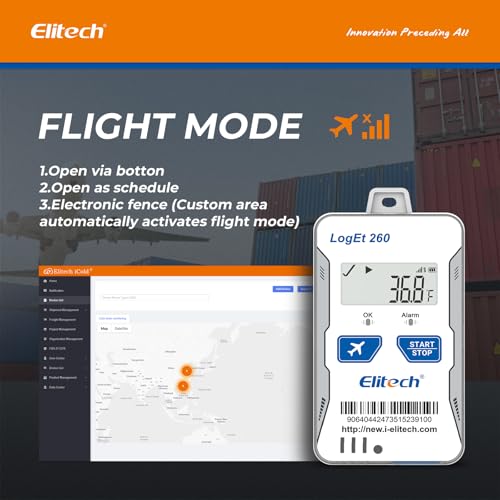
Image: The Loget260-TH device showing its flight mode indicator, accompanied by a visual explanation of how flight mode can be activated.
4.4 Shadow Data Function
The Loget260-TH continuously records data in the background, even if the device is not officially started or is mistakenly stopped. This 'shadow data' ensures that no critical information is lost during unexpected events and can be retrieved from the iCold platform.
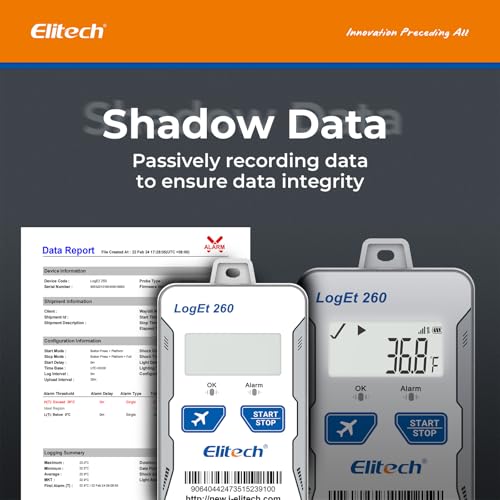
Image: The Loget260-TH device illustrating the 'Shadow Data' feature, which passively records data to maintain integrity.
4.5 Data Access and Reports
All recorded data is uploaded to the Elitech iCold Cloud platform. Users can access real-time data, historical records, and generate PDF or CSV reports directly from the platform or mobile app.

Image: The Loget260-TH device demonstrating its ability to upload data to the cloud and generate PDF and CSV reports.
5. Elitech iCold Platform
The Elitech iCold platform provides comprehensive tools for managing your data loggers and monitoring environmental data.
5.1 Web Platform Functions
- Logger Status Overview: View the status of all connected loggers on a single screen.
- Route Tracking: Monitor the real-time location and historical routes of your loggers.
- History Query & Download: Access and download historical data logs.
- Multi-level Alarms: Configure various alarm rules and notification methods (SMS/Email).
- FDA Data Analysis Report: Generate reports compliant with FDA CFR 21 Part 11 requirements.

Image: Elitech iCold web platform displaying an overview of multiple data loggers' statuses.

Image: Elitech iCold web platform illustrating the route tracking feature for data loggers on a map.
5.2 Mobile Application
The Elitech iCold mobile app provides convenient access to real-time data, device status, and alarm notifications on your smartphone.

Image: The Loget260-TH device alongside a smartphone running the Elitech iCold app, showing detailed data graphs.
6. Maintenance
6.1 Cleaning
Wipe the device clean with a soft, damp cloth. Do not use abrasive cleaners or solvents. Ensure the Type-C port cover is securely closed to maintain IP65 waterproof rating.
6.2 Battery Information
The device requires 2 Lithium Ion batteries. Ensure batteries are charged regularly, especially before long deployments. Battery life can vary based on upload interval and environmental conditions.
6.3 Firmware Updates
Periodically check the Elitech iCold platform or app for available firmware updates to ensure optimal performance and access to new features.
7. Troubleshooting
- Device not connecting to 4G: Ensure the device is in an area with good 4G coverage. Check the SIM card status on the iCold platform. If in flight mode, disable it.
- No data upload: Verify 4G connectivity. Check the device's battery level. Ensure the device is not in flight mode. Confirm the upload interval settings on the iCold platform.
- Inaccurate readings: Ensure the device's sensors are not obstructed. Avoid placing the device in direct sunlight or near heat sources for accurate temperature readings.
- Alarms not received: Check alarm threshold settings and notification contacts on the iCold platform. Ensure your phone or email is correctly configured to receive notifications.
- Device unresponsive: Try connecting the device to a power source. If still unresponsive, contact Elitech support.
8. Specifications
| Specification | Detail |
|---|---|
| Model Number | Loget260-TH |
| Temperature Range (Internal) | -30℃ to 60℃ |
| Humidity Range (Internal) | 0% to 100% RH |
| Light Sensor Range | 0 to 52000 Lux |
| Shock Sensor Range | 0g to 16g |
| Location Tracking | LBS (Location Based Service) |
| Data Storage Capacity | 100,000 record points (offline) |
| Connectivity | Built-in 4G SIM Card |
| Power Source | Battery Powered (2 Lithium Ion batteries required) |
| Charging Port | USB Type-C |
| Waterproof Rating | IP65 |
| Outer Material | Plastic |
| Compliance | FDA CFR 21 Part 11, Do160 |
| Product Care | Wipe Clean |
9. Support
For technical assistance, product inquiries, or warranty information, please contact Elitech customer support through their official website or the Elitech iCold platform. Refer to the included user manual for specific contact details.


