
1. Product Overview
The Veise VE012W-K is a WiFi-enabled fingerprint smart lock designed for residential use. It offers multiple access methods and remote management capabilities through a dedicated mobile application.
Included Components
- WiFi Fingerprint Smart Lock (Exterior and Interior Assemblies)
- 2 Knobs
- Mounting Plate
- Screws
- Latch
- Strike
- 2 Backup Keys
- User Manual
- Installation Manual
Note: 8 AA/LR6 Alkaline batteries are required and not included.
2. Door Compatibility and Preparation
Before installation, ensure your door meets the following specifications:
- Door Thickness: 1-3/8" to 2" (35mm to 50mm)
- Hole Diameter (Deadbolt): 1-1/2" or 2-1/8" (38mm or 54mm)
- Hole Diameter (Knob): 2-1/8" (54mm)
- Backset: 2-3/8" or 2-3/4" (60mm or 70mm)
- Minimum Distance (between deadbolt and knob holes): 1-3/4" (45mm)
The lock is compatible with both left-handed and right-handed doors. It is designed for single cylinder deadbolts and chiseled door preparations. It is not compatible with mortise or integrated lock systems.

Image: Door measurement guide showing required dimensions for installation, including door thickness, hole diameters, backset, and minimum distance between holes. Also indicates compatibility with left/right-handed doors, chiseled, and single cylinder setups.
3. Setup and Installation
Follow these steps for proper installation of your Veise VE012W-K smart lock. A screwdriver is the only tool required.
3.1 Physical Installation
- Install the Latch and Strike: Insert the latch into the door edge and secure it. Install the strike plate on the door frame, ensuring proper alignment with the latch.
- Install the Exterior Assembly: Position the exterior keypad assembly on the door, ensuring the spindle passes through the latch mechanism.
- Install the Interior Assembly: Attach the interior mounting plate, then connect the cable from the exterior assembly to the interior assembly. Secure the interior assembly to the mounting plate. Ensure the torque blade is horizontal before attaching the interior unit.
- Install Batteries: Open the battery cover on the interior assembly and insert 8 AA alkaline batteries. Do not install batteries until the lock is fully installed.
- Install Knobs: Attach the interior and exterior knobs.
Video: Veise VE012W-K Installation Video. This video provides a step-by-step guide for the physical installation of the smart lock, demonstrating how to install the latch, exterior and interior assemblies, and batteries.
Video: Veise VE012W-K Troubleshooting Video. This video includes a segment on confirming correct installation, specifically checking the torque blade position.
3.2 App Pairing and Initial Setup
The Veise VE012W-K connects directly to your 2.4GHz Wi-Fi network without a separate hub. Download the "KK Home" app to pair your lock.
- Download and install the "KK Home" app from your device's app store.
- Create an account and log in.
- Follow the in-app instructions to add your new lock. Ensure your phone and the lock are within 6.56 feet (2 meters) during the pairing process.
- Once connected, you can set up your master passcode and register fingerprints.
Video: Veise VE012W-K APP Pairing Tutorial Video. This video guides users through the process of connecting the smart lock to the mobile application.

Image: Illustration showing the Veise VE012W-K smart lock connecting directly to a 2.4GHz WiFi router, emphasizing no gateway is required.
4. Operating Instructions
The Veise VE012W-K smart lock offers multiple convenient ways to access your property.
4.1 Unlocking Methods
- Fingerprint: Place your registered finger on the biometric sensor for 0.2-second recognition. The lock supports up to 20 fingerprints.
- Passcode: Enter your 6-digit passcode on the backlit keypad. The anti-peep function allows you to enter random digits before or after your actual code to prevent others from guessing it.
- Mobile App: Use the "KK Home" app to remotely lock or unlock your door from anywhere.
- Voice Control: Integrate with Amazon Alexa or Google Assistant for hands-free locking and unlocking using voice commands.
- Physical Key: Use one of the two provided backup keys for manual unlocking, especially useful in case of battery depletion.

Image: Visual representation of the various unlocking methods available for the Veise VE012W-K smart lock, including app control, fingerprint, PIN codes, and physical keys.

Image: Close-up of the backlit keypad on the Veise VE012W-K smart lock, illustrating its visibility for nighttime use and indicators for low battery, incorrect entry, and successful program/access.
4.2 User Management and Remote Access
Manage access for family, guests, and service providers through the "KK Home" app.
- PIN Code Management: Create, share, or remove over 100 PIN codes. Options include permanent, scheduled, recurring, and one-time access codes.
- Fingerprint Management: Add or remove up to 20 fingerprints for family members and trusted individuals.
- Remote Monitoring: Check the lock's status, battery levels, and access history from anywhere via the app.
- Real-time Alerts: Receive instant notifications for security events, such as unauthorized access attempts or low battery.

Image: Map illustration showing remote control capabilities of the Veise VE012W-K smart lock across different locations, highlighting remote access monitoring, lock monitoring, real-time notifications, alerts, app lock/unlock, user authorization, permissions update, and access granting/sharing.

Image: Diagram illustrating different types of smart codes for the Veise VE012W-K smart lock: permanent codes for family, duration codes for vacation renters, recurring codes for pet sitters, and one-time codes for guests, managed remotely.
Video: Veise VE012W-K APP User Guideline. This video covers various functions within the mobile application, including managing users and monitoring activity.
4.3 Auto-Lock and Security Features
- Auto-Lock: The lock can be set to automatically lock after a period of 10 to 180 seconds. This feature can be configured via the app.
- One-Touch Lock: The lock can be secured with a single touch on the keypad or fingerprint sensor.
- Anti-Peep Keypad: Enter random digits before or after your actual passcode to prevent others from observing your code.
- Wrong Attempts Lockout: After 10 incorrect passcode attempts, the lock will temporarily disable for 3 minutes.
- Vacation Mode: Activate vacation mode via the app to disable all user PIN codes and fingerprints, enhancing security when you are away. Unlocking with a physical key will trigger an alarm in this mode.
- Silent Mode: Enable silent mode through the app to disable lock sounds for quiet operation.
Video: Preview of Veise VE012W-K App Control. This short video demonstrates the app interface for locking and unlocking, including auto-lock settings.
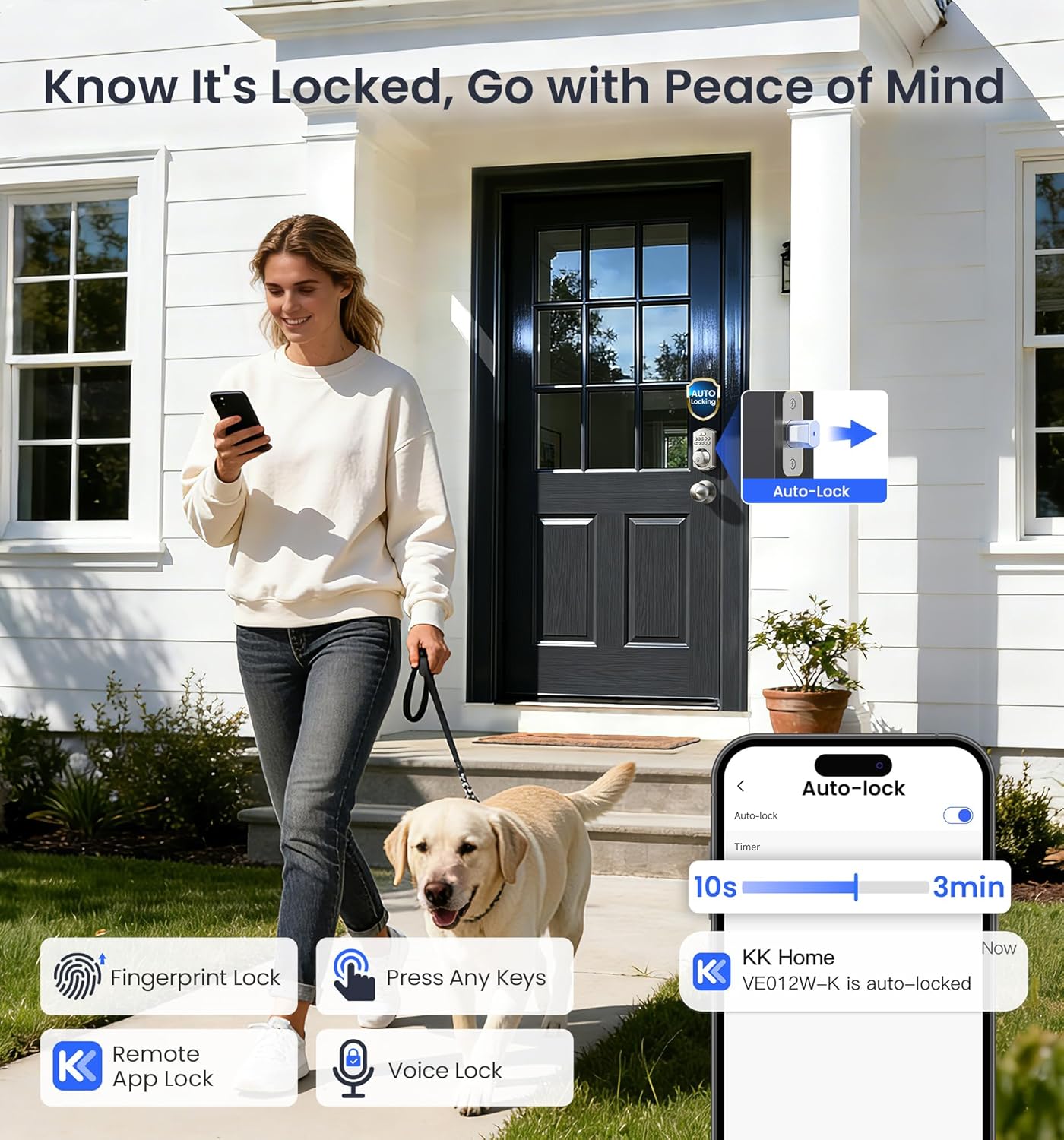
Image: A person walking away from a door with the Veise VE012W-K smart lock, illustrating the auto-lock feature and various locking methods like fingerprint, keypad, remote app, and voice lock.

Image: Close-up of the Veise VE012W-K smart lock's internal components, highlighting local storage and AES 128-bit encryption for data privacy and security.
5. Maintenance
5.1 Battery Replacement
The Veise VE012W-K smart lock is powered by 8 AA/LR6 Alkaline batteries. The app provides low battery notifications, and the keypad will also display a light alert when batteries are low.
- When a low battery alert is received or indicated, replace all 8 AA batteries promptly.
- To replace, remove the battery cover on the interior assembly, carefully remove old batteries, and insert new ones according to polarity markings.
- Replace the battery cover.

Image: Illustration showing the battery compartment of the Veise VE012W-K smart lock, a keypad light alert, and a mobile app notification for low battery, indicating the need for replacement.
5.2 Cleaning
Clean the lock's exterior with a soft, damp cloth. Avoid abrasive cleaners or solvents that could damage the finish or electronic components.
6. Troubleshooting
6.1 Common Issues
- Lock not responding: Check battery levels. Ensure the interior assembly is properly seated and connected.
- Fingerprint not recognized: Ensure your finger is clean and dry. Re-register your fingerprint if issues persist. The AI self-learning sensor improves recognition over time.
- Wi-Fi connectivity issues: Ensure your router is 2.4GHz and within range. Restart your router and the lock if necessary.
- App not connecting: Ensure Bluetooth is enabled on your phone during initial setup. Check your phone's internet connection.
- Lockout: If the lock enters lockout mode after multiple incorrect attempts, wait for the 3-minute timer to expire or use a physical key.
Video: Veise VE012W-K Troubleshooting Video. This video covers various troubleshooting steps for common issues with the smart lock.
6.2 Resetting the Lock
If you encounter persistent issues, a factory reset may be necessary. This will erase all user data and settings, returning the lock to its default state.
- Locate the reset button on the interior assembly (often a small pinhole).
- Using a reset tool (e.g., a bent paperclip), press and hold the reset button for 5 seconds.
- Continue holding until you hear a long beep and the latch bolt automatically extends.
- Release the button. The lock is now reset and will need to be re-paired with the app.
Video: How to Reset (Veise VE012W-K). This video provides a clear demonstration of the factory reset procedure for the smart lock.
7. Specifications
| Feature | Detail |
|---|---|
| Brand | Veise |
| Model Number | VE012W-K |
| Lock Type | Biometric, Deadbolt, Keypad, Wi-Fi Smart Lock |
| Material | Aluminum, Metal, Premium Metal |
| Color | Satin Nickel |
| Item Dimensions (L x W x H) | 9.8 x 7.2 x 3.5 inches |
| Item Weight | 1.39 kg |
| Power Source | 8 AA/LR6 Alkaline batteries (not included) |
| Connectivity Protocol | Bluetooth, Wi-Fi (2.4GHz) |
| Control Methods | App, Remote, Voice (Alexa, Google Assistant), Fingerprint, Passcode, Keys |
| Fingerprint Recognition | 0.2s recognition, up to 20 fingerprints |
| Passcode Capacity | 100+ PIN codes |
| Security Certification | BHMA/ANSI Grade 3, 128-bit encryption |
| Weather Resistance | IP55 rated |
8. Warranty and Support
Veise provides comprehensive customer support for your smart lock.
- Limited Warranty: Includes a 1-year limited warranty.
- Extended Warranty: A free 1-year extension is available with product registration, totaling 2 years of coverage.
- Phone Support: Available Monday–Friday 9 AM–5 PM PST, and Saturday 7 AM–3 PM PST.
- Email Support: 24/7 email support is available from the Veise support team.
For further assistance, please refer to the official Veise website or contact their customer service directly.

Image: Graphic detailing Veise's US-based support, including 2-year quality protection (with registration), phone support hours, lifetime 24/7 one-to-one service, and 30-day free returns.


